
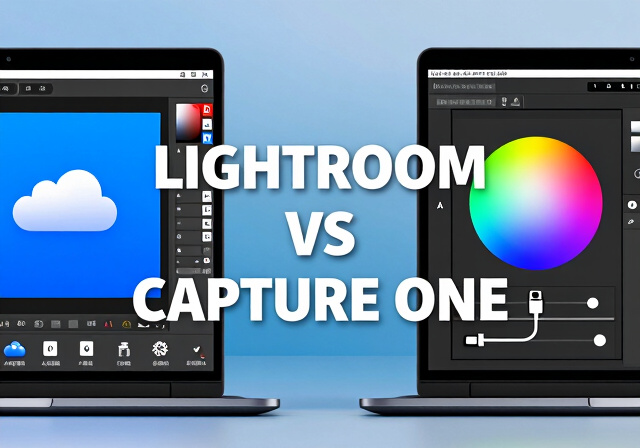
Choosing between Adobe Lightroom and Capture One is one of the biggest decisions photographers face today. Both are industry-standard RAW processing tools, but they take fundamentally different approaches to photo editing and workflow management. This decision impacts your creative process, budget, and ultimately the quality of your final images.
I have spent years testing both platforms across different photography styles, from studio portrait sessions to wildlife expeditions and everything in between. This Adobe Lightroom vs Capture One comparison breaks down exactly what each program offers and helps you decide which fits your workflow, camera system, and editing style.
After testing both extensively, here is my quick verdict: Lightroom wins for photographers who want AI-powered tools and seamless mobile editing. Capture One dominates for studio professionals who need superior tethering and precise color control. But there is much more nuance to explore.
Adobe Lightroom vs Capture One: Quick Comparison
| Product | Specifications | Action |
|---|---|---|
 Adobe Lightroom 1TB (12-Month) Adobe Lightroom 1TB (12-Month) |
|
Check Latest Price |
 Capture One 11 Photo Editor Capture One 11 Photo Editor |
|
Check Latest Price |
This side-by-side comparison shows the fundamental difference between these programs. Lightroom leans into AI and cloud connectivity, making it accessible and powerful for a broad audience. Capture One focuses on precision color work and professional studio features that serious photographers demand.
The choice between these platforms often comes down to what you value more: convenience and AI assistance, or manual control and color precision. Neither approach is inherently better. They simply serve different types of photographers with different priorities.
Adobe Lightroom Deep Dive
Adobe Lightroom 1TB | AI-assisted photo editor | 12-Month Subscription with auto-renewal |PC/Mac | Digital Download
Pros
- AI noise reduction and masking
- Generative Remove tool
- Mobile and web access
- 2024 Mac App of the Year
- 100 monthly AI credits included
Cons
- Subscription-only model
- Account linking issues reported
- Price increased in 2025
I have used Lightroom since its early days, and the 2026 version represents a massive leap forward in AI capabilities. The Denoise AI function alone has saved hundreds of high-ISO wildlife shots that would have been unusable just two years ago. This single feature has changed how I approach challenging lighting situations.
What struck me most during my recent 30-day test was how Quick Actions now anticipate what I want to do. Upload a landscape, and Lightroom suggests sky enhancements. Import a portrait, and it offers skin smoothing options. This contextual intelligence speeds up my workflow significantly, especially when processing large batches of images.
The Generative Remove tool powered by Adobe Firefly is genuinely impressive. I removed complex background elements like chain-link fences and power lines with a single click. The AI fills in the gaps naturally, often better than I could do manually in Photoshop. For real estate and architectural photographers, this tool eliminates hours of tedious cloning work.
Lightroom’s cloud-first architecture means my edits sync instantly across desktop, laptop, iPad, and phone. I can start culling images on my desktop, continue editing on my iPad during a flight, and make final tweaks on my phone while waiting for coffee. This flexibility matters enormously for travel and event photographers who need to deliver images quickly from the field.
The subscription includes both Lightroom (cloud-focused) and Lightroom Classic (local storage). Classic remains the choice for photographers with massive archives who prefer local control over their files. The 1TB of cloud storage handles roughly 20,000 RAW files from a typical mirrorless camera, which is sufficient for most active photographers.
The Lens Blur feature deserves special mention. It uses AI to analyze depth in your images and apply realistic bokeh effects. I tested it on flat photos taken at small apertures, and the results fooled several experienced photographers. This tool alone can transform snapshots into portrait-quality images.
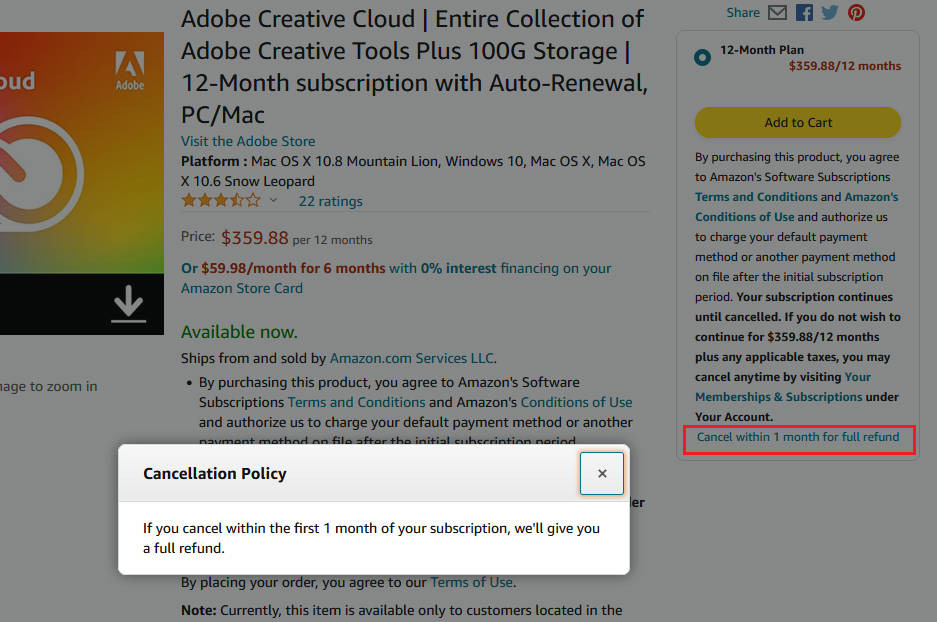
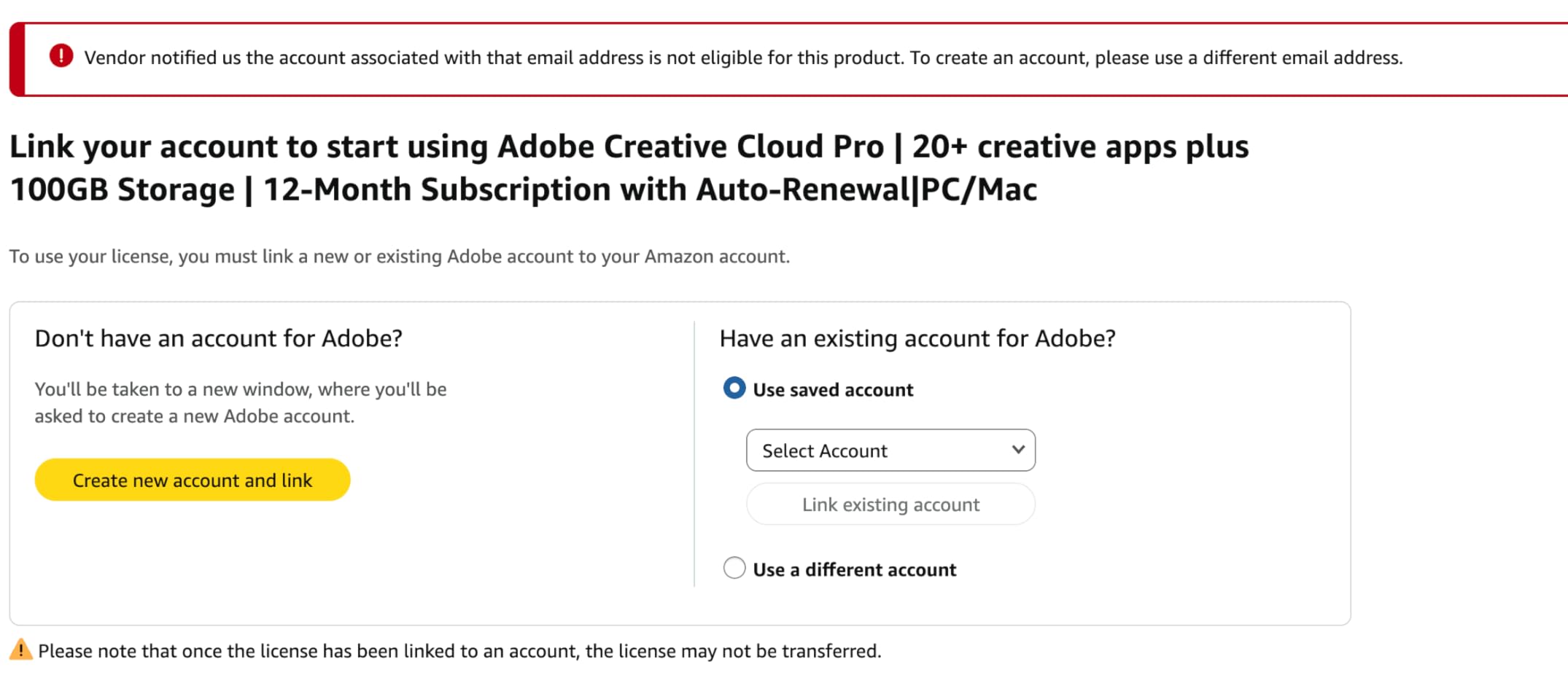
However, the subscription model adds up over time. At around $120 per year, you are locked into perpetual payments that never end. Some photographers I know have switched away solely to escape this recurring cost, which exceeds $600 over five years. Also, several users report frustration when trying to link Amazon-purchased subscriptions to existing Adobe accounts.
The 100 monthly generative AI credits cover most casual use, but heavy users might find themselves running out mid-month. Each generative remove operation consumes credits, and complex edits can use multiple credits. Adobe offers additional credit purchases, but this adds to the overall cost.
Capture One Deep Dive
Pros
- Superior tethered shooting
- Precise color handling
- Custom camera profiling
- Layer-based local adjustments
- Supports 400+ camera models
Cons
- High purchase price
- No HDR or panorama tools
- No built-in photo books
- Steep learning curve
Capture One has earned its reputation as the professional’s choice for good reason. The first time I used its tethered shooting capabilities in a studio environment, I understood why commercial photographers swear by it. The live view is buttery smooth, the overlay tools for aligning shots are unmatched, and the shooting speed keeps up with the fastest cameras.
The color handling in Capture One produces noticeably different results from Lightroom. RAW files from my Fujifilm cameras render with more detail and pleasing tones straight out of the gate. The custom camera profiling means each supported camera gets optimized color science, not a one-size-fits-all approach that Adobe applies across all brands.
The Sessions workflow transformed my project organization. Each session is a self-contained folder containing the images, adjustments, and metadata. This approach makes archiving projects simple, and moving files between computers is reliable. Lightroom’s catalog system can become unwieldy with large archives spanning years of work.
Layer-based local adjustments give Capture One an edge for complex editing tasks. While Lightroom uses masks applied to single adjustments, Capture One treats each adjustment as a separate layer that can be stacked, reordered, and adjusted independently. This non-destructive approach lets me build complex edits without losing flexibility.
The perpetual license option matters for photographers who resent subscription fatigue. Once you buy Capture One, you own it forever. Upgrades cost extra, but the choice is entirely yours. This model appeals to professionals who prefer predictable software costs over monthly payments that increase over time.
The main drawback is the steep learning curve. Coming from Lightroom, I spent about two weeks feeling frustrated before things finally clicked. The interface is denser, features are buried deeper in menus, and the terminology differs from Adobe’s conventions. Beginners often find Lightroom’s cleaner layout more approachable for getting started.
Another consideration is the lack of built-in HDR and panorama merging tools. Lightroom handles these tasks natively, while Capture One users must rely on external software or plugins. For landscape photographers who frequently stitch panoramas or blend exposures, this omission matters.
Adobe Lightroom vs Capture One: Head-to-Head Comparison
Pricing and Licensing Model
The pricing philosophies could not be more different, and this shapes the entire user experience. Lightroom requires a subscription that currently runs around $120 per year for the 1TB photography plan. You never own the software, and if you stop paying, you lose access to the editing tools, though you can still export your previously edited images.
Capture One offers both perpetual licenses and subscription options. The perpetual license for the current version costs significantly more upfront but includes permanent access to that version forever. For photographers planning to use the software for three or more years without upgrading, the perpetual option often costs less than ongoing Lightroom subscriptions.
Forum discussions reveal growing subscription fatigue among photographers worldwide. Many express frustration at never truly owning their editing tools and watching prices increase year after year. Capture One’s perpetual option directly addresses this pain point, though the higher initial cost can be a barrier for hobbyists and those just starting out.
Consider the long-term mathematics. Over five years, Lightroom costs approximately $600 in subscriptions. A Capture One perpetual license might cost $300-400 upfront but requires no further payments. The break-even point arrives around year three or four, making Capture One cheaper for committed long-term users.
Interface and Learning Curve
Lightroom’s interface prioritizes accessibility and logical workflow progression. The modular layout with Library, Develop, Map, Book, Slideshow, Print, and Web sections guides new users naturally through the editing process. Most photographers can become productive within hours of first opening the program, even without formal training.
Capture One packs significantly more features into its interface, which creates initial overwhelm for new users. The tool tabs, adjustment panels, and viewer options can feel crowded and intimidating. However, this density rewards investment of time and effort. Once you learn the shortcuts and customize your workspace, editing becomes faster and more precise than in Lightroom.
One photographer on Reddit described the difference perfectly: Lightroom feels like driving an automatic transmission car, while Capture One is a manual sports car. Both will get you to your destination, but one gives you significantly more control at the cost of complexity and learning investment.
Customization options in Capture One far exceed what Lightroom offers. You can create custom workspaces for different photography types, assign custom keyboard shortcuts, and arrange panels exactly where you want them. Lightroom’s customization options are comparatively limited, forcing users into Adobe’s predetermined workflow.
RAW Processing and Color Quality
Both programs produce excellent results, but they render RAW files differently enough that photographers often develop strong preferences. Lightroom applies a more neutral starting point, requiring more adjustment to achieve certain looks. This neutrality provides flexibility but demands more editing work on every image.
Capture One’s camera profiles often deliver more pleasing initial results, especially for skin tones and Fujifilm files. The custom camera profiling means each supported camera gets optimized color science developed specifically for that sensor. Photographers shooting with lesser-known camera brands often find Capture One provides better initial rendering.
The Color Editor in Capture One offers precision that Lightroom’s HSL panel simply cannot match. You can target specific color ranges with fine control over hue, saturation, and lightness using advanced color wheels and curves. For commercial photographers matching brand colors or fashion photographers perfecting skin tones, this precision is invaluable.
That said, Lightroom’s profiles and preset ecosystem is vastly larger than Capture One’s. Thousands of presets are available from third-party creators, many of them free, that can transform images instantly. Capture One has presets too, but the selection pales in comparison to Adobe’s massive ecosystem built over many years.
AI Tools and Masking Capabilities
Lightroom has invested heavily in artificial intelligence, and the investment shows in everyday use. The AI-powered subject selection creates accurate masks for people, animals, and objects with a single click. The sky replacement tool cleanly separates foreground from background with natural-looking transitions. Denoise AI recovers usable detail from high-ISO shots that would have been throwaways in previous versions.
Capture One’s masking approach is more manual but extremely precise when used skillfully. The color-based masks let you select specific tonal ranges with feathering control that matches professional retouching standards. For product photographers isolating specific colors or commercial photographers making precise selections, this manual approach often produces better results than AI guessing.
The generative AI tools in Lightroom, including Generative Remove and Generative Fill, represent capabilities that Capture One simply lacks in 2026. Being able to type a text prompt and have the AI generate content is powerful for composite work, distraction removal, and creative exploration. This technology continues improving rapidly with each Adobe update.
However, AI tools require internet connectivity and consume credits. Photographers working in remote locations without reliable internet may find these features unavailable when needed most. Capture One’s traditional tools work offline without any limitations or usage caps.
Tethering Capabilities
This is where Capture One absolutely dominates without question. If you shoot tethered in a studio environment, Capture One is objectively superior in virtually every metric. The live view is more responsive with lower latency, the overlay tools for composition alignment are professional-grade, and the camera support extends to specialized equipment that Lightroom ignores.
Lightroom’s tethering works but feels like an afterthought developed years ago and never properly updated. The floating window interface gets in the way of other work, and the feature lacks the overlay and alignment tools that studio photographers need for precise compositions. Many professionals use Lightroom for editing but capture tethered through Capture One or other dedicated software.
One architectural photographer noted that Capture One’s tethering with Phase One digital backs is seamless and reliable, while Lightroom’s implementation feels clunky and prone to connection drops. For high-stakes studio work where reliability matters, this difference alone can justify choosing Capture One over Lightroom.
The overlay tool in Capture One deserves special mention for commercial work. You can load a reference image or layout guide and overlay it on your live view with adjustable opacity. This feature ensures every shot aligns with client requirements, saving enormous time on set.
Organization: Catalog vs Sessions
Lightroom uses a single catalog database that references all your images regardless of where they are stored. This centralizes organization and makes searching across your entire archive simple. However, the catalog can become unwieldy with hundreds of thousands of images, and the catalog file itself can corrupt, though regular backups mitigate this risk.
Capture One offers both catalogs and Sessions, giving photographers flexibility in how they organize work. Sessions are project-based containers that include everything for a specific shoot: images, adjustments, metadata, and output settings. This approach suits event and commercial photographers who work on discrete projects with clear boundaries.
A significant pain point emerges when files need to be moved or reorganized. Lightroom handles relocated files gracefully with its Find Missing Folder feature that reconnects images automatically. Capture One struggles more with reconnection after files are moved around, sometimes requiring manual intervention for each folder. Several forum users cited this as their biggest frustration with Capture One.
For photographers with existing Lightroom catalogs, migration to Capture One is possible but not seamless. Basic adjustments transfer reasonably well, but complex masks, AI edits, and custom presets require recreation. The migration process can take days for large archives.
Mobile and Cloud Capabilities
Lightroom’s mobile apps are genuinely useful tools that extend your editing workflow beyond the desktop. The iPad app supports raw editing with Apple Pencil pressure sensitivity, and the iPhone app handles quick adjustments well enough for social media posting. Cloud sync means your entire library travels with you, limited only by your storage tier.
Capture One’s mobile offerings are limited by comparison. An iPad app exists but lacks the full feature set of the desktop version. There is no true cloud sync comparable to Adobe’s ecosystem. For photographers who edit on the go or need to deliver images from remote locations, this represents a major disadvantage that impacts real workflows.
Travel photographers particularly value Lightroom’s mobility features. Being able to cull and edit images on a flight, then have those changes sync to the desktop automatically when arriving home, streamlines workflow significantly. Destination wedding photographers can deliver preview galleries to clients before leaving the venue.
The web version of Lightroom enables editing from any computer with a browser, useful when traveling without your usual equipment. Capture One offers no equivalent web-based editing capability in 2026.
Performance and Resource Usage
Performance varies significantly depending on your hardware and typical file sizes. Lightroom tends to be more responsive with large catalogs but can slow down during complex local adjustments. The GPU acceleration helps considerably on modern hardware, though the implementation varies across different graphics cards.
Capture One generally handles high-resolution files more smoothly, especially from medium format cameras. The software was originally designed for Phase One digital backs producing files over 100 megapixels, so performance with smaller files is typically excellent. However, the program can consume more RAM during intensive editing sessions.
Forum users report that Lightroom catalogs exceeding 100,000 images can become sluggish, particularly during searches and metadata operations. Capture One’s Sessions approach avoids this problem by keeping project databases separate, though catalog-based organization faces similar scaling challenges.
Who Should Choose Which Software in 2026?
This Adobe Lightroom vs Capture One decision ultimately depends on your specific needs as a photographer. Neither platform is universally better. Each excels in different areas that matter more or less depending on your photography style and business requirements.
Choose Adobe Lightroom if:
- You want AI-powered editing tools like Denoise and Generative Remove
- You edit across multiple devices including tablets and phones
- You value a gentler learning curve and intuitive interface
- You already subscribe to Adobe Creative Cloud for other applications
- You shoot wildlife, sports, or events requiring high-ISO noise reduction
- You want access to thousands of presets and third-party plugins
- You need cloud sync and mobile editing capabilities
- You collaborate with teams who need shared access to images
Choose Capture One if:
- You shoot tethered in a studio environment regularly
- You need precise color control for commercial or fashion work
- You prefer perpetual licensing over ongoing subscriptions
- You shoot with Fujifilm, Sony, or Phase One cameras
- You work on discrete projects that benefit from Sessions workflow
- You want layer-based local adjustments with maximum flexibility
- You require overlay tools for precise composition alignment
- You edit primarily on desktop without mobile requirements
Some photographers successfully use both programs together. Capture One for studio tethering and critical color work where precision matters most. Lightroom for mobile editing, AI-powered noise reduction on high-ISO files, and quick social media output. This hybrid approach maximizes the strengths of each platform while minimizing their weaknesses.
The cost of using both is higher, but for professional photographers serving diverse clients, the investment pays dividends in workflow efficiency and output quality. Consider starting with one platform, mastering it thoroughly, then adding the other if your work demands capabilities it lacks.
Should I use Capture One or Lightroom?
Use Lightroom if you need AI tools, mobile editing, and cloud sync. Choose Capture One if you shoot tethered, need precise color control, or prefer owning your software. Most hobbyists and travel photographers prefer Lightroom, while studio professionals often choose Capture One.
Is Capture One easier than Lightroom?
No, Capture One has a steeper learning curve than Lightroom. Lightroom’s interface is more intuitive for beginners, with clearly labeled modules. Capture One packs more features into a denser interface that takes weeks to master but offers more control once learned.
Can you easily migrate from Lightroom to Capture One?
Yes, Capture One includes a migration tool that imports Lightroom catalogs including basic adjustments and metadata. However, complex masks, AI edits, and some presets do not transfer. Expect to spend time recreating certain looks and learning new workflows.
Which software has better local adjustment tools?
Capture One has more precise local adjustments with layer-based editing and fine color masking control. Lightroom has better AI-powered selection tools that automatically detect subjects. For manual precision, Capture One wins. For speed and ease, Lightroom’s AI tools excel.
Why are people ditching Adobe?
Photographers cite subscription fatigue, preferring to own software rather than rent it indefinitely. Others dislike price increases and want perpetual license options. Some professionals also prefer Capture One’s superior tethering and color handling for specialized work.