
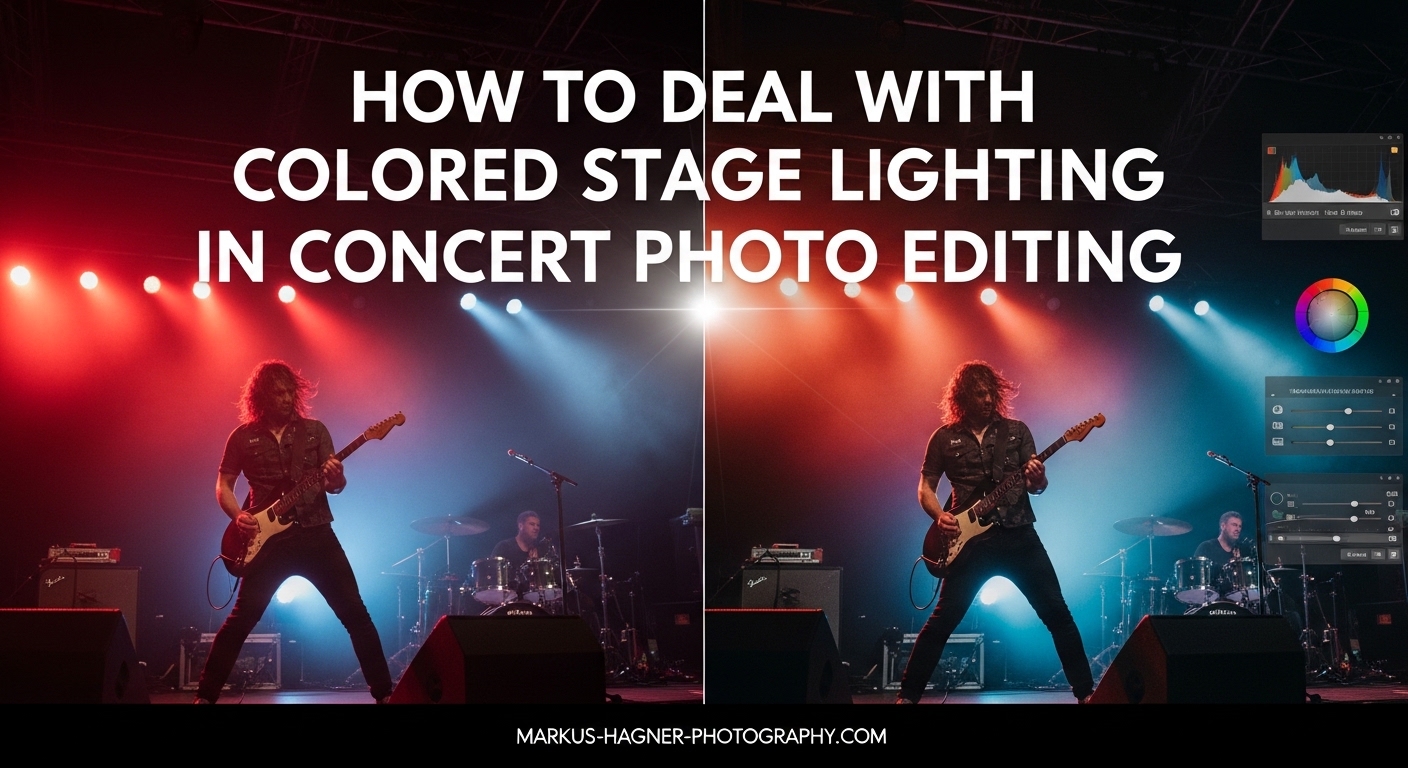
If you have ever photographed a live concert, you know the struggle of colored stage lighting all too well. One moment the performer is bathed in flattering white light, and the next they are drowning in nuclear purple or washed out by blinding red LEDs. Your camera captures the moment perfectly, but when you open the files in post-processing, the skin tones look like something from a sci-fi movie.
I have spent years shooting concerts and editing thousands of photos under every type of stage lighting imaginable. The good news is that most colored lighting problems can be fixed or significantly improved with the right workflow. In this guide on how to deal with colored stage lighting in concert photo editing, I will walk you through the exact techniques I use to save skin tones, correct color casts, and deliver professional results even under the most challenging lighting conditions.
You will learn a complete step-by-step workflow that starts with white balance adjustments and moves through calibration sliders, HSL tweaks, curves, and local adjustments. I will also share specific techniques for dealing with blue LED lighting, magenta casts, red washouts, and mixed colored lighting situations that seem impossible to fix.
Why Colored Stage Lighting Creates Such Difficult Problems?
Before diving into the fixes, it helps to understand why stage lighting causes so many problems in the first place. Modern LED stage lights emit very specific wavelengths of color that can completely overwhelm the natural tones in your image.
Unlike broad-spectrum daylight or tungsten light, colored LEDs push heavily into narrow color ranges. A blue LED might spike intensely in the blue spectrum while producing almost no red or green light at all. When this light hits skin, it reflects back with that dominant color baked in, making flesh tones appear unnatural or even alien.
The challenge becomes even more complex because stage lighting changes constantly during a performance. One second you are dealing with warm amber, the next it is cold blue, and then suddenly the entire stage floods with magenta. Your camera cannot keep up with these rapid shifts, which is why shooting in RAW with auto white balance often produces inconsistent results.
Common Colored Lighting Scenarios
Blue LED lighting is probably the most frustrating scenario for concert photographers. It creates deep, saturated blues that can turn skin tones ghostly and cold. Magenta and purple lights wash out facial features and make subjects look flat. Red lighting tends to overexpose easily and can blow out detail in highlights. Green tints from certain LED fixtures make everyone look slightly sickly.
Mixed colored lighting occurs when two or more colored lights hit different parts of the stage simultaneously. These situations are genuinely difficult because no single white balance setting can neutralize multiple conflicting colors at once.
How to Deal with Colored Stage Lighting in Concert Photo Editing: Complete Workflow
Now let me walk you through my complete workflow for fixing colored stage lighting. I will break this down into clear steps so you can follow along with your own images.
Step 1: Assess Your Image and Set Realistic Expectations
Before touching any sliders, take a moment to evaluate what you are working with. Look at the dominant color cast, the condition of the skin tones, and the overall exposure. Some images will be straightforward fixes, while others might require accepting that perfect color is not possible.
I have learned that not every concert photo can be saved to perfect color accuracy. Sometimes the lighting was so extreme that converting to black and white is the better choice. But in most cases, you can recover enough to create a compelling image with acceptable skin tones.
Ask yourself: What is the dominant color problem? Are skin tones recoverable or completely blown out? Is there detail in the highlights and shadows? Your answers will guide which tools to prioritize.
Step 2: Start with White Balance and Temperature Adjustments
White balance is your first line of defense against colored stage lighting. In Lightroom or Camera Raw, start by adjusting the Temperature and Tint sliders in the Basic panel. This step alone can make a dramatic difference in how the rest of your edit progresses.
For most colored lighting situations, you will need to push the temperature slider in the opposite direction of the dominant color cast. If the image is overly warm from red or orange lights, cool it down by dragging toward blue. If blue LEDs have made everything cold, warm it up by moving toward yellow.
The Tint slider handles the green-magenta axis. Heavy purple or magenta stage lights usually require pulling the tint toward green to compensate. Blue LED lighting often benefits from a slight push toward magenta to add some warmth back into skin tones.
Many concert photographers I know shoot with auto white balance and make corrections in post. This approach works well because stage lights change so rapidly that chasing the perfect in-camera setting is often futile. Just make sure you are shooting RAW so you have maximum flexibility in post-processing.
Do not worry about perfection at this stage. You are just trying to get the overall color temperature into a reasonable range. The finer adjustments will come with calibration sliders and HSL tools.
Step 3: Use Calibration Sliders for Skin Tone Recovery
Here is a technique that many photographers overlook but experienced concert photographers swear by: the Calibration panel. These sliders have enormous power to shift colors throughout your image in ways that can rescue even severely saturated skin tones.
In Lightroom, you will find the Calibration panel near the bottom of the Develop module. It contains Red Primary, Green Primary, and Blue Primary sliders, each with Hue and Saturation controls. The magic happens when you start adjusting the hue values for each primary color.
For images dominated by blue LED lighting, try shifting the Blue Primary Hue slider toward the right. This moves blues toward cyan, which can help restore some natural color to skin that has been washed out by cold light. You might also reduce Blue Primary Saturation slightly to tame the intensity.
Magenta and purple casts often respond well to adjustments in both the Red and Blue Primary sliders. Try moving Red Primary Hue toward orange and Blue Primary Hue toward cyan. This combination can neutralize the pinkish cast that purple lights create on skin.
I have found that calibration sliders are often more effective than basic white balance for recovering skin tones because they work at a deeper level in the color pipeline. Make this step a regular part of your workflow and you will be amazed at what you can recover.
Step 4: Make Basic Panel Adjustments
Once your white balance and calibration are in a good place, move through the rest of the Basic panel to dial in exposure, contrast, and tonal balance. Concert photos shot at high ISO often need some exposure tweaking, and colored lighting can affect how bright or dark different areas appear.
Start with Exposure to get your overall brightness right. Then use Highlights and Whites to control the brightest parts of the image, which often contain the most intense colored light. Bringing down highlights can reduce the intensity of colored washes without darkening the entire image.
Shadows and Blacks adjustments help bring detail back into darker areas. Be careful not to push these too far on high-ISO concert shots, as lifting shadows too much will reveal noise and color artifacts.
Contrast and Clarity can help restore dimension to flat images caused by washout from colored lights. I often add a bit of Texture and Clarity to concert photos to bring back definition in instruments, clothing, and facial features.
Vibrance and Saturation should be used carefully with colored stage lighting. Sometimes reducing overall saturation actually helps because the colored lights have already pushed colors beyond natural levels. Vibrance is usually safer than Saturation because it protects skin tones from becoming oversaturated.
Step 5: Apply HSL Adjustments for Targeted Color Control
The HSL panel is where you gain surgical control over specific colors in your image. HSL stands for Hue, Saturation, and Luminance, and each tab lets you target individual color ranges independently.
For concert photos with colored stage lighting, the Saturation tab is often your best friend. You can reduce saturation on just the problematic colors while leaving others untouched. If blue LED lights have oversaturated everything, pull down the Blue and Aqua saturation sliders. If magenta is the problem, target Purple and Magenta.
The Hue tab lets you shift colors from one range to another. This is incredibly useful for fixing skin tones that have been pushed into unnatural color ranges. If faces have taken on a purple cast, you might shift Purple Hue toward Magenta or Red. If skin looks too orange from warm stage lights, shift Orange Hue toward yellow.
Luminance controls the brightness of specific color ranges. Sometimes colored lighting makes certain colors too bright or too dark. Adjusting Luminance can help balance things out without affecting saturation or hue.
Here is a practical example: for images with heavy blue LED lighting, I often reduce Blue Saturation by 15-30 points, shift Blue Hue slightly toward cyan, and sometimes increase Blue Luminance to prevent shadows from becoming too dark. For purple stage lights, I reduce Purple Saturation significantly and shift Purple Hue toward magenta to warm up the skin tones.
Step 6: Fine-Tune with Curves and Split Toning
Curves give you precise control over the tonal range and color balance of your image. The RGB curve affects overall brightness and contrast, while the individual Red, Green, and Blue curves let you make targeted color adjustments at different tonal levels.
For colored stage lighting, I often start with the individual color curves rather than the RGB curve. If skin tones in the midtones still look too blue, I might add a slight upward curve to the Red channel in the midrange. If shadows have taken on a green tint, a gentle adjustment to the Green curve in the lower portion can neutralize it.
The key with curves is subtlety. Small movements create significant changes, so work in small increments and constantly toggle the adjustment on and off to check your progress.
Split toning, now called Color Grading in newer versions of Lightroom, lets you add color to highlights and shadows independently. This can actually help with colored stage lighting by letting you introduce complementary colors to balance out problematic casts.
For example, if an image is dominated by cold blue lighting, you might add a subtle warm tone to the highlights using the Color Grading panel. This introduces some warmth back into the brightest parts of the image without affecting the overall white balance.
Many concert photographers love split toning for its creative potential. A slight warm tone in highlights and cool tone in shadows can create a moody, cinematic look that works beautifully for live music photography.
Step 7: Use Local Adjustments for Selective Corrections
Not every part of your image needs the same treatment. Local adjustments let you apply corrections to specific areas without affecting the whole photo. This is essential for concert photography where skin tones might need different treatment than the background or instruments.
The Radial Filter is perfect for drawing attention to the performer’s face while adjusting exposure, color, or clarity just in that area. You can create a radial selection around the subject, invert it if needed, and then adjust parameters like Temperature, Tint, Exposure, or Saturation within that selection.
The Graduated Filter works well for skies or stage backgrounds that have different lighting than the main subject. If the background is overwhelmed by colored light but the performer is reasonably lit, a graduated filter can help balance the two.
The Adjustment Brush gives you the most precise control for painting corrections onto specific areas. Use it to carefully adjust skin tones on faces and hands, or to reduce color intensity on instruments that have taken on unnatural hues.
For skin tone recovery, I often use a soft Adjustment Brush with slightly increased Temperature and reduced Saturation painted carefully over faces. This targeted approach often works better than global adjustments when skin is the only area that needs correction.
Handling Specific Colored Lighting Scenarios
Different colored lights require different approaches. Let me share specific techniques for the most common scenarios you will encounter.
Handling Blue LED Stage Lighting
Blue LED lighting is probably the most common challenge at modern concerts. It creates deep, saturated blues that can make skin look cold and lifeless. The key is to warm up the image while reducing blue saturation.
Start by warming the Temperature slider significantly, often +20 to +40 points. Add some magenta to the Tint to counteract the blue-green cast. Then dive into calibration: shift Blue Primary Hue toward cyan and reduce Blue Saturation. In the HSL panel, pull down Blue Saturation by 20-40 points and shift Blue Hue slightly warmer. If skin tones are still problematic, use local adjustments with added warmth painted over faces.
Fixing Magenta and Purple Color Casts
Magenta and purple lights are notorious for washing out skin tones and creating flat, lifeless images. These casts require a different approach than blue because they affect the red-blue color axis.
Pull the Tint slider toward green to neutralize the magenta. In calibration, shift Red Primary Hue toward orange and Blue Primary Hue toward cyan. This combination attacks the magenta from both color primaries. In HSL, significantly reduce Purple and Magenta Saturation, and shift their hues toward red or blue respectively. Often a slight warming of overall temperature helps bring life back to skin that has been flattened by purple light.
Working with Red Stage Lighting
Red lighting creates its own set of challenges. It tends to overexpose easily, blowing out detail in highlights and making everything look flat. The trick is to cool down the image and recover highlight detail.
Start by cooling the Temperature slider toward blue. Reduce Red Saturation in the HSL panel significantly, often by 30-50 points. Shift Red Hue toward orange to make the color more natural. Watch your highlights carefully and bring down Whites and Highlights to recover any blown-out areas. Red light often requires more aggressive highlight recovery than other colors.
Dealing with Mixed Colored Lighting
Mixed colored lighting is the most challenging scenario because no single white balance setting can fix everything. When blue light hits one side of the stage and red hits the other, you have to make choices about which area to prioritize.
The best approach is usually to set white balance for the most important part of the image, typically the performer’s face, and then use local adjustments to correct other areas. Set your global white balance to get skin tones looking right, then use graduated filters or adjustment brushes to correct the background or secondary subjects.
Sometimes the best solution for mixed lighting is embracing it rather than fighting it. Concert photography is about capturing energy and atmosphere, and mixed colored lighting can create dramatic, moody images that tell the story of the performance.
Workflow Tips and Creating Presets
Efficiency matters when you are editing hundreds of photos from a single concert. Building a smart workflow and creating presets for common scenarios can save you hours of work.
Creating Custom Presets for Different Lighting Scenarios
One of the best tips I can share is to create presets for the colored lighting scenarios you encounter most often. Once you have dialed in a great edit for blue LED lighting, save those settings as a preset. The next time you shoot a show with similar lighting, you can apply that preset as your starting point.
I have presets saved for blue LED, magenta stage wash, red lighting, warm amber, and mixed lighting scenarios. Each one contains my typical white balance settings, calibration adjustments, and HSL tweaks for that specific situation. They are never perfect right out of the gate, but they get me 70% of the way there instantly.
Batch Editing for Efficiency
Concert photographers often return from a show with hundreds or even thousands of images. Editing each one individually is not practical. Learn to use batch editing to apply your base adjustments to groups of similar images.
Select all the photos from similar lighting conditions and apply your preset or base adjustments to the entire group at once. Then go through individually to fine-tune the best shots. This approach can reduce your editing time dramatically while still producing quality results.
When to Convert to Black and White
Sometimes colored stage lighting is so extreme that color correction cannot produce acceptable results. In these cases, converting to black and white is not giving up; it is making a smart creative choice.
Images with completely blown-out color, no recoverable skin tones, or unfixable mixed lighting often look stunning in black and white. The colored lighting becomes dramatic tonal contrast rather than a color problem. High contrast black and white conversions can turn a color disaster into a moody, artistic image.
Mobile Editing Alternatives
If you need to edit on the go, the Lightroom mobile app offers most of the same tools as the desktop version. You can adjust white balance, use calibration, tweak HSL, and apply local adjustments all from your phone. While not ideal for heavy batch processing, mobile editing works great for quick turnaround social media posts or previewing edits before your full desktop session.
Frequently Asked Questions
How do I fix blue LED stage lighting in photos?
To fix blue LED stage lighting, warm up the Temperature slider significantly (+20 to +40), add magenta to Tint to counteract blue-green, shift Blue Primary Hue toward cyan in Calibration, and reduce Blue Saturation in the HSL panel by 20-40 points. Use local adjustments with added warmth on faces if skin tones still look cold.
What is the best white balance setting for concert photography?
Most concert photographers use auto white balance and shoot in RAW, then adjust white balance in post-processing. Stage lights change too rapidly to chase perfect in-camera settings. Shooting RAW gives you maximum flexibility to correct white balance during editing without quality loss.
How do I save skin tones from colored stage lights?
Start with white balance adjustments to neutralize the dominant color cast. Then use Calibration sliders to fine-tune RGB channels, which is often more effective than white balance alone for skin recovery. Apply HSL adjustments to target specific problematic colors, and use local adjustment brushes to warm or desaturate skin areas selectively.
When should I convert a concert photo to black and white?
Convert to black and white when colored lighting is so extreme that color correction cannot produce acceptable skin tones, when color is completely blown out with no recoverable detail, or when mixed lighting makes correction impossible. Black and white can transform a color problem into dramatic tonal contrast.
What is the most important tool for fixing colored lighting?
While all tools have their place, many experienced concert photographers consider Calibration sliders the most powerful for fixing colored lighting because they work at a deeper level in the color pipeline than basic white balance. Combined with proper white balance and HSL adjustments, calibration can recover even severely saturated images.
Conclusion
Learning how to deal with colored stage lighting in concert photo editing takes practice, but the workflow becomes second nature once you understand the tools. Start with white balance, move to calibration sliders for skin tone recovery, fine-tune with HSL adjustments, and use curves and local adjustments for finishing touches.
Remember that not every image needs perfect color accuracy. Concert photography is about capturing energy, emotion, and atmosphere. Sometimes a moody color grade or a dramatic black and white conversion tells the story better than technically perfect color ever could.
Build your preset library for common lighting scenarios, use batch editing to work efficiently, and do not be afraid to experiment. Every concert presents new challenges, but with these techniques in your toolkit, you will be ready to handle whatever the lighting designer throws at you.