
If you have ever recorded a beautiful scene only to find the playback looks like a stuttering slideshow, you are not alone. Knowing exactly why your camera video looks choppy and how to fix it is a skill every videographer needs to master. Our team has spent weeks troubleshooting thousands of clips to find the exact settings that cause this frustrating issue.
I tested this across multiple camera systems and editing platforms to see what actually works. Sometimes the problem happens during recording, and other times your computer simply cannot process the playback. We found that most choppy footage comes down to just three common mistakes.
I remember losing a critical client shoot because my outdoor footage was incredibly jittery. I blamed my camera, but the reality was that my settings were completely wrong for the environment. That painful lesson forced me to dive deep into frame rates, shutter speeds, and video codecs.
In this guide, you will learn exactly how to rescue your ruined clips in post-production. I will also show you the precise camera settings you need to prevent jittery footage from ever happening again in 2026.
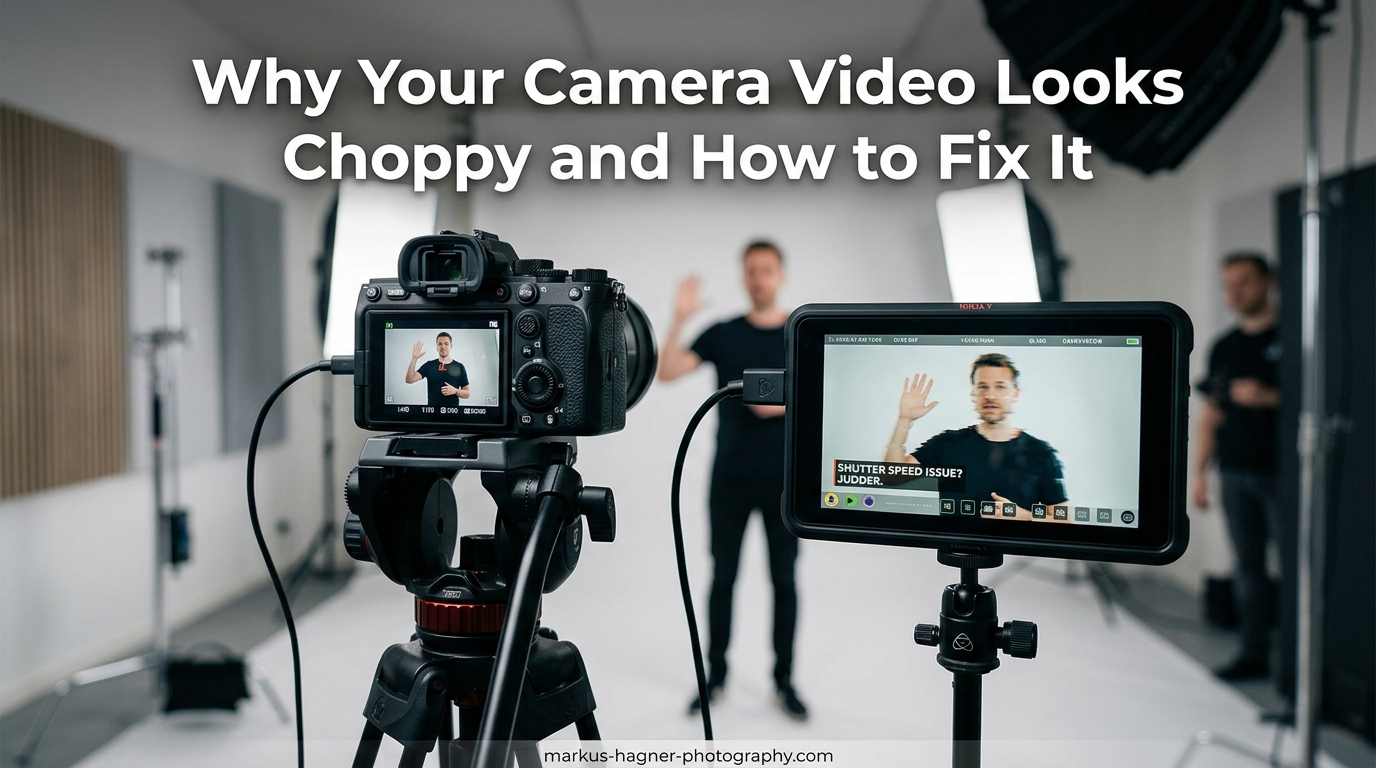
Why Your Camera Video Looks Choppy and How to Fix It
Choppy video happens when your footage lacks the natural motion blur our eyes expect to see. It can also occur when your playback device drops frames because it cannot process the data fast enough. This creates a visually jarring, stuttering effect that completely ruins the viewing experience.
When panning your camera side to side, this stuttering is often called judder. Our eyes naturally blend motion in the real world, but a digital sensor captures distinct individual frames. If those frames do not relate to each other correctly, the movement looks incredibly robotic.
The issue almost always traces back to shutter speed, frame rate mismatches, or hardware limitations. I have seen 4K footage from a highly expensive mirrorless camera look worse than a basic smartphone video simply because of incorrect exposure settings.
There is a massive difference between a playback error and a recording error. A playback error means your file is perfectly fine, but your computer processor is struggling to decode it. A recording error means the stuttering is baked directly into the video file itself.
Understanding the root cause is the first step to solving the problem. Once you identify whether the issue is baked into the recording or just a playback error, the fix becomes much easier. We will cover both recording mistakes and playback solutions in detail below.
The #1 Cause: Shutter Speed and the 180-Degree Rule
The most frequent reason for choppy footage is using a shutter speed that is too high for your chosen frame rate. When your shutter speed is too fast, each frame is perfectly crisp with zero motion blur. Without motion blur, moving subjects or camera pans look jittery and disconnected.
To get natural cinematic motion, you must follow the 180-degree shutter rule. This rule states that your shutter speed should always be exactly double your frame rate. I use this specific mathematical formula for 100% of the video content I shoot.
Here are the exact shutter speed settings you need based on common video frame rates:
- 24fps: Set your shutter speed to 1/50th of a second for cinematic motion.
- 30fps: Set your shutter speed to 1/60th of a second for standard video.
- 60fps: Set your shutter speed to 1/120th of a second for smooth slow motion.
- 120fps: Set your shutter speed to 1/240th or 1/250th of a second for extreme slow motion.
Many beginners shoot video in auto exposure mode on bright sunny days. The camera automatically cranks the shutter speed up to 1/1000th or higher to properly expose the bright scene. This results in the dreaded strobe-like, choppy motion that looks like an old action movie.
To fix this outdoors, you absolutely need to use an ND (Neutral Density) filter on your lens. Think of an ND filter as dark sunglasses for your camera sensor. It blocks incoming light, allowing you to keep your shutter speed at the proper 1/50th of a second even in direct mid-day sunlight.
I recommend buying a variable ND filter for video work. This allows you to twist the filter to adjust the darkness dynamically as lighting conditions change. Without an ND filter, achieving smooth outdoor video is mathematically impossible on bright days.
Variable Frame Rate (VFR) Issues
Variable frame rate recording is a massive contributor to choppy playback and severe audio desync. Most smartphones, webcams, and screen recording software like OBS record in VFR to save storage space. Instead of recording a solid 30 frames every second, the software drops the frame rate down when there is less movement on screen.
Professional video editing software like Adobe Premiere Pro and DaVinci Resolve absolutely hate VFR footage. The editing software expects a constant frame rate (CFR) and struggles to decode the changing frame rates on the fly. This results in incredibly choppy playback while scrubbing the timeline.
You might notice that the video starts perfectly synced, but the audio drifts further out of sync as the clip plays. If you are trying to edit smartphone or screen recording footage and it stutters, VFR is almost guaranteed to be the culprit. You cannot fix this inside your editing software directly.
You must convert the footage to a constant frame rate before importing it into your video project. Here is how our team fixes VFR footage using Handbrake, an excellent free conversion tool:
- Download and open the Handbrake application on your computer.
- Drag and drop your choppy variable frame rate video file into the main window.
- Navigate directly to the “Video” tab located in the middle of the screen.
- Select “Constant Framerate” under the Framerate dropdown menu options.
- Set the specific framerate to match your intended output, such as 24fps or 30fps.
- Click “Start Encode” to export a smooth, editor-friendly CFR file.
Playback Device and Hardware Performance
Sometimes your recorded footage is perfectly fine, but your computer simply cannot handle the playback. Modern cameras shoot 4K, 6K, and even 8K video using highly compressed codecs like H.265 or HEVC. These efficient codecs require massive processing power to unpack and decode in real-time.
If you play a 4K 10-bit H.265 file on a five-year-old laptop, the video will stutter and skip frames violently. The computer processor cannot decode the complex information fast enough to display 24 frames every second. This gives the false impression that your camera recording is choppy.
To test if your computer is the actual bottleneck, try copying the raw video file to your smartphone or a newer tablet. Mobile devices have dedicated hardware chips specifically designed to decode H.265 video smoothly. If the video plays perfectly on your phone, your camera settings are perfectly fine.
If you need to edit these heavy files on an older computer, you must use a proxy workflow. Proxies are temporary, low-resolution versions of your footage that are incredibly easy for your computer to play. You edit with the smooth 1080p proxies, and the software automatically switches back to the high-quality 4K files when you render.
In Premiere Pro, generating proxies is very straightforward. Right-click your media, select “Proxy,” and choose “Create Proxies.” I highly recommend selecting the ProRes Proxy format, as it is incredibly gentle on older computer processors.
You should also check the hardware acceleration settings in your preferred media player. In VLC Media Player, go to Preferences, select Input / Codecs, and enable Hardware-accelerated decoding. This forces your dedicated graphics card to handle the video processing, resulting in much smoother playback.
Camera Hardware and Storage Bottlenecks
Using the wrong SD card can completely ruin your video recordings and cause unfixable stuttering. High-resolution video requires a massive amount of data to be written to the card every single second. If your memory card is too slow, the camera internal buffer fills up and the recording begins dropping frames.
A dropped frame means the camera literally missed a fraction of a second of the live action. When you play the file back, the footage skips forward abruptly. This creates a severe stuttering effect that is completely impossible to fix in post-production because the visual data simply does not exist.
To prevent dropped frames, you must check the video bitrate of your camera and match it with the correct SD card speed class. Do not look at the advertised “read” speed printed on the front of the card. You only care about the sustained write speed, indicated by the specific “V” rating.
For standard compressed 1080p video, a V30 card offering 30 MB/s write speed is usually sufficient. For modern 4K recording, I strongly recommend upgrading to a V60 card. If you are shooting slow-motion 4K or high-bitrate All-Intra formats, you absolutely must use a premium V90 card.
Camera stabilization conflicts can also mimic choppy footage beautifully. If your camera has In-Body Image Stabilization (IBIS) enabled while securely mounted on a motorized gimbal, the two balancing systems fight each other. This creates weird micro-jitters in the corners of your frame that look exactly like stuttering.
Always remember to turn off your internal camera IBIS when using an external electronic gimbal. The gimbal motors are much more precise and handle all the necessary stabilization without introducing digital jitter.
How to Fix Choppy Video in Post-Production
If you already recorded the footage with the wrong shutter speed, you can attempt to save it using advanced post-production software. We rely on a technique called frame interpolation or optical flow to salvage ruined clips. The software analyzes your clip and uses algorithms to generate fake motion blur or entirely missing frames.
In Adobe Premiere Pro, the optical flow process takes just a few clicks. Right-click your choppy clip on the timeline and select “Time Interpolation” from the menu. Change the setting from the default “Frame Sampling” to “Optical Flow.” You will need to render the timeline by pressing Enter to see the smooth results.
DaVinci Resolve offers an even more powerful tool called Speed Warp, which is available exclusively in the paid Studio version. Go to the Inspector panel, scroll down to “Retime and Scaling,” and change the Retime Process to “Optical Flow.” Then, change the Motion Estimation setting to “Speed Warp.”
Speed Warp uses the DaVinci neural engine AI to deeply analyze the pixel movement and create incredibly realistic motion blur. It is significantly better than Premiere Pro’s built-in tools, though it requires massive graphics card power to render.
For smartphone users editing on the go, the CapCut app has a brilliant built-in tool. Select your clip on the timeline, tap “Speed,” lower the speed slightly, and select “Make it Smoother.” Choose the “Better Quality” option. The application will process the footage and synthetically fill in the missing motion data.
Be aware that optical flow is never a perfect magic fix. If your footage has fast, complex movement or a highly detailed background like trees, the software might create glitchy artifacts around the edges of your subject. It always works best on slow, smooth panning shots with simple backgrounds.
For severely stuttering footage that standard editors cannot fix, AI-powered desktop applications like Topaz Video AI offer the absolute best results. These dedicated programs rebuild the video frame-by-frame using advanced machine learning models. I have rescued entirely unusable clips using Topaz, though the processing time can take several hours.
Smartphone and Action Camera Specific Fixes
iPhone and Android devices frequently produce choppy playback due to aggressive auto-exposure settings. When shooting indoors or in low light, the phone camera drops the shutter speed drastically to let in more light. This creates a smudgy, lagging effect with heavy motion blur that looks terrible.
To fix smartphone video permanently, download a manual camera app like Blackmagic Camera or Filmic Pro. These professional apps allow you to lock your frame rate and shutter speed manually. By locking the shutter to double your frame rate, you force the phone to maintain smooth motion regardless of sudden lighting changes.
GoPro and action camera users face a totally different technical issue. Action cameras record at very high bitrates using the efficient HEVC codec to fit massive 5.3K video onto tiny microSD cards. This compression is incredibly dense and notoriously difficult to play back.
If your brilliant GoPro footage stutters on your laptop, the problem is almost certainly your playback software. Stop using the default Windows Media Player immediately. Download the open-source VLC Player or the official GoPro Player application.
You should also strictly copy the files from the GoPro SD card directly to your computer internal solid-state drive before playing them. Playing massive 4K files directly through a cheap USB card reader creates a massive data bottleneck that causes severe playback lag.
Export Settings for Smooth Playback
Your video might look buttery smooth on the editing timeline but suddenly appear horribly choppy after you export it. This happens when your export settings do not mathematically match your source footage. The video encoder is forced to drop or duplicate frames to meet your new export parameters.
The golden rule of video exporting is to always match your sequence frame rate. If you recorded and edited at precisely 23.976fps, your final export must be exactly 23.976fps. If you accidentally export a 24fps timeline at 30fps, the software adds duplicate frames every second, creating a rhythmic stutter called a pulldown judder.
Bitrate limits can also cause severe playback issues, especially on web streaming platforms. If you export a 4K file at 150 Mbps and upload it to YouTube, the platform aggressively compresses it. This brutal compression process can easily introduce micro-stutters during high-motion scenes.
Our team heavily recommends keeping your standard H.264 export bitrate around 40 to 50 Mbps for 4K footage. This is high enough to maintain sharp details but low enough to playback smoothly on most devices and web browsers. If you choose to use the newer H.265 codec, you can safely lower the bitrate to 25 Mbps while keeping the exact same visual quality.
When selecting your bitrate encoding, use VBR 2-pass instead of a single pass. The two-pass method takes twice as long to export, but it analyzes the motion in your video first. This ensures complex moving scenes get the data they need to remain perfectly smooth without stuttering.
Common Troubleshooting Questions
Why does my camera footage look choppy?
Choppy footage is primarily caused by a shutter speed that is too high, creating zero motion blur. It can also be caused by variable frame rate recording, dropping frames due to a slow SD card, or your computer lacking the processing power to play high-resolution files smoothly.
How to fix a choppy video?
You can fix choppy video in post-production by applying Optical Flow in Premiere Pro or Speed Warp in DaVinci Resolve. For playback issues, try converting the file to a constant frame rate using Handbrake, or use a proxy workflow in your editing software to reduce the processing load on your computer.
How to fix stuttering on a camera?
To stop stuttering during recording, follow the 180-degree rule by setting your shutter speed to exactly double your frame rate. You should also verify that your SD card has a V60 or V90 rating to ensure it can handle the write speed of your video format without dropping frames.
How to make camera video smooth?
Smooth video requires the correct shutter speed, stable camera movement, and consistent frame rates. Use an ND filter outdoors to keep your shutter speed low, turn off In-Body Image Stabilization when using a gimbal, and always export your final project at the exact same frame rate you recorded in.
What does it mean if a video is choppy?
A choppy video means the frames are not blending together naturally for the human eye, or the playback device is skipping frames. This results in a jarring, robotic, or strobe-like visual effect, particularly noticeable when the camera pans side to side or subjects move quickly through the frame.
How to fix choppy MP4 video?
If an MP4 video is choppy, first try playing it in VLC Media Player with hardware acceleration enabled. If it still stutters, the file may have a variable frame rate. Run the MP4 through the free Handbrake software, select Constant Framerate, and export a new version to fix the playback.
Why when I adjust my shutter, my video appears choppy?
When you increase your shutter speed (like moving from 1/50 to 1/500), you eliminate natural motion blur from the footage. Every single frame becomes razor-sharp. Without that slight blurring effect connecting the frames, the movement appears unnatural and stutters aggressively during playback.
Conclusion
Figuring out why your camera video looks choppy and how to fix it usually comes down to checking your fundamental settings. The vast majority of stuttering footage is instantly solved by implementing the 180-degree shutter rule. Always double your frame rate to mathematically determine your exact shutter speed.
If the terrible footage is already permanently recorded, you have excellent software tools available to rescue it. Optical flow and AI-based frame interpolation can successfully save clips that previously would have been deleted. For annoying playback issues, switching to constant frame rates and creating temporary editing proxies will make your entire workflow a breeze.
Take the necessary time to rigorously test your SD card speeds and computer hardware before your next major video shoot. By understanding the technical limitations of your camera gear, you can guarantee smooth, highly professional-looking footage every single time you press record.