
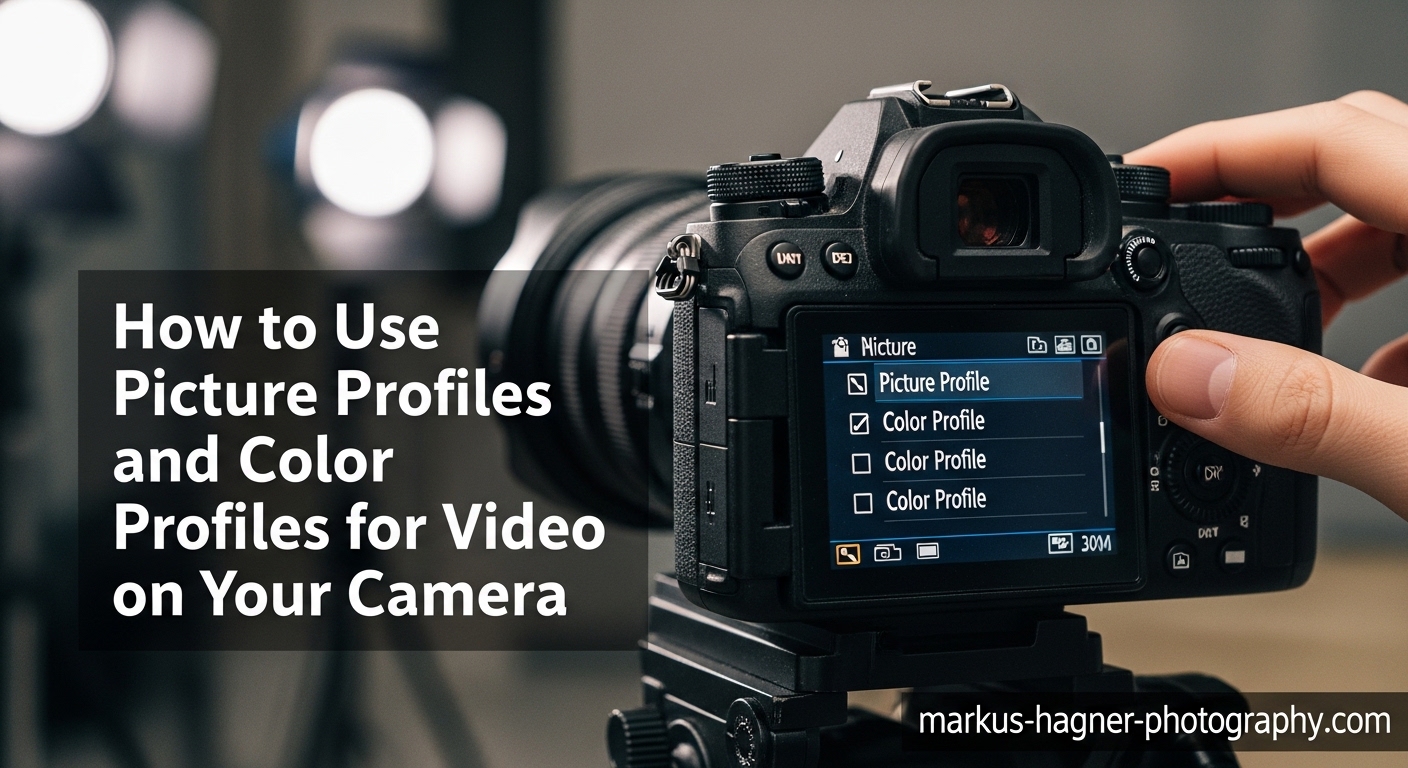
Picture profiles and color profiles for video are the hidden controls that shape how your camera captures and processes every frame. These settings determine the contrast, color saturation, sharpness, and overall look of your footage before you even open an editing program. Most photographers leave these settings on default and wonder why their videos look flat or inconsistent. In this guide, I’ll walk you through exactly what picture profiles are, how they work, and how to use them to transform your video quality. You’ll learn the difference between standard profiles and log profiles, get brand-specific instructions for Sony, Canon, and Nikon cameras, and discover the common mistakes that ruin otherwise great footage.
What Are Picture Profiles and Color Profiles?
Picture profiles are presets built into your camera that define how images and videos are processed during capture. Think of them as recipes that tell your camera’s processor exactly how to handle contrast, color saturation, sharpness, and tone mapping. Different manufacturers use different names for the same concept: Sony calls them Picture Profiles, Canon uses Picture Styles, and Nikon refers to them as Picture Controls. Despite the naming differences, they all serve the same fundamental purpose.
At their core, picture profiles work by adjusting the gamma curve and color processing of your footage. The gamma curve controls how brightness values are distributed across shadows, midtones, and highlights. A standard gamma curve applies contrast immediately, giving you footage that looks “finished” straight out of camera. A log gamma curve flattens the image to preserve maximum dynamic range, leaving the contrast and color decisions for later in post-production.
Color profiles specifically control how colors are captured, saturated, and rendered. They work alongside gamma settings to create the overall look of your footage. Some profiles boost saturation for vibrant, punchy results. Others dial back saturation to preserve color information for grading. Understanding this relationship between gamma and color processing is essential for choosing the right profile for your shoot.
Why do picture profiles matter so much for video? Unlike photography, where you can shoot RAW and adjust everything later, most cameras do not record raw video. This means your picture profile settings get “baked in” to the footage permanently. The profile you choose determines how much dynamic range you capture, how flexible your footage will be in post, and how much work you’ll need to do in color grading. Choose the wrong profile, and you might lose critical highlight detail or end up with footage that’s impossible to color match across different cameras.
Types of Picture Profiles for Video
Not all picture profiles are created equal. Each type serves a different purpose and workflow. Understanding the differences will help you choose the right tool for each shooting situation.
Standard Profiles
Standard profiles are designed to give you good-looking footage straight out of camera. They apply moderate contrast, natural color saturation, and a balanced gamma curve that produces images ready to share with minimal editing. These profiles work well for run-and-gun shooting, documentary work, and situations where you need to deliver footage quickly without extensive color grading. Most cameras default to a standard profile for exactly this reason.
The trade-off with standard profiles is reduced flexibility in post-production. Because contrast and saturation are already applied, you have less room to make adjustments without degrading image quality. If you expose slightly wrong or the lighting changes mid-scene, standard profiles offer limited recovery options compared to flatter alternatives.
Neutral and Flat Profiles
Neutral profiles reduce contrast and saturation to preserve more image data for post-processing. They’re the middle ground between standard profiles and full log profiles. You get footage that looks somewhat flat and desaturated out of camera, but retains more detail in highlights and shadows than a standard profile would capture.
I recommend neutral profiles for shooters who want some grading flexibility but aren’t ready to commit to a full log workflow. They’re particularly useful for events like weddings where lighting varies throughout the day and you need room to adjust exposure and color in post. You can push neutral footage further than standard footage without introducing artifacts or banding.
Vivid and Cinematic Profiles
Vivid profiles boost saturation and contrast to create punchy, eye-catching footage immediately. These profiles are popular for travel videos, real estate, and commercial work where the goal is maximum visual impact without spending hours in an editing suite. The colors pop, the blacks are deep, and the overall look is polished and finished.
Cinematic profiles take a different approach, often applying subtle color shifts and tonal curves that mimic the look of film. They might add a slight warm cast to skin tones or create softer highlight rolloff. These profiles work well for narrative work, music videos, and any project where you want a “film-like” aesthetic without the complexity of shooting and grading log footage.
Log Profiles (S-Log, C-Log, N-Log, V-Log)
Log profiles use a logarithmic gamma curve that compresses the wide dynamic range of the sensor into a format that can be recorded by the camera’s codec. The result is footage that looks extremely flat, washed out, and gray when viewed directly. But this flat appearance is intentional. It preserves 1-2 stops more dynamic range than standard profiles, giving you incredible flexibility to adjust exposure, contrast, and color in post-production.
Each manufacturer has their own log implementation. Sony offers S-Log2 and S-Log3. Canon provides C-Log and C-Log3. Nikon has N-Log. Panasonic uses V-Log. While they work on the same principle, each has slightly different characteristics and requires specific LUTs (look-up tables) for proper conversion to standard viewing gamma.
Log profiles require proper exposure technique and a color grading workflow. You cannot shoot log and deliver footage ungraded. The flat, desaturated look is not a finished product. You’ll need to apply a LUT or manually grade every clip to restore contrast and color. This adds time to your post-production but gives you maximum creative control over the final look.
HLG and HDR Profiles
Hybrid Log-Gamma (HLG) profiles are designed for HDR (High Dynamic Range) workflows. They capture a wider dynamic range than standard profiles while remaining viewable on standard displays without grading. HLG footage looks acceptable on regular monitors and televisions, but truly shines on HDR-capable displays where the additional highlight and shadow detail becomes visible.
HLG is an excellent choice for content creators distributing to platforms that support HDR, such as YouTube and Netflix. You get much of the dynamic range benefit of log profiles without the mandatory color grading step. However, HLG requires careful exposure and monitoring on HDR-capable displays to evaluate the final look accurately.
Brand-Specific Picture Profile Guides
Each camera manufacturer implements picture profiles differently. Here’s what you need to know for the three major brands.
Sony Picture Profiles (PP1-PP11)
Sony cameras use a system of Picture Profile slots numbered PP1 through PP11. Each slot can hold a completely different profile configuration, and you can switch between them quickly from the main menu or a custom button. Sony ships these slots with factory presets, but you can customize every parameter or load entirely different gamma curves into each slot.
PP1 through PP7 typically contain standard gamma profiles with different color characteristics. PP8 and PP9 usually hold S-Log2 and S-Log3 respectively. PP10 and PP11 often contain HLG profiles for HDR workflows. However, the exact configuration varies by camera model, so always check what’s actually loaded in each slot before a shoot.
One common source of confusion for Sony users is the difference between Picture Profiles and Creative Looks. Creative Looks (with names like Standard, Vivid, Portrait, Landscape) are simplified presets designed primarily for JPEG photos and casual video. They offer fewer customization options and don’t include log gamma curves. Picture Profiles are the advanced, professional-grade system with full control over gamma, color matrix, and detail settings. For serious video work, always use Picture Profiles, not Creative Looks.
When choosing between S-Log2 and S-Log3 on Sony cameras, consider your shooting conditions and skill level. S-Log2 has been around longer and has more LUTs available. S-Log3 is newer and designed to be easier to grade, with a gamma curve that responds more like film. S-Log3 also includes S-Gamut3.Cine, a color gamut specifically designed to make skin tones easier to grade. For most shooters, S-Log3 is the better choice unless you have an established S-Log2 workflow.
Canon Picture Styles
Canon calls their picture profile system Picture Styles. The interface is simpler than Sony’s system, with preset styles like Standard, Portrait, Landscape, Neutral, and Faithful available immediately. For video work, Neutral is often the best starting point among the standard styles, as it reduces contrast and saturation to preserve more latitude for grading.
Canon’s log options are C-Log and C-Log3. C-Log is the original implementation, while C-Log3 offers improved shadow detail and easier grading. Not all Canon cameras support log recording, so check your specific model’s capabilities. Cinema EOS cameras and higher-end still cameras like the R5 and R6 include log options, while entry-level models may not.
To set up a Picture Style on Canon cameras, press the Q button (Quick Control) to access the shooting settings screen. Navigate to the Picture Style icon and select your desired style. For custom setups, choose “User Def 1-3” slots where you can save your own adjustments to parameters like sharpness, contrast, saturation, and color tone. If your camera supports C-Log, you’ll find it as an additional Picture Style option rather than in a separate menu.
Nikon Picture Controls
Nikon uses the term Picture Controls for their picture profile system. The available presets include Standard, Neutral, Vivid, Monochrome, Portrait, and Landscape. Like Canon, Nikon keeps things relatively simple compared to Sony’s extensive parameter controls. For video, Neutral is again the recommended starting point among the standard options.
N-Log is Nikon’s log gamma option, but it’s only available on certain cameras, primarily their Z-series mirrorless models. Even then, N-Log may require shooting in 10-bit N-Log format, which limits your codec options compared to standard recording modes. Check your camera’s manual to confirm N-Log availability and any recording restrictions.
Nikon Picture Controls can be customized through the camera menu under the Photo Shooting Menu or Movie Shooting Menu. Select Picture Control, then adjust parameters like sharpening, mid-range sharpening, clarity, contrast, brightness, saturation, and hue. You can save custom controls to the “Custom” slots for quick access. Nikon also offers Picture Control Utility 2 software for creating and managing custom Picture Controls on your computer, which can then be loaded onto your camera.
How to Use Picture Profiles and Color Profiles for Video on Your Camera
Now let’s walk through the actual process of setting up and using picture profiles on your camera. These steps will work for most cameras, though the exact menu locations may differ slightly between brands and models.
Step 1: Access the Picture Profile Menu
First, you need to find where picture profiles live in your camera’s menu system. On Sony cameras, look for “Picture Profile” in the main Camera Settings menu (usually the first or second page). On Canon cameras, press the Q button and navigate to Picture Style. On Nikon cameras, find Picture Control under the Photo Shooting Menu or Movie Shooting Menu. Once you’ve located it, I recommend assigning this menu item to a custom button if your camera allows it. This lets you switch profiles quickly without digging through menus.
Step 2: Select a Profile Slot or Style
Choose the profile slot or style you want to use or modify. If you’re just starting out, pick an unused slot or one of the neutral/flat presets. Avoid modifying the factory default profiles until you understand what each parameter does. It’s better to create custom profiles in empty slots so you can always return to the factory settings if something goes wrong.
Step 3: Adjust the Gamma Curve
The gamma setting is the most important parameter in any picture profile. It determines how brightness values are distributed across your image. For standard shooting, choose “Standard” or “ITU-709” gamma for ready-to-use footage. For maximum flexibility, choose a log gamma like S-Log3, C-Log3, or N-Log. Remember that log gammas require color grading later. HLG is a good middle-ground option that provides extended dynamic range without mandatory grading.
Step 4: Set Color Mode and Saturation
Color mode (sometimes called Color Matrix or Color Gamut) determines how colors are captured and rendered. For standard gamma, choose “Standard” or “ITU-709” color mode. For log gamma, use the matching color gamut: S-Gamut3.Cine for S-Log3, Cinema Gamut for C-Log, etc. Saturation controls color intensity. For log profiles, saturation is typically low by default, which is correct. Don’t boost saturation in a log profile. For standard profiles, adjust saturation to taste, but avoid extreme settings.
Step 5: Configure Sharpness and Detail
Sharpness controls how much edge enhancement is applied to your footage. High sharpness creates crisp-looking footage but can introduce artifacts and make noise more visible. For video, I recommend reducing sharpness slightly below default. This preserves more detail for post-processing and creates a more natural, less “video-like” appearance. Detail settings like crispening, black/white limit, and H/V ratio are advanced options that most shooters can leave at default. If you do adjust them, make small changes and test thoroughly before important shoots.
Step 6: Save and Test Your Profile
Once you’ve configured your picture profile settings, save them to a slot with a name you’ll remember. Then go shoot some test footage in a variety of lighting conditions. Review the footage on a calibrated monitor if possible, or at least on a good quality computer display. Pay attention to how the footage handles highlights, shadows, and skin tones. If something doesn’t look right, go back and adjust. Repeat this process until you have profiles you trust for different shooting situations.
Common Mistakes When Using Picture Profiles
Even experienced shooters make mistakes with picture profiles. Here are the most common errors I see and how to avoid them.
Shooting Log Without Understanding Exposure
Log profiles require different exposure technique than standard profiles. Because log compresses dynamic range, the histogram and exposure meter behave differently. Many shooters underexpose log footage because it looks bright on the LCD when it’s actually severely underexposed. The result is noisy, unusable footage. Learn to expose log properly by overexposing slightly (typically 1-2 stops) and using waveform monitors or zebras instead of trusting the LCD appearance.
Not Grading Log Footage
Log footage is not finished footage. I’ve seen shooters deliver log footage directly to clients because they didn’t understand it needed grading. The flat, desaturated look is not artistic. It’s incomplete. Always budget time for color grading when shooting log, or choose a standard profile if you need to deliver immediately.
Using the Wrong Profile for the Situation
Log profiles are powerful tools, but they’re not always the right choice. If you’re shooting a quick social media video with no time for editing, use a standard profile. If you’re shooting a documentary with constantly changing light and no controlled grading time, neutral might be better than log. Match your profile choice to your workflow and delivery requirements, not just to what sounds “professional.”
Forgetting to Match Profiles Across Cameras
In multi-camera shoots, every camera must use the same picture profile or footage won’t match. Even different cameras from the same manufacturer can have slightly different color science. Test all cameras together before the shoot and create matching profiles. This saves hours of frustration in post when you’re trying to match footage that was never shot to match.
Over-Sharpening In-Camera
High in-camera sharpening destroys detail and makes footage look harsh and video-like. It also amplifies noise and creates edge artifacts that can’t be removed later. For video work, reduce sharpening below default. You can always add sharpening in post, but you can never remove it once it’s baked into the footage.
Tips for Getting the Best Results
Here are my top recommendations for working with picture profiles effectively.
Test Profiles Before Important Shoots
Never use a new picture profile on a critical shoot without testing it first. Spend time shooting in conditions similar to your actual shoot. Review footage on a proper display. Grade the footage if you’re shooting log. Only when you’re confident in the results should you use that profile for paid work.
Expose Correctly for Log
Log profiles require overexposure compared to standard profiles. Most log gammas are designed to be exposed 1-2 stops brighter than middle gray. Use zebras set to 90-95% to protect highlights, and use a waveform monitor if available. The LCD image will look too bright, but the data will be correct. Underexposed log footage is noisy and nearly impossible to fix.
Use Monitoring Tools
The LCD on your camera lies, especially with log profiles. Invest in proper monitoring tools. Waveform monitors show actual exposure levels. False color displays highlight problem areas. Vectorscopes help evaluate skin tones. An external monitor with these tools makes a huge difference in exposure accuracy and consistency.
Keep Profiles Consistent for Multi-Camera Shoots
When shooting with multiple cameras, create matching picture profiles for each camera and test them together. Use the same gamma, same color mode, and similar settings across all cameras. Label each profile clearly so there’s no confusion on set. The time you spend matching cameras before the shoot saves hours in post.
Match White Balance to Your Profile Choice
White balance and picture profiles interact. Log profiles in particular can shift color balance in unexpected ways. Set custom white balance for each lighting condition rather than relying on auto white balance. This ensures consistent color across all your footage and makes color grading much easier.
Frequently Asked Questions
What is the best color profile for video?
There is no single best color profile for video. The right choice depends on your workflow and delivery requirements. For quick turnaround projects with no time for grading, use a standard or neutral profile. For maximum creative control and dynamic range, use a log profile like S-Log3, C-Log3, or N-Log. For HDR distribution, HLG profiles offer a good balance of dynamic range and convenience.
Do picture profiles affect RAW video?
Picture profiles do not affect raw video in the same way they affect compressed video formats. Raw video captures sensor data with minimal processing, so most picture profile settings are not baked in. However, some cameras may still apply certain processing even to raw footage, and picture profiles often affect how the image appears in the camera’s viewfinder and LCD. Always check your specific camera’s documentation to understand how picture profiles interact with raw recording.
What is the difference between S-Log2 and S-Log3?
S-Log2 is Sony’s older log gamma, while S-Log3 is the newer version designed to be easier to grade. S-Log3 has a different gamma curve that responds more like film, better shadow detail retention, and is paired with S-Gamut3.Cine color mode specifically optimized for skin tones. S-Log2 has more LUTs available due to its age, but for most shooters, S-Log3 is now the better choice.
Should I use picture profiles for photography too?
Picture profiles affect JPEG photos the same way they affect video, but they do not affect raw photos. If you shoot JPEG, picture profiles matter and will be baked into your images. If you shoot raw, picture profiles only affect the preview image and thumbnail, not the actual raw data. For raw photographers, picture profiles are mainly useful for getting a better idea of how your final image might look while shooting.
Why does my log footage look washed out?
Log footage is supposed to look washed out. The flat, gray, desaturated appearance is intentional. Log profiles compress the wide dynamic range of the sensor into a format that can be recorded, which results in this low-contrast look. You must apply a LUT or color grade the footage to restore proper contrast and color. Log footage is not finished footage. It is intermediate footage designed for maximum flexibility in post-production.
Conclusion
Picture profiles and color profiles for video give you control over the fundamental look of your footage. Whether you choose standard profiles for quick delivery, neutral profiles for moderate flexibility, or log profiles for maximum creative control, understanding how these settings work is essential for any serious videographer. Start with your camera’s neutral or flat preset and experiment. Learn proper exposure technique for log profiles before committing to them on important shoots. Test thoroughly, keep notes on what works, and build a collection of trusted profiles for different situations. The time you invest in mastering picture profiles will pay off in consistently better-looking video.