
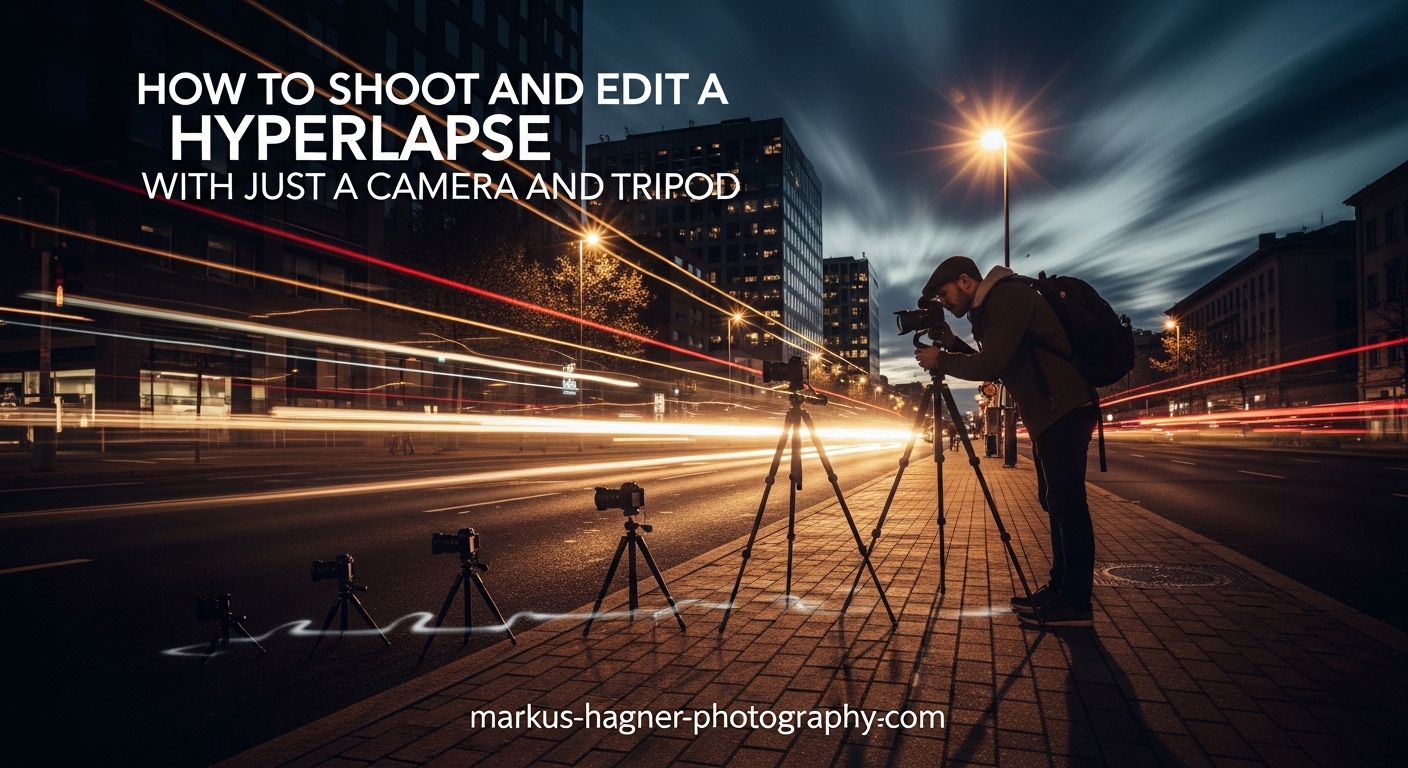
I have spent years perfecting hyperlapse photography, and I can tell you that creating smooth, cinematic motion sequences does not require expensive gimbals or motorized sliders. All you need is your camera and a tripod. In this guide, I will walk you through exactly how to shoot and edit a hyperlapse using minimal equipment, sharing the techniques I have learned through trial and error over dozens of shoots in 2026.
By the end of this tutorial, you will understand the complete workflow from planning your shot to exporting the final stabilized video. Whether you are capturing cityscapes, architectural landmarks, or natural landscapes, the process remains fundamentally the same. Let me show you how to create professional-looking hyperlapse footage with gear you already own.
What is a Hyperlapse and How Does It Differ from Timelapse?
A hyperlapse is an advanced timelapse technique where the camera physically moves between each shot, creating dynamic motion through space while time appears accelerated. Unlike traditional timelapse photography where the camera remains stationary on a tripod, hyperlapse involves manually moving your camera along a planned path between frames.
The key difference lies in the camera movement. In a standard timelapse, your camera captures the passage of time from one fixed position. A hyperlapse adds another dimension by combining that accelerated time with smooth spatial movement. This creates a more cinematic, engaging result that draws viewers through the scene.
The secret to a successful hyperlapse is the anchor point technique. You select a fixed point in your frame, often called an anchor point, and align that exact spot in the same position for every single photo. This alignment makes stabilization possible in post-production. When you move your tripod between shots, you keep this anchor point perfectly centered, which allows editing software to create smooth motion later.
What You Need to Shoot a Hyperlapse?
The beauty of hyperlapse photography is its simplicity. You do not need motorized sliders, expensive gimbals, or specialized tracking systems. Here is what I recommend for getting started.
Camera
Any interchangeable lens camera will work for hyperlapse photography. DSLRs and mirrorless cameras give you the manual control you need over exposure settings. I have successfully shot hyperlapses with everything from entry-level crop sensor bodies to full-frame professional cameras. The most important feature is manual mode, which allows you to lock in your exposure settings.
Point-and-shoot cameras and even smartphones can technically capture hyperlapses, but the lack of manual controls makes it harder to avoid flickering and exposure inconsistencies. If your camera shoots RAW files, that is a significant advantage for post-processing flexibility.
Tripod
A sturdy tripod is essential for this technique. You will be moving the tripod between shots, so it needs to be stable enough to remain perfectly still during each exposure. I prefer tripods with a leveling base or bubble level, which helps keep your horizons straight as you move along your path.
Weight matters less than stability here. In fact, a slightly heavier tripod can help absorb vibrations when you are shooting on windy days. Make sure your tripod head allows smooth panning movements, as you will be adjusting your framing frequently.
Optional Accessories
An intervalometer or remote shutter release can be helpful but is not strictly necessary. Many cameras have built-in interval timers that work perfectly fine. A remote release minimizes camera shake when triggering each shot. Some photographers also use grid overlays in their viewfinder or on their LCD screen to help maintain consistent framing.
Planning Your Hyperlapse Shot
Before you even touch your camera, spend time planning your shot. Good planning prevents frustration and wasted shoots. I have learned this lesson the hard way after abandoning several hyperlapses halfway through because I did not scout properly.
Choose Your Subject and Path
Look for subjects with strong visual interest that will look good from multiple angles as you approach or move past them. Buildings, bridges, monuments, and city skylines all make excellent hyperlapse subjects. Consider how the light will change during your shoot, especially if you plan to capture hundreds of photos over an extended period.
Map out your walking path before starting. A straight line works well for beginners, though curved paths can create more dynamic results. Walk your intended route and look for obstacles like curbs, street furniture, or areas where people might block your shot.
Identify Your Anchor Point
Select your anchor point carefully. This should be a distinct, stationary feature in your subject that will remain visible throughout the entire sequence. The top of a building, a specific window, or an architectural detail all work well. Avoid choosing anchor points that might move, such as trees swaying in the wind or flags.
Practice finding this anchor point in your viewfinder before you start shooting. You need to be able to quickly align your focus point or grid marker with this spot for every single frame.
Camera Settings for Hyperlapse Photography
Getting your camera settings right before you start shooting is critical. Once you begin your hyperlapse, you cannot change settings mid-sequence without ruining the consistency of your footage.
Shoot in Manual Mode
Manual mode is non-negotiable for hyperlapse photography. Auto exposure will cause brightness to fluctuate between frames, creating annoying flickering in your final video. Set your aperture, shutter speed, and ISO manually and leave them unchanged throughout the entire shoot.
Recommended Settings
Here are the settings I typically use for daytime hyperlapses. Start with these as a baseline and adjust based on your specific lighting conditions.
Aperture: f/8 to f/11 provides good depth of field while maintaining sharpness. Avoid shooting wide open, as you want your entire scene in focus.
Shutter Speed: 1/125 to 1/250 second works well for handheld camera movement between shots. If you want motion blur in moving elements like clouds or water, use a slower shutter speed and a neutral density filter.
ISO: Keep it as low as possible, typically ISO 100 or 200, to minimize noise. Since your camera is on a tripod, there is no reason to increase ISO.
White Balance: Set this manually to match your lighting conditions. Never use auto white balance, as it will shift between frames. For daylight, try 5600K. For golden hour, 4500K to 5000K often works well.
Focus Settings
Switch your lens to manual focus. Auto focus might shift between shots, especially if anything moves through your frame. Focus on your anchor point or slightly beyond it for maximum sharpness throughout the sequence.
File Format
Always shoot in RAW format when possible. RAW files give you significantly more flexibility for exposure adjustments, white balance corrections, and deflickering in post-production. The larger file sizes are worth the extra editing control.
Quick Settings Checklist
Before you take your first shot, run through this checklist. Manual mode engaged. Aperture set to f/8. Shutter speed locked. ISO at base level. White balance fixed. Manual focus set. RAW format selected. Take a few test shots and review them on your LCD to confirm everything looks correct.
How to Shoot a Hyperlapse: Step-by-Step Process
Now comes the hands-on part. Follow these steps carefully, and you will capture a clean hyperlapse sequence ready for stabilization.
Step 1: Set Up Your First Position
Position your tripod at the starting point of your planned path. Frame your shot with your anchor point clearly visible. Use a focus point in your viewfinder or a grid overlay to mark exactly where this anchor point sits in your frame. Take your first photo.
Step 2: Move to Your Next Position
Pick up your tripod and move forward along your path. The distance you move between shots determines the speed of motion in your final video. For smooth results, I recommend moving about 2 to 3 feet between each shot for most situations. Smaller steps create slower, smoother motion. Larger steps create faster movement.
Step 3: Realign Your Anchor Point
Set your tripod down at the new position. Look through your viewfinder and adjust the camera angle until your anchor point sits in exactly the same position as the previous shot. This alignment is the most critical part of the entire process. Take your time to get it right.
Step 4: Take Your Photo
Once your anchor point is aligned, trigger your shutter. Use a remote release or your camera’s self-timer to minimize shake. Avoid touching the camera during exposure.
Step 5: Repeat Until Complete
Continue this process for every shot in your sequence. Move, align, shoot, repeat. The number of photos you need depends on your desired video length. At 24 frames per second, 240 photos will give you 10 seconds of video. For a 20-second hyperlapse, you need 480 photos.
How Many Photos Do You Need?
From my experience and discussions with other photographers, 100 photos is the absolute minimum for a short hyperlapse. For more satisfying results, aim for 300 or more photos. A typical hyperlapse shoot takes anywhere from 30 minutes to 2 hours depending on the sequence length and complexity.
How Long Should Your Interval Be?
Unlike intervalometer-based timelapses, hyperlapse typically does not use fixed time intervals. You take each photo when you are ready at the new position. However, if you want to capture movement in your scene, such as clouds or traffic, wait 5 to 15 seconds between shots. An interval of 10 to 15 seconds is typical for beginners and creates more dramatic time acceleration in your final video.
Tips for Consistent Framing
Keep your camera level throughout the sequence. Watch your horizon line and make sure it stays in the same vertical position in every frame. If your tripod has a bubble level, check it frequently. Consistent framing makes stabilization much easier in post-production.
Work efficiently but do not rush. Rushing leads to alignment errors that ruin the final result. Using a grid overlay on your camera helps with consistent framing across hundreds of shots.
How to Edit and Stabilize Your Hyperlapse In 2026?
Post-production is where your hyperlapse truly comes together. The raw footage will look jumpy and unstable, but proper editing transforms it into smooth, cinematic motion.
Import and Organize Your Photos
Transfer all your photos to your computer. I recommend keeping them in a dedicated folder named with the shoot date and location. Do not rename the files yet, as sequential file names help with organization.
Optional: Basic Adjustments in Lightroom
If you shot in RAW, you may want to make basic exposure and color corrections in Lightroom or a similar RAW processor. Apply the same adjustments to every photo to maintain consistency. Many photographers also use deflickering tools at this stage to even out exposure variations between frames.
Create an Image Sequence
Import your photos into your video editing software as an image sequence. In DaVinci Resolve, drag your folder of images onto the media pool, then right-click and select “Create Image Sequence.” Set your frame rate to 24fps or 30fps depending on your preference.
Stabilization in DaVinci Resolve (Free Option)
DaVinci Resolve offers excellent stabilization tools completely free, which is why many photographers prefer it for hyperlapse editing. Here is my recommended workflow.
Place your image sequence on the timeline. Open the Color page and navigate to the Tracker panel. Select “Stabilizer” from the tracker options. Choose “Perspective” as the stabilization mode for best results with hyperlapse footage.
Click “Stabilize” and let the software analyze your footage. This process may take several minutes depending on your computer and sequence length. Once complete, play back your footage to check the results.
If the stabilization creates unwanted warping at the edges, try switching to “Similarity” or “Translation” mode instead. Each mode works better for different types of motion.
Alternative Software Options
Adobe After Effects with Warp Stabilizer is another popular choice. Apply the Warp Stabilizer effect to your image sequence and let it analyze. The “Subspace Warp” method typically works best for hyperlapse footage. Be aware that aggressive stabilization can create warping artifacts, so check your results carefully.
Adobe Premiere Pro includes the same Warp Stabilizer effect if you prefer working in a traditional NLE. The results are similar to After Effects.
For Mac users, Final Cut Pro includes a built-in stabilization feature that works reasonably well for straightforward hyperlapse sequences.
Deflickering Your Footage
Even with manual exposure, subtle brightness variations between frames can create flickering. Most video editors have deflickering effects. In DaVinci Resolve, try the “Deflicker” effect in the OpenFX library. Apply it before or after stabilization depending on your workflow preference.
Export Settings
For maximum quality, export your final hyperlapse as an MP4 or MOV file using the H.264 or H.265 codec. I recommend 1920×1080 or 3840×2160 resolution at 24 or 30 frames per second. Use a bitrate of at least 20 Mbps for 1080p footage or 50 Mbps for 4K.
For social media platforms like Instagram or YouTube, follow their recommended export specifications. YouTube handles high bitrate uploads well, while Instagram compresses heavily, so export at slightly higher quality than you think you need.
Common Hyperlapse Problems and How to Fix Them In 2026
Even experienced photographers encounter issues with hyperlapse. Here are the most common problems I see and how to address them based on real experiences from photographers in 2026.
Jumpy or Unstable Footage
If your final video looks jumpy despite stabilization, the issue usually stems from inconsistent anchor point alignment. Go back to your shooting technique and focus on keeping that anchor point in exactly the same position for every frame. Using a grid overlay or focus point as a visual guide helps tremendously.
Flickering Between Frames
Flickering occurs when exposure varies between shots. This happens most often when shooting in auto modes or when lighting conditions change during your shoot. Always shoot in manual mode with fixed settings. If flickering still appears, use deflickering tools in post-production.
Inconsistent Step Distance
When your step distance varies throughout the sequence, the motion speed becomes uneven in your final video. Practice maintaining consistent spacing between shots. Some photographers mark intervals on the ground or count paces to stay consistent.
Obstacles Appearing Mid-Shoot
Nothing is more frustrating than having a person, car, or other obstacle block your carefully planned path halfway through a sequence. This is why thorough location scouting matters. If obstacles appear anyway, you may need to pause your shoot, let the obstacle pass, and carefully reposition at your last spot before continuing.
Stabilization Software Creating Warping
When stabilization software creates unwanted warping, especially at the edges of your frame, try reducing the stabilization strength or switching to a different mode. DaVinci Resolve offers Perspective, Similarity, and Translation modes. Each handles motion differently. Translation mode warps the least but stabilizes less aggressively.
Frequently Asked Questions
How do I edit a hyperlapse?
To edit a hyperlapse, import your photos as an image sequence into video editing software like DaVinci Resolve or After Effects. Apply stabilization using perspective or similarity tracking modes. Use deflickering tools to smooth exposure variations. Export at 24-30fps in H.264 or H.265 format for best results.
How to shoot hyperlapse on camera?
Set your camera to manual mode with fixed exposure, white balance, and focus. Choose an anchor point in your scene. Take a photo, move your tripod 2-3 feet along your path, realign the anchor point in the same position, and take another photo. Repeat for 200-500 photos depending on desired video length.
What settings should I use for hyperlapse?
Use manual mode with aperture at f/8, shutter speed at 1/125 to 1/250, ISO at base level (100-200), and fixed white balance. Shoot in RAW format. Focus manually on your anchor point. Never use auto exposure or auto white balance to avoid flickering.
How many photos do I need for a hyperlapse?
You need at least 100 photos for a short hyperlapse, but 300 or more photos will produce better results. At 24 frames per second, 240 photos equals 10 seconds of video. Plan for 400-500 photos for a 15-20 second hyperlapse.
Can I shoot hyperlapse without a tripod?
Yes, you can shoot hyperlapse handheld or with a monopod, but results are generally less stable. A tripod provides better control over movement and allows longer exposures with motion blur. For beginners, a tripod significantly improves your chances of capturing usable footage.
Start Creating Your First Hyperlapse Today
Learning how to shoot and edit a hyperlapse takes practice, but the fundamental technique is surprisingly accessible. With just your camera and tripod, you can create cinematic motion sequences that rival footage shot with expensive motorized equipment. The key is mastering the anchor point technique during shooting and applying proper stabilization in post-production.
Start with a simple subject and a short sequence of 100-200 photos. As you get comfortable with the alignment process, you can tackle longer, more complex shots. Every hyperlapse you shoot will teach you something new about timing, framing, and technique. Grab your gear, head outside, and start experimenting. The results might surprise you.