
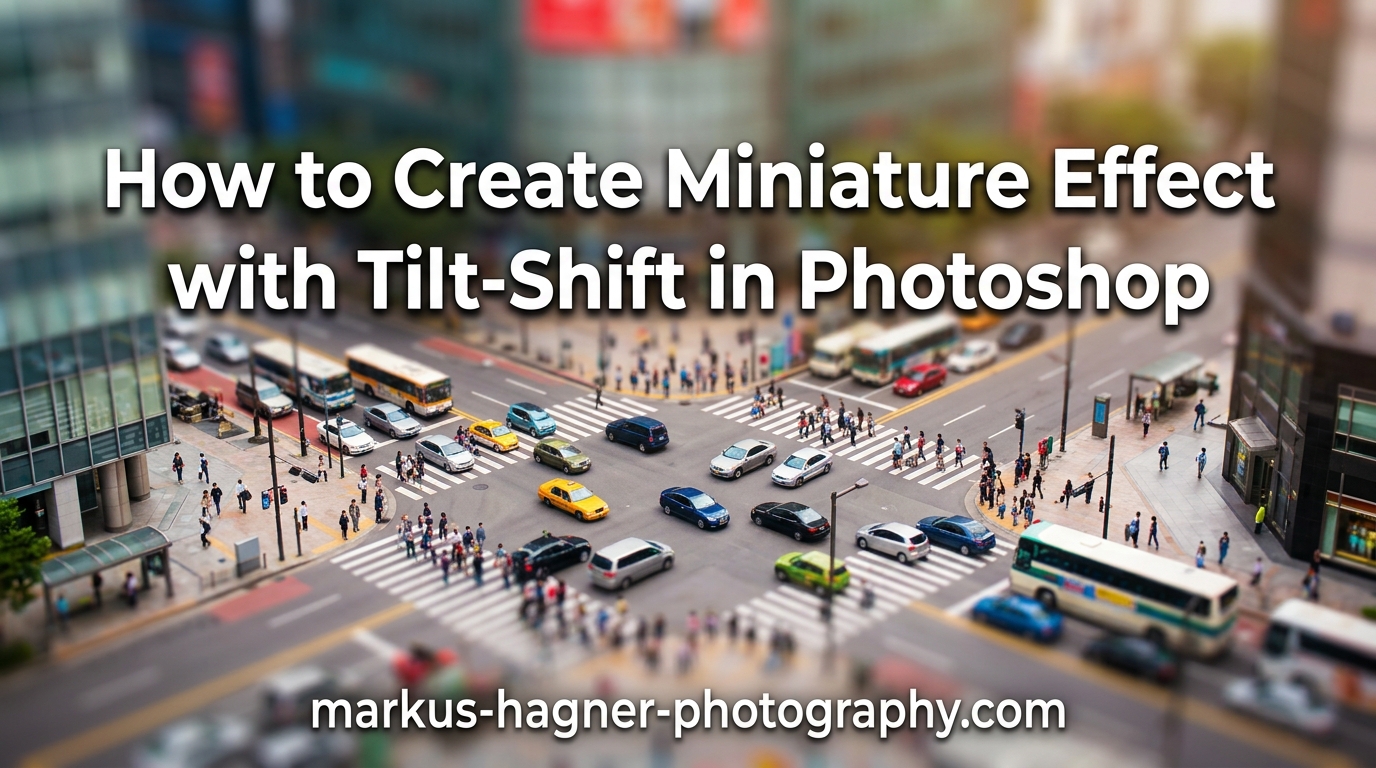
Have you ever seen those stunning photographs that make real-world scenes look like miniature models? That charming “toy world” appearance is created using tilt-shift photography, and you can achieve the same results entirely in Photoshop without any specialized camera equipment.
In this comprehensive guide, we’ll walk you through the entire process of creating the miniature effect using Photoshop’s Tilt-Shift blur filter. Whether you’re a beginner or an experienced photo editor, this tutorial will help you master the art of fake miniature photography.
What Is the Miniature Effect and Why Does It Work?
The miniature effect, also known as the tilt-shift effect, is a photographic technique that makes full-scale scenes appear as if they were tiny scale models. This effect mimics the shallow depth of field typically seen in macro photography, where only a narrow band of the image is in focus while the foreground and background are significantly blurred.
In traditional photography, this effect was achieved using specialized tilt-shift lenses that could tilt or shift the plane of focus. These lenses were originally designed for architectural photography to correct perspective distortion, but photographers discovered that when used at certain angles, they created beautiful miniature-like images.
Photoshop’s Tilt-Shift blur filter simulates this effect digitally by applying a selective blur that mimics the characteristics of macro photography. The key to the effect lies in understanding how our brains interpret depth of field: when we see a shallow depth of field, we associate it with close-up macro photography of small subjects. By applying this same visual cue to larger scenes, our brain interprets the image as a tiny model rather than a full-scale environment.
Pro Tip: The miniature effect works because it combines two visual cues: extreme depth of field (shallow focus) and slightly elevated perspective. Together, these cues trigger our brain’s association with miniature photography.
Choosing the Best Photos for the Miniature Effect In 2026
Not every photograph works well with the miniature effect. Selecting the right image is crucial for achieving convincing results. Here are the key factors to consider when choosing photos for tilt-shift processing:
Optimal Shooting Angle
The best images for the miniature effect are typically taken from an elevated perspective, looking down at the scene. This could be from a tall building, a hill, a drone, or even a standing position looking at a street scene. The higher the angle, the more dramatic the miniature effect will appear.
Ideal Subject Matter
Certain subjects work better than others for this effect:
- Cityscapes and urban environments: Buildings, streets, and city scenes are classic choices for miniature effects
- Architecture: Rows of houses, architectural details, and bridges create excellent miniature illusions
- Landscapes: Rolling hills, valleys, and mountain ranges can transform into tiny terrain models
- Transportation: Train tracks, roads, and airports work wonderfully
Composition Considerations
Look for images with distinct horizontal bands that can be clearly separated into foreground, middle ground, and background. Images with strong vertical elements (buildings, trees) that extend through the focus plane tend to produce the most convincing results.
Avoid: Images with complex foregrounds, heavily cluttered scenes, or photos taken at eye level. These make the effect difficult to apply convincingly.
How to Access the Tilt-Shift Filter in Photoshop In 2026?
Photoshop includes the Tilt-Shift filter as part of the Blur Gallery, making it easily accessible. Follow these steps to open the filter:
- Open your image in Photoshop – Start by launching Photoshop and opening the photograph you want to edit
- Navigate to the Blur Gallery – Go to
Filter>Blur Gallery>Tilt-Shift - Alternative method – You can also press Ctrl + Alt + Shift + T (Windows) or Cmd + Option + Shift + T (Mac) as a keyboard shortcut
Once opened, you’ll see the Blur Gallery interface with a control panel on the right and your image in the center. A horizontal blur band will appear across your image by default.
Keyboard Shortcut: Press H to temporarily hide the control panel and see your full image. Press H again to bring it back. Press P to toggle preview mode.
Adjusting Blur Amount and Style
With the Tilt-Shift filter open, you’ll notice several adjustment options in the right-hand panel. Let’s explore how to fine-tune the blur effect:
Blur Amount
The Blur slider controls the intensity of the effect. Moving it to the right increases the blur in the areas outside the focus band. For a subtle effect, keep the blur between 5-15 pixels. For a dramatic miniature look, you can push it to 25-40 pixels or higher, depending on your image resolution.
Symmetric Distortion
The Symmetric Distortion slider adds a slight bulge effect to the blur, mimicking the way a tilt-shift lens focuses light. This creates a more realistic miniature appearance, especially for images with buildings. Start with values between 0-25% and adjust to taste.
Linear vs. Elliptical
By default, the Tilt-Shift filter applies a linear blur. You can click on the blur band to switch between linear and elliptical shapes. Linear works best for most cityscapes and architectural shots, while elliptical can be useful for more creative applications.
Pin Positioning and Protected Area Adjustment
The key to a convincing miniature effect lies in proper pin placement. Pins allow you to define exactly which areas remain sharp and which become blurred.
Understanding the Pins
When you first open the Tilt-Shift filter, you’ll see two horizontal lines across your image:
- The solid line marks the center of the in-focus area
- The dashed lines define the transition zone between sharp and blurred
Adding and Moving Pins
Click anywhere on your image to add additional pins. Each pin defines a new center point for the sharp focus band. This is incredibly useful when your scene has multiple areas of interest at different heights.
- Drag pins vertically to move the focus band up or down
- Double-click a pin to remove it
- Right-click a pin to access additional options
Protecting Specific Areas
Sometimes you want to keep certain elements sharp even within the blurred areas. You can add pins and adjust their influence radius:
- Add a pin over the area you want to keep sharp
- Adjust the pin’s influence by dragging the handles that appear
- Use multiple pins to protect several important elements
Creative Tip: For complex scenes, try adding 3-5 pins at different heights to create a multi-band focus effect. This can mimic the extended depth of field you might see in a detailed architectural model.
Transition Area Fine-Tuning
The transition zone between sharp and blurred areas is crucial for creating a natural-looking miniature effect. Too sharp a transition looks artificial, while too gradual a transition loses the characteristic “tilt-shift” look.
Adjusting Transition Width
Drag the dashed lines closer together for a narrower, more abrupt transition, or further apart for a wider, more gradual blur falloff. The ideal transition width depends on your image, but generally:
- Narrow transition (tight lines): More dramatic, stylized effect
- Wide transition (spread lines): More subtle, realistic effect
Checking Your Work
Use the P key to toggle preview mode on and off to compare your edited image with the original. You can also zoom in to 100% (press Ctrl + 1) to check the details of your blur effect.
Using Distortion Options for Enhanced Realism
The Tilt-Shift filter includes additional options that can enhance the realism of your miniature effect.
Symmetric Distortion
As mentioned earlier, the Symmetric Distortion slider adds a subtle bulge effect. This is particularly effective for:
- Images with tall buildings that might look flat without it
- Creating a more pronounced “toy-like” appearance
- Mimicking the optical characteristics of specialized tilt-shift lenses
Applying Light Effects
For an extra pop, consider adding a slight saturation boost to your miniature images. The miniature effect often looks more striking with slightly enhanced colors. You can do this by:
- Click OK to apply the Tilt-Shift blur
- Go to
Image>Adjustments>Vibrance - Increase vibrance slightly (10-20%) for more vivid colors
Enhancement Tips and Common Mistakes to Avoid
Now that you understand the basics, let’s cover some advanced tips and common pitfalls to help you achieve professional results.
Essential Keyboard Shortcuts
Master these shortcuts to work more efficiently:
- H – Hide/show control panel
- P – Toggle preview on/off
- [ and ] – Select previous/next pin
- Delete – Remove selected pin
- Ctrl + Z – Undo last action
Common Mistakes to Avoid
Mistake #1: Too Much Blur
Excessive blur destroys detail and looks unnatural. Start subtle and build up gradually.
Mistake #2: Wrong Focus Point
Placing the focus band in the wrong area can make the image look unnatural. The focus should typically be on the most interesting part of your scene.
Mistake #3: Ignoring Transitions
The transition zone is where amateur results often fail. Take time to fine-tune this area for seamless blending.
Mistake #4: Using the Wrong Image
Applying the effect to photos taken at eye level or with no clear subject will produce disappointing results.
Pro Tips for Stunning Results
- Work on a copy: Always duplicate your background layer before applying filters
- Use layer masks: For more control, apply the blur as a smart filter and use layer masks
- Add grain: Slight noise can make the effect more convincing by simulating film grain
- Consider aspect ratio: Portrait-oriented images can work but may require more creative pin placement
- Batch process: If you have multiple similar images, create an action to speed up your workflow
Conclusion
Creating the miniature effect with tilt-shift photography in Photoshop is both accessible and rewarding. This technique transforms ordinary photographs into captivating mini-world scenes that capture viewer attention. The key to success lies in selecting the right images, understanding how the blur controls work, and taking time to fine-tune your pin placement.
Remember that practice makes perfect. Start with simple cityscape images and gradually work your way to more complex scenes. With each iteration, you’ll develop an intuition for what works and what doesn’t.
The beauty of digital tilt-shift photography is that it’s completely non-destructive – you can always return and adjust your settings. So don’t be afraid to experiment, try different approaches, and develop your own unique style.
Now it’s time to open Photoshop, find that perfect photograph, and start creating your own miniature worlds!