
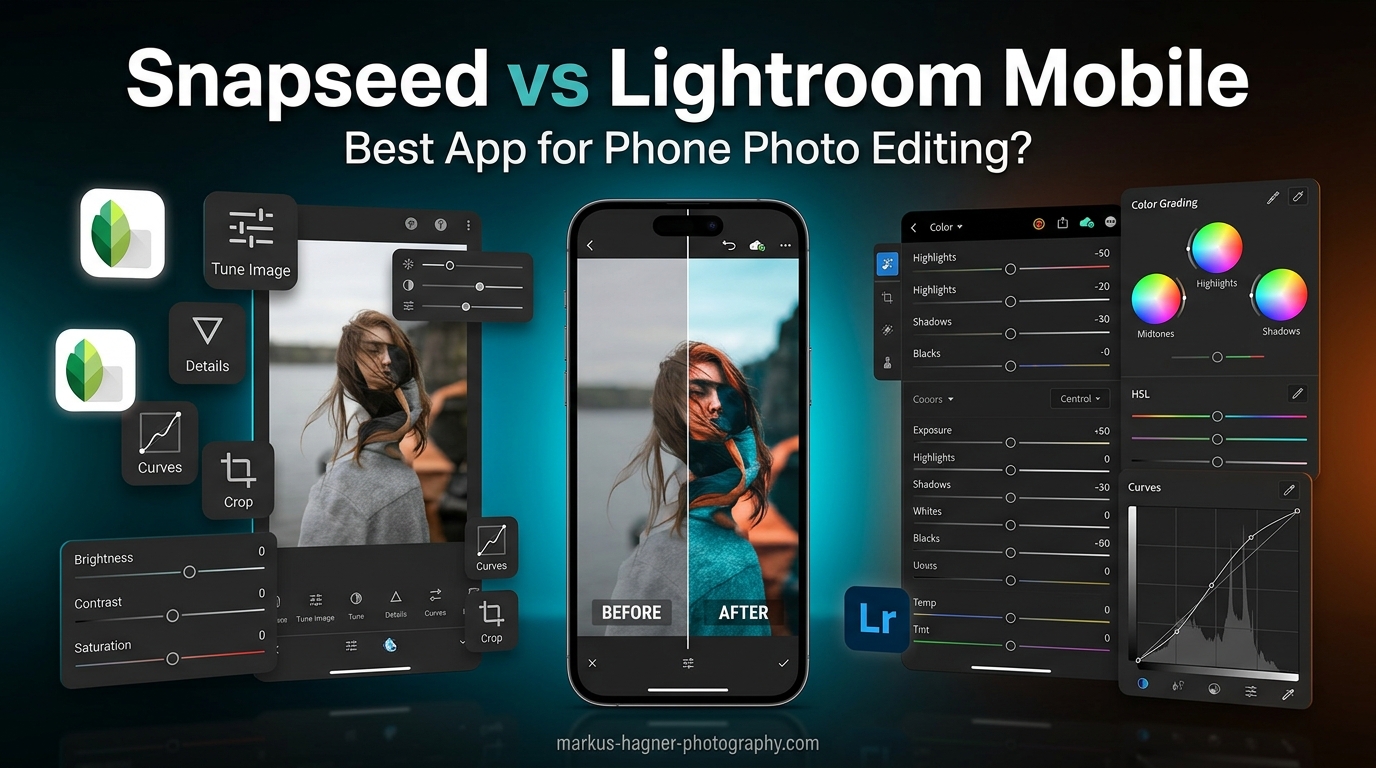
Snapseed wins for casual photographers who want a free, intuitive app with powerful creative tools. Lightroom Mobile dominates for professionals needing advanced color grading, RAW editing workflows, and seamless cloud sync. I have tested both apps extensively on iPhone and Android, and the right choice depends entirely on your editing needs and budget.
Google Snapseed remains completely free with no ads or subscription requirements. Adobe Lightroom Mobile offers a capable free tier but locks its most powerful features behind a monthly subscription. This Snapseed vs Lightroom Mobile comparison breaks down exactly which app fits your photography style.
After spending months editing hundreds of photos in both apps, I found each excels in different scenarios. Many photographers actually use both together, leveraging Snapseed for quick creative effects and Lightroom for serious color work.
Quick Comparison: Snapseed vs Lightroom Mobile
The biggest difference comes down to philosophy. Snapseed prioritizes speed, creativity, and accessibility with gesture-based controls and unique artistic filters. Lightroom Mobile focuses on precision, professional workflows, and seamless integration with Adobe’s ecosystem.
| Feature | Snapseed | Lightroom Mobile |
|---|---|---|
| Cost | Completely free | Free tier + Premium subscription |
| RAW Editing | Basic RAW support | Advanced RAW processing |
| Color Grading | Good tools, intuitive | Professional-grade HSL, calibration |
| Masking | Selective Adjust tool | AI-powered subject/sky masking |
| Cloud Sync | None | Adobe Cloud sync included |
| Learning Curve | Easy for beginners | Steeper, more complex |
| Unique Features | Double exposure, QR looks, HDR Scape | AI masking, batch editing, presets sync |
| Best For | Casual edits, creative effects | Professional workflows, RAW editing |
Quick verdict: Choose Snapseed if you want free, fast, and creative. Choose Lightroom Mobile if you need professional color tools, RAW processing, or already use Adobe software.
Snapseed Deep Dive
Google acquired Snapseed in 2012 and has maintained it as a completely free photo editor ever since. The app received a major update in June 2025, adding new features and interface improvements that addressed concerns about stalled development.
What sets Snapseed apart is its gesture-based editing approach. You swipe vertically to select tools and horizontally to adjust intensity. This feels natural on mobile and speeds up editing significantly once you learn the patterns.
Key Features
Selective Adjust: This tool lets you tap specific areas of your photo and adjust brightness, contrast, and saturation locally. The control point technology expands or contracts based on color boundaries, creating surprisingly precise selections without complex masking.
Tone Curve: Snapseed’s curves tool rivals desktop software. You can adjust RGB channels independently, add control points, and create precise tonal adjustments. Many mobile photographers consider this the best curves implementation on mobile.
Double Exposure: A creative feature unique to Snapseed that blends two images together with various blend modes. This artistic tool has no equivalent in Lightroom Mobile and opens creative possibilities for composite work.
HDR Scape and Glamour Glow: These one-click creative filters add dramatic effects impossible to recreate in other apps. HDR Scape creates a tonemapped look while Glamour Glow adds soft, ethereal lighting to portraits.
QR Look Codes: You can save your editing recipes as QR codes and share them with others. Scan a code to apply that exact look to your photos instantly. The community has created thousands of shareable looks.
Snapseed Pros and Cons
Pros:
- Completely free with no ads or subscriptions
- Intuitive gesture controls feel natural on mobile
- Unique creative tools like double exposure and HDR Scape
- Powerful curves and selective adjustment tools
- QR codes for sharing and discovering looks
- Works offline with no account required
Cons:
- Limited RAW support compared to Lightroom
- No cloud sync or cross-device workflow
- Cannot open RAW files from some cameras
- No batch editing capability
- Healing and clone tools less powerful than Adobe
Best Use Cases for Snapseed
Snapseed shines for quick, creative edits on single photos. I reach for it when editing travel shots, social media content, or any image where I want fast results with artistic flair. The HDR Scape filter alone makes it worth keeping on your phone.
The app also works beautifully as a finishing tool. Many photographers do their serious color work in Lightroom, then open the image in Snapseed for final creative touches like grunge textures or dramatic vignettes.
Lightroom Mobile Deep Dive
Adobe Lightroom Mobile brings professional desktop editing capabilities to your phone. While the free tier offers substantial features, the Premium subscription unlocks the full power that makes this app essential for serious photographers.
The app integrates seamlessly with Lightroom on desktop and iPad. Photos sync automatically through Adobe Creative Cloud, letting you start edits on your phone and finish on your computer. This cross-device workflow defines the Lightroom experience.
Key Features
Professional Color Grading: Lightroom’s HSL (Hue, Saturation, Luminance) sliders provide precise control over individual colors. The Color Mixer lets you adjust specific hues while Color Calibration offers advanced color science tools rarely seen on mobile.
AI Masking: Lightroom Premium uses Adobe’s AI to automatically detect subjects, skies, and backgrounds. One tap creates a perfect mask around a person or landscape element. This feature alone justifies the subscription for many portrait and landscape photographers.
Advanced RAW Processing: Lightroom Mobile opens RAW files from virtually any camera, including modern mirrorless bodies. The RAW editing controls match desktop Lightroom, giving you full control over highlights, shadows, and color profiles.
Batch Editing: Copy edits from one photo and paste them to multiple images instantly. This dramatically speeds up editing sessions for events, travel, or any situation with consistent lighting across many shots.
Preset Ecosystem: Lightroom’s preset system syncs across all devices. Create presets on desktop and use them on mobile. Premium subscribers can also access Adobe’s curated preset collections.
Lightroom Mobile Pros and Cons
Pros:
- Professional-grade color grading tools
- AI-powered subject and sky masking
- Comprehensive RAW file support
- Seamless cloud sync across devices
- Batch editing for efficient workflows
- Integration with Adobe ecosystem
Cons:
- Best features require monthly subscription
- Steeper learning curve for beginners
- Requires Adobe account to use
- Interface can feel cluttered on smaller screens
- Cloud sync requires internet connection
Best Use Cases for Lightroom Mobile
Lightroom Mobile excels for photographers who shoot RAW and need professional color control. If you photograph weddings, portraits, or commercial work on your phone, Lightroom provides the precision these genres demand.
The app also wins for anyone editing across multiple devices. Start selecting and adjusting photos during your commute, then continue on your desktop at home. Your entire library stays in sync automatically.
Snapseed vs Lightroom Mobile: Head-to-Head Comparison
Breaking down specific features reveals where each app dominates. This feature-by-feature comparison helps you identify which capabilities matter most for your workflow.
RAW Editing
Lightroom Mobile wins decisively for RAW editing. It opens RAW files from virtually any camera with full control over highlight recovery, shadow detail, and color profiles. The processing quality matches desktop Lightroom.
Snapseed offers basic RAW support but cannot open files from some camera brands. Sony ARW files, for example, often fail to load. The RAW editing controls also lack the depth and precision Lightroom provides.
Winner: Lightroom Mobile for serious RAW work. Snapseed suffices for casual RAW edits from supported cameras.
Color Grading
Lightroom Mobile provides professional HSL sliders, Color Mixer, and Color Calibration tools. You can target specific colors with precision, creating cinematic looks or correcting color casts with accuracy.
Snapseed offers solid color tools including curves and individual color adjustments, but lacks the granular control Lightroom provides. The interface prioritizes simplicity over precision.
Winner: Lightroom Mobile for professional color work. Snapseed handles most color grading needs adequately.
Masking and Local Adjustments
Lightroom Premium’s AI masking creates perfect selections around subjects, skies, and objects with one tap. The brush and gradient tools offer additional precision for complex selections.
Snapseed’s Selective Adjust tool works differently but effectively. Control points automatically detect color and texture boundaries, creating surprisingly accurate local adjustments without traditional masking.
Winner: Tie. Lightroom offers more powerful masking but requires a subscription. Snapseed’s free Selective Adjust tool handles most local adjustment needs beautifully.
Presets and Filters
Lightroom syncs presets across devices and offers Adobe’s curated preset collections. You can create, organize, and share presets within Adobe’s ecosystem.
Snapseed provides built-in Looks (filters) and lets you save custom editing recipes. The QR code sharing system enables community-created looks that extend far beyond built-in options.
Winner: Tie. Lightroom wins for preset organization and sync. Snapseed wins for creative filter variety and community sharing.
Workflow and Integration
Lightroom Mobile integrates with Adobe’s entire ecosystem. Photos sync to desktop Lightroom, Photoshop, and Adobe Portfolio. The cloud-based workflow enables seamless editing across devices.
Snapseed works as a standalone app with Google Photos integration on Android. You cannot sync edits across devices or continue work on desktop. However, the app requires no account and works completely offline.
Winner: Lightroom Mobile for cross-device workflows. Snapseed for privacy-focused, offline editing.
Learning Curve
Snapseed feels approachable immediately. Gesture controls make sense within minutes, and most tools work intuitively. Beginners can produce impressive results their first session.
Lightroom Mobile presents a steeper learning curve. The interface mirrors desktop Lightroom with numerous panels and options. Understanding the full capabilities takes time and experimentation.
Winner: Snapseed for beginners and casual users. Lightroom rewards the learning investment with more powerful results.
Cost Analysis: Free vs Subscription
Snapseed costs nothing. Google has maintained it as a free product since acquisition, with no ads, no premium tier, and no hidden costs. This makes it accessible to everyone regardless of budget.
Lightroom Mobile offers a free tier with basic editing tools. Premium features including AI masking, advanced healing, geometry tools, and cloud storage require a subscription. Adobe Photography Plan with 1TB storage costs around $10 monthly.
The subscription provides genuine value for serious photographers. AI masking alone saves hours of manual selection work. Cloud sync enables professional workflows impossible with free alternatives.
Value verdict: Snapseed delivers incredible value at zero cost. Lightroom Premium justifies its subscription for professionals who need its advanced capabilities.
Who Should Choose Which App
Choose Snapseed If You:
- Want a completely free photo editor
- Prefer intuitive, gesture-based controls
- Enjoy creative filters and artistic effects
- Edit primarily on mobile without cross-device needs
- Are learning photo editing basics
- Value privacy and offline capability
- Edit for social media and casual sharing
Choose Lightroom Mobile If You:
- Shoot in RAW and need advanced processing
- Require professional color grading tools
- Edit across phone, tablet, and desktop
- Need AI-powered masking for portraits or landscapes
- Already subscribe to Adobe Creative Cloud
- Batch edit large numbers of photos
- Work in commercial or professional photography
Use Both Apps Together
Many photographers use both apps in their workflow. Start in Lightroom Mobile for color correction, exposure adjustment, and RAW processing. Then export to Snapseed for creative finishing touches like HDR effects, double exposure, or dramatic filters.
This hybrid approach leverages Lightroom’s professional tools while accessing Snapseed’s unique creative capabilities. Both apps export at full resolution, so image quality remains intact through the process.
FAQ
Is Snapseed better than Lightroom mobile?
Snapseed is better for casual photographers seeking a free, intuitive app with powerful creative tools like double exposure and HDR Scape. Lightroom Mobile is superior for professionals needing advanced color grading, RAW editing workflows, AI masking, and seamless cloud sync. Both apps excel in different areas – Snapseed wins on cost and creativity, Lightroom dominates for professional control.
Is there a better app than Snapseed?
For different needs, yes. Adobe Lightroom offers superior RAW editing and professional color tools. VSCO excels at film-like filters and community features. Photomator provides iOS users with advanced editing capabilities. However, Snapseed remains the best completely free option with comprehensive tools and no subscription required.
Can you edit RAW photos on both apps?
Yes, both apps support RAW editing but with different capabilities. Lightroom Mobile offers comprehensive RAW processing with full control over highlights, shadows, color profiles, and lens corrections. Snapseed provides basic RAW editing for supported cameras but cannot open RAW files from some camera brands like Sony. For serious RAW work, Lightroom is the clear winner.
Which app is better for beginners?
Snapseed is better for beginners due to its intuitive gesture controls and approachable interface. Most users can produce impressive results within their first editing session. Lightroom Mobile presents a steeper learning curve with numerous panels and professional tools that take time to master. Beginners should start with Snapseed and transition to Lightroom as their skills develop.
Can I use both Snapseed and Lightroom together?
Yes, many photographers use both apps together effectively. Start in Lightroom Mobile for color correction, exposure adjustment, and RAW processing. Export the image, then open it in Snapseed for creative finishing touches like HDR effects, double exposure, or artistic filters. This hybrid approach leverages Lightroom’s professional tools while accessing Snapseed’s unique creative capabilities.
Final Verdict
The Snapseed vs Lightroom Mobile for phone photo editing comparison reveals two excellent apps serving different audiences. Snapseed delivers remarkable value at zero cost with intuitive controls and unique creative features. Lightroom Mobile provides professional-grade tools for serious photographers willing to pay for premium capabilities.
My recommendation: Start with Snapseed if you are new to photo editing or prioritize free software. Upgrade to Lightroom Mobile when you need RAW processing power, AI masking, or cross-device workflows. Many photographers find keeping both apps installed gives them the best of both worlds.
Download both apps and test them with your own photos. Your personal editing style will quickly reveal which app fits your workflow better. Both Snapseed and Lightroom Mobile continue improving, making this an exciting time for mobile photography.