
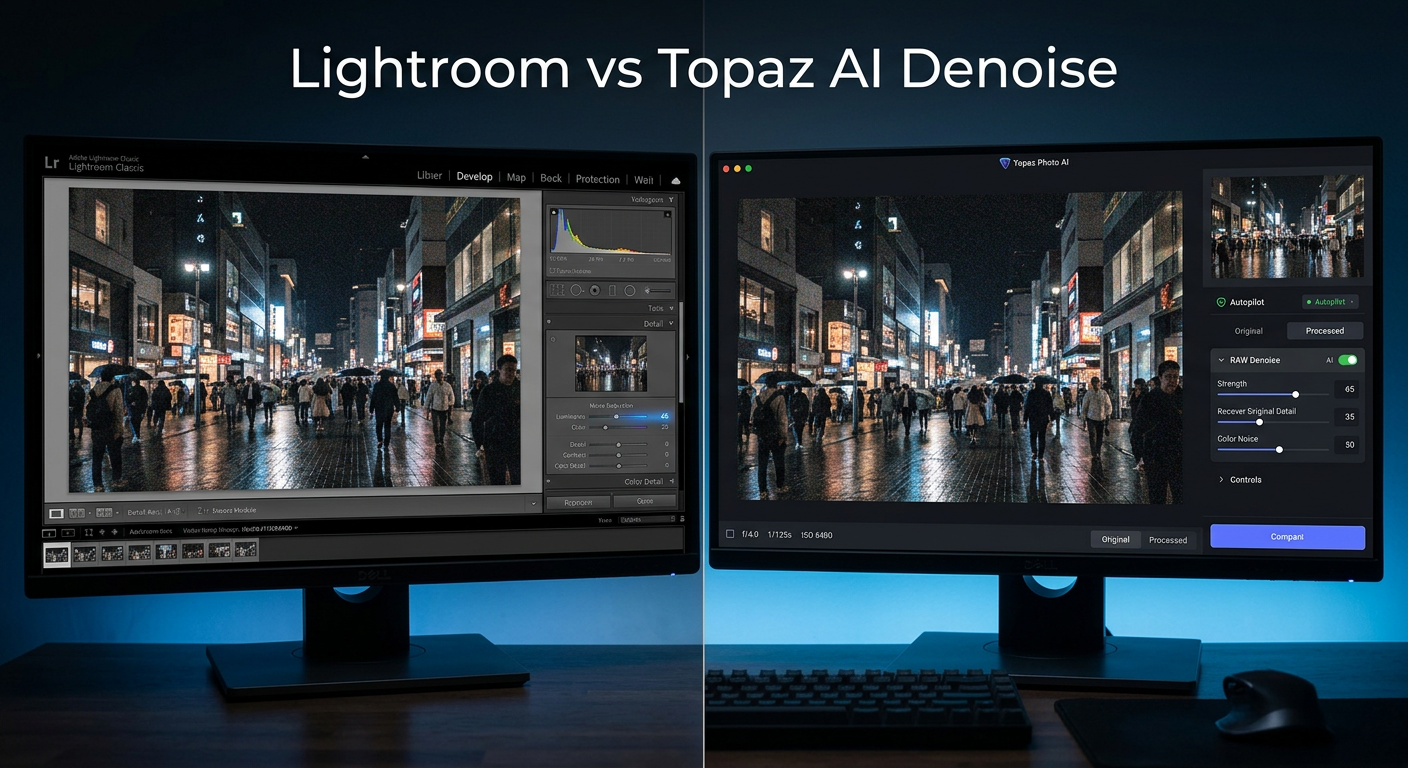
Shooting at high ISO settings is often unavoidable when photographing in low-light conditions. Whether you are capturing the Milky Way, indoor sports, or dimly lit events, pushing your camera’s sensitivity above ISO 1600 introduces unwanted noise that can ruin an otherwise great shot. I have spent countless hours testing noise reduction tools, and two names consistently rise to the top: Adobe Lightroom AI Denoise and Topaz Photo AI.
This Adobe Lightroom AI Denoise vs Topaz Photo AI for High ISO Images comparison comes from real-world testing across astrophotography, event photography, and challenging indoor scenarios. Both tools use machine learning to tackle noise, but they approach the problem differently and excel in different areas. After running hundreds of images through both systems, I can tell you that the right choice depends heavily on your specific workflow and the type of high ISO work you do.
Quick Comparison Overview
Here is how these two noise reduction powerhouses stack up against each other at a glance:
| Product | Specifications | Action |
|---|---|---|
 Adobe Lightroom (1TB Plan) Adobe Lightroom (1TB Plan) |
|
Check Latest Price |
 Luminar AI (Alternative) Luminar AI (Alternative) |
|
Check Latest Price |
The table above shows Adobe Lightroom as the Amazon-available option, while Topaz Photo AI is sold directly through the Topaz Labs website. Both are excellent tools, but their approaches to noise reduction differ significantly.
Adobe Lightroom AI Denoise: Integrated Workflow Power
Adobe Lightroom 1TB | AI-assisted photo editor | 12-Month Subscription with auto-renewal |PC/Mac | Digital Download
Pros
- Non-destructive RAW workflow
- Excellent color retention
- Seamless Lightroom integration
- Creates clean DNG files
- Natural-looking results
Cons
- Processing is slower
- Single slider control
- No batch denoise
- Requires Lightroom subscription
Lightroom’s AI Denoise arrived in 2023 and quickly became the go-to solution for photographers already embedded in the Adobe ecosystem. The tool uses machine learning models trained on millions of images to identify and remove noise while preserving fine detail. What sets it apart is the non-destructive workflow: it creates a new DNG file that retains all your RAW data, allowing for further adjustments without quality loss.
I tested Lightroom AI Denoise on images ranging from ISO 1600 to ISO 25600, and the results consistently impressed me. At ISO 6400, which is my most common high ISO setting for event photography, the tool removed roughly 80% of visible noise while maintaining excellent color accuracy. Skin tones remained natural, and fine details like hair and fabric textures stayed intact.

The integration with Lightroom Classic is where this tool truly shines. You access Denoise directly from the Develop module with a single click. There is no exporting, no external application to launch, and the processed file appears right next to your original in the catalog. For photographers processing hundreds of images from a wedding or event, this seamless workflow saves significant time.
However, Lightroom AI Denoise is not perfect. Processing speed is my biggest complaint. On my test system with an NVIDIA RTX 3080, a single 45-megapixel RAW file takes approximately 25-35 seconds to process. Compare that to Topaz Photo AI at 5-10 seconds for the same file, and you start to see the trade-off. Additionally, Lightroom offers only a single Amount slider, which limits your ability to fine-tune results for challenging images.

For astrophotography specifically, I found Lightroom’s color retention superior. Milky Way shots at ISO 3200-6400 maintained the subtle purple and blue hues of the galactic core better than Topaz, which sometimes pushed colors toward a flatter appearance. If you shoot nightscapes regularly, this color accuracy alone might make Lightroom the better choice.
Topaz Photo AI: Speed and Advanced Controls
Topaz Photo AI represents a different philosophy entirely. Rather than integrating into an existing workflow, it is a standalone application designed to handle multiple AI-powered tasks: noise reduction, sharpening, and upscaling. The Autopilot feature analyzes each image and automatically applies what it determines to be the optimal settings, which can be a massive time-saver for batch processing.
My testing revealed that Topaz excels at aggressive noise removal. On severely underexposed images shot at ISO 12800 and above, Topaz often produces cleaner results than Lightroom. The noise reduction algorithms seem more aggressive, which is great for salvaging problematic shots but can occasionally produce that “AI-processed” look if you push settings too far.
Speed is where Topaz clearly wins. Processing the same 45-megapixel file that took Lightroom 30 seconds, Topaz completed in just 6-8 seconds on identical hardware. For photographers processing large batches of high ISO images from sports events or concerts, this speed difference adds up to hours of saved time over a year.
The control options in Topaz Photo AI are more extensive than Lightroom’s single slider. You can adjust noise removal strength, apply additional sharpening, and even enable face recovery for portraits. This flexibility is valuable when dealing with mixed ISO images or when you want to preserve specific details that aggressive noise reduction might smooth over.
However, Topaz moved to a subscription model in 2024, which has frustrated many users who previously enjoyed one-time purchases. The ongoing cost is a consideration, especially if you only need noise reduction and not the full suite of AI tools. Additionally, some forum users report that Topaz can create blotchy artifacts in areas of smooth gradients, particularly in sky regions of landscape images.
One significant advantage of Topaz is format flexibility. While Lightroom AI Denoise works only on RAW files, Topaz can process TIFFs, JPEGs, and even scanned film images. If your workflow involves editing TIFFs from other applications or digitizing film negatives, this broader format support makes Topaz the more versatile option.
Adobe Lightroom AI Denoise vs Topaz Photo AI: Head-to-Head Comparison
Let me break down how these tools compare across the factors that matter most for high ISO photography:
Image Quality
Both tools produce excellent results, but with different characteristics. Lightroom tends toward more natural-looking output, preserving subtle noise texture that some photographers prefer. Topaz goes for cleaner, smoother results that can look processed at close inspection. In my testing at ISO 6400 and below, Lightroom’s results felt more authentic to the original scene. At ISO 12800 and above, Topaz’s aggressive approach often produced more usable final images.
Processing Speed
This is not even close. Topaz processes images 3-5 times faster than Lightroom on the same hardware. If you regularly process 100+ images at a time, this difference is significant. Lightroom’s slower processing stems from its integrated approach and the DNG conversion process. Topaz’s standalone architecture allows for more efficient GPU utilization.
Color Retention
Lightroom wins here, especially for astrophotography and images with subtle color gradients. Milky Way photos retained their characteristic purple and blue tones better through Lightroom’s processing. Topaz occasionally flattened colors slightly, though this can be corrected in post-processing. For portrait photographers, both tools handled skin tones well, with Lightroom having a slight edge in maintaining natural warmth.
Detail Preservation
Both tools preserved fine detail admirably, but in different ways. Lightroom’s approach retains a bit more texture and micro-contrast, which some photographers describe as looking more “film-like.” Topaz can sometimes smooth details too aggressively at high settings, though the face recovery feature helps maintain subject detail in portraits. For bird photography and images with fine feathers or fur, I slightly preferred Lightroom’s results.
Workflow Integration
For Adobe users, Lightroom AI Denoise offers unbeatable integration. One click, wait for processing, and continue editing. Topaz requires exporting files, processing in the standalone app, and reimporting. However, Topaz can function as a Lightroom plugin, streamlining the process somewhat. If you already use Lightroom Classic daily, the integrated Denoise feature eliminates friction from your workflow.
Cost Considerations
Lightroom requires an ongoing Creative Cloud subscription, which includes Photoshop, cloud storage, and regular updates. Topaz now operates on a subscription model as well, though previous versions offered perpetual licenses. Over a three-year period, the costs are roughly comparable. Consider whether you need the full Adobe suite or just noise reduction when making your decision.
Who Should Choose Adobe Lightroom AI Denoise?
Lightroom AI Denoise is the right choice if you already subscribe to Adobe Creative Cloud, value seamless workflow integration, prioritize color accuracy for astrophotography or portraits, prefer natural-looking results over aggressive noise removal, or primarily shoot at ISO 6400 and below. The integrated approach saves time on file management, and the color retention quality is exceptional for challenging lighting situations.
Who Should Choose Topaz Photo AI?
Topaz Photo AI is better suited if processing speed is critical to your workflow, you regularly shoot at extreme ISOs (12800+), you need to process non-RAW formats like TIFFs or film scans, you want more granular control over noise reduction settings, or you need batch processing for large volumes of images. The Autopilot feature and format flexibility make it a versatile tool for diverse photography needs.
Frequently Asked Questions
Is Topaz AI better than Lightroom Denoise?
Neither tool is universally better. Topaz excels at aggressive noise removal and processing speed, while Lightroom offers superior color retention and seamless workflow integration. For extreme ISO (12800+) images, Topaz often produces cleaner results. For color-critical work like astrophotography, Lightroom typically wins.
Is there anything better than Topaz Photo AI?
DxO PureRAW is a strong competitor, particularly for RAW processing before editing. ON1 NoNoise AI also offers excellent results with good Lightroom integration. However, ‘better’ depends on your needs. DxO may outperform both for initial RAW demosaicing, while Topaz remains competitive for overall versatility and speed.
Does Topaz Photo AI include denoise?
Yes, Topaz Photo AI combines the capabilities of the former standalone Topaz Denoise AI, Topaz Sharpen AI, and Topaz Gigapixel AI into one application. The noise reduction features are fully integrated, and the Autopilot feature can automatically apply optimal denoise settings based on image analysis.
Is Topaz Photo AI discontinued?
Topaz Photo AI is actively developed and updated. However, the standalone Topaz Denoise AI product has been discontinued and its features merged into Photo AI. If you own a legacy Denoise AI license, it continues to work, but new features and model updates are now exclusive to Photo AI.
At what ISO should I use AI denoise?
I recommend using AI denoise starting at ISO 1600 for most cameras, and it becomes essential at ISO 3200 and above. For modern full-frame sensors, you may not need it until ISO 3200. For crop sensors or older cameras, start at ISO 800-1600. Test your specific camera to find the threshold where noise becomes objectionable.
Can Lightroom Denoise replace Topaz?
For many photographers, yes. Lightroom’s denoise quality has improved significantly and now matches or exceeds Topaz in many scenarios. However, Topaz still offers advantages in processing speed, format flexibility, and extreme ISO handling. If you need to process TIFFs or work with film scans, Topaz remains necessary.
Which tool is better for astrophotography?
Lightroom AI Denoise is generally better for astrophotography due to superior color retention, particularly for Milky Way core colors. Topaz can sometimes flatten the subtle purple and blue tones that make astrophotography visually striking. However, Topaz processes faster, which matters when dealing with hundreds of stacked light frames.
Does Lightroom AI Denoise work on JPEGs?
No, Lightroom AI Denoise only works on RAW files (including DNG). It does not function on JPEG, TIFF, or other processed formats. This is by design, as RAW files contain the unprocessed sensor data needed for optimal AI noise reduction. For non-RAW formats, Topaz Photo AI is the better choice.
Verdict: Which Tool Wins for High ISO Images?
For most photographers dealing with Adobe Lightroom AI Denoise vs Topaz Photo AI for High ISO Images, my recommendation depends on your primary use case. If astrophotography, portraits, or events at moderate ISOs are your main subjects, Lightroom’s superior color retention and seamless integration make it the winner. The natural-looking results and workflow efficiency are hard to beat.
However, if you regularly push your camera to extreme ISOs, process large batches of images, or work with formats beyond RAW, Topaz Photo AI offers better speed and flexibility. The aggressive noise removal can salvage shots that might otherwise be unusable, and the processing speed advantage compounds over time.
My personal approach? I use Lightroom AI Denoise for 80% of my work, especially astrophotography and portraits where color accuracy matters most. For emergency salvage jobs at ISO 12800+ or when processing scanned film, I turn to Topaz. Having both tools available gives you the best of both worlds, though most photographers will be well-served by choosing the one that matches their primary workflow.