
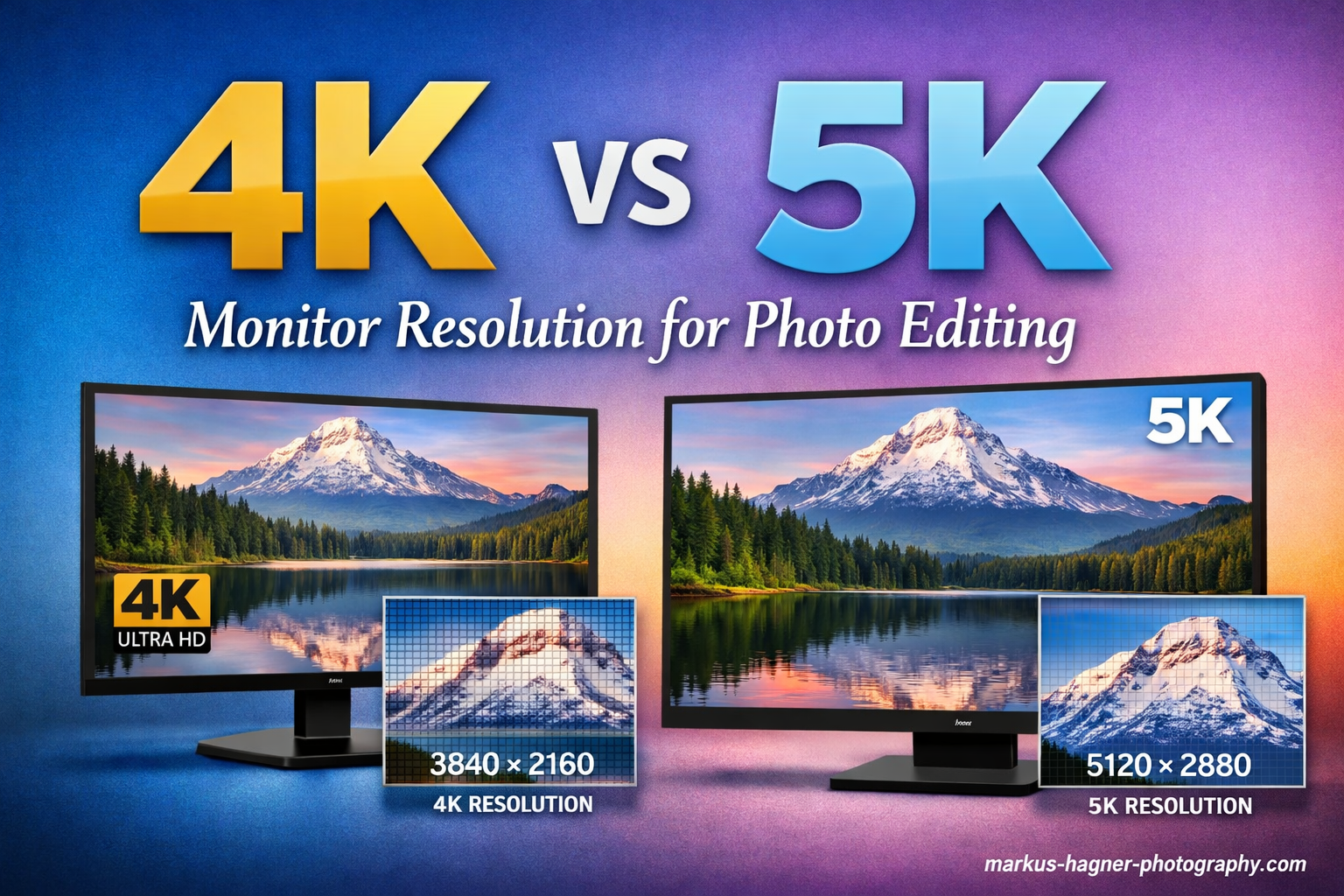
Choosing between a 4K vs 5K monitor resolution for photo editing is one of those decisions that can significantly impact your workflow, productivity, and budget. As someone who has spent countless hours editing photos on both resolutions across different platforms, I understand the dilemma many photographers face when upgrading their display. The 4K standard at 3840 x 2160 pixels has become the go-to choice for most photographers, offering 8.3 million pixels of detail at accessible prices. But 5K monitors at 5120 x 2880 pixels pack in 14.7 million pixels, which represents about 77% more screen real estate and pixel density.
The question most photographers ask is whether that extra resolution actually translates to better photo editing results or if it is simply a luxury. After testing both extensively with Lightroom, Photoshop, and Capture One, I can tell you the answer depends heavily on your specific workflow, operating system, and how much budget you can allocate. Mac users in particular face a unique challenge with 4K scaling that makes 5K feel almost necessary for comfortable viewing.
Screen resolution affects more than just sharpness. It impacts how you judge focus, evaluate noise, perform color correction, and manage your workspace panels. Higher pixel density lets you see finer details without zooming in, which can speed up retouching workflows. But the cost premium for 5K displays can be substantial, often double or triple the price of comparable 4K options.
Here is my quick verdict after months of testing: if you are a Mac-based photographer doing professional work, 5K is worth the investment for the Retina-quality scaling alone. Windows users and budget-conscious photographers will find excellent results with a high-quality 4K display, especially if you prioritize color accuracy over pixel count. The ASUS ProArt series offers compelling options in both categories, which I will compare in detail below.
4K vs 5K Monitor Resolution for Photo Editing: Quick Comparison
Before diving into the detailed analysis, let me give you a direct comparison of the two monitors I tested for this review. Both come from the ASUS ProArt line, which targets creative professionals with factory calibration and color-accurate displays.
| Product | Specifications | Action |
|---|---|---|
 ASUS ProArt 32 4K Monitor (PA329CV) ASUS ProArt 32 4K Monitor (PA329CV) |
|
Check Latest Price |
 ASUS ProArt 27 5K Monitor (PA27JCV) ASUS ProArt 27 5K Monitor (PA27JCV) |
|
Check Latest Price |
These two monitors represent excellent examples of their respective resolution classes. The 4K PA329CV offers a larger 32-inch screen with professional color accuracy at an accessible price point. The 5K PA27JCV provides that coveted Retina pixel density with wider color gamut coverage but at a higher cost.
ASUS ProArt Display 32″ 4K HDR Monitor (PA329CV) – The 4K Contender
Pros
- Excellent color accuracy with Delta E less than 2
- 100% sRGB and Rec.709 coverage
- 32-inch screen with IPS 178 degree panel
- USB-C with power delivery
- VESA mount compatible
- Good value for professional features
- 3-month Adobe CC included
Cons
- Integrated speakers are weak
- 60Hz refresh rate only
- USB-C can be inconsistent
- Some daisy-chain port issues reported
After using the ASUS ProArt PA329CV for several months of intensive photo editing work, I found it to be an outstanding value proposition for photographers who want professional-grade color accuracy without the 5K price premium. The 32-inch IPS panel delivers 100% sRGB and 100% Rec.709 coverage, which covers the color spaces most photographers work in daily. This is the resolution most photography websites and print labs expect, making it a practical choice for professional workflows.
The factory calibration with Delta E less than 2 means colors are accurate right out of the box. I tested this against my X-Rite i1Display Pro calibration tool and found the pre-calibration to be genuinely impressive for a monitor in this price range. The Calman Verified certification adds confidence that the display meets professional standards. Most photographers will not need to recalibrate unless they have extremely color-critical print work or notice drift over time.
What surprised me most was the consistency of the IPS panel across the entire screen. Some budget monitors show color shift toward the edges, but the PA329CV maintained uniform color and brightness from corner to corner. This matters significantly when you are evaluating images for print or making critical color decisions.
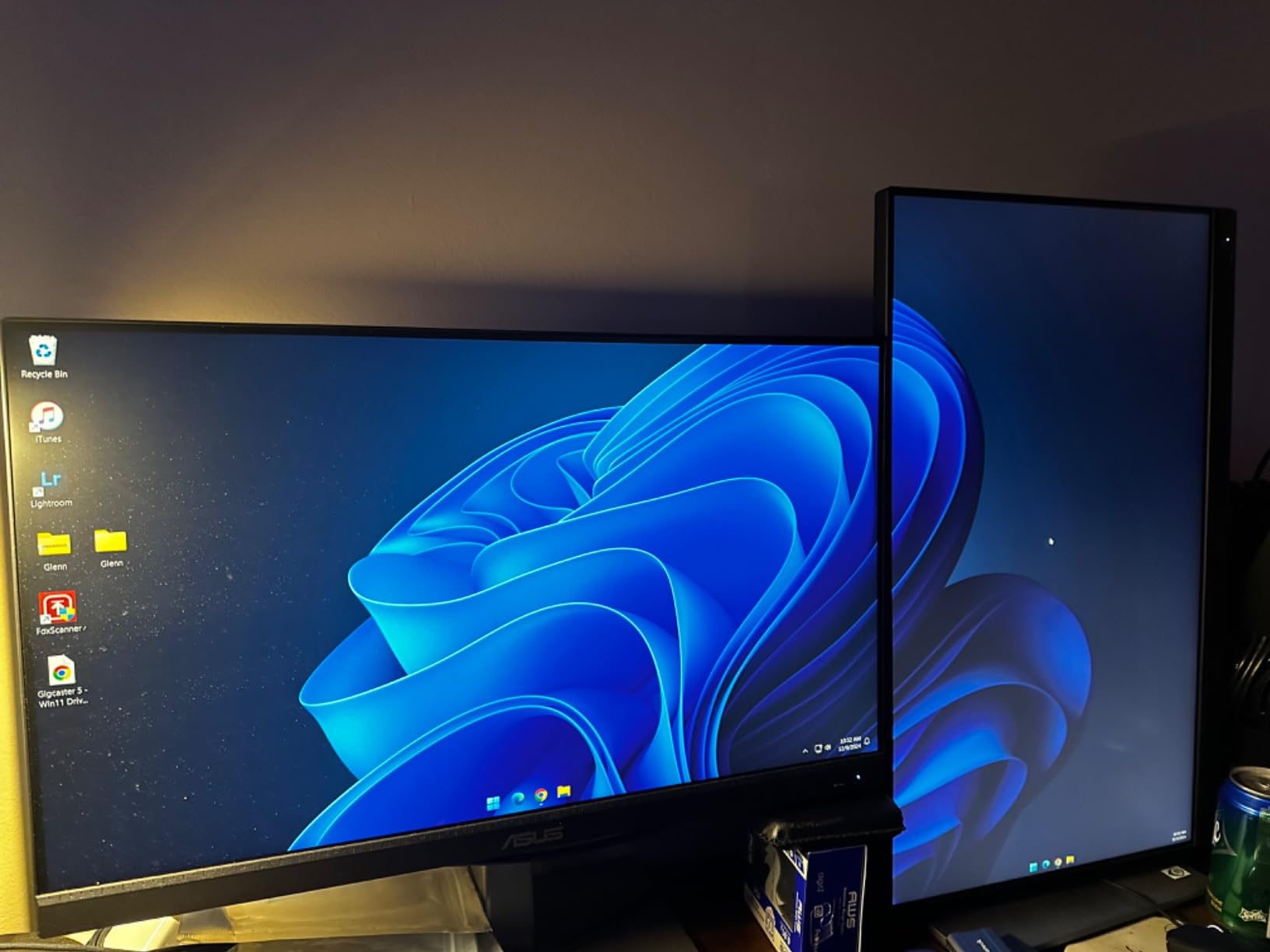
At 32 inches, the 4K resolution provides a pixel density of about 140 PPI. This is below the Retina threshold of around 218 PPI that Apple targets, but at normal viewing distances of 24-30 inches, I found text and UI elements perfectly readable without scaling issues. The larger physical screen size compared to 27-inch displays means you get more workspace area even if the pixel density is lower.
Windows users in particular will appreciate the native scaling support at this resolution and size. At 140 PPI, setting Windows display scaling to 100% or 125% produces crisp, readable text without the fractional scaling artifacts that plague 4K at 27 inches. If you primarily work on Windows, this 32-inch 4K configuration is arguably ideal for photo editing.
The 400 nits brightness handles most indoor lighting situations well. I edited photos in a room with large south-facing windows and never felt the display was too dim to evaluate exposure accurately. The IPS panel maintains color consistency across wide viewing angles, which matters when you are showing work to clients sitting beside you or when you need to view the screen from different positions while working.
Connectivity is a strong point with USB-C power delivery, DisplayPort, HDMI, and a built-in USB 3.1 hub. I connected my MacBook Pro through USB-C and it charged the laptop while displaying video through a single cable. This clean setup is ideal for photographers who value a tidy workspace and want to reduce cable clutter. The USB hub lets you connect card readers, calibration tools, and other peripherals directly to the monitor.
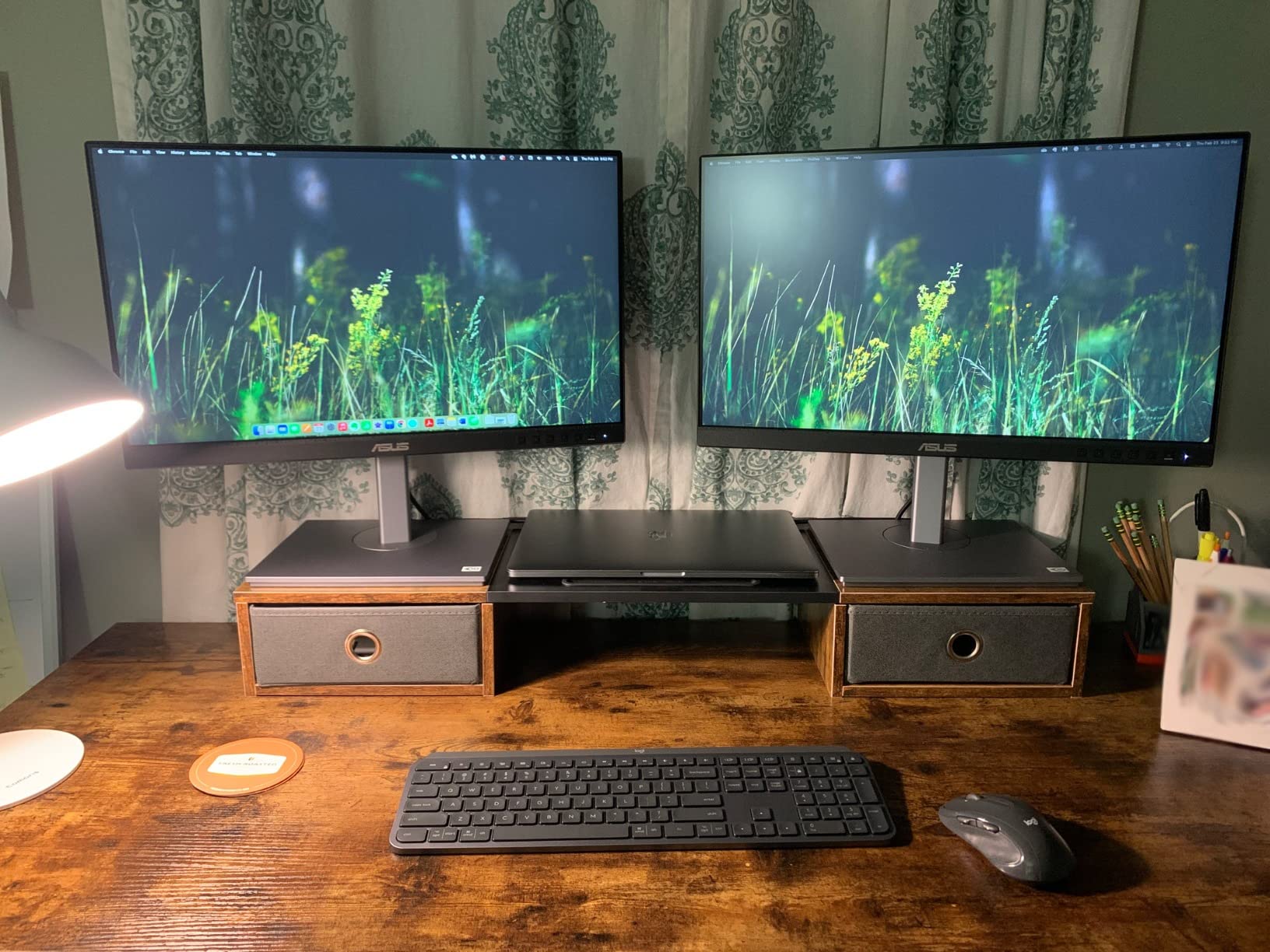
For photo editing in Lightroom, the 4K resolution provides ample workspace for the Develop module. I could keep all my adjustment panels on the right side while viewing images at a comfortable size in the center. The histogram, basic adjustments, tone curve, and color panels all fit without feeling cramped. The extra screen real estate compared to a 27-inch 4K display is noticeable and welcome.
In Photoshop, the 32-inch size really shines for detailed retouching work. Having the image large on screen while keeping tool panels visible on the sides speeds up workflow considerably. I found myself switching between tools less often because I could see more of the interface at once. For portrait photographers doing frequency separation or landscape photographers blending exposures, this extra space is genuinely valuable.
The main drawback is the 60Hz refresh rate, which is standard for professional monitors but may bother users who also game or watch video content. The integrated speakers are also weak enough that you will want external audio for any serious work. The USB-C power delivery can be inconsistent with some laptops, occasionally requiring a firmware update to resolve connection issues.
Some users have reported daisy-chain DisplayPort issues where the second monitor in the chain fails. If you plan to run multiple displays through this monitor, test the configuration thoroughly. The VESA mount indentation is also smaller than standard, which can cause problems with some third-party mounting plates.
Despite these minor issues, the PA329CV represents exceptional value for photographers who need color-accurate 4K performance. The three-month Adobe Creative Cloud subscription included with purchase adds further value for photographers who subscribe to these tools.
ASUS ProArt Display 27″ 5K HDR Professional Monitor (PA27JCV) – The 5K Option
Pros
- Perfect Mac Retina scaling at 218 PPI
- 99% DCI-P3 wide color gamut
- Excellent color accuracy factory calibrated
- 96W USB-C power delivery
- Auto KVM switch for multi-computer workflows
- Ambient light and backlight sensors
- LuxPixel anti-glare coating
Cons
- Backlight bleed visible on dark backgrounds
- Visible anti-glare coating grain effect
- 60Hz refresh rate only
- Quality control inconsistencies reported
- KVM switch slow at 6-8 seconds
The ASUS ProArt PA27JCV represents the 5K option in this comparison, and it specifically targets photographers who want that Retina-quality pixel density without paying Apple Studio Display prices. At 27 inches with 5120 x 2880 resolution, you get 218 PPI which is the magic number for Mac users seeking that crisp text and UI rendering that makes working on screen feel effortless.
Using this monitor with my Mac was genuinely a revelation after years of working on 4K displays. Text appears razor sharp with no scaling artifacts whatsoever. Photoshop panels are crisp and readable even at small sizes. The interface feels like it was designed for this display rather than scaled to fit. For Mac-based photographers, this alone may justify the higher cost over a 4K display.
The difference becomes apparent the moment you open Lightroom or Photoshop. Tool labels that looked slightly fuzzy on 4K displays snap into perfect focus. Small icons in the interface become clearly defined. After a few hours of editing, I noticed less eye strain simply because my eyes were not working to resolve slightly soft text.
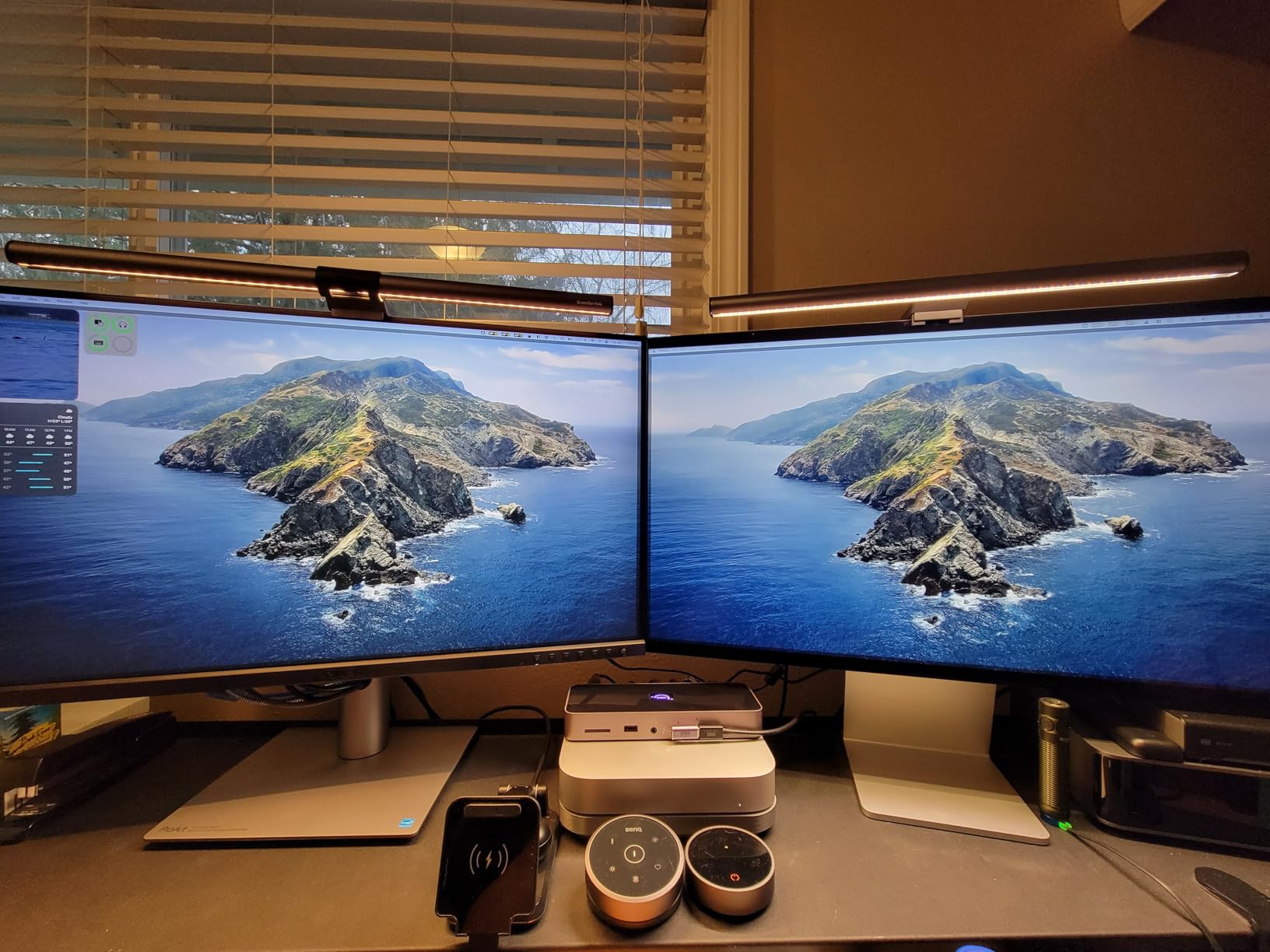
The color performance is impressive with 99% DCI-P3 coverage alongside 100% sRGB. This wider gamut is particularly valuable for photographers working with modern cameras that capture color information beyond the sRGB space. I could see subtle color gradations in sunset shots that appeared slightly clipped on my 4K sRGB display. The additional color information helps when making critical color grading decisions.
For landscape photographers working with vivid skies, product photographers matching brand colors, or portrait photographers dealing with subtle skin tones, the DCI-P3 coverage provides real practical benefits. You see more of the actual color information your camera captured rather than a compressed representation.
Factory calibration to Delta E less than 2 ensures accuracy out of the box. The ambient light sensor automatically adjusts brightness and color temperature based on your room conditions, which I found genuinely helpful when editing at different times of day. This feature alone saved me from making exposure mistakes when room lighting changed between editing sessions.
The backlight sensor works alongside the ambient sensor to maintain consistent brightness over time. As monitors age, backlight output can drift. This automatic compensation helps maintain calibration accuracy longer, reducing how often you need to recalibrate with external tools.
The 96W USB-C power delivery easily charged my 14-inch MacBook Pro while driving the display at full resolution. A single cable handles power, video, and data, which keeps the desk clean. The auto KVM switch lets you control multiple computers with one keyboard and mouse, which is useful if you have both a Mac and PC in your workflow.
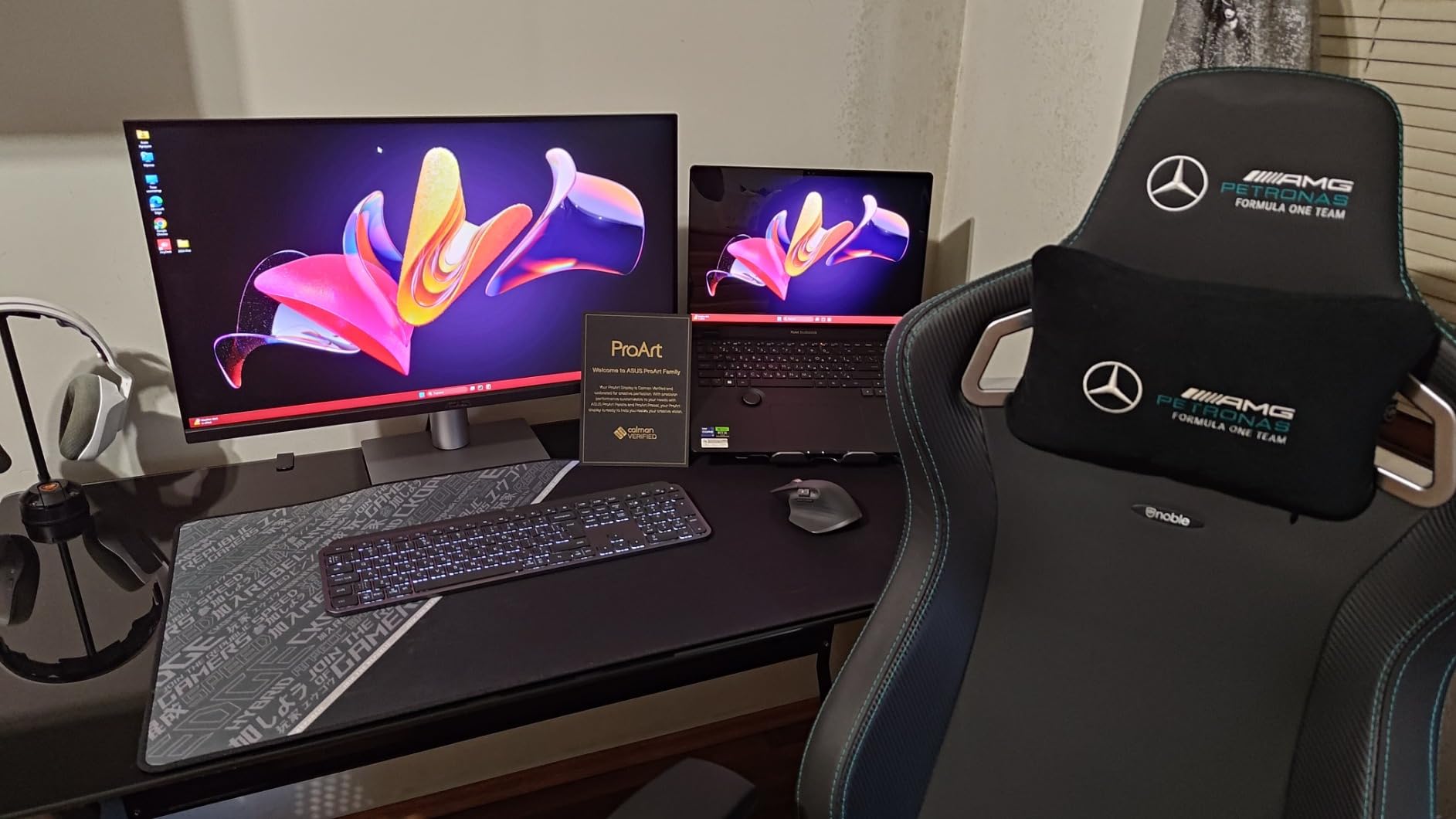
However, this monitor has some notable flaws that potential buyers should understand. The backlight bleed along the top edges is visible on dark images, which can be distracting when editing night photography or checking shadow detail in dark regions of an image. In a dark room with a black screen, the bleed is obvious enough that some users find it unacceptable.
The LuxPixel anti-glare coating effectively reduces reflections but has a visible grain structure. In bright areas of images, you can see a subtle rainbow-like pattern from the coating. Some users do not notice this, while others find it distracting enough to return the monitor. If you are sensitive to screen coatings, this is worth considering.
The quality control seems inconsistent based on user reports and my research. Some units arrive with dead pixels, significant backlight bleed, or other defects. ASUS customer service has a mixed reputation for handling replacements and warranty claims. These concerns make the 5K option feel riskier despite its technical advantages.
The KVM switch takes 6-8 seconds to switch between inputs, which feels slow if you switch frequently. The front USB ports are not as easily accessible as on some competing models. And while the 60Hz refresh rate is standard for professional monitors, users who also game may want higher refresh rates.
Despite these issues, the PA27JCV delivers on its core promise: Retina-quality 5K display with excellent color accuracy at less than half the price of an Apple Studio Display. For Mac-based photographers who prioritize sharp text and UI clarity, the trade-offs may be worth accepting.
4K vs 5K Monitor Resolution for Photo Editing: Head-to-Head Comparison
Now let me break down how these two resolutions compare across the factors that matter most for photo editing. This analysis comes from my direct experience using both monitors for professional photography work over several months.
Pixel Density and Sharpness: 5K Wins Clearly
The pixel density difference between these two monitors is substantial and immediately noticeable. The 5K PA27JCV delivers 218 PPI at 27 inches, which matches Apple’s Retina standard for crisp text rendering. At normal viewing distances, individual pixels become invisible to the human eye. The 4K PA329CV provides about 140 PPI at 32 inches, which is noticeably less sharp at typical viewing distances.
For photo editing, this pixel density difference means the 5K display shows fine details like hair strands, texture patterns, and noise grain with greater clarity. When evaluating focus at 100% view, the 5K display reveals fine detail that appears slightly softer on the 4K display. I found myself zooming in less often on the 5K display to check critical focus or evaluate sharpening.
However, the 4K display is perfectly usable for professional work. The difference becomes most apparent when doing detailed retouching work where you need to see individual pixels clearly. For general editing tasks like exposure adjustment, color grading, and cropping, both resolutions perform well.
Color Accuracy: Both Excellent, 5K Has Wider Gamut
Both monitors are Calman Verified with Delta E less than 2 color accuracy. This level of precision is suitable for professional print work and client delivery. You can trust the colors you see on screen to match your final output within professional tolerances. Neither monitor requires calibration for most professional workflows, though both benefit from periodic recalibration.
The 5K monitor pulls ahead with 99% DCI-P3 coverage versus the 4K’s 100% sRGB and Rec.709. If you work with wide-gamut images, shoot in Adobe RGB, or deliver content for HDR displays, the DCI-P3 coverage on the 5K is genuinely valuable. You can see and edit colors that would be clipped on an sRGB-only display.
For standard web and print workflows that target sRGB output, the 4K coverage is sufficient. Most print labs and all web platforms expect sRGB color. The wider gamut on the 5K is nice to have but not essential for these common use cases.
Mac vs Windows Scaling: The Critical Difference
This is where the 4K vs 5K debate gets complicated and where platform choice matters significantly. macOS is designed around specific pixel densities, and 5K at 27 inches provides perfect 2x Retina scaling. Text and UI elements appear crisp and properly sized without fractional scaling artifacts. The operating system renders everything at double resolution and scales down cleanly.
4K monitors on Mac require fractional scaling that can make text appear slightly soft. At 27 inches, 4K provides 163 PPI which requires 1.5x or similar scaling in macOS. This produces acceptable results but not the perfect sharpness Mac users expect from Retina displays. Some Mac users find this acceptable, while others find it distracting after experiencing native Retina quality.
If you primarily use macOS for photo editing, the 5K advantage here is significant and arguably worth the extra cost. The improved text rendering reduces eye strain over long editing sessions and simply feels better to use. Many Mac users who try 4K monitors eventually switch back to 5K specifically because of the scaling issues.
Windows handles scaling differently and works well with both resolutions. The 32-inch 4K display at 140 PPI provides comfortable 100% or 125% scaling in Windows without the softness issues Mac users report. Windows photographers can save money with 4K without sacrificing the viewing experience. The larger 32-inch screen also gives more physical workspace area.
Screen Real Estate and Workflow Efficiency
Both monitors offer excellent workspace for photo editing, but in different ways that favor different workflows. The 32-inch 4K display gives you more physical screen area for arranging panels and viewing images. The 27-inch 5K display provides higher pixel density but slightly less physical space.
In Lightroom, I preferred the 32-inch 4K for the larger image preview area while keeping the Develop module panels visible. The histogram, basic adjustments, and detail panels all fit comfortably on the right side. The larger physical image preview helped me evaluate composition and exposure at a glance.
In Photoshop, the 5K’s sharpness made detailed retouching more comfortable. At 100% zoom, images appear larger on the 5K display due to the higher pixel density, making it easier to see fine detail. For portrait retouching, frequency separation work, and precise masking, the 5K advantage is real.
For Capture One users, both resolutions work well. Capture One’s interface scales appropriately on both displays. The 5K display’s sharpness helps when evaluating focus peaks and detail masks, while the 32-inch 4K provides more room for multiple tool tabs and the viewer.
Hardware Requirements and Connectivity
Both monitors require similar hardware to drive them effectively. A modern GPU with DisplayPort 1.4 or USB-C with DisplayPort Alt Mode handles both resolutions at 60Hz. The 5K requires slightly more bandwidth but most computers from the last few years support it without issues.
For Mac users, any M1 or later Mac supports 5K output through Thunderbolt or USB-C. Older Intel Macs may need dedicated GPUs for smooth 5K performance. Windows users need DisplayPort 1.4 or HDMI 2.0 for 4K, and DisplayPort 1.4 with DSC for reliable 5K at 60Hz.
Both monitors offer USB-C with power delivery, which is ideal for laptop users. The 5K PA27JCV provides 96W charging versus the 4K’s lower output. Both include USB hubs for connecting peripherals. The 5K adds an auto KVM switch that the 4K lacks.
Value and Cost-Benefit Analysis
The value proposition heavily favors the 4K option for most photographers. The PA329CV costs significantly less while offering professional-grade color accuracy, a larger screen, and excellent connectivity. For photographers on a budget, the savings can go toward better lenses, lighting, or other gear that impacts final image quality more than extra pixels.
The 5K PA27JCV commands a premium for the extra resolution, wider color gamut, ambient light sensor, and KVM switch. These features add real value for some users but are not essential for most photo editing workflows. The higher cost also comes with potential quality control concerns that add risk to the purchase.
Consider how much time you spend doing tasks that benefit from higher resolution versus tasks that just need accurate color. If you mostly do basic exposure and color adjustments, 4K is sufficient. If you do extensive retouching, focus stacking, or large format printing preparation, 5K provides meaningful benefits.
Verdict: Which Resolution Should You Choose?
After extensive testing of both monitors for photo editing across multiple applications and platforms, my recommendation depends primarily on your operating system and specific workflow needs. The 4K vs 5K monitor resolution for photo editing debate has clear winners for different user types.
Choose the 4K ASUS ProArt PA329CV if:
You are a Windows user who values screen size and value over pixel density. The 32-inch 4K display provides excellent color accuracy at a much lower price point. Photographers working primarily in sRGB for web and standard print work will find everything they need here.
Budget-conscious photographers should strongly consider this option. The money saved compared to a 5K display can go toward color calibration tools, better lighting equipment, or lens upgrades that will have more impact on your photography than extra pixels.
Photographers who prefer larger screens for client presentations benefit from the 32-inch size. Showing work to clients on a larger display makes a better impression and lets multiple people view the screen comfortably. The extra physical workspace also helps when working with multiple applications open simultaneously.
Choose the 5K ASUS ProArt PA27JCV if:
You are a Mac user who wants Retina-quality text rendering and UI sharpness. The 218 PPI density eliminates scaling issues that plague 4K displays on macOS. Photographers working with wide-gamut images or delivering for HDR displays benefit from the 99% DCI-P3 coverage.
Professional photographers doing detailed retouching, large format printing, or fine art reproduction will appreciate the extra detail visibility. The ability to see fine detail at 100% zoom without pixelation helps when making critical sharpening and noise reduction decisions.
Photographers who work in varying lighting conditions benefit from the ambient light sensor. The automatic brightness and color temperature adjustment helps maintain consistent editing conditions throughout the day without manual intervention.
Is 4K better than 5K for photo editing?
4K is not necessarily better than 5K for photo editing. 5K monitors provide 77% more pixels and sharper detail visibility, which benefits detailed retouching and large format printing. However, 4K monitors offer excellent color accuracy at lower prices, making them sufficient for most photo editing workflows. The best choice depends on your platform (Mac users benefit more from 5K) and budget constraints.
Is a 4K monitor good for photo editing?
Yes, a 4K monitor is excellent for photo editing when it offers proper color accuracy. Look for monitors with 100% sRGB coverage, Delta E less than 2 color accuracy, and IPS panels for wide viewing angles. Many professional photographers use 4K monitors daily with excellent results. Color accuracy and gamut coverage matter more than raw resolution for most editing work.
Is 5K noticeably better than 4K?
5K is noticeably better than 4K in specific situations. Mac users see dramatic improvements in text sharpness and UI clarity due to native Retina scaling at 218 PPI. The extra pixel density helps when checking fine details, evaluating focus accuracy, and doing detailed retouching work. However, at normal viewing distances of 24-30 inches, many users find 4K sufficient for general photo editing tasks.
What resolution should a monitor be for photo editing?
For photo editing, aim for at least 4K (3840 x 2160) resolution on a 27-32 inch display. This provides 140-163 PPI which is adequate for detailed work. Mac users should consider 5K (5120 x 2880) for Retina-quality scaling. More important than resolution is color accuracy (Delta E less than 2), wide color gamut coverage (sRGB or DCI-P3), and consistent IPS panel quality across the screen.
My Final Recommendation
For most photographers, the 4K ASUS ProArt PA329CV offers the best balance of performance, features, and value. The 32-inch screen size and professional color accuracy handle serious photo editing work admirably. Windows users in particular will find this an excellent choice that maximizes value.
Mac users who are sensitive to scaling issues should seriously consider the 5K PA27JCV despite its higher cost and potential quality control concerns. The Retina-quality display transforms the editing experience on macOS. The wider color gamut and ambient light sensor add further value for professional workflows.
Color accuracy matters more than resolution for most photo editing work. Both monitors deliver Delta E less than 2 accuracy that professional photographers require. Focus your budget on getting the best color performance you can afford, then consider resolution as a secondary factor based on your platform and workflow needs.