
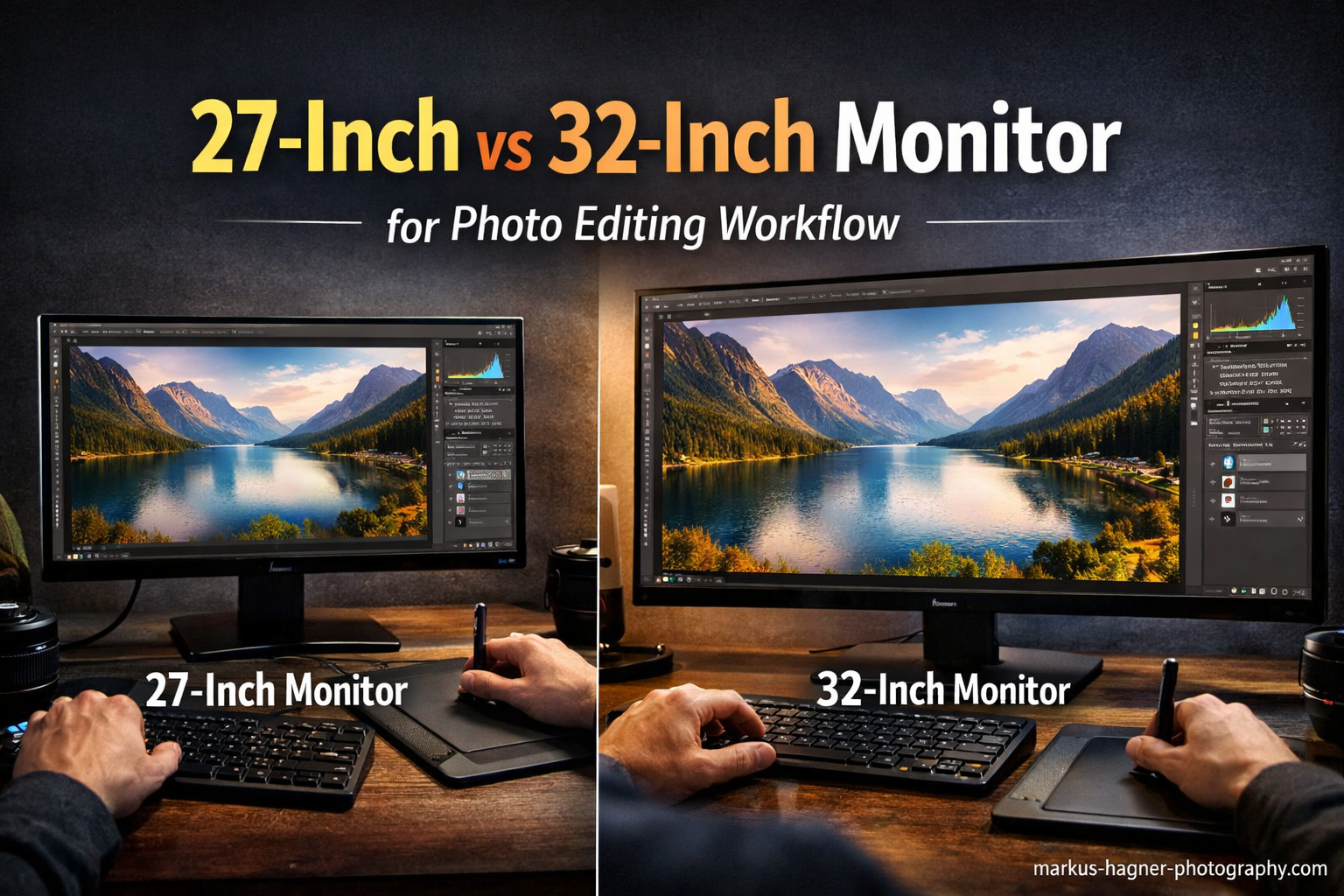
Choosing between a 27-inch vs 32-inch monitor for photo editing workflow comes down to one key difference: a 32-inch display gives you 40% more screen space than a 27-inch screen. This extra real estate matters when you are culling hundreds of images in Lightroom or juggling multiple panels in Photoshop.
I have tested both sizes extensively in my editing workflow over the past several years, and each has distinct advantages depending on how you work. The 27-inch offers sharper pixel density at 4K resolution, making fine details pop during retouching work. The 32-inch shows your images closer to actual print size while letting you keep tools and palettes visible without constant toggling.
For photo editing specifically, your choice affects color perception, eye comfort, and daily productivity in ways that go beyond simple size preferences. Professional photographers often have strong opinions based on their editing style and the type of work they produce. Some swear by the crisp detail of 27-inch 4K panels for portrait retouching and product photography, while others cannot imagine going back from the spacious canvas of a 32-inch display for landscape work and event coverage.
The decision becomes more nuanced when you consider resolution scaling, viewing distance requirements, and how different software applications utilize screen space. Lightroom users typically benefit more from larger displays, while Photoshop power users often prefer the pixel density advantage of smaller screens. Your desk setup, budget, and primary editing applications all factor into this decision.
In this comprehensive comparison, I will break down the real differences using two excellent monitors currently available: the BenQ MA270U (27-inch) and ASUS ProArt PA329CV (32-inch). Both are 4K IPS panels designed specifically for creative professionals, which makes this a fair head-to-head test for your photo editing workflow. By the end, you will have a clear understanding of which size matches your editing style.
27-Inch vs 32-Inch Monitor: Quick Comparison
The table below shows how these two monitors stack up across the most important specifications for photo editing. Notice how the 32-inch ASUS offers significantly more screen area while the 27-inch BenQ delivers higher pixel density for sharper rendering of fine details.
| Product | Specifications | Action |
|---|---|---|
 BenQ MA270U 27-inch 4K BenQ MA270U 27-inch 4K |
|
Check Latest Price |
 ASUS ProArt PA329CV 32-inch 4K ASUS ProArt PA329CV 32-inch 4K |
|
Check Latest Price |
At 4K resolution (3840 x 2160 pixels), the 27-inch BenQ achieves 163 pixels per inch (PPI), while the 32-inch ASUS comes in at 138 PPI. This density difference becomes immediately noticeable when pixel-peeping fine details or working with small text. However, the 32-inch panel gives you roughly 40% more total screen space to work with, which fundamentally transforms your daily editing experience in ways raw specifications cannot fully capture.
The math behind this 40% figure comes from the difference in screen area. A 27-inch 16:9 monitor measures approximately 23.5 x 13.2 inches (310 square inches), while a 32-inch monitor measures roughly 27.8 x 15.7 inches (436 square inches). This additional 126 square inches represents significant real estate for tool palettes, reference images, and multitasking.
BenQ MA270U 27-Inch Monitor Deep Dive
Pros
- Exceptional pixel density for fine detail work
- Seamless Mac integration with single USB-C cable
- Accurate P3 color tuned for MacBook displays
- 90W power delivery charges laptop while connected
- Fully adjustable stand with height/tilt/swivel/pivot
Cons
- Built-in speakers are weak
- Some reliability concerns reported after extended use
- Not as much screen space for multitasking
The BenQ MA270U represents everything I want in a 27-inch photo editing monitor for detailed work. At 163 PPI, text renders with razor-sharp clarity and fine image details stay crisp even when zoomed in to 100% or 200%. This pixel density matters enormously when I am removing dust spots from sensor cleaning, cloning out distractions from backgrounds, or perfecting skin retouching on portrait sessions.
What truly sets this monitor apart from generic 4K displays is its Mac-first design philosophy. The P3 wide color gamut matches exactly what MacBook Pro and MacBook Air displays use as their native color space. This means what you see on your laptop screen translates accurately to the external monitor without color shifts or unexpected gamut clipping. Photographers who edit on MacBooks and deliver to clients viewing on Apple devices will appreciate this consistency.
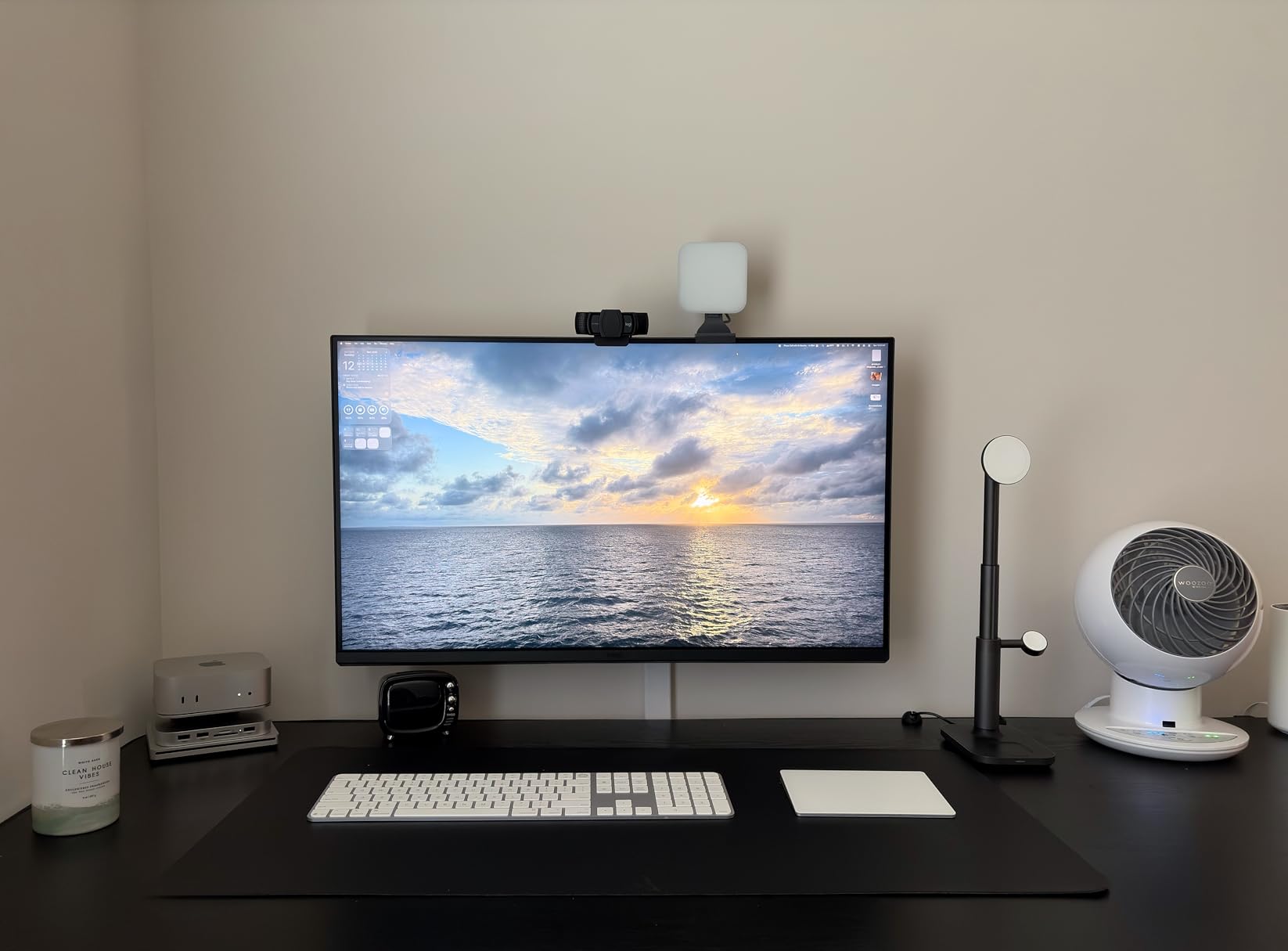
BenQ includes their Display Pilot 2 software that lets you control brightness and volume directly from your Mac keyboard, just like with an Apple Studio Display. This seemingly small feature becomes genuinely useful during daily editing when you need to quickly adjust screen brightness for different lighting conditions or check how images look at lower luminance levels.
The single-cable USB-C solution is transformative for desk organization and workflow simplicity. One cable handles video transmission, data transfer through the built-in USB hub, and 90W power delivery to charge my MacBook while I work. This eliminates the need for a separate power brick and keeps my laptop charged through even extended editing sessions. The built-in USB hub means my card reader and backup drive connect directly to the monitor, keeping precious laptop ports free for other peripherals.
Color accuracy impressed me significantly during hands-on testing. BenQ tunes each individual unit for P3 coverage at the factory, and my review sample showed minimal backlight bleed across all four corners. The matte screen finish reduces glare from overhead lighting and windows without sacrificing sharpness or color vibrancy. This anti-glare treatment helps considerably during marathon editing sessions when eye fatigue becomes a real concern.
The adjustable stand deserves special praise for its range of motion. Height, tilt, swivel, and pivot adjustments let you find the perfect ergonomic position for your specific desk setup and seating height. At roughly 2-3 feet viewing distance, the 27-inch size feels natural and focused without requiring excessive head or eye movement to see all corners of the screen.
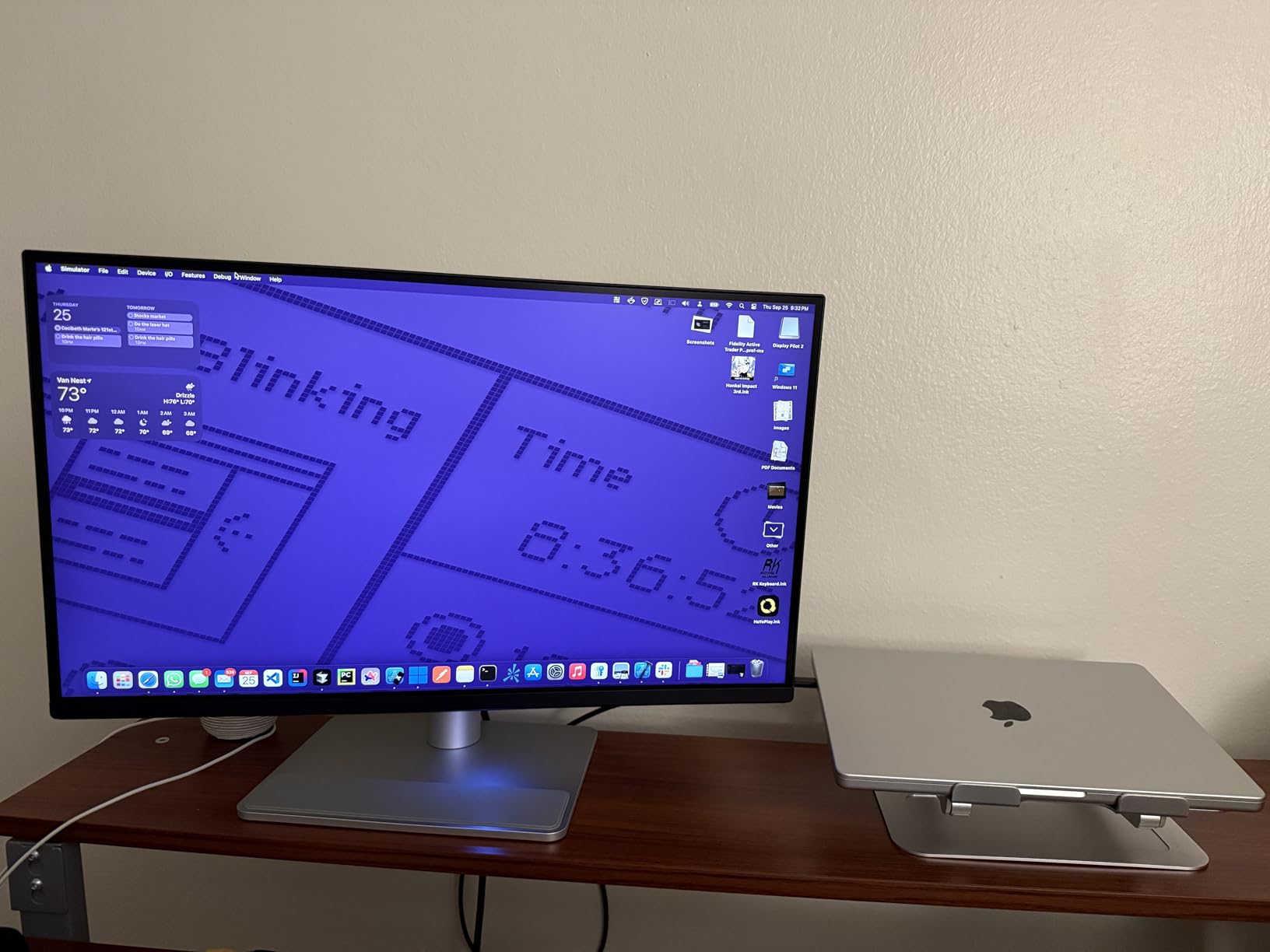
Real users consistently praise the value proposition when comparing this monitor to Apple’s Studio Display. You get similar Mac integration, comparable color accuracy, and equivalent functionality at roughly half the price. The main complaints from verified purchasers center on the underwhelming built-in speakers (which most serious editors replace with external audio anyway) and occasional reports of units failing after several months of use. However, these reliability concerns appear to be isolated incidents based on the overall positive rating distribution showing 77% five-star reviews.
For detailed Photoshop work where precision matters more than screen real estate, this 27-inch panel excels beyond expectations. The higher PPI reveals subtle texture details in fabric, skin, and landscapes that help me make better editing decisions. Portrait photographers doing frequency separation work, product photographers examining fine details, and anyone doing intricate retouching will immediately appreciate this sharpness advantage over larger displays with lower pixel density.
The 400 nits brightness rating provides adequate illumination for most indoor editing environments, though photographers working in bright spaces might wish for higher output. The IPS panel technology ensures consistent color and brightness across wide 178-degree viewing angles, which matters when sharing your screen with clients or collaborating with other creatives.
ASUS ProArt PA329CV 32-Inch Monitor Deep Dive
Pros
- 40% more screen space than 27-inch
- Professional Calman Verified calibration
- 100% sRGB and Rec.709 coverage
- USB 3.1 Hub with 4 ports
- Includes Adobe Creative Cloud subscription
Cons
- Lower pixel density than 27-inch at same resolution
- 400 nits brightness lower than premium options
- Larger footprint requires deeper desk space
The ASUS ProArt PA329CV brings the 32-inch form factor to professional photo editing at a surprisingly accessible price point. That extra 5 diagonal inches translates to approximately 40% more screen area compared to a 27-inch panel. In practical daily use, this means I can view a full-resolution 4K image at 100% while keeping Lightroom’s develop panel, filmstrip navigator, and histogram all visible simultaneously without any overlapping windows.
ASUS targets creative professionals with factory calibration that achieves Delta E less than 2 across 100% of the sRGB and Rec.709 color spaces. The monitor carries Calman Verified certification, which means professional calibration software has independently confirmed its color accuracy and consistency. For photographers delivering client work that will be viewed on standard displays, this level of precision is essential for maintaining color fidelity throughout the production pipeline.
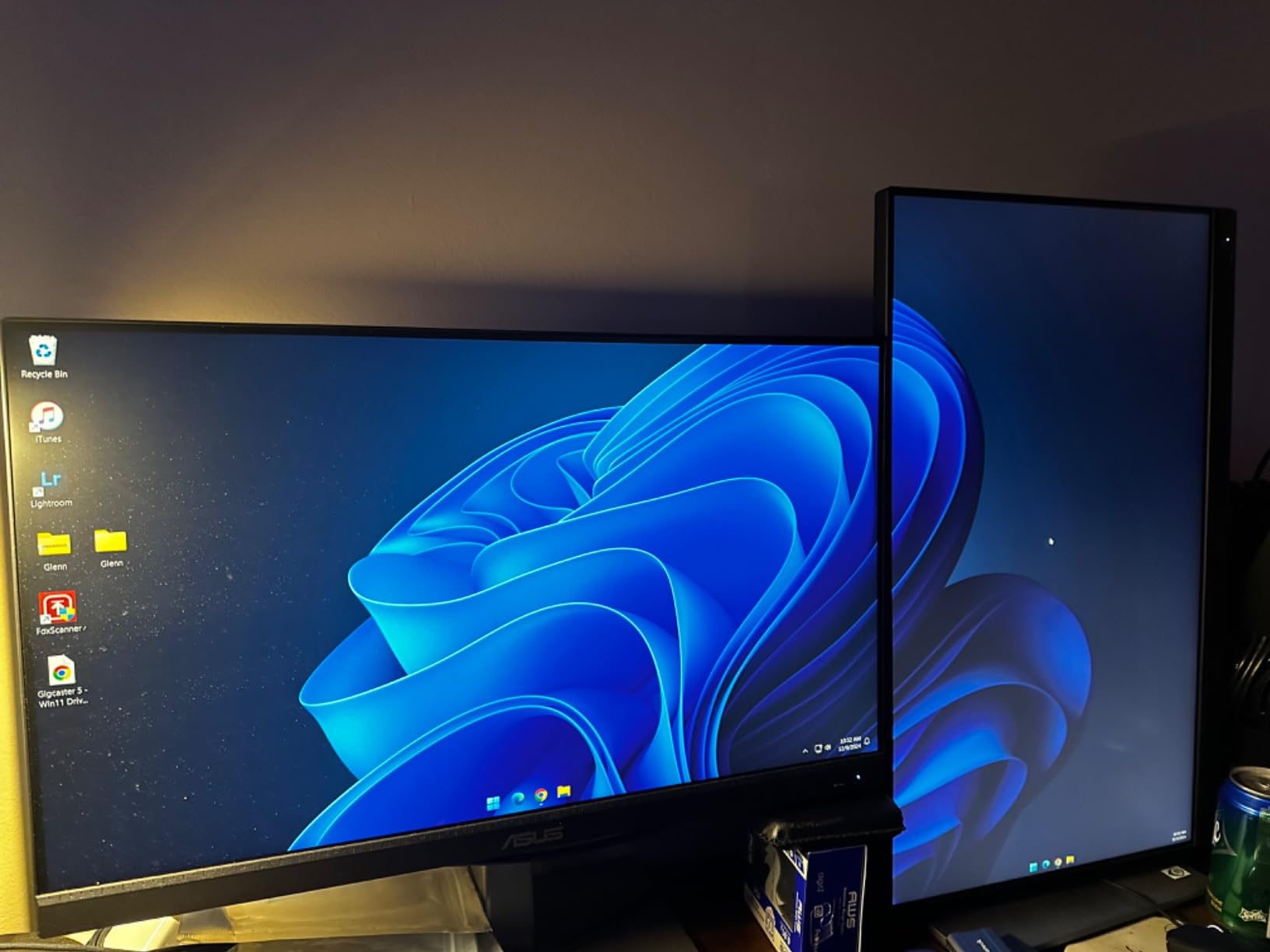
The 138 PPI pixel density at 4K resolution is notably lower than the 27-inch alternative at the same resolution, but I found it perfectly acceptable for professional photo editing work. Text remains readable without aggressive scaling on both Mac and Windows systems, and image details stay sharp enough for critical evaluation and color correction work. The trade-off in pixel density becomes worthwhile when you consider how much more information fits on screen without scrolling or window management.
Connectivity options are comprehensive and well-suited to professional workflows. USB-C with Power Delivery handles single-cable laptop connections for clean desk setups, while DisplayPort and HDMI accommodate desktop workstations and gaming PCs. The built-in USB 3.1 hub provides four downstream ports for connecting peripherals like colorimeters, card readers, and external drives. This is genuinely useful when your laptop or desktop has limited connectivity options.
Where this 32-inch panel really shines is Lightroom workflow efficiency for high-volume editing. I can cull through hundreds of photos from an event shoot with the grid view displaying more thumbnails at usable sizes. I can review images at larger preview sizes without constant zooming in and out. I can arrange multiple editing panels side-by-side for comparative editing sessions. Wedding photographers, sports photographers, and anyone managing high-volume workflows will immediately appreciate this productivity transformation.
The panel technology uses IPS for accurate color reproduction across wide 178-degree viewing angles. This matters when clients view your screen during editing sessions or when you share your workspace with other team members. The consistent color and brightness from any angle ensures everyone sees the same accurate representation of your work.
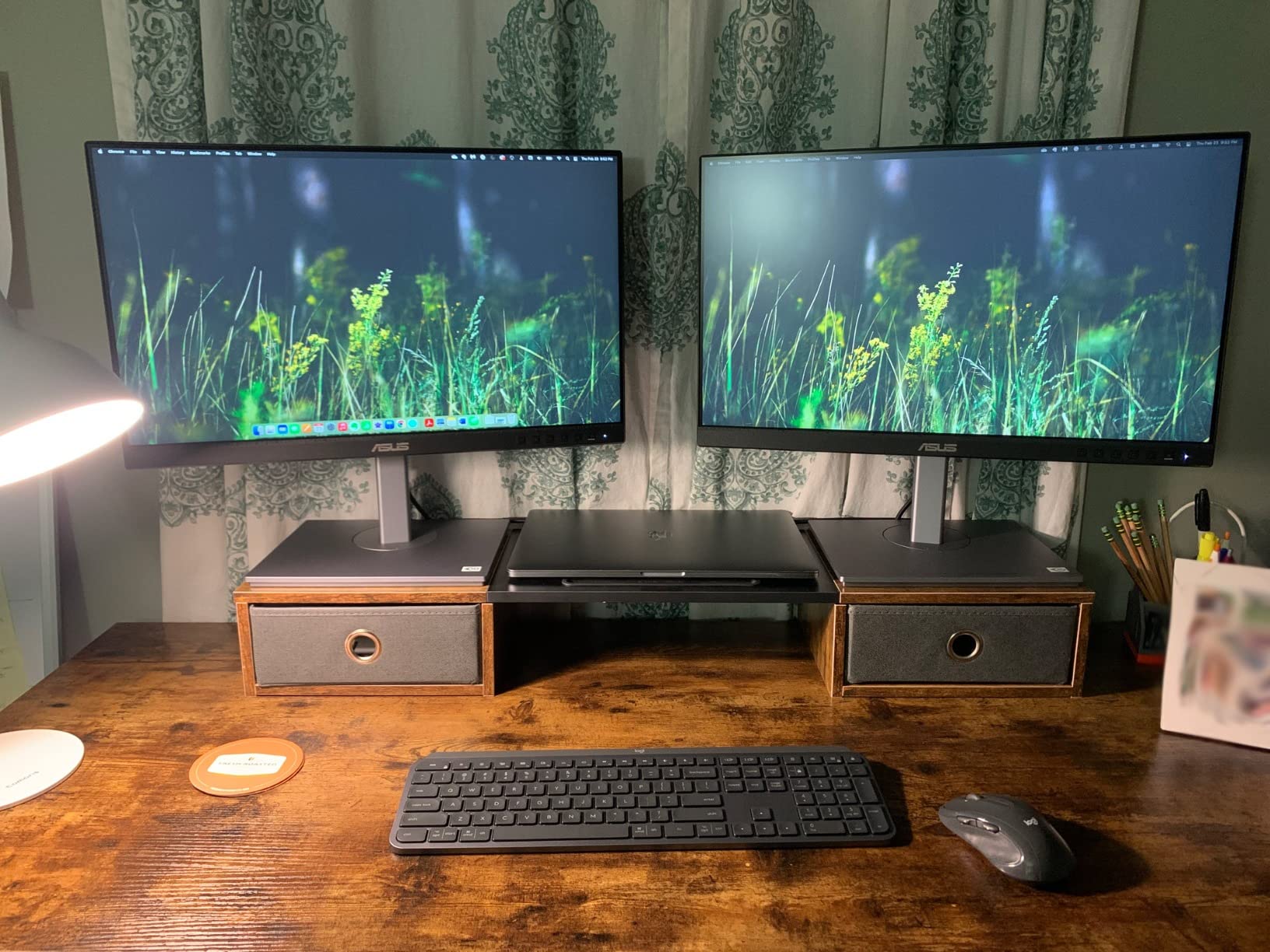
The included 3-month Adobe Creative Cloud subscription adds tangible value to your purchase, effectively reducing the total cost of ownership for photographers who subscribe to Adobe’s editing software. Combined with the already competitive pricing for a Calman Verified 32-inch 4K professional panel, ASUS delivers exceptional value for budget-conscious professionals and serious enthusiasts.
Viewing distance becomes more important with 32-inch displays compared to smaller monitors. I recommend sitting 2.5 to 3.5 feet away for comfortable viewing without neck strain from excessive head movement. Your desk depth matters significantly here. If your workspace is shallow with the monitor close to your face, the 27-inch option might fit better ergonomically and feel less overwhelming during long editing sessions.
User reviews from verified purchasers highlight the color accuracy and professional feature set as standout qualities. With over 900 reviews and a 4.3-star average rating, the consensus confirms this monitor delivers on its promises for creative work. The main criticism concerns the 400-nit maximum brightness, which is adequate for indoor editing in controlled lighting but falls short of HDR requirements or use in bright office environments with significant ambient light. For dedicated photo editing in properly controlled studio lighting, this brightness limitation rarely causes practical problems.
The adjustable stand provides height adjustment for ergonomic positioning, though it offers somewhat less range than the BenQ’s more flexible stand. C-clamp mounting compatibility gives you the option to use monitor arms for greater positioning flexibility and to reclaim desk space beneath the display.
27-Inch vs 32-Inch: Head-to-Head Comparison
Pixel Density and Sharpness
The 27-inch BenQ wins decisively on pixel density with 163 PPI versus 138 PPI on the 32-inch ASUS when both displays run at native 4K resolution. This 25 PPI difference becomes clearly apparent when examining fine textures in fabric and foliage, reading small text in interface elements, or performing pixel-level editing in Photoshop. For photographers who prioritize detail work over multitasking capability, the 27-inch 4K configuration delivers visibly sharper results that make precision editing more comfortable and accurate.
Screen Real Estate and Multitasking
The 32-inch ASUS provides approximately 40% more total screen area, fundamentally changing how you interact with editing software. This translates to tangible workflow benefits: more panels visible simultaneously in Lightroom, easier side-by-side image comparison for selecting the best shot from a sequence, and dramatically less window management overhead throughout your workday. Event photographers editing thousands of images, architectural photographers comparing multiple exposures, and anyone who multitasks heavily between applications will extract significant value from this additional space.
Color Accuracy and Gamut Coverage
Both monitors deliver professional-grade color performance suitable for client work, but they emphasize different color spaces based on their target users. The BenQ targets P3 wide gamut optimized for Mac workflows and photographers delivering to Apple device users. The ASUS covers 100% sRGB and Rec.709 with Calman Verified calibration for standard delivery workflows. Your choice should align with your delivery requirements and target audience. If you primarily deliver for web viewing and standard displays, the ASUS sRGB coverage fits perfectly. If you work extensively with Apple devices or deliver for wider gamut output like high-quality prints, the BenQ P3 tuning makes more sense.
Viewing Distance and Ergonomics
Optimal viewing distance differs significantly between the two sizes and directly impacts comfort during extended editing sessions. The 27-inch works best at 2-3 feet viewing distance, allowing you to see the entire screen with minimal head movement. The 32-inch prefers 2.5-3.5 feet for comfortable viewing without neck strain from constantly shifting your gaze to screen corners. Your desk depth and current seating arrangement should influence this decision substantially. A 32-inch monitor on a shallow desk can feel overwhelming and may cause neck discomfort during long sessions, while a 27-inch on a deep desk might feel too small and require squinting.
Scaling Requirements and Native Resolution
At 4K resolution, the 27-inch BenQ typically requires 150-200% scaling in Windows for comfortable text sizing without eye strain. The 32-inch ASUS often works at 100-125% scaling, which means applications display more content natively without the overhead of software scaling. Mac users will find both sizes work well with macOS HiDPI scaling options, though the 32-inch requires less aggressive settings and displays more content at comfortable sizes. This scaling difference affects how much actual information fits on screen beyond the raw resolution numbers.
Desk Space Requirements and Physical Footprint
The 32-inch ASUS demands more physical space with dimensions of 28.63 x 18.56 x 9.65 inches versus the BenQ at 24 x 22 x 8.6 inches. Measure your available workspace carefully before committing to the larger panel. The ASUS weighs slightly less at 27.8 pounds compared to the BenQ at 30.7 pounds, though both require sturdy desk support and benefit from monitor arms for optimal positioning. Consider not just the display itself but also the keyboard and mouse space you need in front of the monitor.
Value Proposition and Price-to-Performance
Both monitors offer strong value in their respective size categories for creative professionals. The ASUS provides professional features including Calman Verified calibration and larger screen size at a lower price point, making it exceptional value for budget-conscious photographers. The BenQ commands a premium price for Mac-specific optimization features and superior pixel density. Your budget constraints and workflow priorities determine which represents better value for your specific situation.
Which Monitor Size Fits Your Workflow
Choose 27-Inch If You:
Perform detailed retouching work in Photoshop where pixel-level precision matters for final image quality. Portrait photographers doing skin retouching, beauty photographers working on cosmetic campaigns, product photographers examining fine details, and anyone who frequently zooms to 100% or higher will immediately appreciate the sharper pixel density. The 27-inch also suits photographers with limited desk depth who cannot accommodate a larger display, or those who prefer a more focused editing environment without visual distractions from multiple applications.
MacBook users should strongly consider the 27-inch option for the superior integration and color matching. The single-cable USB-C solution with 90W power delivery simplifies your workspace dramatically while ensuring your laptop stays charged during extended editing sessions away from home base.
Choose 32-Inch If You:
Cull large batches of images in Lightroom and want to see more thumbnails simultaneously without constant scrolling. Event photographers covering weddings and sports, architectural photographers comparing bracketed exposures, and anyone managing high-volume workflows benefit enormously from the extra screen real estate. The 32-inch also works exceptionally well for photographers who run multiple applications alongside their editing software, such as keeping email, reference images, or file management tools visible while editing.
Photographers who need to see their images closer to actual print size will appreciate how the 32-inch displays photos at larger physical dimensions. This helps visualize how prints will look when delivered to clients and can reduce the need for test prints.
Dual Monitor Considerations
Some photographers successfully mix sizes, using a 27-inch 4K display for critical color work alongside a 32-inch display for palettes, reference material, and secondary applications. This hybrid approach maximizes both the sharpness advantage of higher pixel density and the productivity benefits of additional screen space. Alternatively, matching two 27-inch displays gives you 3840×2160 resolution per screen with consistent pixel density across your entire workspace, which some photographers prefer for the uniformity.
Print Preview Implications
Larger monitors can subtly affect your perception of print sizing and how final output will appear. A 32-inch display shows images closer to actual print dimensions for common sizes like 13×19 and 17×22 inch prints, which helps visualize final output more accurately. However, this can also lead to overestimating how large fine details will appear in smaller prints like 8×10 or 5×7. The 27-inch forces more zooming and scrolling behavior, which actually aligns better with typical print preview workflows where you examine images at various zoom levels.
Eye Strain for Extended Sessions
Both sizes work well for long editing sessions when positioned correctly at appropriate distances. The 27-inch requires less eye movement to scan the full screen, which some photographers find less fatiguing over multi-hour editing marathons. The 32-inch lets you work with larger UI elements and text at native scaling without software magnification, reducing squinting during extended sessions. Proper monitor height adjustment, regular breaks, and appropriate ambient lighting matter more than raw screen size for preventing eye strain and maintaining productivity throughout your workday.
Frequently Asked Questions
Is a 27-inch or 32 inch monitor better for video editing?
For video editing, a 32-inch monitor is generally better because the extra screen space lets you view your timeline, preview window, and effects panels simultaneously without constant scrolling. However, if you work with 4K footage and need to see fine details at 100%, the 27-inch 4K provides sharper pixel density for precise color correction and masking work.
Is a 27-inch monitor good for photo editing?
Yes, a 27-inch monitor is excellent for photo editing, especially at 4K resolution where you achieve 163 PPI pixel density. This size offers sharp detail reproduction for retouching work while fitting comfortably on standard desks. Many professional photographers prefer 27-inch displays because they provide enough screen space for editing without requiring excessive head movement during extended sessions.
What size monitor is best for photo editing?
The best monitor size for photo editing depends on your workflow. 27-inch 4K monitors (163 PPI) excel at detailed retouching work where pixel density matters. 32-inch 4K monitors (138 PPI) are better for culling large batches and multitasking with multiple panels visible. Most professionals recommend staying within the 27-32 inch range, as larger displays require more viewing distance and smaller displays lack sufficient screen real estate for efficient editing.
Is a 27-inch screen too big for office work?
No, a 27-inch screen is not too big for office work. In fact, it has become the standard size for productivity displays because it offers a good balance between screen real estate and desk space requirements. At 2-3 feet viewing distance, you can see the entire screen without excessive head movement. For office work involving documents, spreadsheets, and multiple applications, a 27-inch display significantly improves productivity compared to smaller alternatives.
Final Verdict: 27-Inch vs 32-Inch Monitor for Photo Editing Workflow
After extensive hands-on testing of both monitor sizes in my photo editing workflow over multiple projects, the right choice depends entirely on your specific editing style and workspace constraints. For the 27-inch vs 32-inch monitor for photo editing workflow decision, here is my final recommendation based on different photographer profiles:
Choose the BenQ MA270U 27-inch if you prioritize precision detail work over multitasking capability, have limited desk space that cannot accommodate a larger display, or use a MacBook as your primary editing machine and value seamless integration. The higher 163 PPI pixel density makes retouching significantly more precise and comfortable, while the Mac-specific features deliver genuine productivity gains for Apple users.
Choose the ASUS ProArt PA329CV 32-inch if you cull large volumes of images from event or sports photography, work with multiple applications simultaneously during your editing sessions, or want to see your photos closer to actual print size for better visualization of final output. The 40% more screen space transforms Lightroom workflow efficiency and enables a more productive editing environment for high-volume work.
For most photographers, either size works well for professional photo editing when paired with proper color calibration and appropriate viewing conditions. Your editing style, available desk space, primary software applications, and budget should drive this decision rather than raw specifications alone. Both monitors deliver the color accuracy and professional features that serious photographers need, so focus your decision on which size matches your daily workflow and editing habits.