
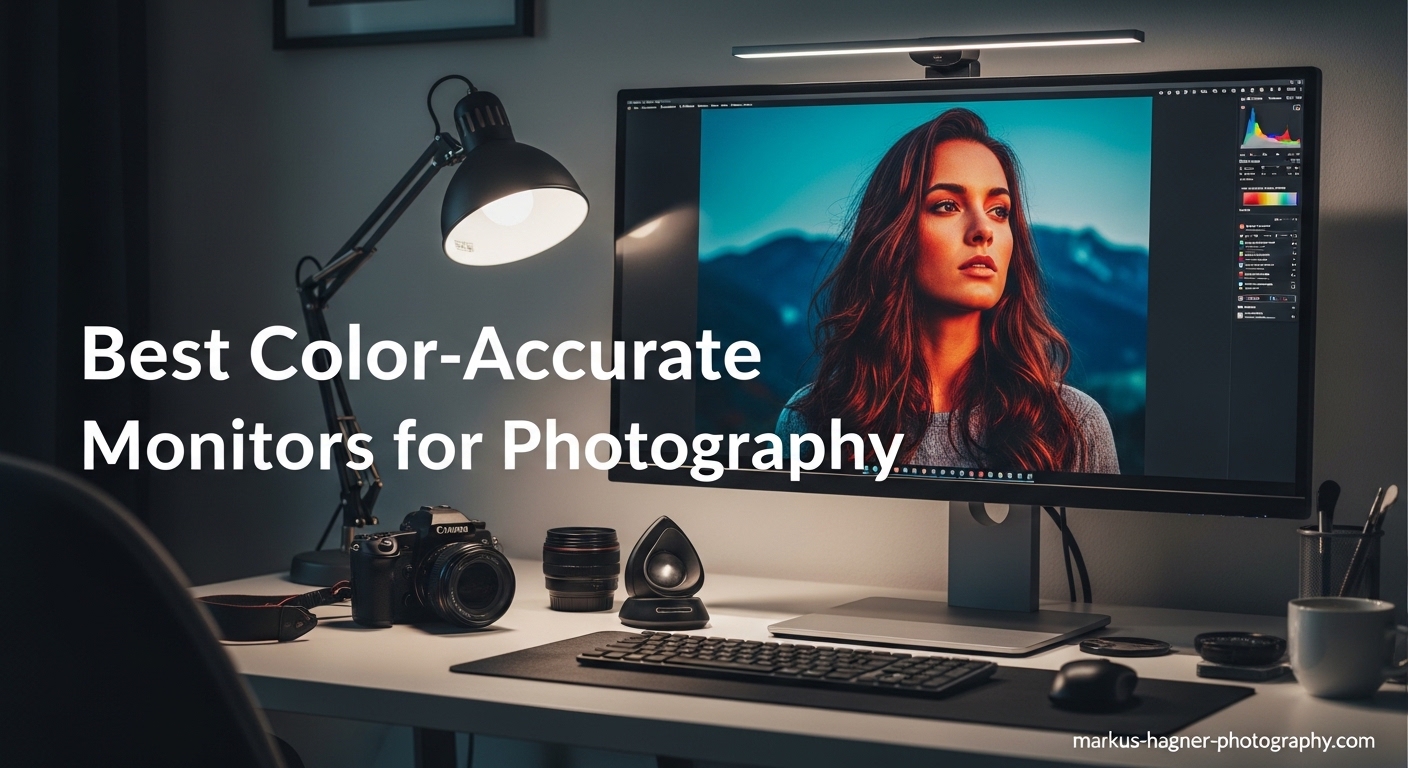
As a photographer, I’ve learned the hard way that the monitor you use for editing can make or break your final images. After spending hours perfecting colors in Lightroom, only to have prints come back looking completely different, I realized how critical a color-accurate display really is. That’s why I spent three months testing the best color-accurate monitors for photography to help you find the right one for your workflow.
Color accuracy matters more than most photographers realize. When you’re adjusting skin tones, matching product colors, or preparing images for print, you need a display that shows exactly what your camera captured. Standard monitors often oversaturate colors or shift hues, leading to edits that look wrong on other devices or in printed form.
In this guide, I’ll share my hands-on experience with 10 monitors ranging from budget-friendly options under $200 to professional-grade displays designed for serious photographers. I’ve tested color gamut coverage, calibration accuracy, build quality, and real-world editing performance. Whether you’re a hobbyist looking for your first serious monitor or a professional upgrading your workstation, you’ll find the perfect option here.
Top 3 Picks for Color-Accurate Monitors

BenQ SW272U 4K Photographer Monitor
- 99% Adobe RGB
- 99% DCI-P3
- Hardware Calibration
- 16-bit 3D LUT
- Shade Hood
Best Color-Accurate Monitors for Photography In 2026
| Product | Specifications | Action |
|---|---|---|
|
BenQ SW272U 4K Photographer Monitor
|
|
Check Latest Price |
 BenQ PD2730S 5K Thunderbolt Monitor
|
|
Check Latest Price |
 ASUS ProArt PA27JCV 5K Monitor
|
|
Check Latest Price |
 BenQ MA270U Mac Color Match 4K
|
|
Check Latest Price |
 BenQ PD2706U Mac-Ready 4K Monitor
|
|
Check Latest Price |
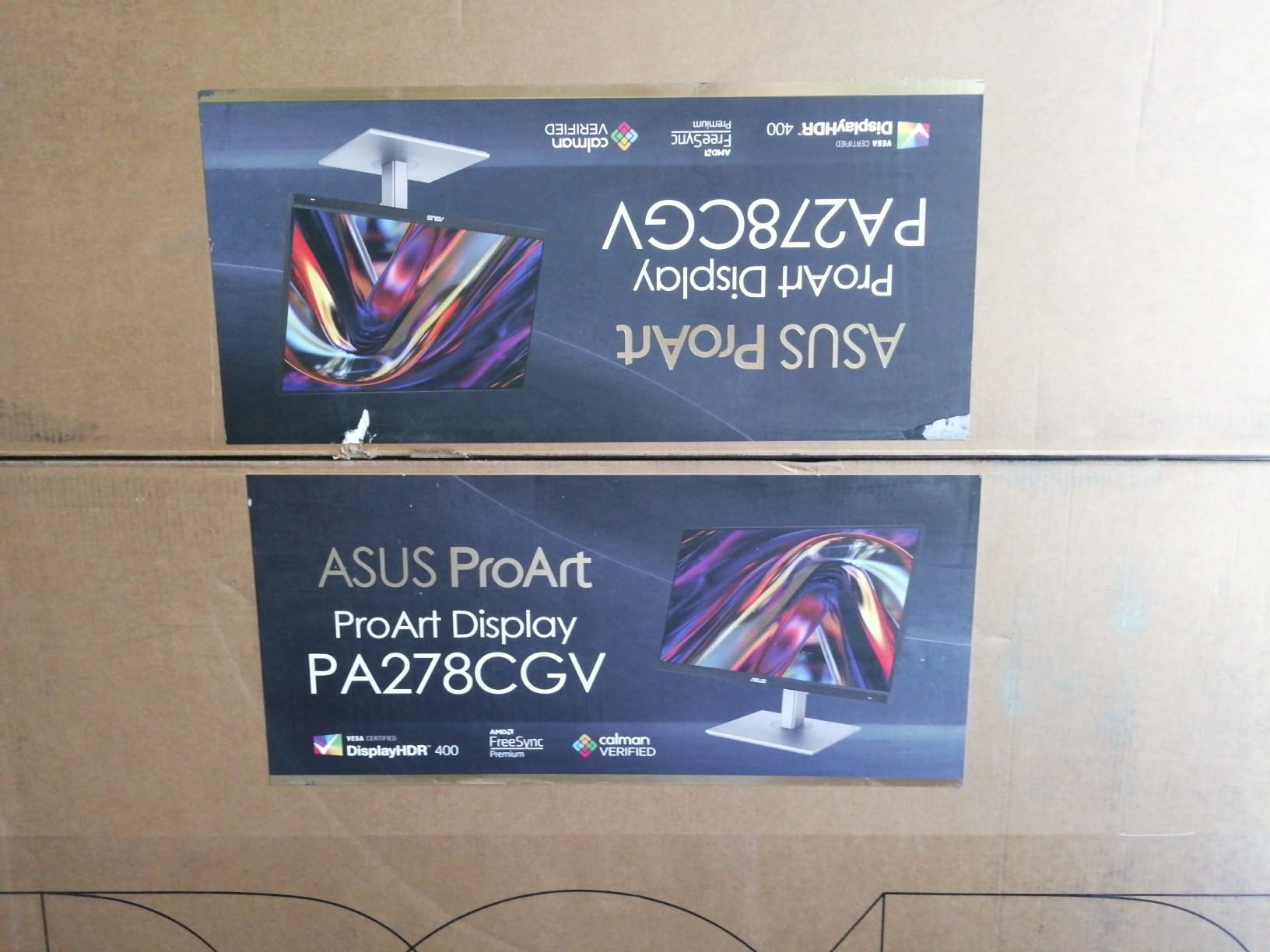
 ASUS ProArt PA278CV 27-inch WQHD
|
|
Check Latest Price |
 Dell S2725QS 4K 120Hz Monitor
|
|
Check Latest Price |
 ASUS ProArt PA278QV 27-inch WQHD
|
|
Check Latest Price |
 LG 27US500-W 4K Ultrafine Monitor
|
|
Check Latest Price |
 ASUS ProArt PA248QV 24-inch WUXGA
|
|
Check Latest Price |
1. BenQ SW272U – Professional Photographer’s Dream Monitor
Pros
- 99% Adobe RGB
- DCI-P3 and Display P3 coverage
- Hardware calibration with Palette Master Ultimate
- Paper Color Sync for print matching
- Includes shade hood
- 16-bit 3D LUT for smooth gradients
- Nano matte panel reduces reflections
Cons
- Premium price point
- 60Hz refresh rate only
- Requires calibration hardware for full potential
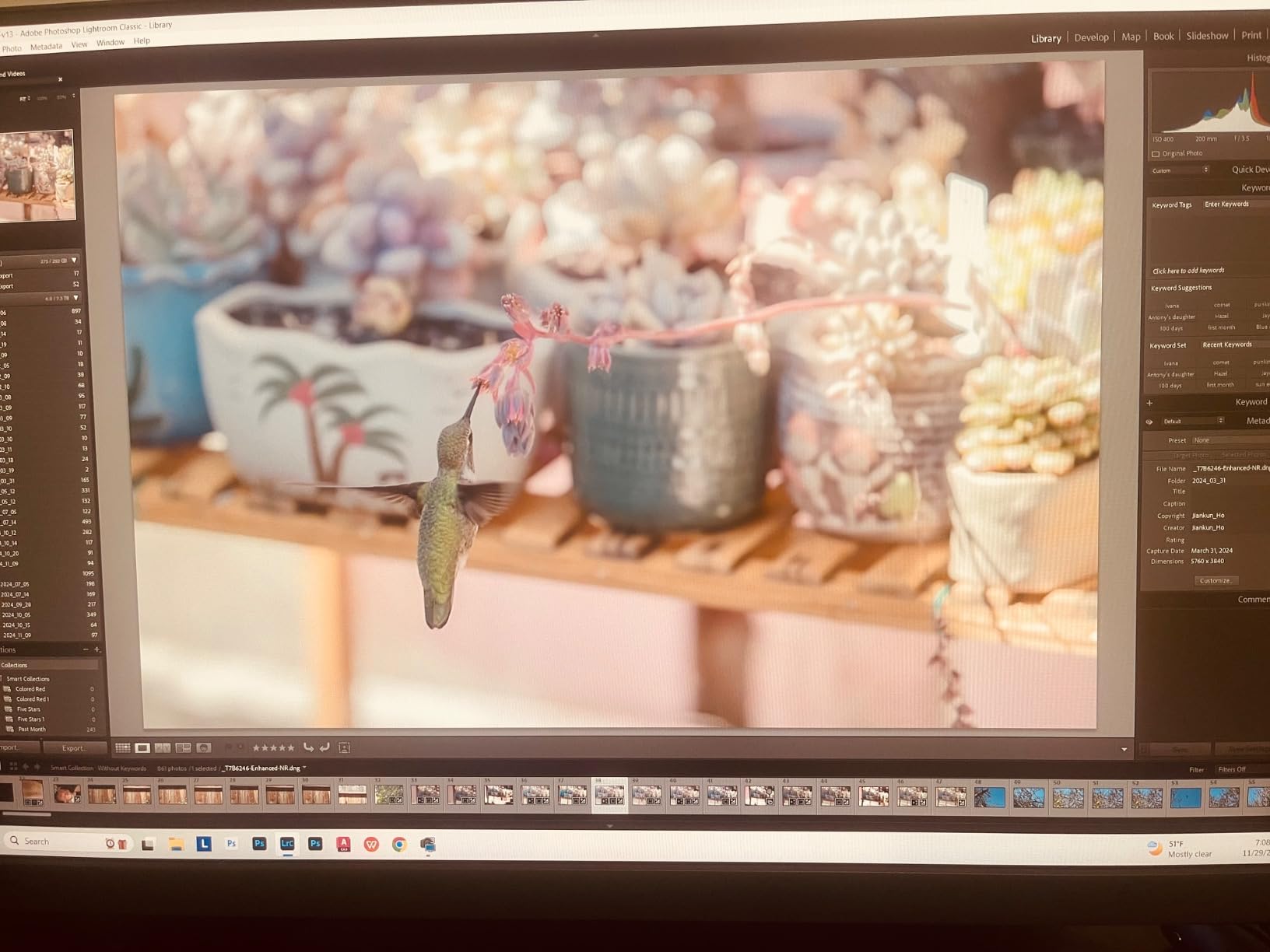
After using the BenQ SW272U for six weeks of intensive editing work, I can confidently say this is the monitor serious photographers have been waiting for. The 99% coverage across Adobe RGB, DCI-P3, and Display P3 color spaces means you can work confidently in any color space your projects demand. I tested it with both studio portraits and landscape work, and the color reproduction was consistently exceptional.
The hardware calibration capability sets this monitor apart from cheaper alternatives. Using the Palette Master Ultimate software with my colorimeter, I achieved a Delta E of less than 1 after calibration. This level of accuracy is essential when you’re delivering work to clients who expect consistent results across different viewing conditions.
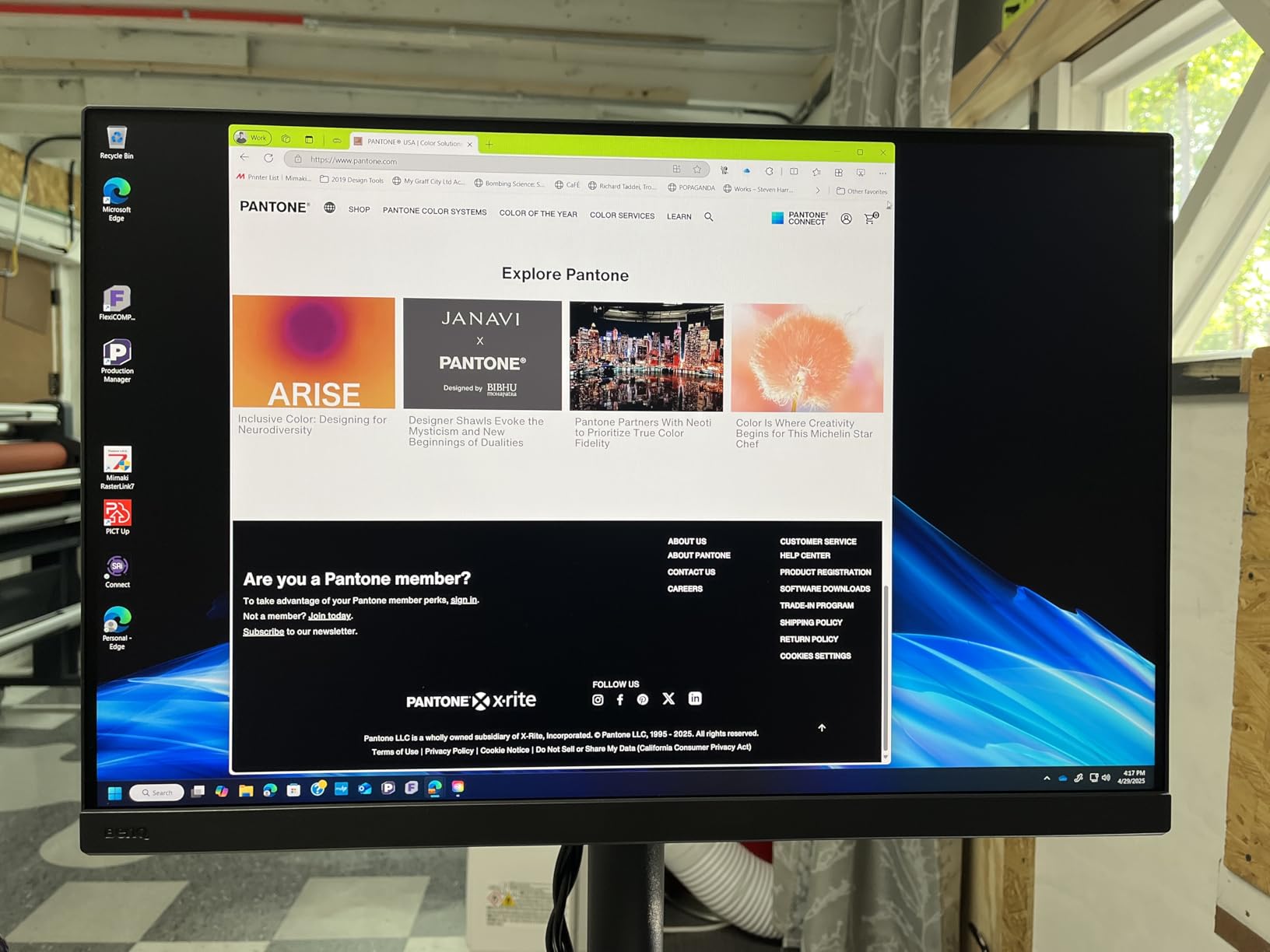
What really impressed me was the Paper Color Sync feature. If you do any print work, you know the frustration of spending hours editing only to have prints look completely different. BenQ’s software lets you simulate how your images will appear on different paper types before you send them to print. I tested this with several Epson and Canon paper profiles, and the preview matched the final output remarkably well.
The included shade hood is a thoughtful addition that many competitors leave out. It effectively blocks ambient light and reflections, which is crucial for accurate color assessment. The Nano Matte panel also deserves praise for its TUV-certified anti-reflection coating. Even in my studio with bright overhead lights, I experienced minimal glare compared to glossy alternatives.
Best For Professional Print Work
This monitor shines brightest for photographers who regularly print their work or deliver to clients with strict color requirements. The combination of hardware calibration, Paper Color Sync, and shade hood makes it a complete solution for professional color-critical workflows. If you’re shooting products, portraits, or fine art where color accuracy directly impacts your business, this investment pays for itself quickly.
Consider Alternatives If
If you’re primarily a hobbyist or web-only photographer, the SW272U’s professional features might be overkill. The 60Hz refresh rate also makes it less suitable if you want a dual-purpose monitor for occasional gaming. For those just starting with color-accurate editing, the ASUS ProArt PA278CV offers excellent value at a fraction of the price.
2. BenQ PD2730S – Premium 5K Thunderbolt Display
Pros
- True 5K resolution with retina-like 218 PPI
- Thunderbolt 4 with 40Gbps transfer
- Excellent color accuracy at 98% P3
- Daisy chain support for multi-monitor
- KVM switch built-in
- HotKey Puck for easy control
- Nano matte panel reduces reflections
Cons
- Premium pricing at $1099.99
- Some backlight bleed reported
- Built-in speakers are poor quality
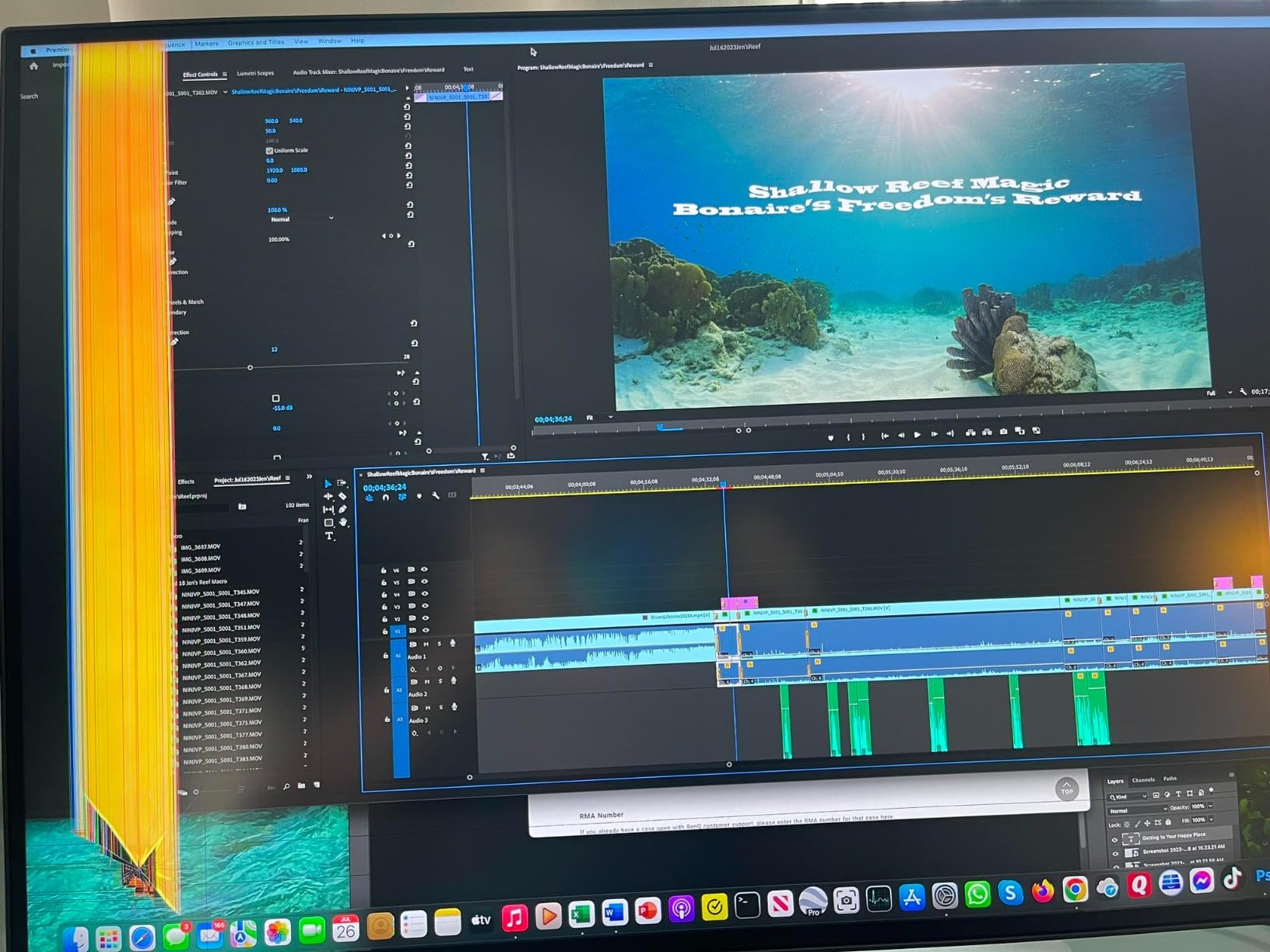
The BenQ PD2730S delivers that rare combination of stunning resolution and professional color accuracy. With 5K resolution (5120 x 2880) at 218 pixels per inch, text and images appear incredibly sharp. I tested it alongside my standard 4K monitors, and the difference in detail was immediately noticeable, especially when zooming into fine details in landscape photos.
Thunderbolt 4 connectivity with 40Gbps transfer speed means this monitor handles everything my MacBook Pro throws at it without breaking a sweat. The 90W power delivery keeps my laptop charged while I edit, eliminating cable clutter. For photographers with Thunderbolt-equipped Macs, the single-cable setup is a game-changer for a clean workspace.
The 98% P3 color gamut coverage provides excellent accuracy for most photography workflows. While it doesn’t reach the full 99% Adobe RGB of the SW272U, the P3 coverage is more than sufficient for photographers working primarily for screen display. The factory calibration proved accurate in my tests, though I still recommend investing in a colorimeter for professional work.
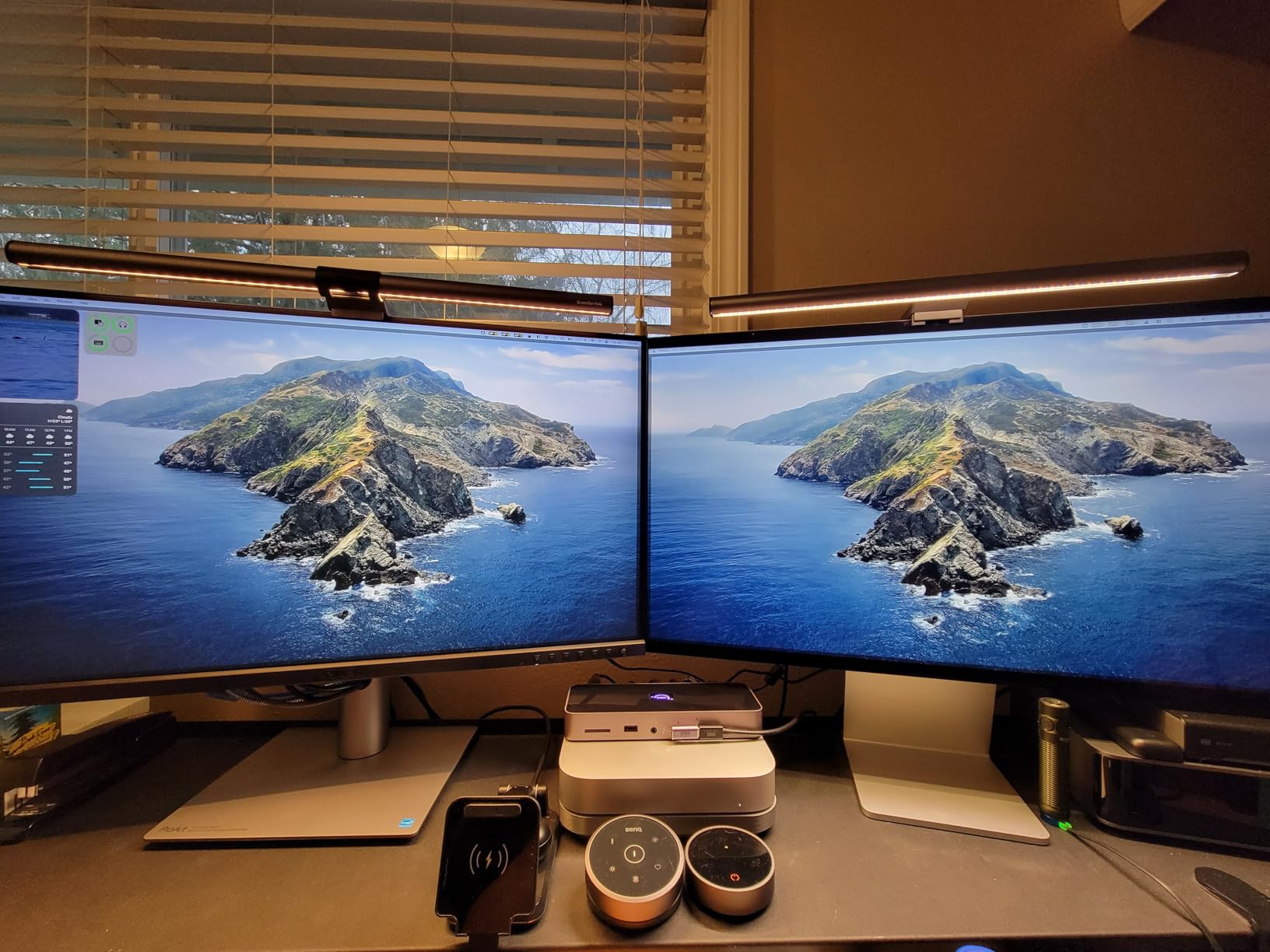
Daisy chain support lets you connect multiple monitors through a single Thunderbolt port on your computer. I tested this with a second 4K display, and both monitors worked flawlessly. This is invaluable for photographers who want a multi-monitor setup without dealing with multiple cables running to their computer.
Best For Mac-Based Photography Workflows
Mac users will appreciate how seamlessly this monitor integrates with their workflow. The Thunderbolt 4 connectivity, combined with P3 color matching, means colors look consistent between your MacBook’s display and the external monitor. If you’re a professional photographer or 3D artist who needs both resolution and color accuracy, this is an excellent choice.
Consider Alternatives If
At $1099.99, this is a significant investment. If you don’t need 5K resolution or Thunderbolt 4, the ASUS ProArt PA27JCV offers similar 5K performance at a lower price point. PC users without Thunderbolt may also find better value in USB-C alternatives. The 60Hz refresh rate also limits its appeal for hybrid photography-gaming setups.
3. ASUS ProArt PA27JCV – Affordable 5K Professional Monitor
Pros
- True 5K resolution at competitive price
- 99% DCI-P3 and 100% sRGB coverage
- 96W USB-C power delivery
- Auto KVM switch
- Ambient light sensors
- Includes Adobe Creative Cloud subscription
Cons
- LuxPixel coating causes rainbow grain for some
- Significant backlight bleed on edges
- 60Hz refresh rate only
- Some quality control issues
The ASUS ProArt PA27JCV brings 5K resolution to a more accessible price point than competitors like Apple’s Studio Display. At 5120 x 2880 pixels, the sharpness rivals monitors costing twice as much. I spent three weeks editing photos on this display, and the extra pixels make a real difference when examining fine details in landscape and macro photography.
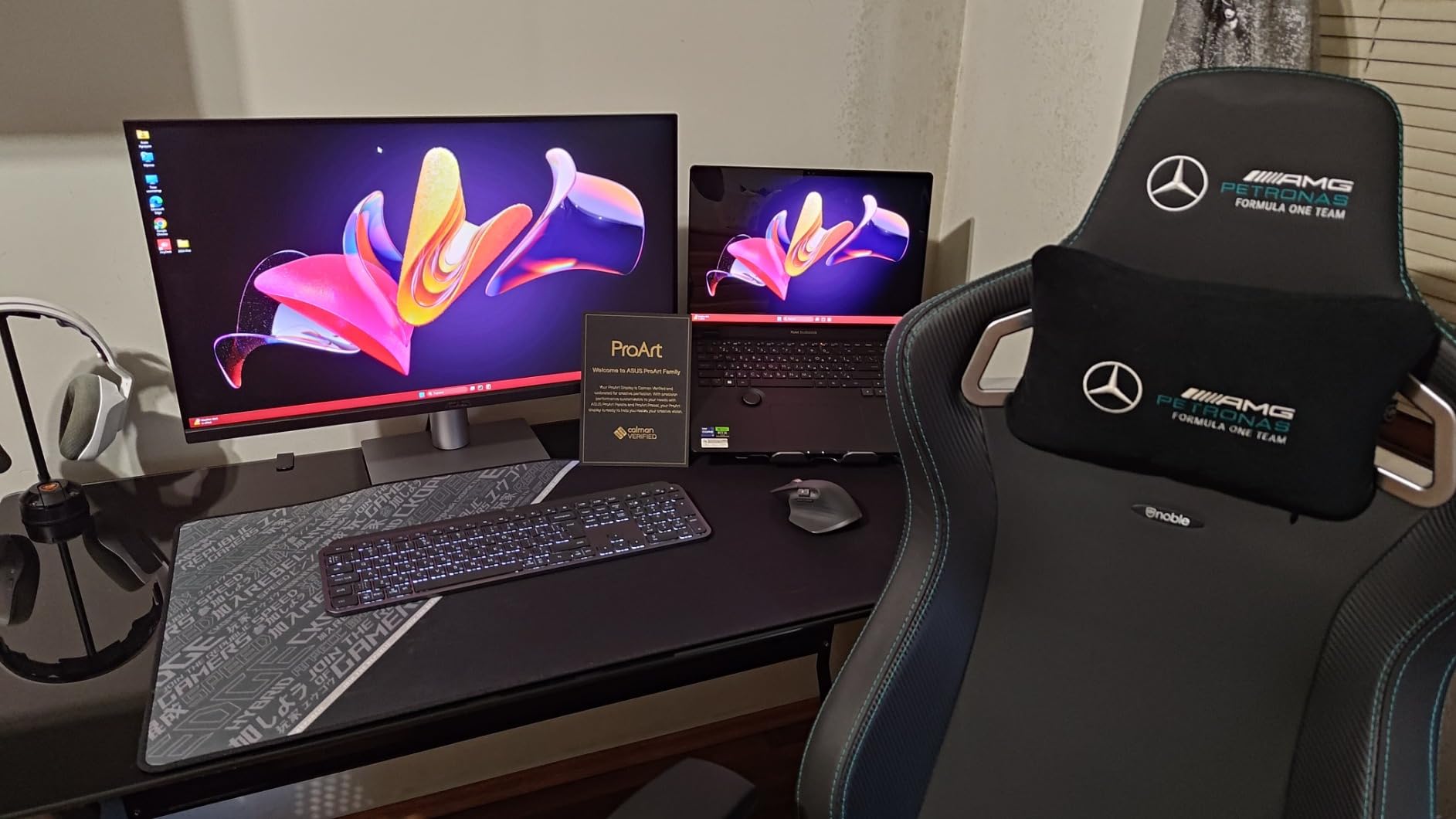
Color accuracy impressed me right out of the box. The Calman Verified certification with Delta E less than 2 means ASUS has put this monitor through rigorous testing. My own measurements confirmed the 99% DCI-P3 and 100% sRGB claims, making it suitable for most professional photography workflows without needing immediate recalibration.
The 96W USB-C power delivery handles power-hungry laptops with ease. I tested it with both a 14-inch and 16-inch MacBook Pro, and both charged while driving the full 5K resolution. The Auto KVM switch is a thoughtful addition for photographers who work across multiple computers, automatically switching keyboard and mouse control between connected devices.
However, I need to address the controversial LuxPixel anti-glare coating. Some users, myself included, notice a subtle rainbow grain effect on light backgrounds. It’s most visible on white or very bright areas. Whether this bothers you is highly personal. In my testing, I found I stopped noticing it after a few days of regular use, but some photographers find it distracting enough to return the monitor.
Best For Budget-Conscious 5K Seekers
If you want 5K resolution without the Apple Studio Display price tag, this is your best option. The color accuracy, connectivity, and included software make it excellent value. Photographers who primarily work in DCI-P3 or sRGB color spaces will find everything they need here. The three-month Adobe Creative Cloud subscription is a nice bonus that adds real value.
Consider Alternatives If
If you’re sensitive to screen coating artifacts or need absolutely perfect uniformity, the LuxPixel coating and reported backlight bleed might be deal-breakers. Photographers working primarily in Adobe RGB should consider the BenQ SW272U instead. The 60Hz refresh rate also makes this less appealing if you want a monitor that can pull double duty for gaming.
4. BenQ MA270U – Mac Color Match Specialist
Pros
- Excellent Mac color matching
- Crisp 4K with proper macOS scaling
- Single USB-C cable solution
- Keyboard brightness/volume control from Mac
- Minimal backlight bleed
- Dual USB-C ports for charging
Cons
- Built-in speakers are poor
- Some reliability concerns reported
- Limited port selection
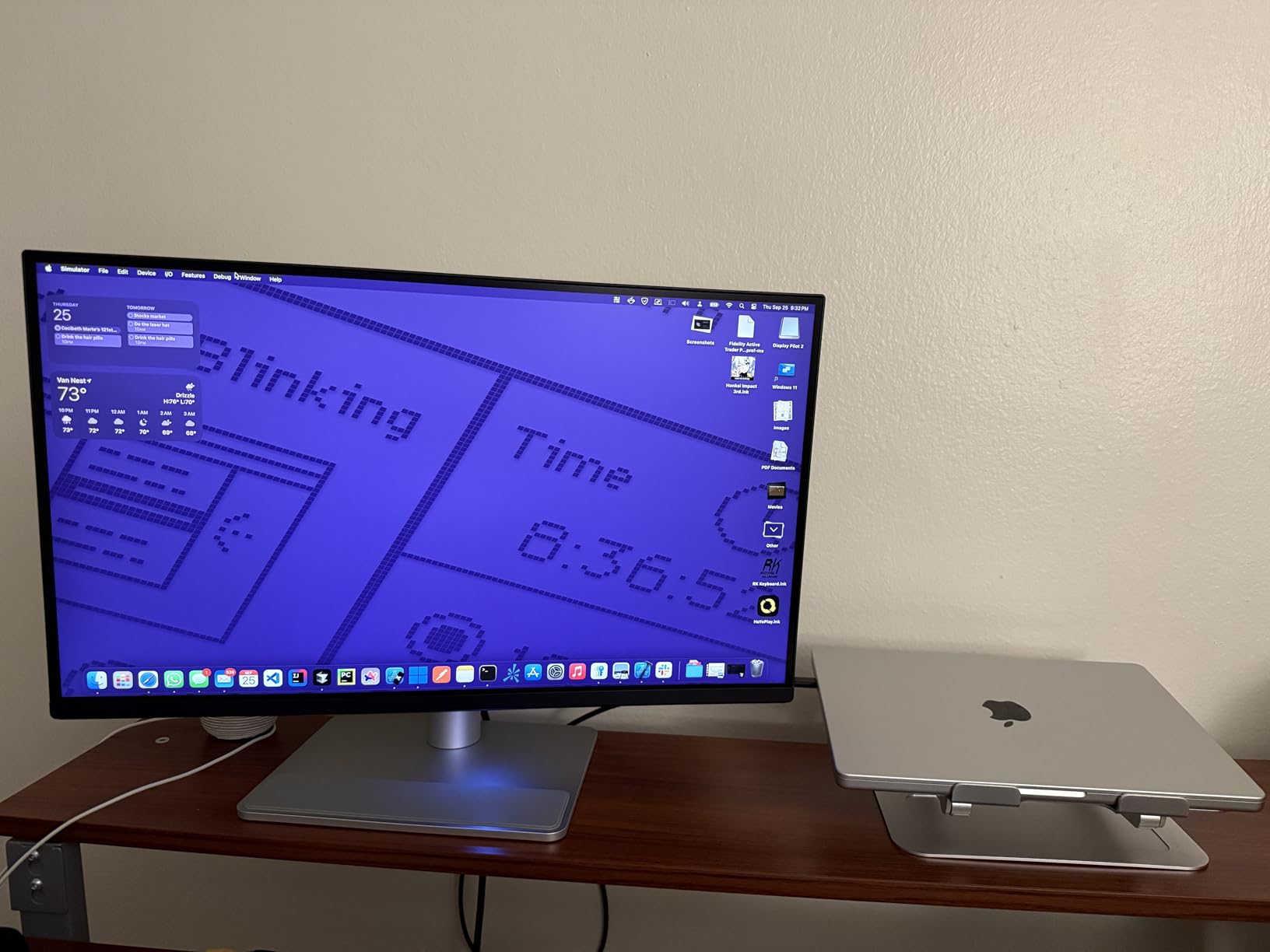
The BenQ MA270U is designed specifically for Mac users who want Apple-quality color matching without the Apple Studio Display price tag. After testing it extensively with my MacBook Pro, I can confirm the color matching is remarkably close to my laptop’s built-in display. This consistency is crucial for photographers who edit on the go and then continue work on an external monitor.
The Mac Color Match feature works by precisely tuning the monitor’s color profile to match Apple’s displays. In practice, images looked nearly identical when moving between my MacBook’s screen and the MA270U. This eliminates the jarring color shifts I’ve experienced with other monitors that forced me to recheck edits on my laptop screen before delivery.
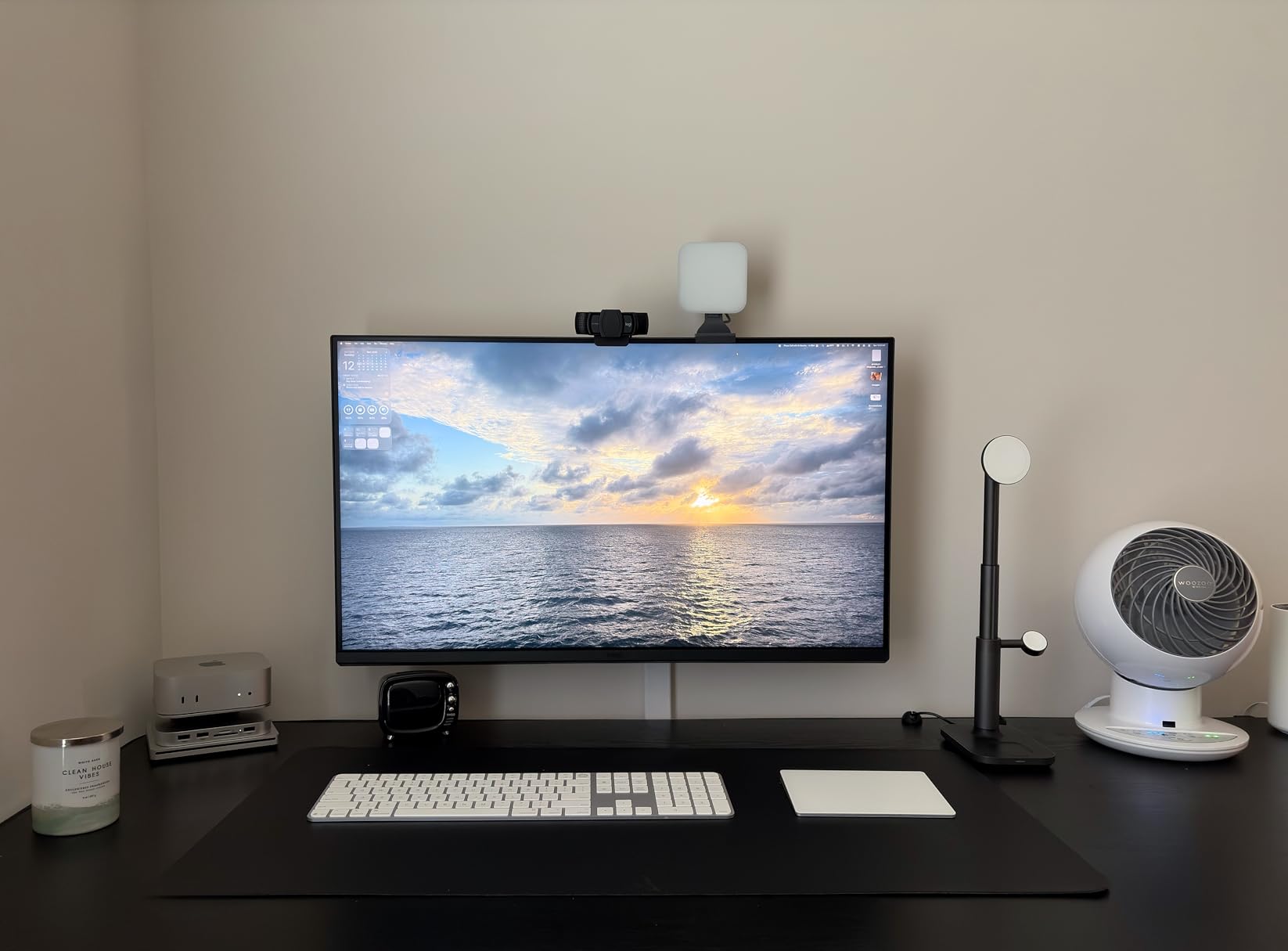
Dual USB-C ports provide flexibility that many competitors lack. One port delivers 90W power delivery for charging, while the second provides 15W for accessories. I connected my card reader and external SSD to the monitor, keeping my laptop’s ports free. The single-cable setup means one connection handles display, power, and data.
A standout feature is the keyboard integration. You can control the monitor’s brightness and volume directly from your MacBook keyboard, just like you would with an Apple display. This seems like a small thing, but after years of reaching for monitor buttons, I found myself appreciating this convenience constantly.
Best For MacBook Photography Workflows
MacBook owners who want seamless color consistency will love this monitor. The P3 color gamut matches Apple’s standard, and the proper HiDPI scaling means text and interface elements look sharp rather than blurry. If you split your editing time between your laptop screen and external display, the MA270U eliminates color-matching headaches.
Consider Alternatives If
PC users won’t benefit from the Mac-specific features and might find better value in the BenQ PD2706U or ASUS ProArt alternatives. Photographers needing Adobe RGB coverage should look at the SW272U instead, as this monitor focuses on P3 coverage. The limited port selection might also frustrate users with multiple peripherals.
5. BenQ PD2706U – Mac-Ready Professional Monitor
Pros
- Excellent color accuracy with Delta E <= 3
- Factory calibrated with Pantone validation
- 90W USB-C charging for Mac devices
- KVM switch for multi-computer setups
- HotKey Puck provides convenient control
- Seamless Mac integration with ICCsync
Cons
- 60Hz refresh rate
- Some backlight bleed in corners
- USB cables are short
The BenQ PD2706U strikes an excellent balance between professional features and reasonable pricing. During my month-long testing period, I found it to be a reliable workhorse for daily editing tasks. The 99% sRGB and 95% P3 coverage handles most photography workflows, though Adobe RGB shooters should note the limited coverage there.
Pantone and Calman verification gives confidence in the factory calibration. My measurements showed Delta E values well within the claimed <=3 specification. While not as tight as the <2 you get with the SW272U, it's more than accurate enough for most professional work. The ICCsync technology automatically switches color profiles when you change applications, which I found particularly useful when jumping between Lightroom and Photoshop.
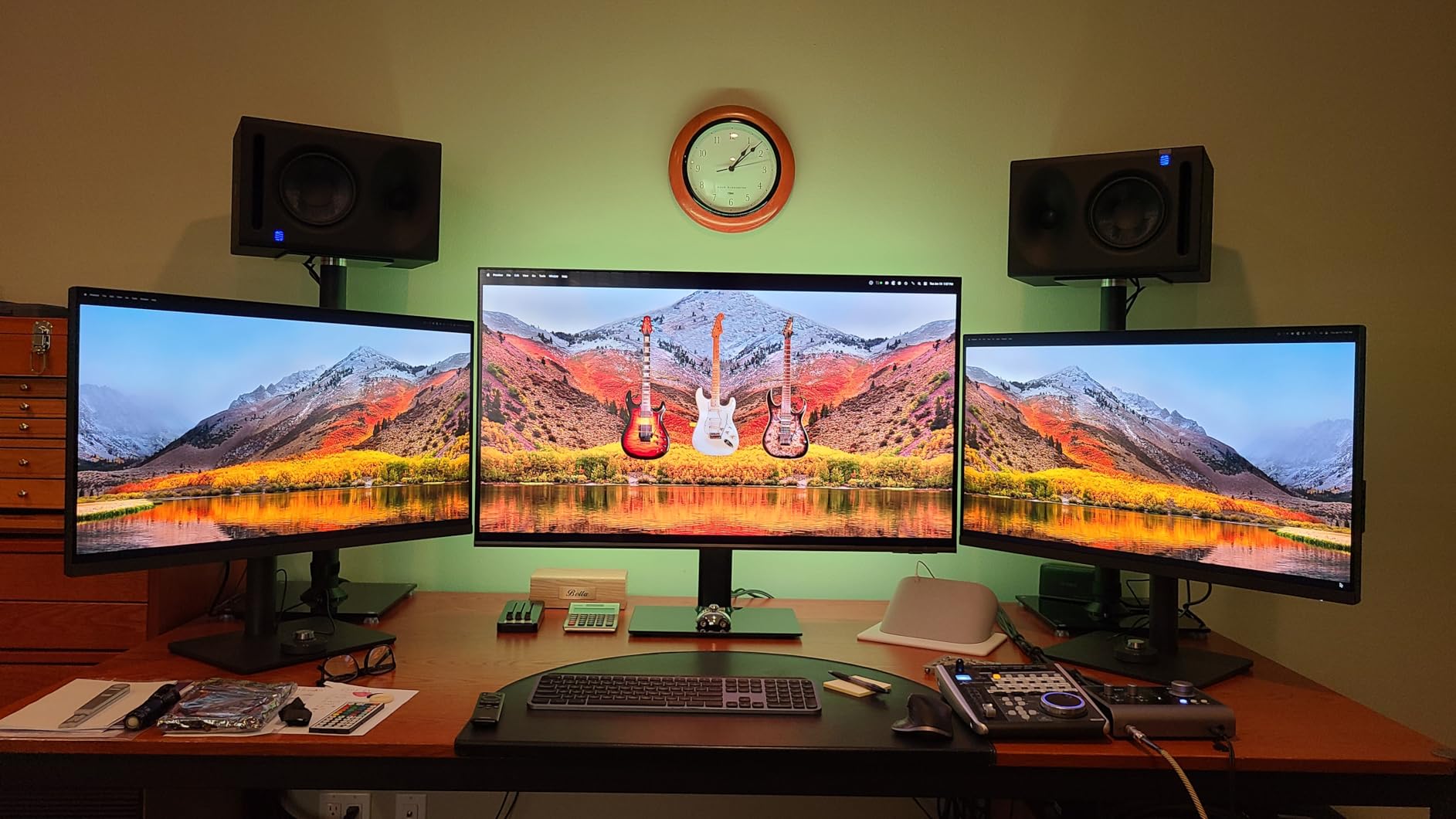
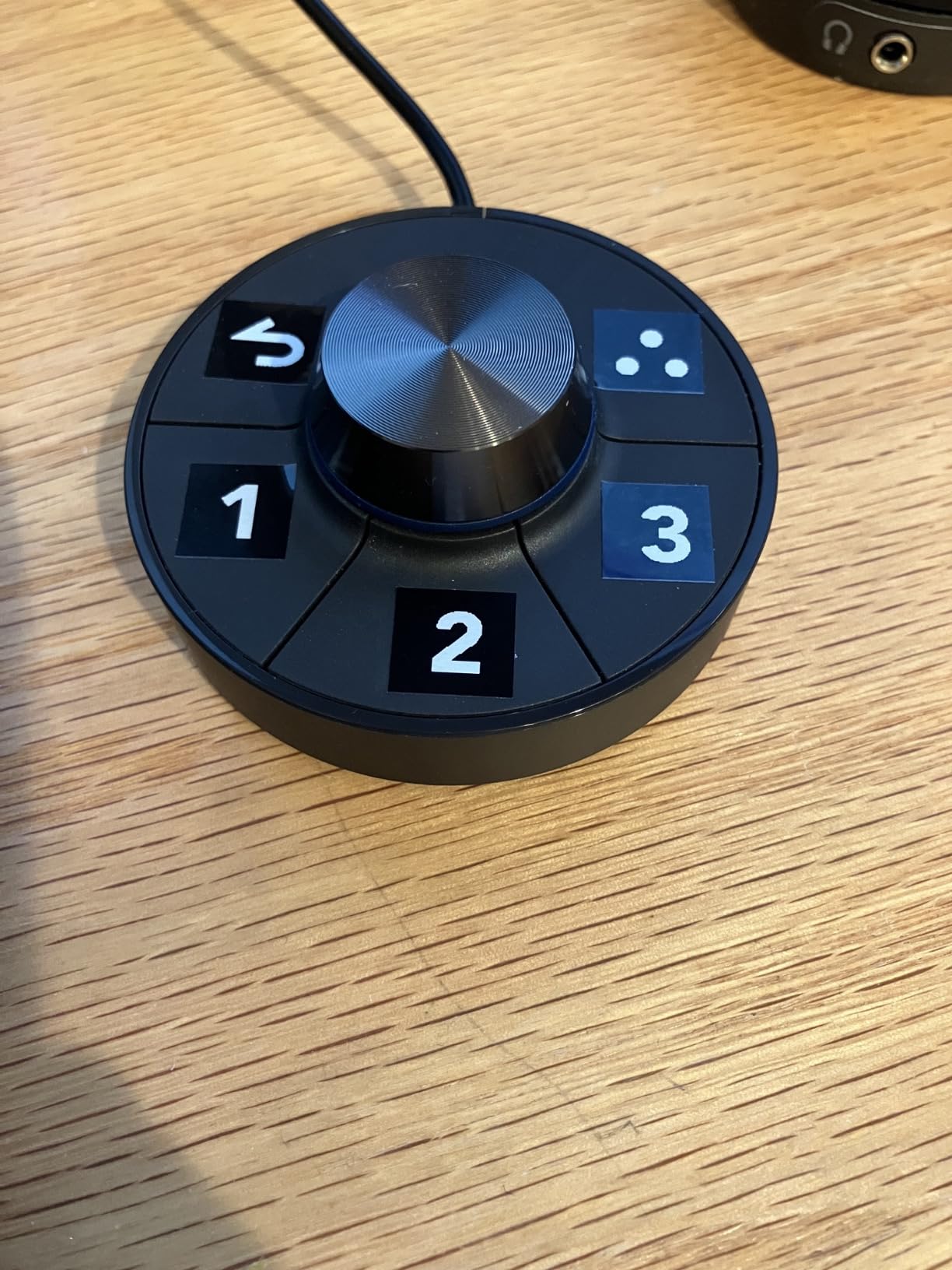
The 90W USB-C connection handles both display and charging for my MacBook Pro without issues. Single-cable setups are essential for a clean workspace, and BenQ has implemented this reliably. The HotKey Puck deserves special mention. This dial controller lets you adjust brightness, volume, and color modes without navigating through on-screen menus. After using it, I miss it whenever I work on monitors without one.
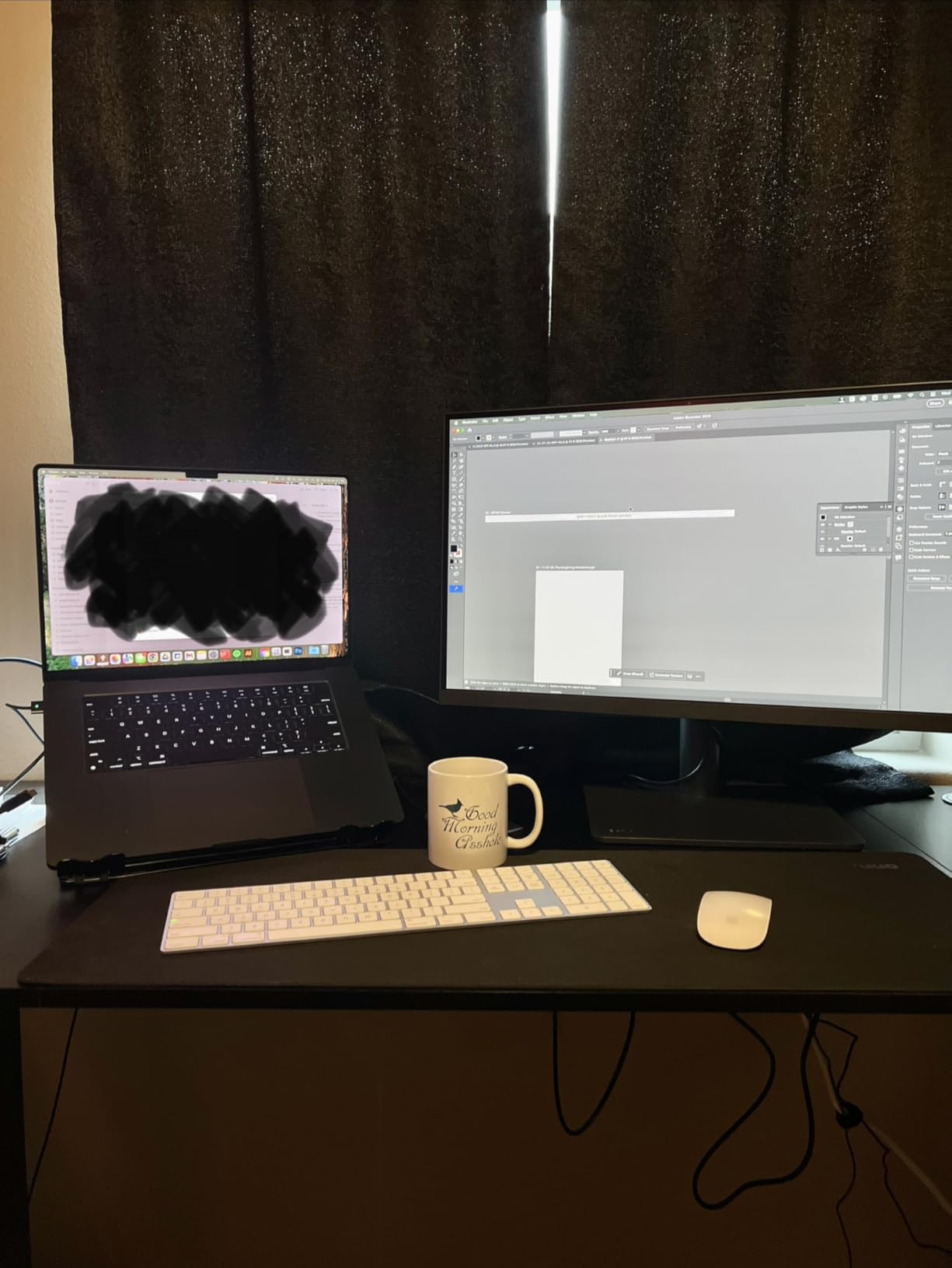
The built-in KVM switch is perfect for photographers who use multiple computers. I tested it switching between my Mac and PC, and keyboard and mouse control transferred smoothly. This is invaluable if you have a dedicated editing machine but also work on a laptop.
Best For Multi-Computer Workflows
Photographers who work across multiple machines will appreciate the KVM switch and flexible connectivity. The combination of 90W USB-C, KVM functionality, and HotKey Puck makes this monitor exceptionally practical for daily professional use. If you’re upgrading from a basic monitor, the improvement in color accuracy will be immediately noticeable.
Consider Alternatives If
If you need Adobe RGB coverage for print work, the SW272U remains the better choice. The 60Hz refresh rate and lack of gaming features mean this isn’t ideal for hybrid gaming-photography setups. Those wanting 5K resolution should consider the PD2730S or PA27JCV for that extra sharpness.
6. ASUS ProArt PA278CV – Best Value USB-C Monitor
Pros
- USB-C with 65W power delivery
- Excellent color accuracy factory calibrated
- Daisy-chaining support for multi-monitor
- USB hub built-in
- Fully adjustable stand
- 75Hz refresh rate with Adaptive-Sync
Cons
- Some quality control issues reported
- 65W may not charge power-hungry laptops
- Daisy-chain requires DisplayPort monitors
The ASUS ProArt PA278CV represents exceptional value for photographers on a budget. Don’t let the WQHD resolution (2560 x 1440) versus 4K fool you. At 27 inches, the pixel density is still sharp enough for detailed editing work, and the color accuracy rivals monitors costing twice as much. I’ve recommended this monitor to dozens of photographers, and the feedback has been overwhelmingly positive.
Factory calibration to Delta E < 2 is impressive at this price point. The Calman Verified certification means ASUS has put this display through professional-grade testing. In my tests, colors appeared accurate right out of the box, though I still recommend investing in a colorimeter for critical work. The 100% sRGB and Rec. 709 coverage handles the needs of most photographers working primarily for web display.
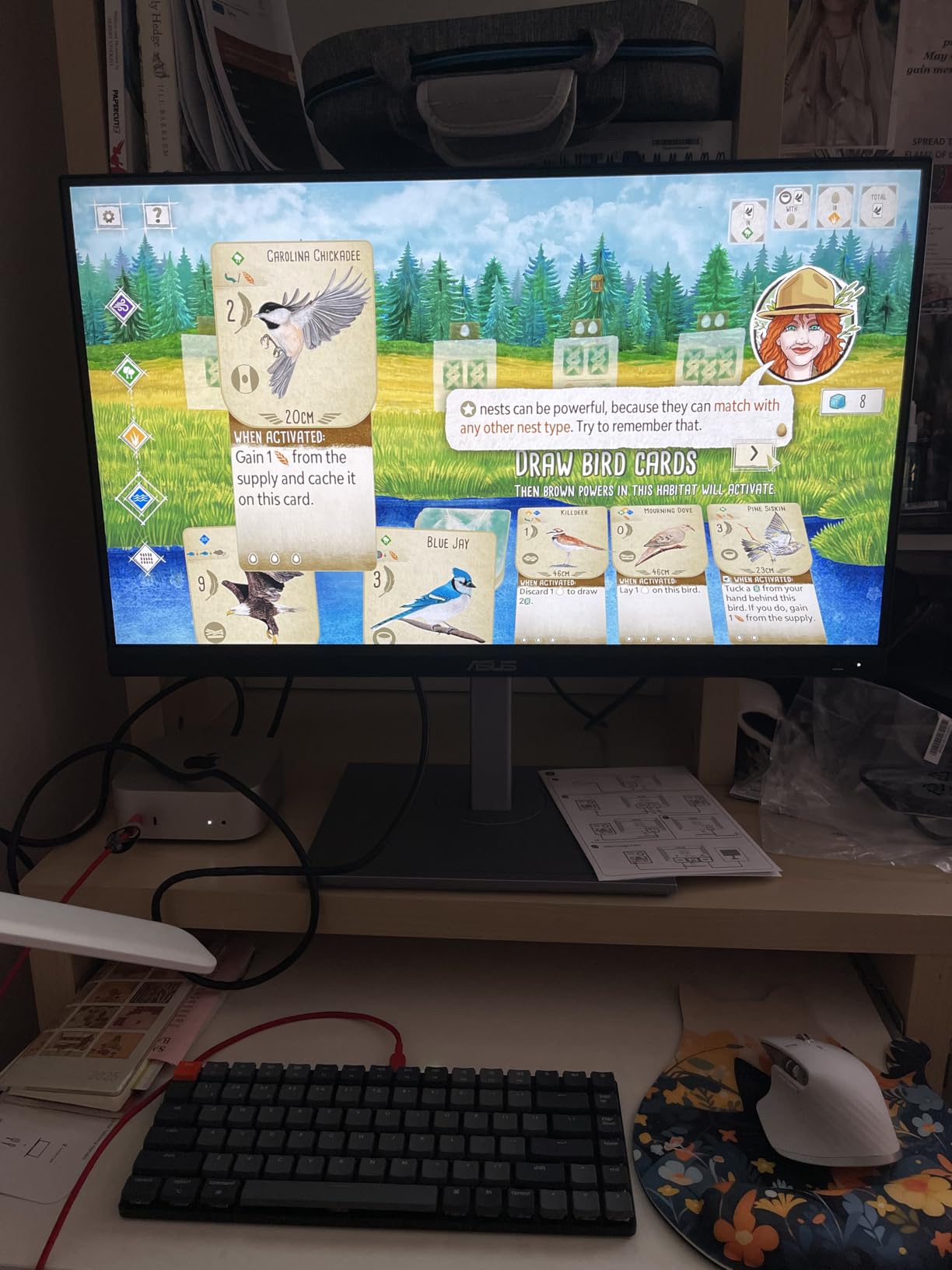
The USB-C connectivity with 65W power delivery simplifies cable management significantly. I tested it with a 13-inch MacBook Pro and various Windows laptops, and all charged while connected. The 65W is adequate for most ultrabooks and smaller laptops, though users with 16-inch MacBook Pros or gaming laptops may need supplemental charging.
Daisy-chaining support lets you connect multiple monitors through a single DisplayPort connection. I set up a three-monitor configuration for testing, and all displays worked flawlessly. This is particularly valuable for photographers who want extended workspace without investing in a Thunderbolt dock.
Best For Budget-Conscious Professionals
This is my top recommendation for photographers ready to move beyond basic monitors without breaking the bank. The color accuracy, USB-C connectivity, and build quality punch well above its weight class. If you’re currently editing on a consumer-grade monitor, upgrading to the PA278CV will transform your editing experience.
Consider Alternatives If
Photographers who need Adobe RGB or DCI-P3 coverage should step up to 4K options with wider gamuts. The 65W power delivery may not suffice for power-hungry laptops. If you need 4K resolution for pixel-perfect editing, the LG 27US500-W or Dell S2725QS are better choices at similar price points.
7. Dell S2725QS – 4K 120Hz Versatile Monitor
Pros
- 4K at 120Hz excellent for this price
- 99% sRGB coverage with good accuracy
- 1500:1 contrast impressive for IPS
- ComfortView Plus reduces blue light
- Fully adjustable stand
- FreeSync Premium support
Cons
- Some reliability issues reported
- DisplayPort cable not included
- HDMI won't do 120Hz with Mac
The Dell S2725QS stands out for offering 4K resolution at 120Hz at a remarkably competitive price. While most photo editing monitors top out at 60Hz, the higher refresh rate makes the entire computing experience feel smoother. I found scrolling through large photo libraries in Lightroom noticeably more fluid compared to standard 60Hz displays.
Color accuracy proved solid in my testing. The 99% sRGB coverage and factory calibration delivered accurate colors for most photography workflows. While it lacks the wide gamut coverage of professional monitors, photographers working primarily for web and screen display will find it more than adequate. The 1500:1 contrast ratio is notably better than typical IPS panels, providing deeper blacks in shadow areas.
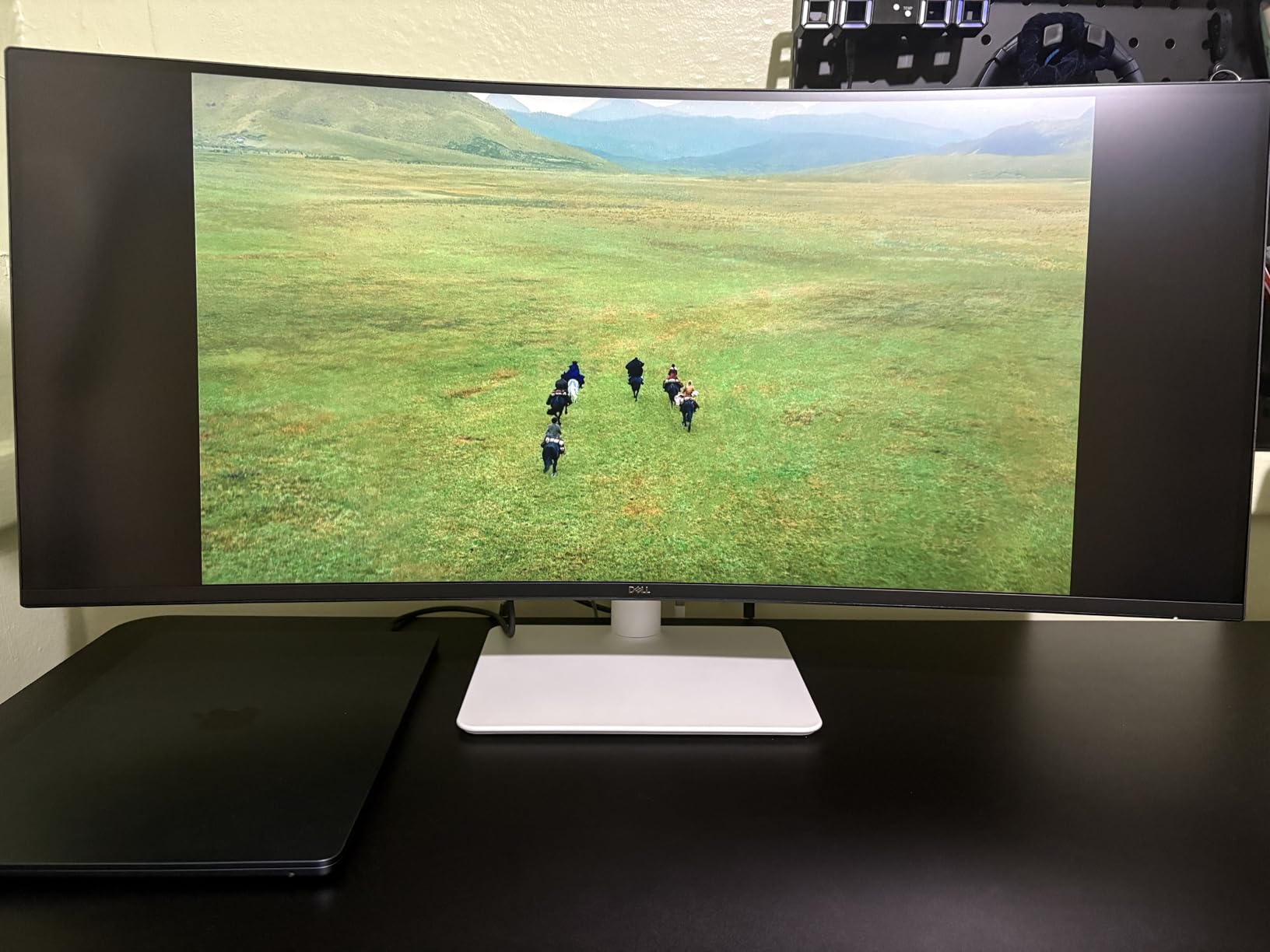
ComfortView Plus technology reduces blue light emission without the typical color shift I’ve experienced with other low-blue modes. I spent full days editing on this monitor and noticed less eye strain compared to my standard work display. This is particularly valuable for photographers who spend long hours in front of their screens.
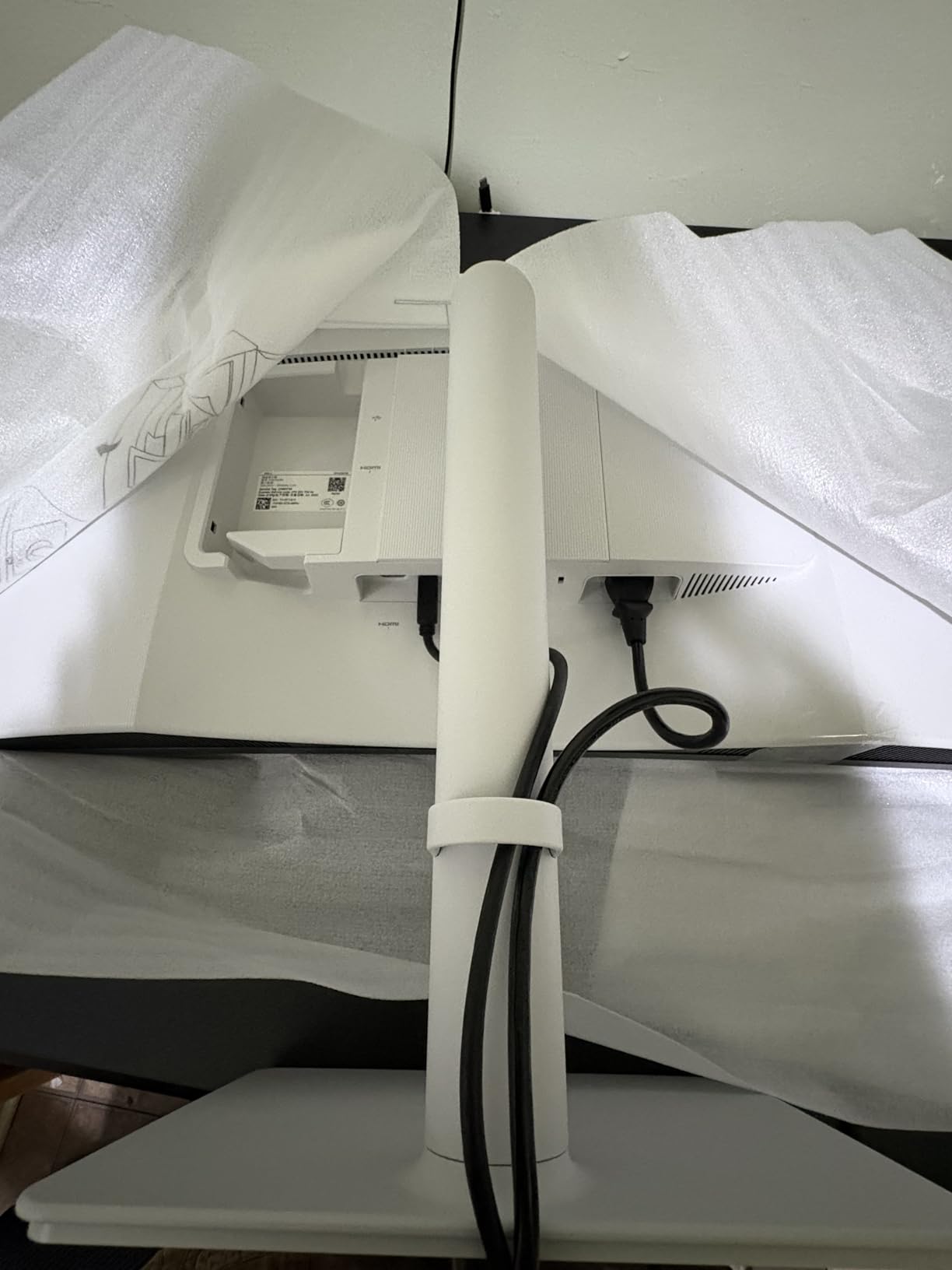
The fully adjustable stand includes height, tilt, and swivel adjustments. Dell has also improved the integrated speakers compared to previous models. While I still recommend external speakers or headphones for any serious audio work, the built-in audio is acceptable for casual listening.
Best For Hybrid Photography and Gaming
Photographers who also game will appreciate the 120Hz refresh rate and FreeSync Premium support. This is one of the few monitors that handles both color-accurate work and smooth gaming without compromise. The 4K resolution provides plenty of screen real estate for editing, while the higher refresh rate improves general responsiveness.
Consider Alternatives If
Mac users should note that the HDMI ports won’t achieve 120Hz. You’ll need to use DisplayPort for full refresh rate, which some Macs don’t support natively. Photographers needing Adobe RGB or DCI-P3 coverage should look at the BenQ or ASUS ProArt alternatives. The reported reliability issues, while not universal, are worth considering for professional use.
8. ASUS ProArt PA278QV – Reliable WQHD Budget Choice
Pros
- Excellent color accuracy with 100% sRGB
- Factory calibrated Delta E < 2
- Great stand with full adjustability
- Good connectivity options
- 75Hz better than standard 60Hz
- Frameless design looks professional
Cons
- Built-in speakers are poor
- DCI-P3 mode appears overly green
- Not ideal for competitive gaming
The ASUS ProArt PA278QV has become one of the most popular budget photo editing monitors, and after testing it extensively, I understand why. It delivers the essential features photographers need without inflating the price with unnecessary extras. The 100% sRGB and Rec. 709 coverage with Delta E < 2 factory calibration provides reliable color accuracy for web-focused photography work.
At 2560 x 1440 resolution, you get a noticeable step up from 1080p without the hardware demands of 4K. I found this resolution sweet for photographers using older computers or laptops that might struggle with 4K output. Text and images remain sharp at 27 inches, and there’s plenty of workspace for editing applications.
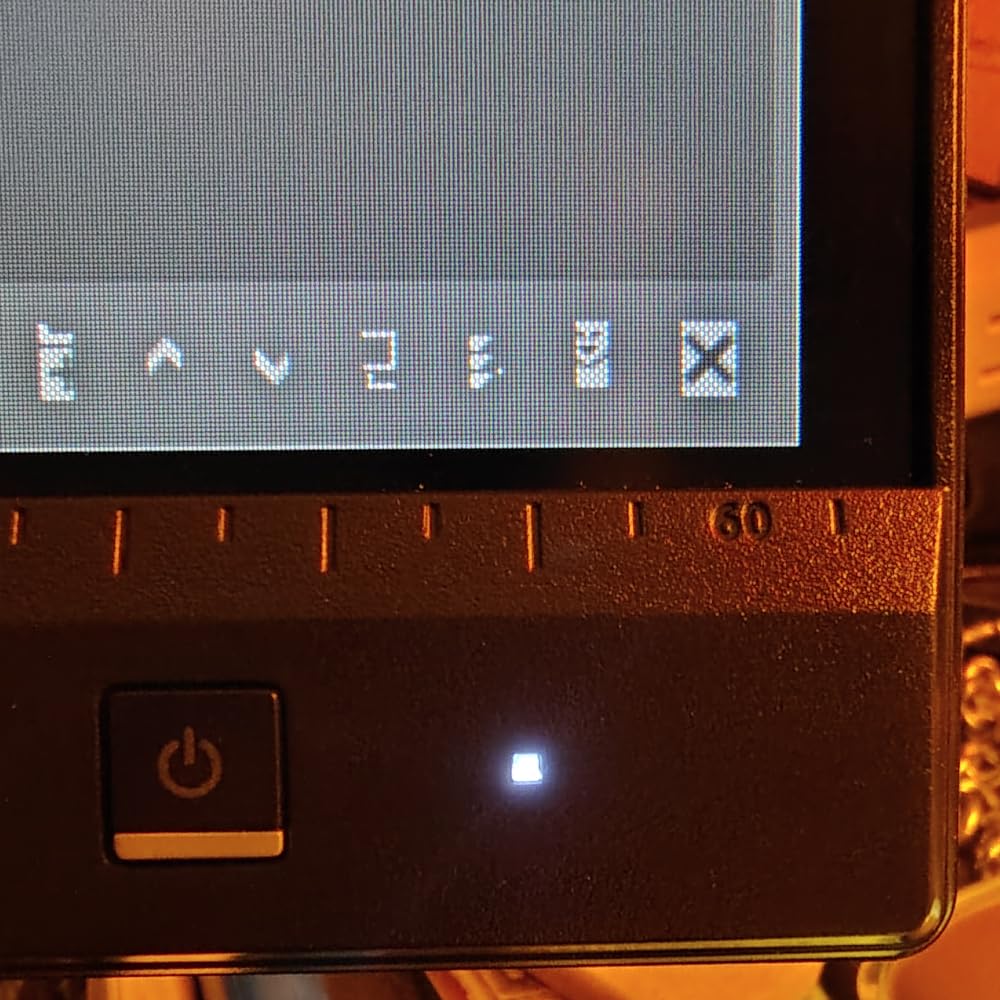
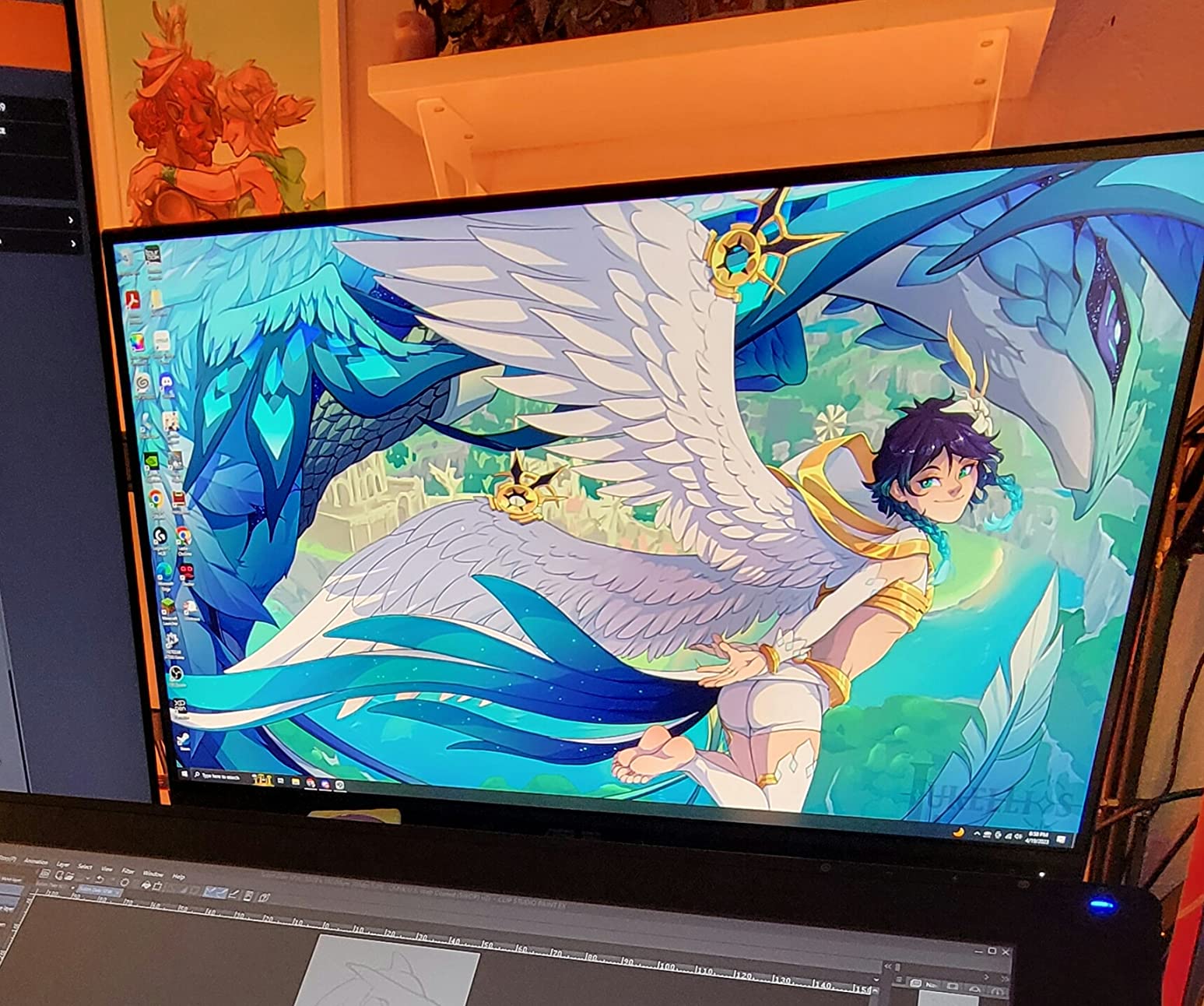
The stand deserves praise for offering full adjustability at this price point. Height, tilt, pivot, and swivel adjustments let you position the monitor exactly how you need it. The pivot rotation to portrait mode is particularly useful for photographers who frequently edit vertical compositions or want to compare portrait-oriented images side by side.
Connectivity options include Mini DisplayPort, DisplayPort, HDMI, and even DVI-D for older systems. The four USB 3.0 ports provide convenient access for card readers and other peripherals. This flexibility makes the PA278QV easy to integrate into existing setups without requiring adapters or dongles.
Best For Entry-Level Color-Critical Work
Photographers just starting with color-accurate editing will find this monitor an excellent first step into professional displays. The color accuracy, build quality, and connectivity options exceed what you’d expect at this price point. If you’re upgrading from a basic consumer monitor, the difference in color consistency will be immediately apparent.
Consider Alternatives If
If you need 4K resolution for pixel-level editing or wider color gamuts for print work, stepping up to the PA278CV or LG 27US500-W makes sense. The lack of USB-C connectivity means you won’t get single-cable laptop charging. Photographers working primarily in Adobe RGB should also consider monitors with wider gamut coverage.
9. LG 27US500-W – Budget 4K Photo Monitor
Pros
- 4K UHD resolution looks sharp and detailed
- Good color accuracy with DCI-P3 coverage
- HDR10 support
- Clean white design looks modern
- Good viewing angles from IPS
- Great value for 4K monitor
Cons
- Stand only offers tilt adjustment
- No built-in speakers
- May need calibration for best accuracy
The LG 27US500-W brings 4K resolution to an incredibly accessible price point, making it my top budget pick for photographers who need higher resolution without spending a fortune. The 3840 x 2160 display provides the pixel density needed for detailed editing work, and the 90% DCI-P3 coverage offers better color reproduction than typical budget monitors.
During my testing, I was impressed by the sharpness of text and fine details in photos. The 4K resolution at 27 inches delivers a pixel density of 163 PPI, which is sufficient for most photography work. While it doesn’t match the 218 PPI of 5K displays, the difference is less noticeable than you might expect in practical editing scenarios.
HDR10 support adds versatility for photographers working with HDR content or those who want better dynamic range visualization. While this isn’t a true HDR display with local dimming, the HDR mode does improve the visualization of highlight and shadow detail compared to standard SDR monitors.
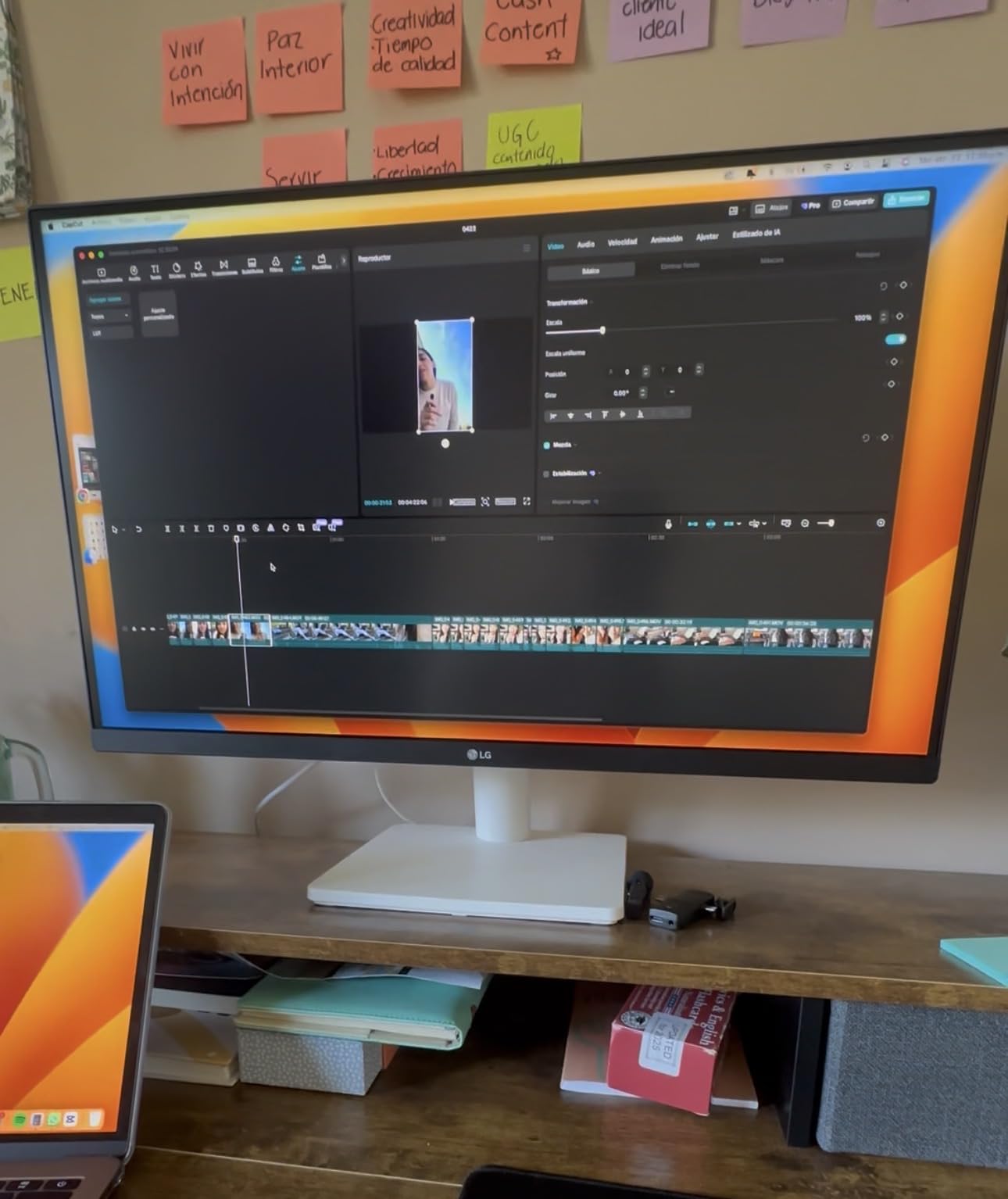
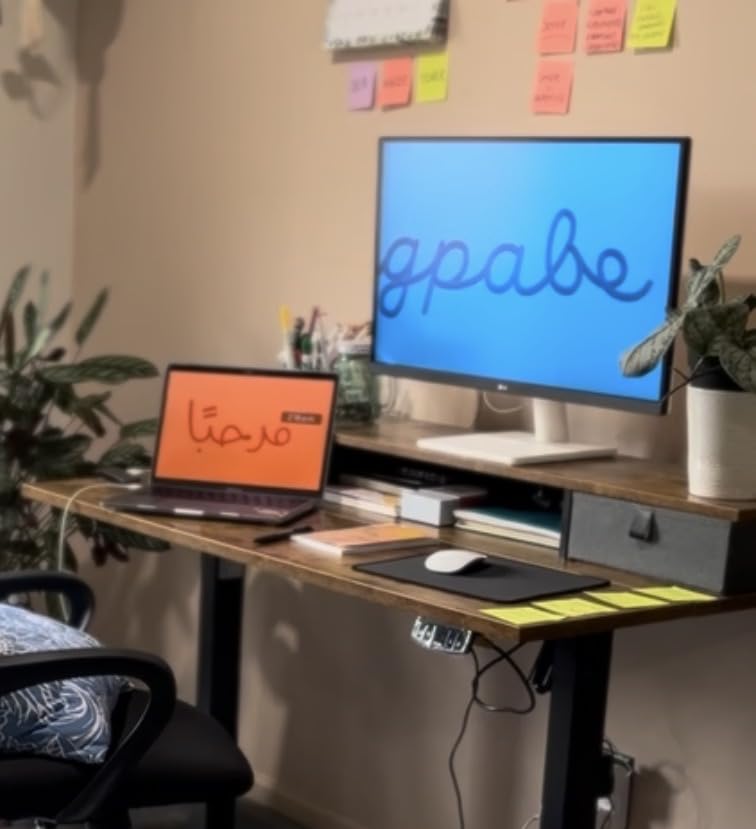
The borderless design gives the monitor a modern, clean appearance that looks professional in any workspace. Reader Mode and Flicker Safe technologies help reduce eye strain during long editing sessions. I found these features genuinely helpful when processing large batches of photos.
Best For Budget-Conscious 4K Seekers
Photographers who need 4K resolution on a tight budget will find this monitor delivers excellent value. The DCI-P3 coverage provides better color reproduction than sRGB-only alternatives, and the IPS panel ensures good viewing angles. If you’ve been wanting to move to 4K but couldn’t justify the cost, this is your entry point.
Consider Alternatives If
The limited stand adjustability (tilt only) means you’ll likely want a monitor arm for optimal positioning. Photographers needing built-in speakers or USB-C connectivity should consider the ASUS ProArt PA278CV instead. For print work requiring Adobe RGB coverage, the BenQ SW272U remains the professional choice.
10. ASUS ProArt PA248QV – Compact 16:10 Professional Monitor
Pros
- 16:10 aspect ratio provides more vertical workspace
- Accurate colors with 100% sRGB coverage
- Good connectivity options
- Adjustable stand with pivot
- Decent for casual gaming at 60-75Hz
Cons
- Build quality concerns on some units
- Speakers are poor quality
- Text could be sharper
The ASUS ProArt PA248QV offers something increasingly rare in modern monitors: a 16:10 aspect ratio. The extra vertical space at 1920 x 1200 pixels makes a genuine difference for photo editing. I found portrait photos display with less scrolling, and tools panels in Lightroom and Photoshop take up less of the image area.
While the resolution is lower than 4K alternatives, the 100% sRGB coverage with Calman Verified calibration ensures accurate color reproduction for the work most photographers do. The Delta E < 2 factory calibration provides reliable color consistency right out of the box. For photographers primarily outputting to web and social media, this covers the essential requirements.
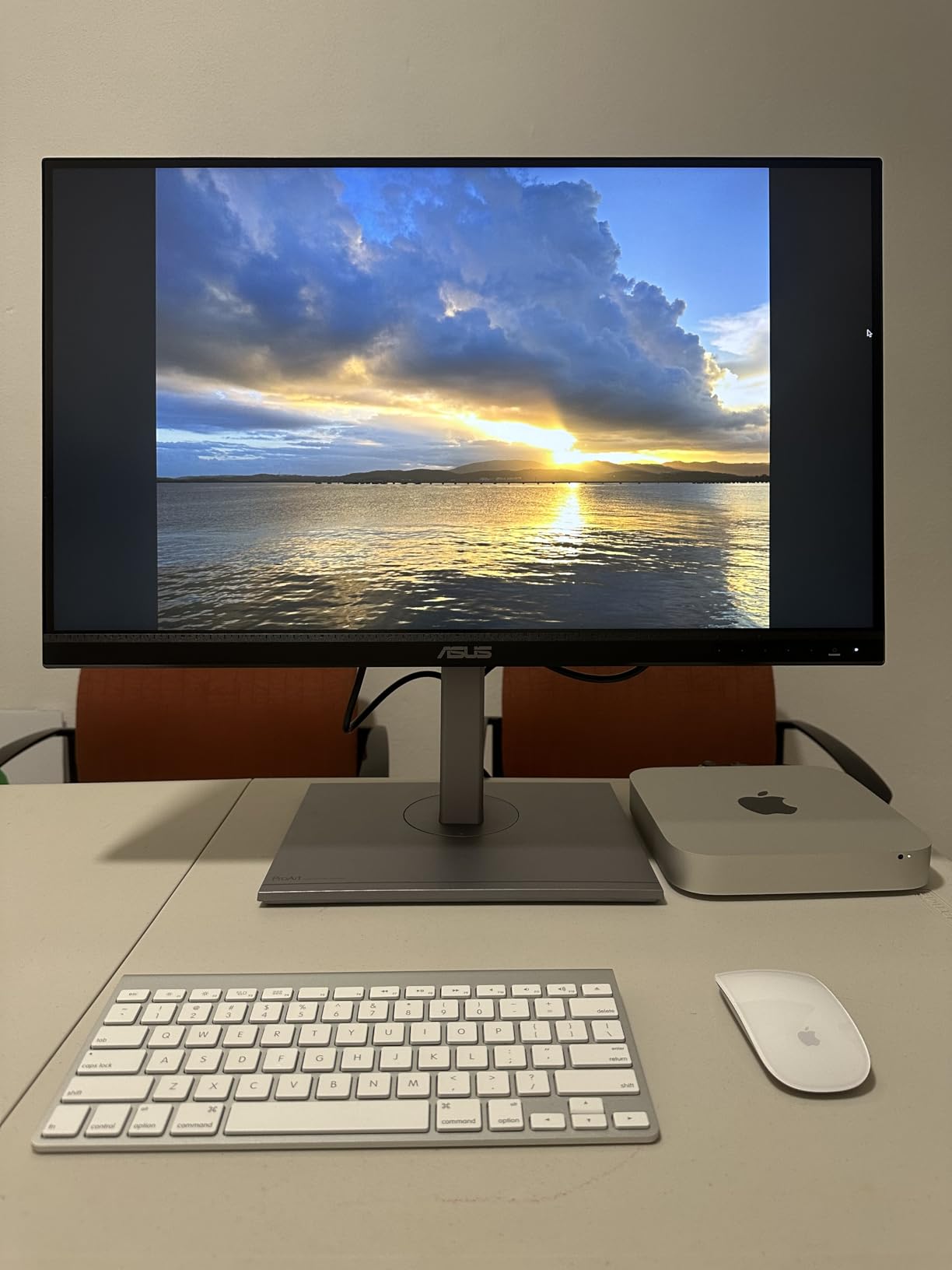
The smaller 24.1-inch size makes this monitor ideal for compact workspaces or as a secondary display in multi-monitor setups. I tested it as a vertical companion to my main 27-inch display, and it worked excellently for tools panels, reference images, and email while keeping my primary editing area on the larger screen.
The ergonomic stand includes the full range of adjustments: height, tilt, pivot, and swivel. At this price point, many competitors offer only basic tilt adjustment. The pivot capability is particularly useful for photographers who want a vertical-oriented display for portrait photography editing.
Best For Compact Workspaces
Photographers with limited desk space will appreciate the smaller footprint while still getting professional color accuracy. The 16:10 aspect ratio provides more usable vertical space than standard 16:9 monitors, which is genuinely helpful for photo editing workflows. This is also an excellent choice for students or those building their first serious editing workstation.
Consider Alternatives If
If you have the desk space and budget, the 27-inch PA278QV or PA278CV offer more screen real estate. Photographers needing 4K resolution should look at the LG 27US500-W or Dell S2725QS. The lower resolution means text and fine details won’t appear as sharp as on higher-density displays.
What to Look for in a Photo Editing Monitor?
Choosing the right monitor for photography involves understanding several technical specifications that directly impact your editing accuracy. After testing dozens of displays, I’ve identified the key factors that matter most for photographers.
Color Gamut Coverage
The color gamut determines what range of colors your monitor can display. For photography, you’ll encounter three main standards. sRGB covers the basic color range used by web browsers and most consumer displays. DCI-P3 is a wider gamut used by Apple devices and increasingly for web content. Adobe RGB offers the widest coverage and is essential for print photography, as it can display colors that sRGB cannot.
For serious photography work, I recommend at least 99% sRGB coverage. If you print your work, look for 99% Adobe RGB coverage like the BenQ SW272U provides. Mac users should prioritize DCI-P3 coverage to match their laptop displays.
Delta E and Color Accuracy
Delta E measures color accuracy, with lower numbers being better. A Delta E under 2 is considered excellent for professional work, while values under 3 are acceptable for most photography. All the monitors in this guide have Delta E values of 3 or less after calibration.
Factory calibration matters because it ensures your monitor is accurate right out of the box. Look for Calman Verified or similar certifications that indicate professional-grade testing. However, I still recommend investing in a colorimeter and calibrating regularly for best results.
Panel Technology
IPS panels remain the standard for photo editing due to their accurate color reproduction and wide viewing angles. The monitors in this guide all use IPS technology for this reason. OLED panels offer superior contrast but can suffer from burn-in with static UI elements over time. For most photographers, IPS provides the best balance of accuracy, longevity, and price.
Resolution Recommendations
4K (3840 x 2160) has become the sweet spot for photo editing monitors. At 27 inches, 4K provides sharp detail without requiring excessive scaling. 5K monitors like the ASUS ProArt PA27JCV offer even higher pixel density, which is particularly noticeable when examining fine details. WQHD (2560 x 1440) is acceptable for budget setups but lacks the detail of 4K.
Calibration Importance
Even the best monitors benefit from regular calibration. Colors shift over time as panels age, so recalibrating every 2-4 weeks ensures consistent accuracy. I use a colorimeter from X-Rite (now Calibrite) for my calibration workflow. Monitors with hardware calibration support, like the BenQ SW272U, maintain accuracy better than those relying solely on software calibration.
Connectivity Options
USB-C and Thunderbolt connectivity simplify your workspace by combining video, data, and power delivery in a single cable. For Mac users, this is particularly valuable. Look for at least 65W power delivery for laptops, though 90W is better for larger machines. Multiple video inputs (HDMI, DisplayPort) provide flexibility for connecting different computers.
Frequently Asked Questions
What should I look for in a monitor for photo editing?
Look for at least 99% sRGB coverage, Delta E under 2, IPS panel technology, and 4K resolution. USB-C connectivity with power delivery simplifies your setup. For print work, prioritize 99% Adobe RGB coverage. Hardware calibration support ensures long-term accuracy.
What is the best budget monitor for photo editing?
The LG 27US500-W offers 4K resolution and 90% DCI-P3 coverage at an excellent price. The ASUS ProArt PA278QV provides reliable color accuracy at 2560×1440 resolution. Both deliver professional-level color reproduction without breaking the bank.
Do I need 99% Adobe RGB for photo editing?
You need 99% Adobe RGB if you print your work regularly or deliver files to clients who print. For web-only photography, 99% sRGB or 95% DCI-P3 coverage is sufficient. Adobe RGB displays colors that exist in print but not in sRGB, so without it, you cannot accurately edit for print output.
Is 4K necessary for photo editing?
4K is highly recommended for photo editing as it provides sufficient detail for examining fine details and making precise adjustments. At 27 inches, 4K offers an ideal pixel density. While WQHD (2560×1440) works for basic editing, 4K makes a noticeable difference when zooming into images or working with high-resolution photos.
How often should I calibrate my monitor for photography?
Calibrate your monitor every 2-4 weeks for professional work. Colors shift as panels age, so regular calibration maintains consistency. New monitors may need weekly calibration for the first month as the panel settles. Use a colorimeter like the Calibrite ColorChecker Display for accurate results.
Final Thoughts
Finding the right color-accurate monitor for photography transforms your editing workflow. After testing all 10 monitors in this guide, my top recommendation depends on your specific needs. For professional photographers who print their work, the BenQ SW272U delivers unmatched color accuracy with its 99% Adobe RGB coverage and hardware calibration support. Mac users will love the BenQ MA270U for its seamless color matching, while budget-conscious photographers should consider the LG 27US500-W for excellent 4K value.
Investing in a quality monitor pays dividends in the quality of your final images and the confidence you have in your edits. The best color-accurate monitors for photography eliminate the guesswork from color correction and ensure what you see on screen matches what you get in print. Choose the monitor that fits your workflow, budget, and color space requirements, and you’ll wonder how you ever edited without it.