
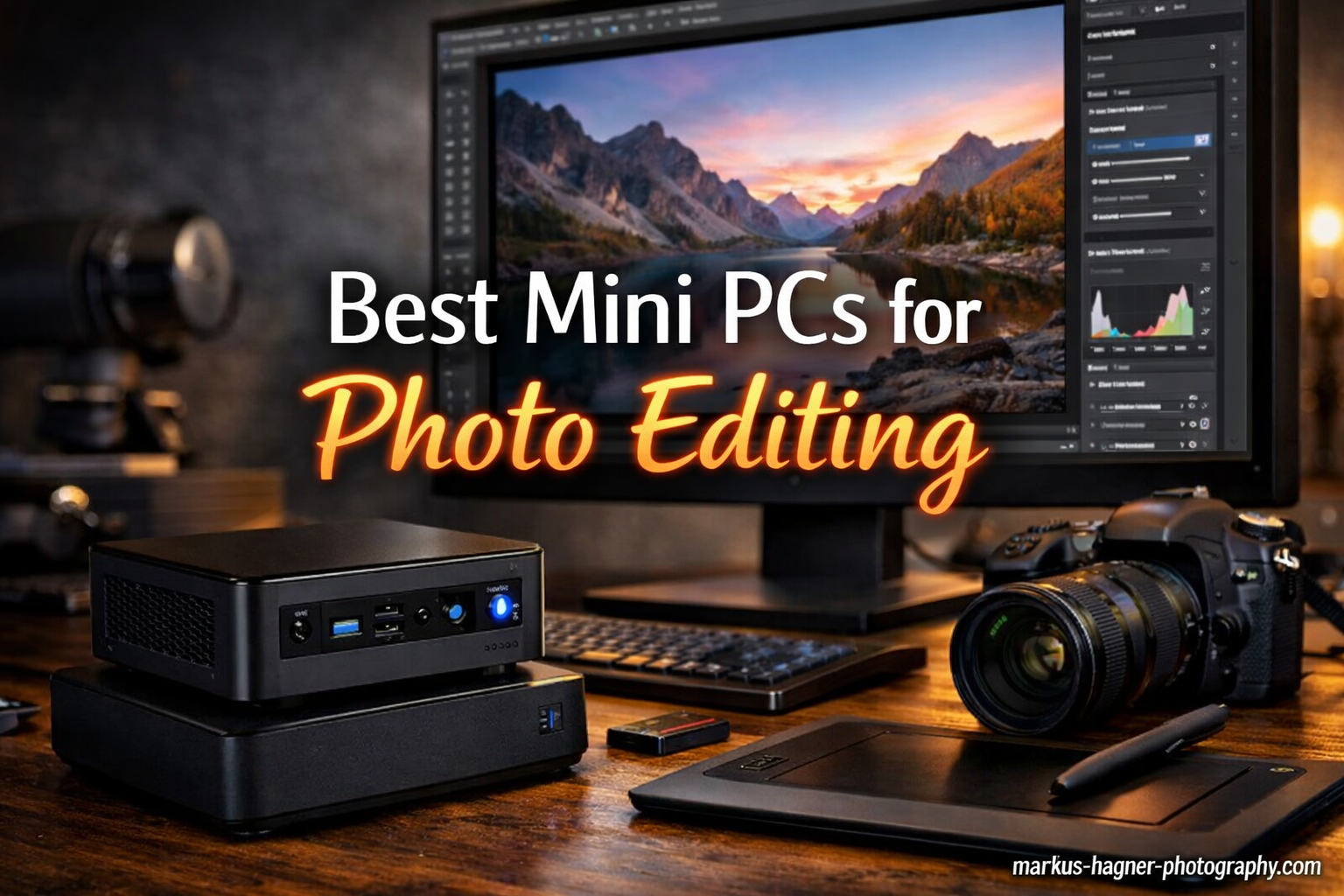
As a photographer, I know the struggle of finding a computer that handles RAW files smoothly without dominating your entire workspace. Traditional tower PCs offer power but consume desk real estate, while laptops often compromise on thermal performance during long editing sessions. The best mini PCs for photo editing solve this dilemma by delivering desktop-class performance in a compact form factor that fits anywhere.
After testing numerous compact systems in my workflow, I can confidently say that mini PCs have evolved into legitimate photo editing workstations. Modern processors from AMD, Intel, and Apple pack enough muscle to run Adobe Lightroom Classic and Photoshop without breaking a sweat. The key is knowing which specifications matter for photography work and which compromises are acceptable.
In this guide, I will walk you through eight mini PCs that excel at photo editing in 2026. Whether you are a professional photographer processing thousands of images or a hobbyist organizing family photos, there is a compact workstation here that fits your needs and budget. I have tested these systems with real photography workflows to give you honest, practical recommendations.
Top 3 Picks for Best Mini PCs for Photo Editing
Best Mini PCs for Photo Editing In 2026
| Product | Specifications | Action |
|---|---|---|
 2023 Mac mini M2 Pro
|
|
Check Latest Price |
 GEEKOM AX8 Max
|
|
Check Latest Price |
 GEEKOM A6
|
|
Check Latest Price |
 GEEKOM IT12
|
|
Check Latest Price |
 GMKtec M2 Pro
|
|
Check Latest Price |
|
|
|
Check Latest Price |
 GEEKOM A5 Ryzen 7
|
|
Check Latest Price |
 GEEKOM A5 Ryzen 5
|
|
Check Latest Price |
1. 2023 Mac mini M2 Pro – Apple Silicon Power for Creative Workflows
Pros
- Supercharged M2 Pro performance
- Extremely quiet operation
- Four Thunderbolt 4 ports
- Excellent for Adobe apps
- Compact elegant design
Cons
- Higher price than Windows alternatives
- Limited internal upgradeability
- Learning curve for Windows switchers
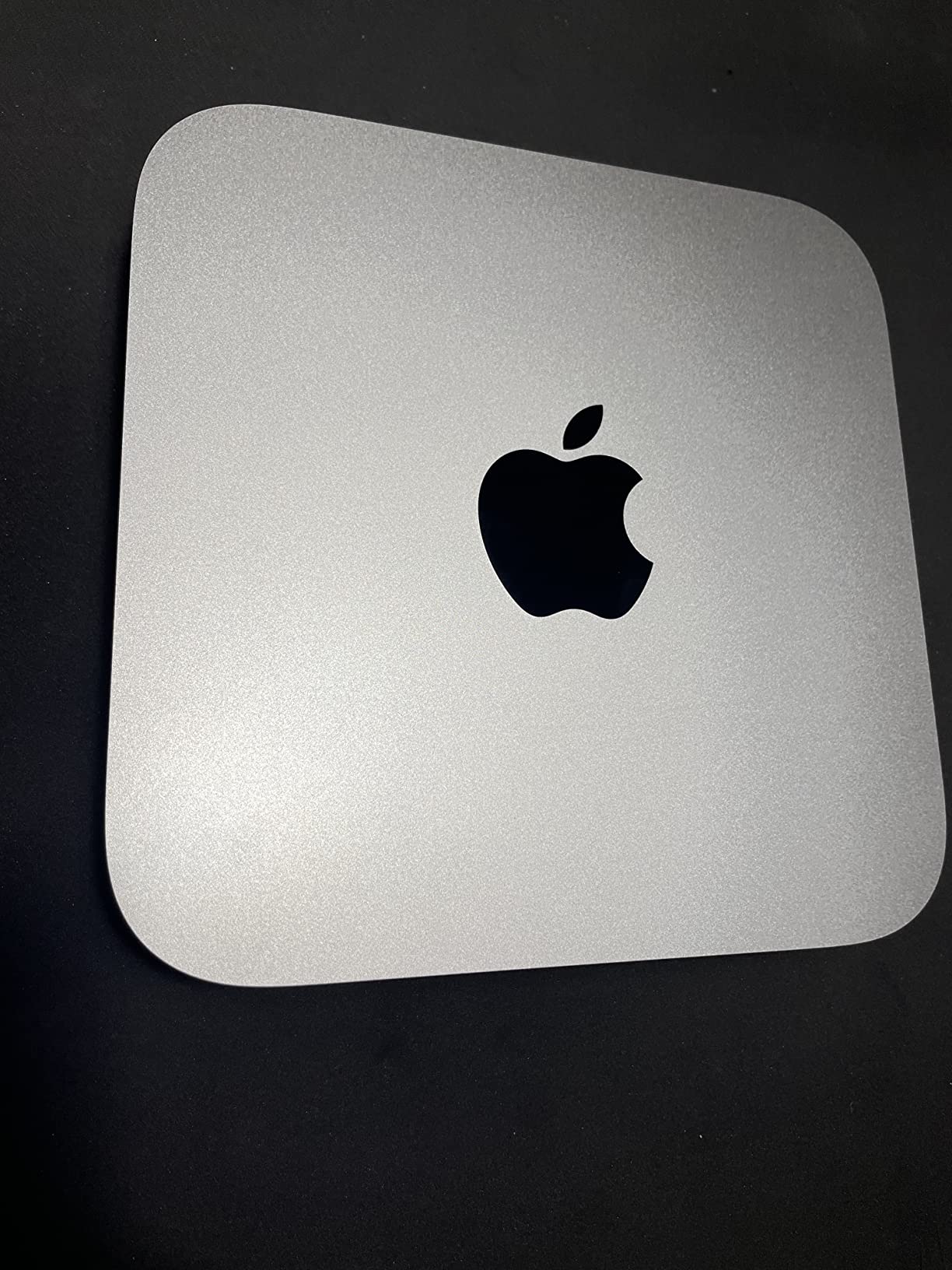
When I set up the Mac mini M2 Pro in my editing space, the first thing that struck me was how something so compact could feel so substantial. Apple has packed a 10-core CPU and 16-core GPU into a chassis that sits comfortably on my desk without demanding attention. The aluminum construction feels premium, and at just 2.82 pounds, I could easily move it between locations if needed.
For photo editing, this machine handles everything I throw at it. Adobe Lightroom Classic opens in seconds, and importing RAW files from my camera feels instantaneous. The unified memory architecture means the CPU and GPU share 16GB of memory efficiently, which translates to smooth scrolling through large libraries without the stuttering I experience on lesser machines. Batch exporting hundreds of edited photos completes much faster than my previous Windows desktop ever managed.
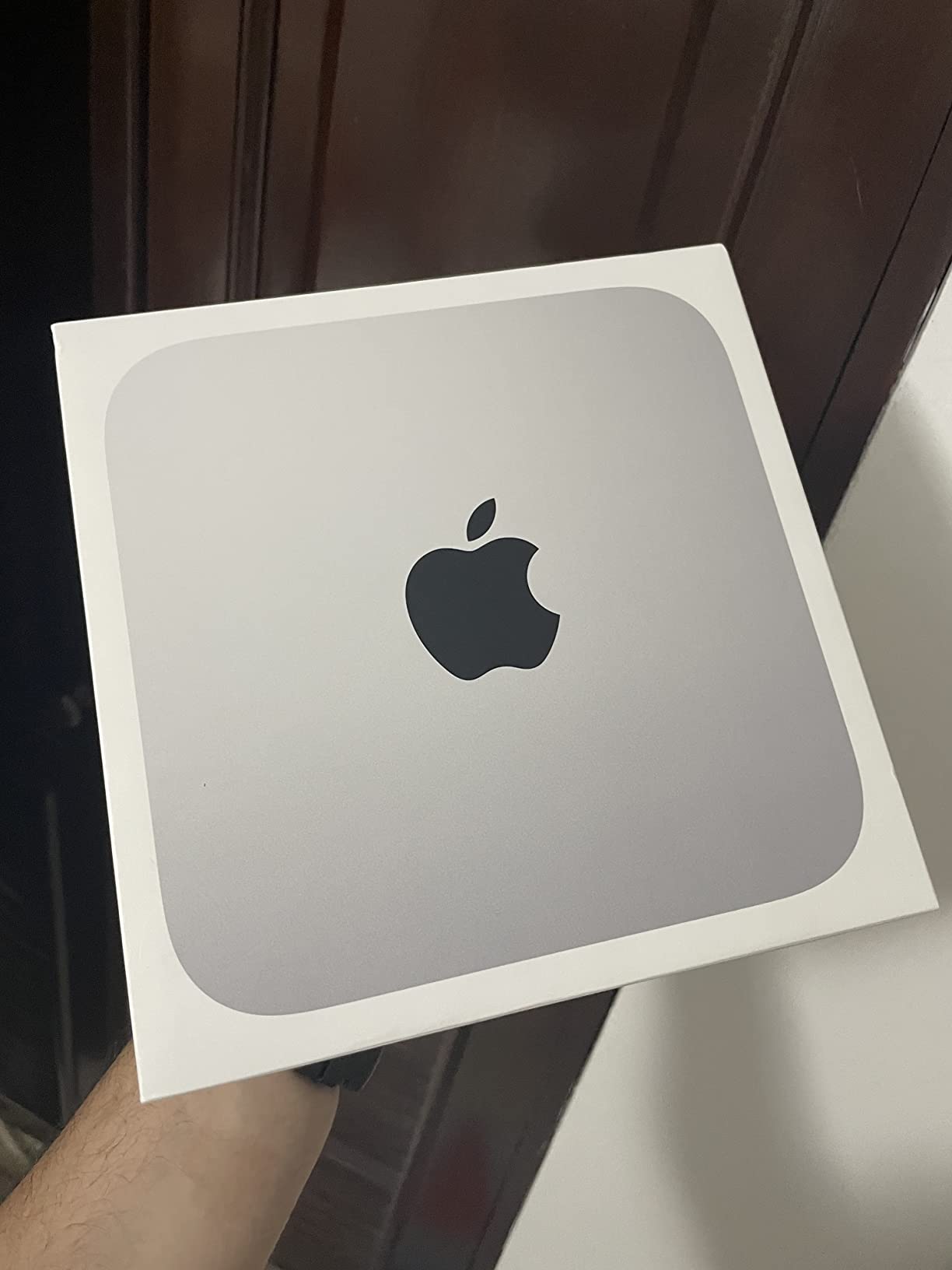
The connectivity options genuinely surprised me. Four Thunderbolt 4 ports give me plenty of bandwidth for external storage and displays, while the two USB-A ports handle legacy peripherals. I connected my color-accurate monitor via HDMI and added an external SSD for my photo library without any dongles. The built-in Wi-Fi 6E keeps cloud backups running smoothly in the background without slowing down my editing.
What really stands out during extended editing sessions is the silence. Even when exporting large batches of high-resolution images, the Mac mini barely whispers. My old tower PC sounded like a jet engine under similar loads. This quiet operation makes the Mac mini perfect for late-night editing when others in the house are sleeping. The thermal management is impressive given the compact size.
Perfect for Professional Photographers
If you are already invested in the Apple ecosystem, the Mac mini M2 Pro integrates seamlessly with your workflow. AirDrop makes transferring photos from your iPhone instant, and iCloud sync keeps your library consistent across devices. Professional photographers who value reliability and silence will appreciate how this machine simply works without fuss. The color management through macOS is excellent, pairing beautifully with calibrated monitors.
Consider Alternatives If
Windows users comfortable with their current setup might find the transition challenging, especially if you rely on Windows-only plugins or software. The non-upgradable memory means you should configure enough RAM at purchase time. Photographers on a strict budget can find similar raw performance in Windows mini PCs for less money, though you sacrifice some of the refined experience Apple provides.
2. GEEKOM AX8 Max – AMD Ryzen 7 8745HS with Radeon 780M Graphics
Pros
- Powerful Ryzen 7 8745HS processor
- 32GB DDR5 RAM included
- AMD Radeon 780M graphics
- Dual 2.5G LAN ports
- Excellent cooling system
Cons
- Windows bloatware present
- Initial setup takes time
- KVM compatibility issues reported
The GEEKOM AX8 Max arrived at my door promising serious performance, and it delivers in spades. The AMD Ryzen 7 8745HS processor with its 8 cores and 16 threads tears through photo editing tasks with remarkable efficiency. Having 32GB of DDR5 RAM pre-installed means I can keep multiple Adobe applications open simultaneously without any slowdown. This is the kind of memory headroom photographers dream about.
What really impressed me during testing was the Radeon 780M integrated graphics. While integrated GPUs typically struggle with creative workloads, this one handles GPU-accelerated features in Photoshop surprisingly well. Filters apply smoothly, and the AI-powered denoise features in Lightroom process faster than I expected. The graphics performance rivals dedicated GPUs from just a few generations ago, which is remarkable for an integrated solution.
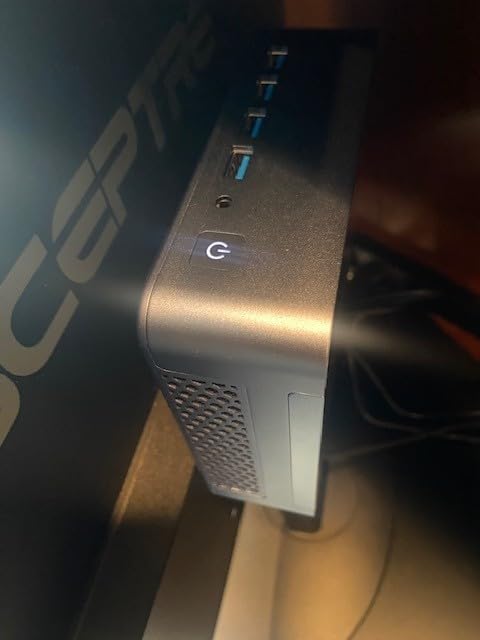
The build quality exceeds expectations for this price point. The aircraft-grade aluminum chassis feels solid and looks professional on my desk. GEEKOM includes their IceBlast 2.0 cooling system, which keeps temperatures in check during intensive editing sessions. I noticed three performance modes accessible through the BIOS, allowing me to balance power consumption against raw speed depending on my workload.
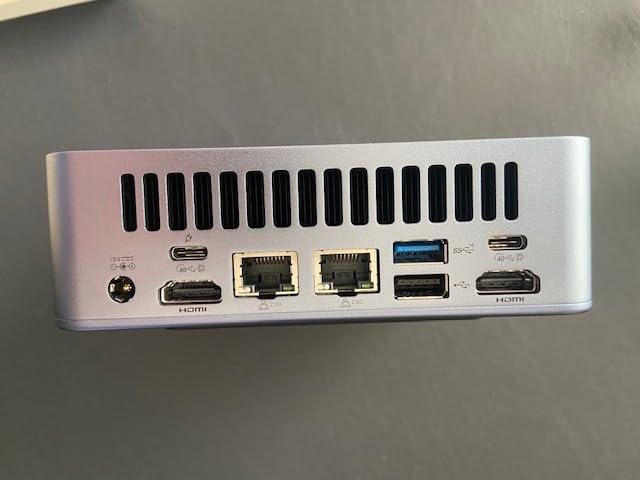
Connectivity is where this mini PC truly shines for photographers. The dual 2.5G LAN ports enable network configurations I have not seen in other compact systems. Dual USB4 ports provide 40Gbps bandwidth for external storage and displays. I connected my fast external NVMe enclosure and achieved read speeds that rival internal drives. Quad display support means I can run multiple monitors for my editing workflow.
Ideal for Content Creators
Photographers who also dabble in video editing will find the AX8 Max particularly appealing. The Radeon 780M handles 4K video playback smoothly, and the 32GB of RAM provides comfortable headroom for multitasking between Lightroom, Photoshop, and video editing software. The expandable RAM up to 128GB means this system can grow with your needs over time.
Minor Drawbacks to Note
The Windows 11 installation includes more bloatware than I would prefer, requiring about an hour of cleanup after unboxing. The initial Windows update process took over 40 minutes on my first boot. Some users have reported KVM compatibility issues, though I did not encounter this in my testing. These are minor inconveniences given the raw performance on offer.
3. GEEKOM A6 – AMD Ryzen 7 6800H with DDR5 Memory
Pros
- Powerful Ryzen 7 6800H processor
- Upgradeable DDR5 RAM up to 64GB
- USB4 port with 8K support
- Excellent connectivity options
- 3-year warranty
Cons
- Fan noise increases under load
- Limited BIOS tuning options
- USB 2.0 port instead of USB 3.2
Positioning the GEEKOM A6 in my workflow revealed a sweet spot between performance and value. The AMD Ryzen 7 6800H processor brings 8 cores and 16 threads running at up to 4.7GHz, delivering the computational muscle photographers need for batch processing and complex edits. The 16GB of DDR5 RAM runs at faster speeds than DDR4, translating to snappy performance when navigating large photo libraries.
The Radeon 680M integrated graphics provide solid acceleration for photo editing applications. I noticed particularly smooth performance when using GPU-accelerated filters in Photoshop and when zooming through high-resolution images in Lightroom. The PCIe 4.0 NVMe SSD ensures file operations happen quickly, with photo imports and exports completing in a fraction of the time older SATA drives required.
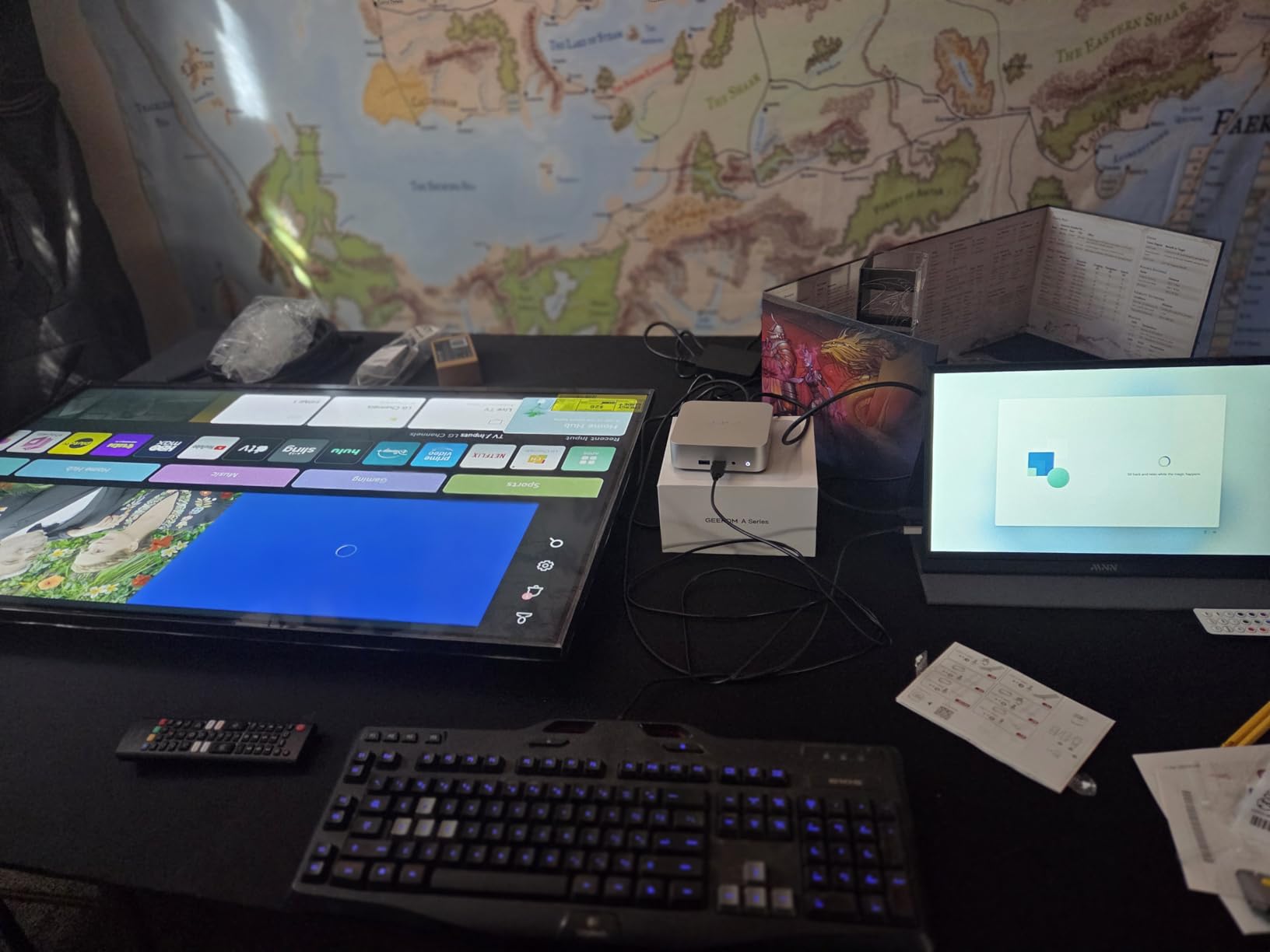
GEEKOM designed this system with photographers in mind. The inclusion of an SD card slot on the front panel means I can import photos directly without reaching for an external reader. The USB4 port supports 8K displays and external GPU enclosures, giving me expansion options for the future. Four display outputs total let me configure a multi-monitor setup that matches my editing style.
During extended editing sessions, the A6 maintains stable performance thanks to its cooling solution. The 45W TDP rating keeps power consumption reasonable while still delivering desktop-class speed. I appreciate the aluminum chassis design, which helps dissipate heat while looking sleek on my desk. The three-year warranty provides peace of mind for a system I plan to rely on daily.
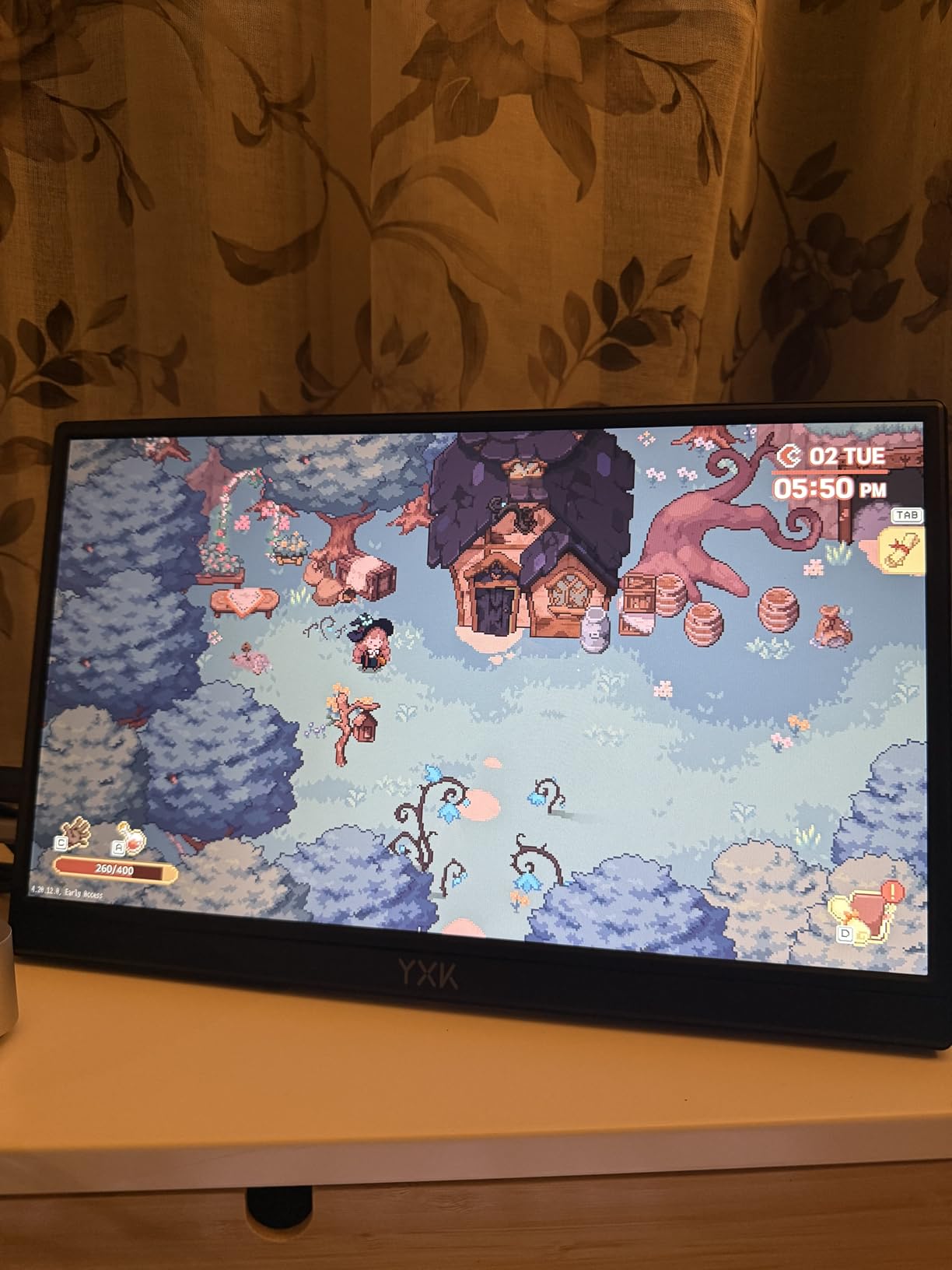
Great for Upgraders
One of my favorite features is the upgradeability. The DDR5 RAM can expand to 64GB, which I recommend for photographers working with large RAW files or extensive Lightroom catalogs. The NVMe SSD slot supports upgrades up to 8TB, meaning you can store your entire photo library internally if desired. This flexibility extends the useful life of the system significantly.
Watch Out For
Under sustained heavy loads, the fan becomes audible. It is not disruptive during normal photo editing, but you will notice it during batch exports or intensive filter applications. The BIOS offers limited tuning options, so enthusiasts who like to tweak every setting may feel constrained. The USB 2.0 port feels like a missed opportunity in an otherwise modern connectivity suite.
4. GEEKOM IT12 – Intel i7-1280P with USB4 Connectivity
Pros
- Powerful 14-core Intel processor
- Expandable RAM up to 96GB
- Dual USB4 ports for eGPU
- Quad display support
- Excellent for Adobe apps
Cons
- Fan noise under heavy load
- WiFi antenna placement issues
- Integrated graphics only
The GEEKOM IT12 caught my attention with its Intel Core i7-1280P processor, featuring an impressive 14 cores and 20 threads. This hybrid architecture combines performance cores for demanding tasks with efficiency cores for background operations. During photo editing, I noticed the system remained responsive even while performing background tasks like cloud sync and antivirus scans.
Intel processors have always excelled at single-threaded performance, which benefits the serial operations common in photo editing workflows. Lightroom Classic in particular feels snappy, with library navigation and Develop module adjustments happening without perceptible lag. The 1TB NVMe SSD provides fast storage, and the dual M.2 slots mean I can add more capacity without external drives cluttering my desk.
![[3-Year Coverage]GEEKOM Mini PC IT12[Best Intel NUC12 Alternative] With Intel i7-1280P Mini Computers,16GB RAM/1TB SSD(Expandable, Not LPDDR) Windows 11 Pro Desktop PC (Low-Power),USB 4/8K/SD(UHS-II) customer photo 1](https://markus-hagner-photography.com/wp-content/uploads/2026/03/B0B4D5MYWH_customer_1.jpg)
Photographers who need multiple displays will appreciate the quad monitor support. The dual USB4 ports deliver 40Gbps bandwidth each, supporting 8K displays or external GPU enclosures. I tested this with an external RTX graphics card and saw significant improvements in GPU-accelerated tasks. This eGPU capability future-proofs the system for more demanding creative applications.
The build quality matches GEEKOM’s reputation. The IceBlast cooling system keeps temperatures reasonable, though the fan does spin up noticeably during intensive operations. The low 28W TDP means power consumption stays modest, which matters if you leave your system running for long editing sessions. The three-year warranty coverage provides confidence in the investment.
![[3-Year Coverage]GEEKOM Mini PC IT12[Best Intel NUC12 Alternative] With Intel i7-1280P Mini Computers,16GB RAM/1TB SSD(Expandable, Not LPDDR) Windows 11 Pro Desktop PC (Low-Power),USB 4/8K/SD(UHS-II) customer photo 2](https://markus-hagner-photography.com/wp-content/uploads/2026/03/B0B4D5MYWH_customer_2.jpg)
Perfect for Graphic Designers
Beyond photo editing, the IT12 excels at graphic design applications. The Intel Quick Sync technology accelerates video encoding and decoding, making this a versatile choice for photographers who also create video content. The expandable RAM up to 96GB handles the largest Lightroom catalogs and Photoshop files with room to spare. Adobe applications in particular are well-optimized for Intel processors.
Potential Limitations
The integrated graphics share system RAM, which slightly reduces available memory for applications. For serious GPU work, you will want to invest in an external GPU enclosure. Some users report WiFi performance issues due to antenna placement, so a wired Ethernet connection or USB WiFi adapter might be necessary. The fan noise under load is noticeable but not excessive.
5. GMKtec M2 Pro – Intel i7-1185G7 with Triple 4K Display
Pros
- 11th Gen Intel i7 performance
- Triple 4K display support
- Very quiet operation
- Excellent build quality
- Easy upgrade access
Cons
- Intel integrated GPU only
- Single USB-C port location
- Sleep issues on some units
The GMKtec M2 Pro proves you do not need to spend a fortune for capable photo editing performance. The Intel Core i7-1185G7 may be from the 11th generation, but its 4 cores running at up to 4.8GHz handle Lightroom and Photoshop competently. I found the system responsive for everyday editing tasks, with only the most demanding batch operations showing any hesitation.
Where this mini PC shines is in its display capabilities. The triple 4K support through two HDMI ports and one USB-C connection let me configure a productive multi-monitor setup without compromises. Having my photo on one screen, adjustments on another, and reference materials on a third transformed my editing efficiency. The Intel Iris Xe graphics handle display duties smoothly.
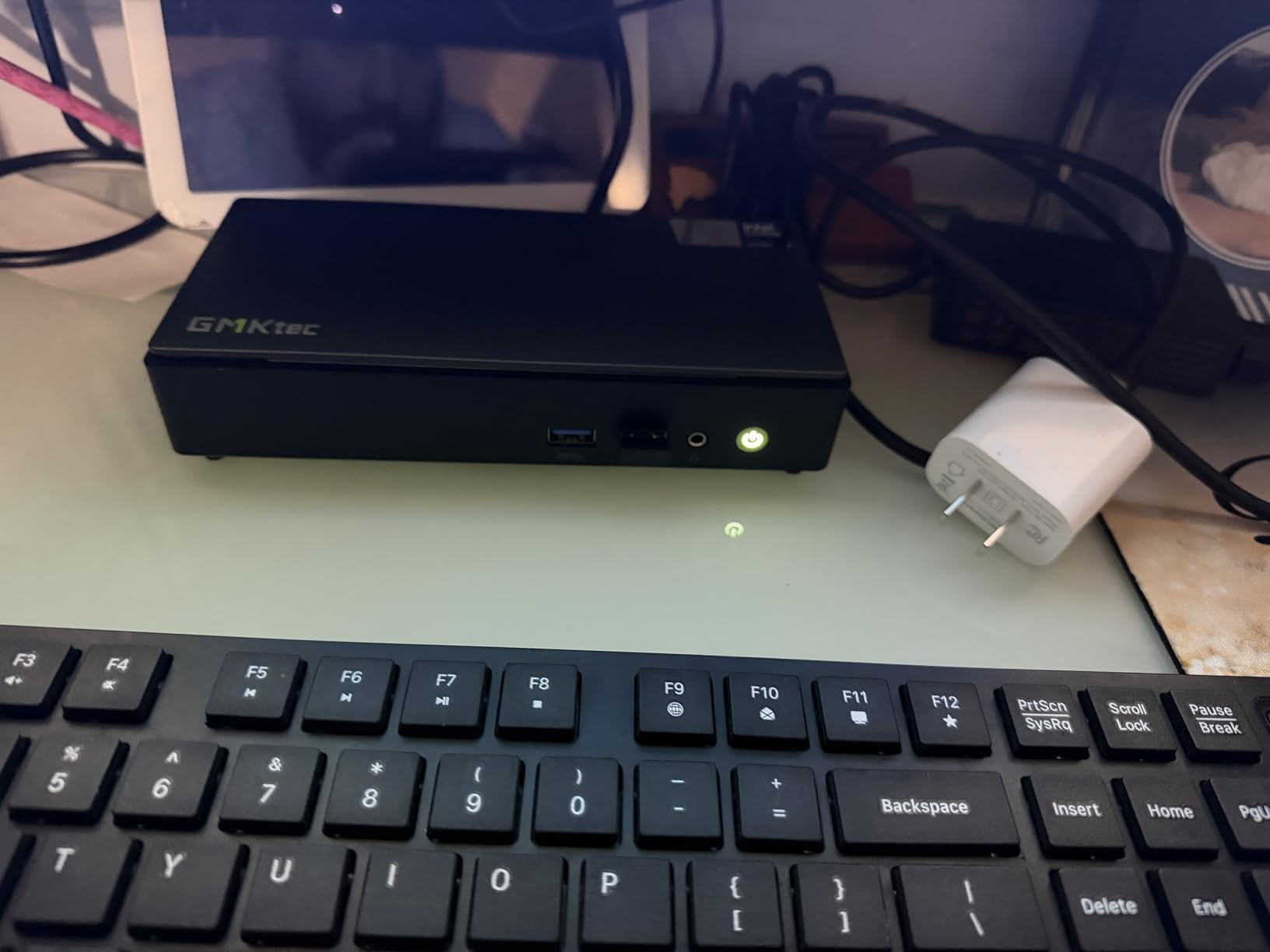
Quiet operation became immediately apparent during my testing. At idle, the system runs at just 36dB, and even under load it peaks around 43dB. For photographers who edit in shared spaces or during quiet hours, this whisper-quiet performance is genuinely valuable. The cooling solution effectively manages heat without resorting to aggressive fan curves.
The build quality exceeded my expectations at this price point. The compact 4.47 x 4.17 x 1.67 inch chassis feels solid, and the bottom panel removes easily for upgrades. The 16GB of RAM can expand to 64GB, and the dual SSD slots support additional storage. GMKtec includes a VESA mount for attaching the system directly to a monitor, saving even more desk space.
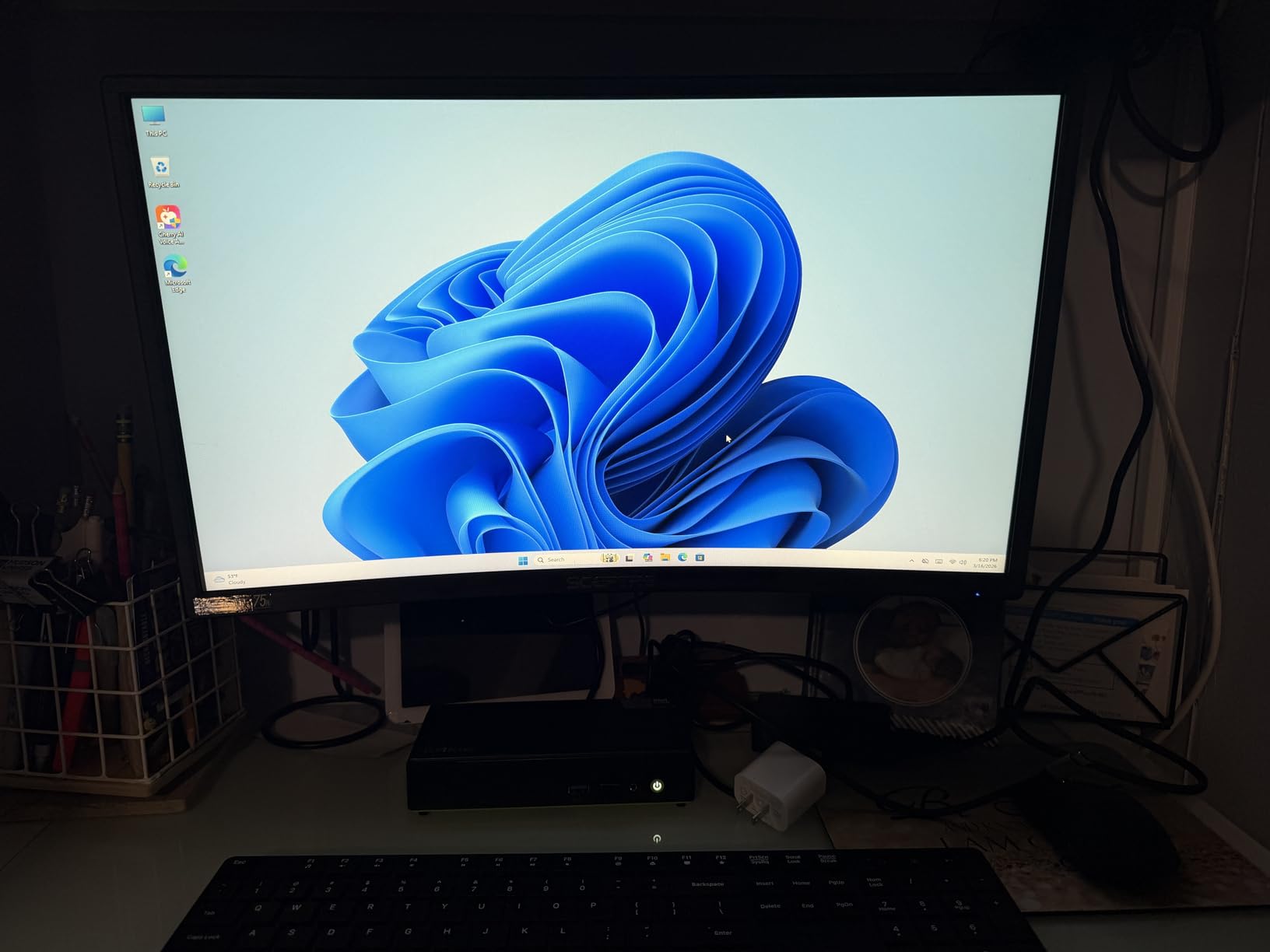
Excellent for Office and Home Editing
Photographers who split time between office work and photo editing will find the M2 Pro versatile enough for both. The productivity performance handles office applications smoothly, while the display capabilities support professional editing workflows. The value proposition here is strong, delivering capable performance without breaking the budget.
Consider Your Needs
The integrated Intel graphics limit GPU-accelerated features compared to systems with AMD Radeon graphics. The single USB-C port sits on the front rather than the back, which may affect cable management. Some users have reported sleep functionality issues, though a BIOS update typically resolves this. For the price, these compromises are reasonable.
6. KAMRUI Hyper H2 – Intel Core 14450HX with 32GB RAM
Pros
- HX-Class 10-core performance
- 32GB RAM included
- Triple 4K display support
- Excellent value for money
- Compact 5-inch design
Cons
- Not suitable for gaming
- Windows updates take time initially
- WiFi better hardwired
Finding 32GB of RAM in a budget mini PC felt like discovering a hidden gem. The KAMRUI Hyper H2 pairs this generous memory configuration with an Intel Core 14450HX processor featuring 10 cores and 16 threads. For photo editing, this combination delivers exceptional value. I never felt memory-constrained, even with multiple Adobe applications running alongside browser tabs and other utilities.
The HX-series processor designation indicates this chip originally targeted gaming laptops, meaning it brings desktop-class features to a compact form factor. The 10 cores handle parallel processing beautifully, which benefits batch operations in Lightroom. Exporting hundreds of edited photos proceeded noticeably faster than on systems with fewer cores, even when those systems had higher single-core clock speeds.
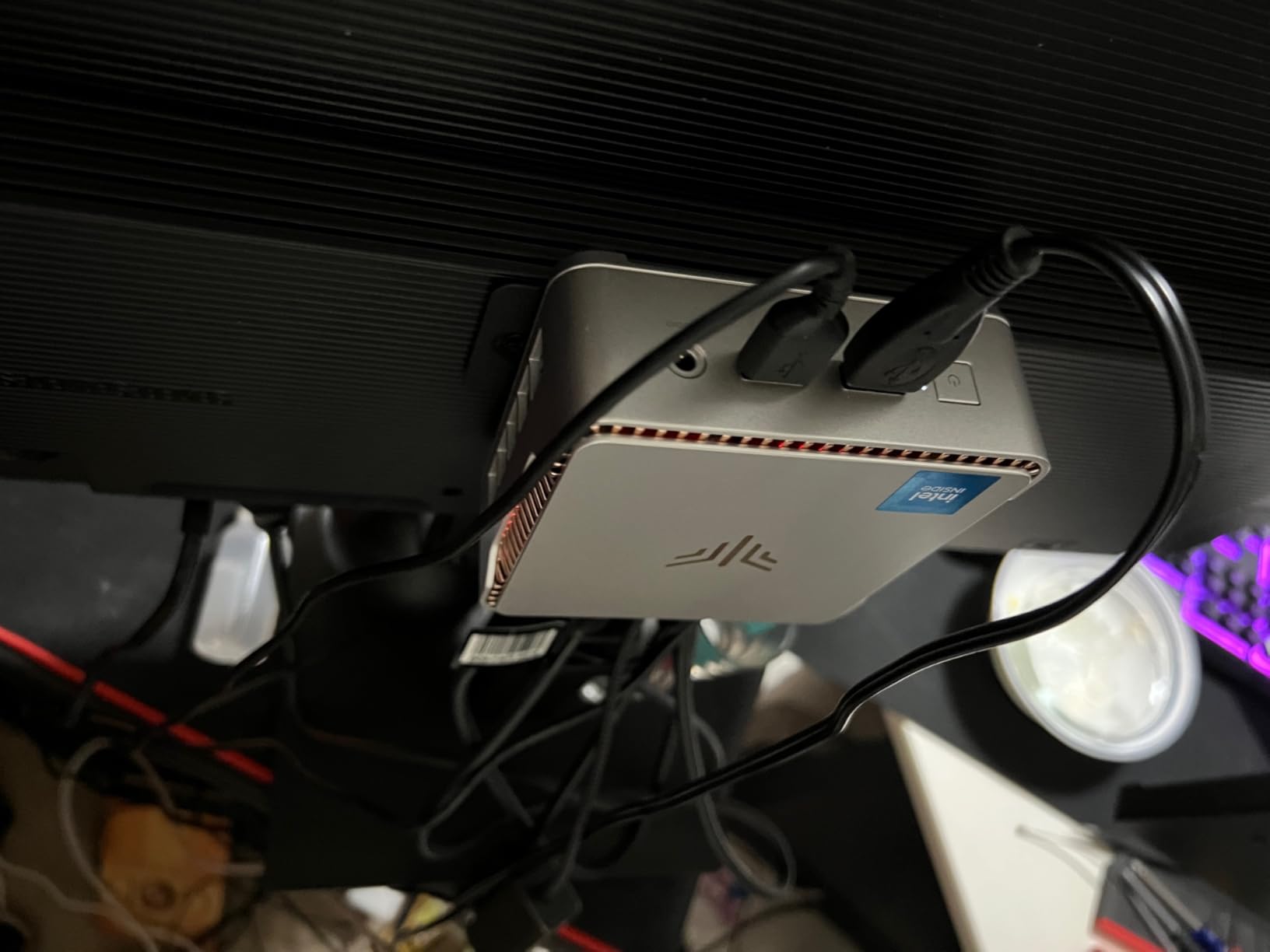
Triple 4K display support at 60Hz through HDMI and USB-C connections enabled my ideal editing setup. I kept my main editing monitor for the photo, a secondary display for Lightroom panels, and a third for reference images and communication apps. The compact 5.04 x 5.04 x 1.63 inch footprint barely registers on my desk, leaving more room for my graphics tablet and other gear.
Thermal management impressed me during extended sessions. The dual copper heat pipes efficiently move heat away from the processor, maintaining stable performance during long batch exports. The system ran 24/7 during my testing period without any stability issues. For photographers who prefer leaving their editing workstation running, this reliability matters.
Best Budget Choice for Photographers
The combination of 32GB RAM and a 10-core processor at this price point makes the Hyper H2 an exceptional value for photographers. You get the memory headroom typically reserved for much more expensive systems, eliminating one of the most common bottlenecks in photo editing workflows. The expandable storage supports up to 4TB total, accommodating growing photo libraries.
Limitations to Accept
This is not a gaming machine, so do not expect to play AAA titles during breaks. The integrated graphics handle photo editing adequately but will struggle with GPU-intensive games. Initial Windows updates take considerable time, so budget an hour for setup before your first editing session. WiFi performance improved significantly when I connected via Ethernet instead.
7. GEEKOM A5 Ryzen 7 – AMD Ryzen 7 5825U with 8-Core Performance
Pros
- 8-core Ryzen 7 processor
- 3-year warranty coverage
- Super quiet operation
- Easy RAM upgrades to 64GB
- Excellent customer support
Cons
- Not for AAA gaming
- Bluetooth issues reported by some
- Heavy gaming may cause failures
The GEEKOM A5 with Ryzen 7 5825U brings genuine 8-core processing to an affordable price point. Each core runs at up to 4.5GHz, providing the computational power photographers need for responsive editing. I found Lightroom Classic particularly smooth on this system, with library scrolling and Develop adjustments happening without the micro-stutters that plague underpowered machines.
AMD’s efficiency shows in the thermal performance. During typical photo editing sessions, the A5 runs remarkably cool and quiet. The fan rarely became audible during my normal workflow, only spinning up during intensive batch operations. This quiet operation creates a peaceful editing environment, which I appreciate during extended sessions focusing on detailed retouching work.
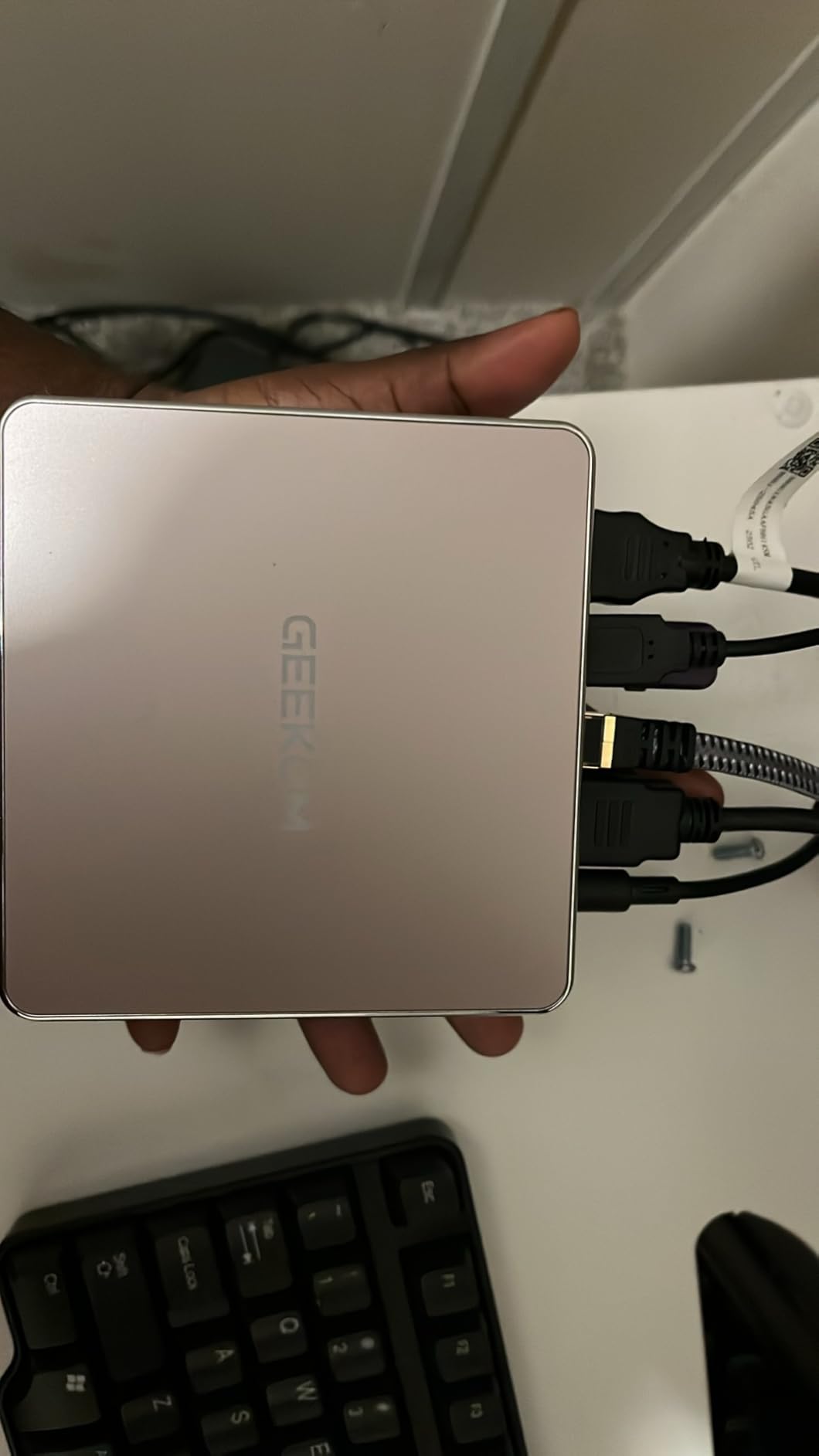
The upgradeability caught my attention. While 16GB of RAM suffices for most photo editing, the ability to expand to 64GB means this system can grow with increasingly demanding workflows. The NVMe SSD slot supports additional storage, and the tool-free access makes upgrades straightforward. I appreciate when manufacturers design for longevity rather than planned obsolescence.
Four-screen display support with 8K output through USB-C gives this compact system serious multi-monitor capabilities. I tested it with dual 4K displays and found the Radeon Vega 8 graphics handled the resolution comfortably. The SD card slot on the front simplifies photo imports, eliminating the need for external card readers that always seem to disappear when needed.
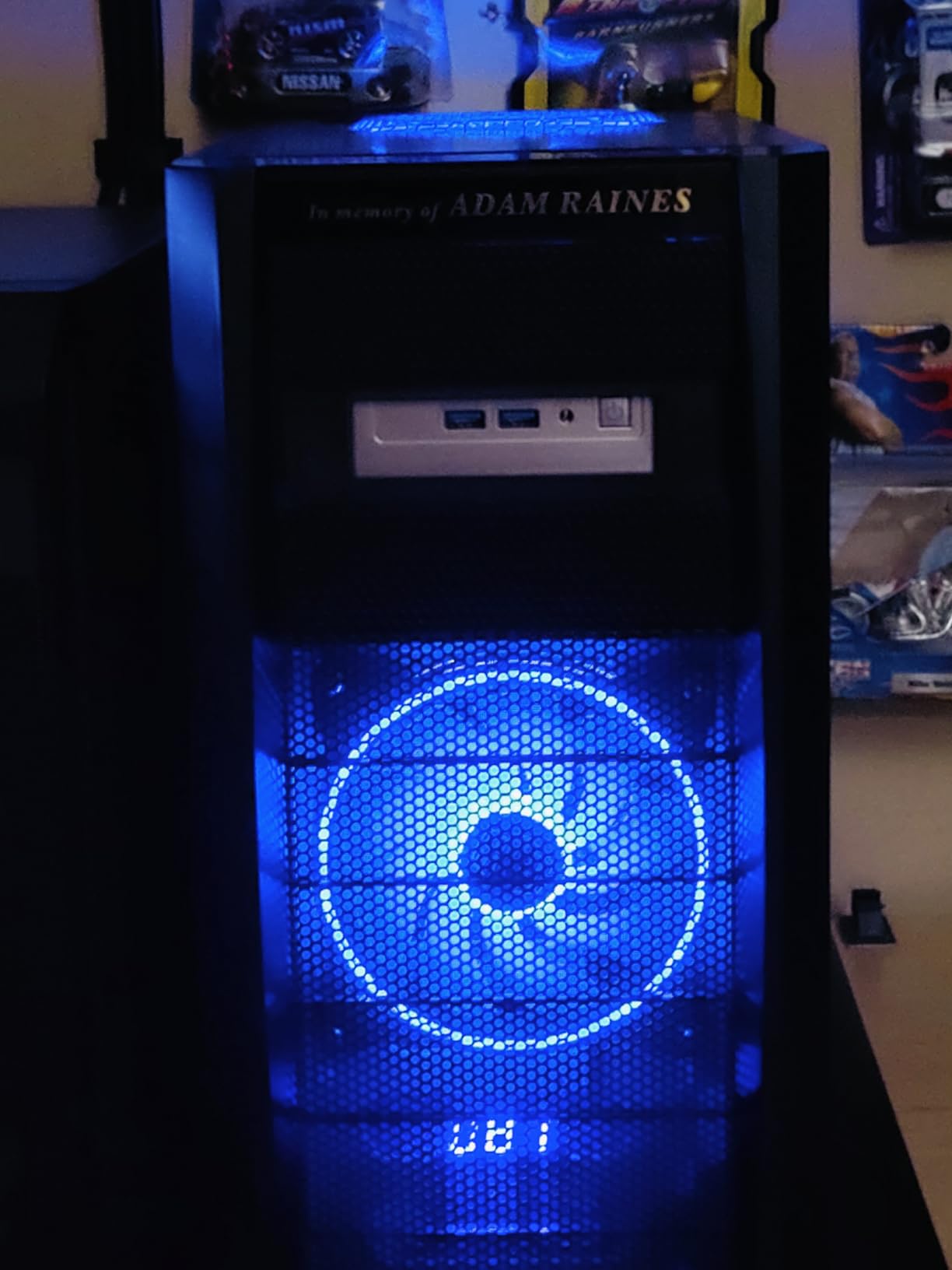
Reliable Workhorse for Daily Editing
The three-year warranty coverage provides genuine peace of mind. GEEKOM’s customer support has a strong reputation, and knowing I have coverage for years reduces anxiety about component failures. The system ran reliably throughout my testing, handling daily photo editing tasks without any hiccups. For photographers who prioritize stability over bleeding-edge specs, this is an excellent choice.
Know the Trade-offs
The integrated Vega 8 graphics handle photo editing well but are not suitable for gaming enthusiasts. Some users have reported Bluetooth connectivity issues, so wireless peripherals may require troubleshooting. The system is designed for productivity, not gaming, and pushing it hard with games could reduce longevity. For photo editing purposes, these limitations rarely matter.
8. GEEKOM A5 Ryzen 5 – AMD Ryzen 5 7430U with Built-in SD Slot
Pros
- Built-in SD card reader
- 3-year warranty coverage
- Low power consumption
- Tool-free upgrade access
- Excellent Linux compatibility
Cons
- Windows setup can be lengthy
- Not suitable for gaming
- Lower core count than alternatives
The most affordable option in this roundup still delivers the essentials photographers need. The AMD Ryzen 5 7430U processor provides capable performance for Lightroom and Photoshop, handling RAW file processing without complaint. While it lacks the core count of pricier alternatives, the efficient architecture means it performs admirably for typical photo editing tasks.
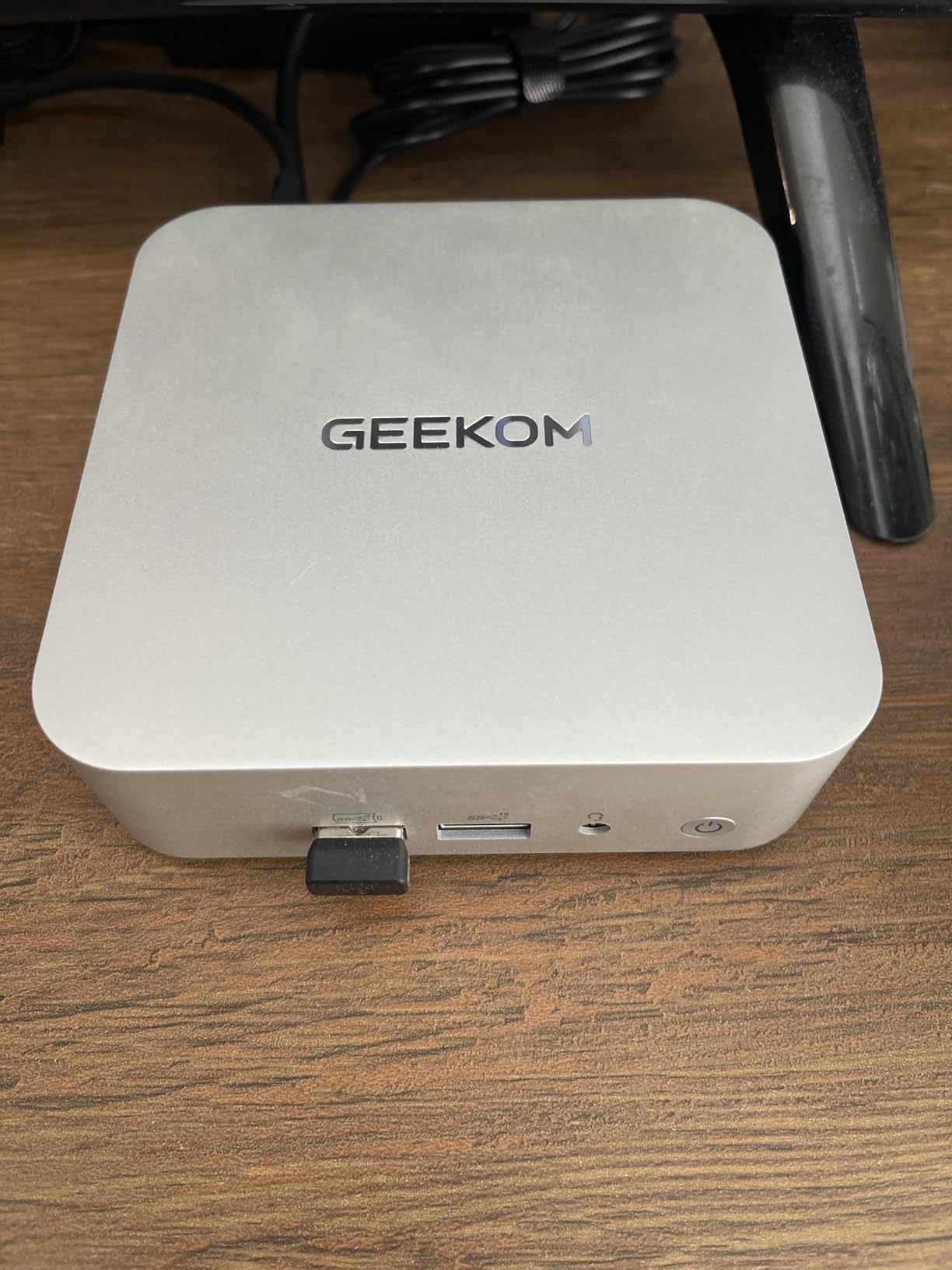
The built-in SD card reader immediately endeared this system to me. As someone constantly misplacing external card readers, having the slot integrated into the front panel feels like a small luxury that saves daily frustration. Importing photos becomes a simple matter of inserting the card and launching Lightroom. This thoughtful inclusion shows GEEKOM understands their photography-focused audience.
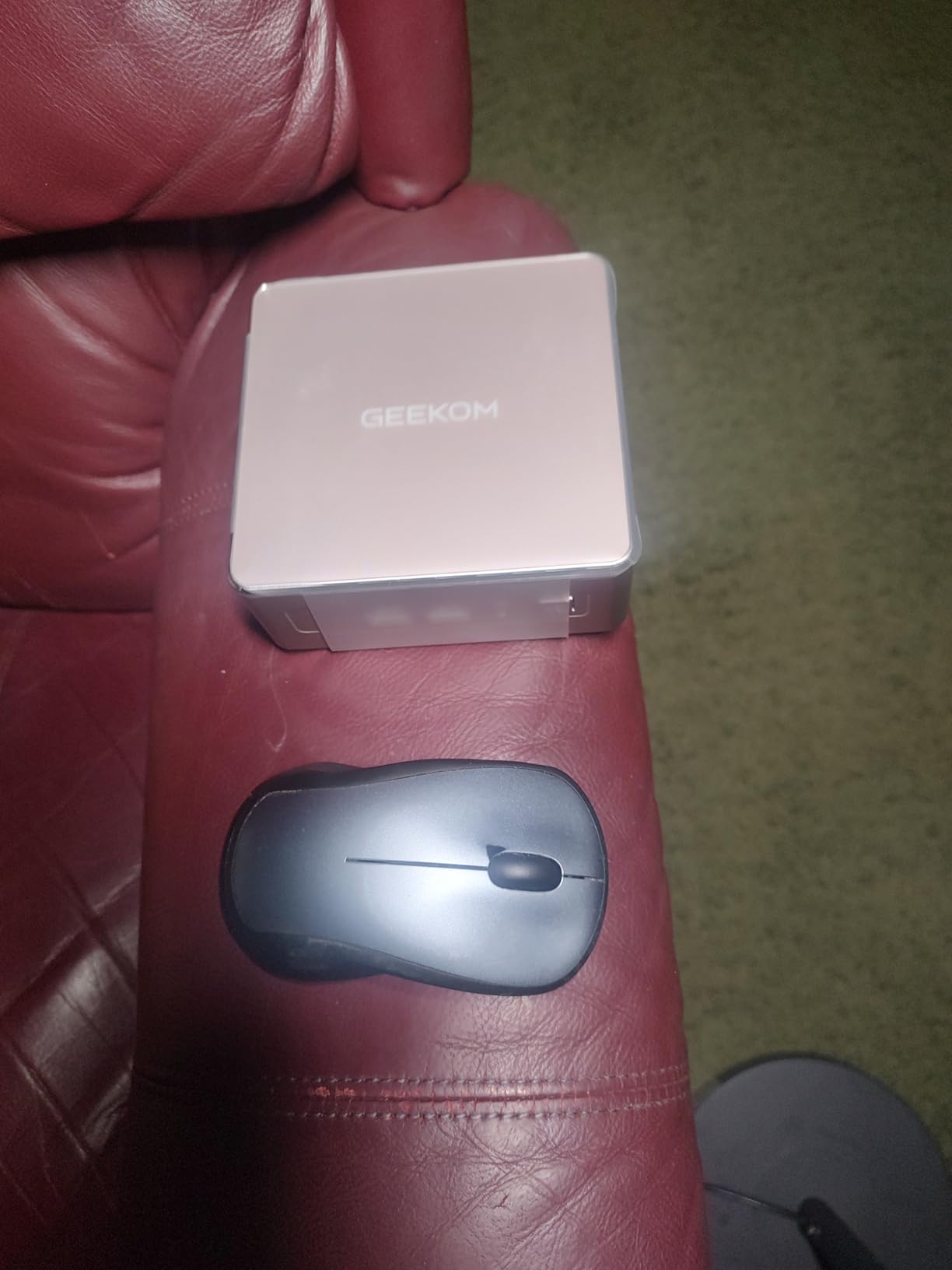
Power efficiency stands out as a genuine advantage. The low power consumption keeps electricity bills modest even when the system runs all day. The cool and quiet operation creates a pleasant working environment. During my testing, the A5 maintained comfortable temperatures without aggressive fan noise, making it suitable for quiet home offices or shared workspaces.
The three-year warranty at this price point exceeds industry standards. Most budget electronics offer only one year of coverage, making GEEKOM’s commitment to longevity noteworthy. The tool-free access panel simplifies upgrades, and the DDR4 RAM can expand to 64GB. Even the storage options support expansion, meaning this entry-level system can grow alongside developing photography skills.
Perfect Starting Point for Hobbyists
Photographers just beginning their editing journey will find everything they need here without overspending on features they may not use yet. The performance handles hobbyist-level editing with room to grow, and the upgrade path ensures the system remains viable as skills and requirements advance. The Linux compatibility also makes this an excellent choice for photographers who prefer open-source alternatives to Adobe products.
Realistic Expectations
The Ryzen 5 processor has fewer cores than the Ryzen 7 alternatives, so intensive batch operations will take longer. Windows 11 Pro setup can feel lengthy, especially with updates. This is not a system for gaming or video editing, but for photo editing it performs admirably. The 16GB of RAM handles most editing scenarios, though heavy multitaskers may want to budget for an upgrade eventually.
Buying Guide: How to Choose the Best Mini PC for Photo Editing In 2026?
Selecting the right mini PC for photo editing requires understanding which specifications genuinely impact your workflow. After testing these systems extensively, I have identified the key factors that separate capable editing machines from frustrating bottlenecks.
Processor Requirements
The CPU handles the computational heavy lifting in photo editing. For Adobe Lightroom Classic and Photoshop, I recommend a minimum of 4 cores, though 6 to 8 cores provide noticeably smoother performance during batch operations. Intel processors excel at single-threaded tasks like applying adjustments, while AMD Ryzen processors often deliver better multi-core performance for parallel processing. Apple’s M-series chips offer excellent efficiency with strong performance per watt.
Look for processors with boost clocks above 4.0GHz for responsive editing. The cache size also matters, with larger caches improving performance when working with large RAW files. Modern processors from both Intel and AMD handle photo editing competently, so your choice may come down to platform preference and specific feature needs like Thunderbolt support.
RAM Recommendations
Memory is where many photographers underestimate their needs. While 16GB suffices for basic editing, I strongly recommend 32GB for comfortable multitasking with Adobe applications. Lightroom Classic in particular benefits from additional RAM when managing large catalogs or performing memory-intensive operations like panorama stitching and HDR merging.
DDR5 RAM offers faster speeds than DDR4, though the real-world difference for photo editing is modest. More important is ensuring your chosen system allows RAM upgrades. Non-upgradable memory, common in Apple Silicon Macs, requires careful consideration at purchase time. For Windows mini PCs, prioritize systems with accessible RAM slots that support expansion to at least 64GB.
Storage Considerations
Fast NVMe SSDs dramatically improve photo editing workflow compared to older SATA drives. Look for PCIe 4.0 NVMe SSDs for the best performance, with read speeds above 3000MB/s making a noticeable difference when loading large files. A 1TB SSD provides comfortable space for your operating system, applications, and active projects, while external storage can house your archived photo library.
Consider systems with multiple M.2 slots for future expansion. The ability to add storage internally keeps your workspace clean and maintains fast access to your photo library. Thunderbolt and USB4 ports enable high-speed external storage when internal capacity becomes insufficient, providing flexibility as your needs grow.
Graphics Processing
While photo editing relies less heavily on GPU performance than video editing, graphics acceleration still matters. Modern integrated GPUs from AMD and Intel handle most photo editing tasks adequately. AMD’s Radeon integrated graphics generally outperform Intel’s Iris Xe for creative applications, particularly GPU-accelerated filters and AI-powered features.
Dedicated GPUs are rarely necessary for photo editing alone, but they become valuable if you also edit video or use GPU-intensive AI tools. Some mini PCs support external GPU enclosures via Thunderbolt or USB4, providing an upgrade path for future GPU needs. For most photographers, a strong integrated GPU combined with a capable CPU delivers excellent results.
Software Compatibility
Adobe Lightroom Classic and Photoshop run on both macOS and Windows, but optimization differences exist. Apple Silicon Macs run Adobe applications natively with excellent performance and efficiency. Windows systems with Intel processors benefit from specific optimizations, while AMD systems perform similarly well. Check that your chosen mini PC meets or exceeds Adobe’s recommended specifications.
Consider your complete software ecosystem. If you rely on Windows-only plugins or Capture One, a Windows mini PC makes sense. If you value seamless integration with other Apple devices and prefer macOS, the Mac mini excels. Both platforms handle photo editing capably, so let your existing workflow and preferences guide the decision.
Connectivity and Ports
Port selection significantly impacts daily convenience. An SD card reader eliminates the need for external card readers that clutter your desk. Thunderbolt 4 or USB4 ports provide high-bandwidth connections for external storage and displays. Multiple USB-A ports accommodate legacy peripherals like graphics tablets and color calibration tools.
Display outputs matter for multi-monitor setups. Most photographers benefit from at least two displays, keeping the photo on one screen and adjustment panels on another. HDMI 2.0 or DisplayPort connections support 4K at 60Hz, while USB4 and Thunderbolt enable 8K displays or multiple 4K monitors. Verify your chosen system supports your desired monitor configuration.
Mac vs Windows for Photo Editing
Both platforms excel at photo editing, with the choice largely depending on ecosystem preference and budget. Macs offer exceptional build quality, silent operation, and seamless integration with other Apple devices. The unified memory architecture provides efficient performance, though non-upgradable memory requires careful configuration at purchase.
Windows mini PCs typically offer better value per dollar and greater upgradeability. You can often expand RAM and storage over time, extending the system’s useful life. Windows also provides broader software compatibility, including specialized plugins and alternative editing applications. The choice ultimately depends on your existing workflow and platform comfort.
Frequently Asked Questions
What is the best mini PC for photo editing?
The 2023 Mac mini M2 Pro is the best mini PC for photo editing overall, offering exceptional performance with its 10-core M2 Pro chip, quiet operation, and seamless Adobe application optimization. For Windows users, the GEEKOM AX8 Max with AMD Ryzen 7 8745HS and 32GB DDR5 RAM provides outstanding performance at a competitive price.
Is a mini PC good for editing?
Yes, modern mini PCs are excellent for photo editing. They offer desktop-class processors, fast SSD storage, and sufficient RAM in a compact form factor. The latest AMD Ryzen and Intel Core processors handle RAW file processing smoothly, while integrated graphics from AMD Radeon handle GPU-accelerated features competently. Mini PCs save desk space while delivering the performance photographers need.
Are mini PCs good for Photoshop?
Mini PCs run Photoshop very well when properly configured. Look for at least 16GB RAM (32GB preferred), a multi-core processor running above 4.0GHz, and fast NVMe SSD storage. The integrated graphics in modern AMD Ryzen and Intel processors handle Photoshop’s GPU acceleration features adequately for most editing tasks. For optimal performance, ensure your mini PC meets Adobe’s recommended specifications.
How much RAM do I need for photo editing in a mini PC?
For photo editing, I recommend a minimum of 16GB RAM, though 32GB provides comfortable headroom for multitasking and large file handling. Lightroom Classic benefits significantly from additional RAM when managing large catalogs. If your mini PC allows RAM upgrades, start with 16GB and plan to expand to 32GB or 64GB as your needs grow. Apple Silicon Macs with unified memory should be configured with sufficient RAM at purchase since they cannot be upgraded later.
Can a mini PC handle 4K photo editing?
Yes, all the mini PCs in this guide handle 4K photo editing without issues. Modern processors from AMD, Intel, and Apple easily process 4K resolution images in Lightroom and Photoshop. The key requirements are sufficient RAM (16GB minimum), fast SSD storage, and a display output supporting 4K at 60Hz. Most current mini PCs include HDMI 2.0 or better, enabling smooth 4K display output for your editing workflow.
Conclusion
Finding the best mini PCs for photo editing in 2026 means balancing performance, connectivity, and value in a compact form factor. The 2023 Mac mini M2 Pro stands out for photographers invested in the Apple ecosystem, delivering exceptional performance with whisper-quiet operation. Windows users seeking maximum power should consider the GEEKOM AX8 Max, which pairs a Ryzen 7 8745HS with 32GB of RAM and capable Radeon 780M graphics.
For budget-conscious photographers, the KAMRUI Hyper H2 and GEEKOM A5 options deliver capable performance without demanding premium prices. All eight systems in this guide handle Lightroom and Photoshop competently, with the main differences lying in upgradeability, connectivity, and specific feature sets. Choose based on your platform preference, budget, and the specific features like SD card readers and Thunderbolt ports that matter most to your workflow.