
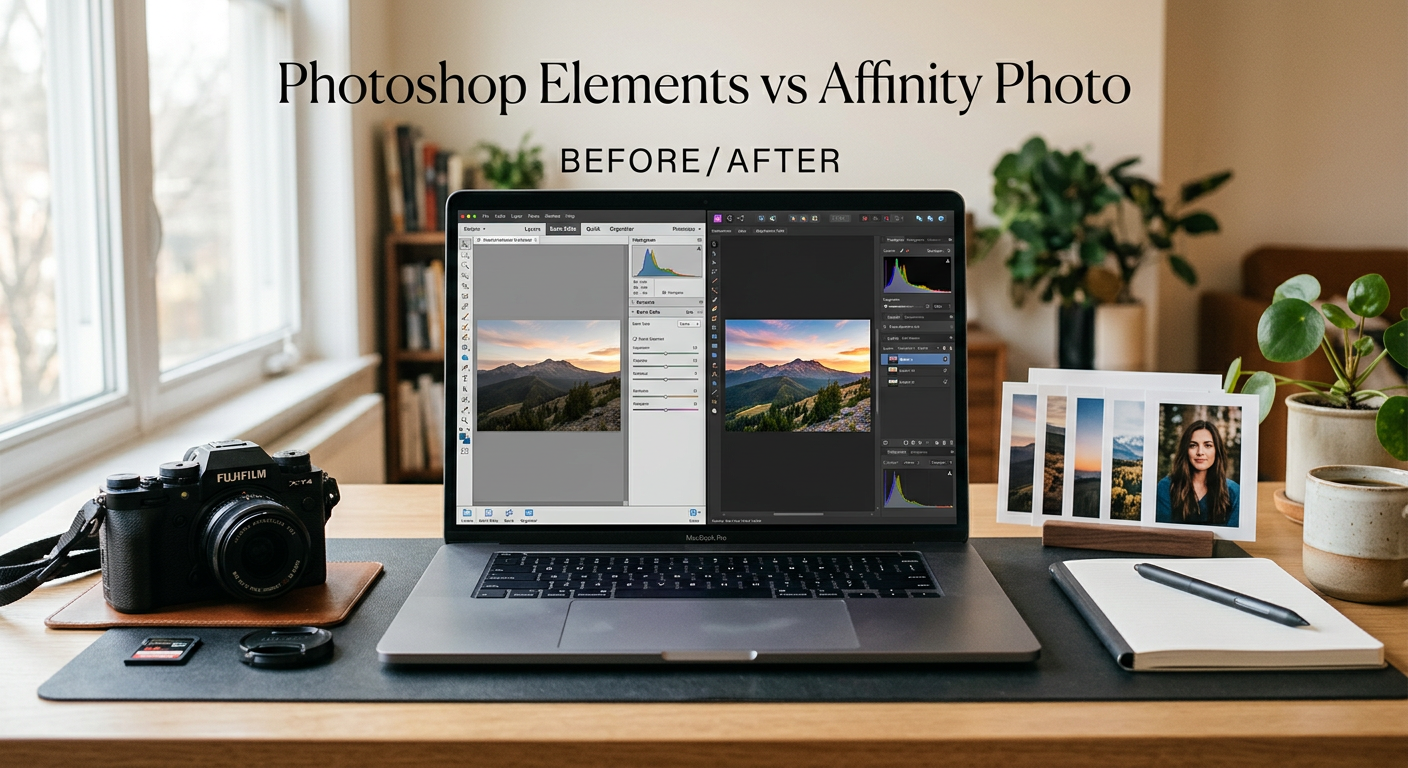
Choosing your first photo editing software can feel overwhelming when you’re just starting out. The market offers dozens of options, each claiming to be the perfect solution for newcomers. Two names keep coming up in beginner conversations: Adobe Photoshop Elements and Affinity Photo. I’ve spent months testing both programs with fresh eyes, and the differences between them go far beyond just pricing.
Photoshop Elements vs Affinity Photo for beginners is one of the most common questions I hear from new photographers. Both promise powerful editing without the complexity of professional software, but they take completely different approaches to helping you learn. Understanding these approaches is crucial for making the right choice for your specific situation.
Photoshop Elements 2026 focuses on hand-holding beginners through guided edits and AI-powered automation. It’s designed for people who want results without necessarily understanding how those results are achieved. Affinity Photo 2 gives you professional-grade tools at a budget-friendly one-time price. It expects you to learn proper editing techniques but rewards that investment with capabilities that grow with you.
Here’s my quick verdict after extensive testing: if you want the easiest possible start with step-by-step guidance, pick Photoshop Elements. If you’re willing to invest time learning professional tools that will serve you for years, Affinity Photo offers far more long-term value. Neither choice is wrong, but they serve different types of beginners.
In this comprehensive comparison, I’ll break down everything beginners need to know about both programs. We’ll cover pricing models, learning curves, feature sets, real-world workflows, and help you make the right choice for your editing journey. By the end, you’ll have a clear understanding of which program matches your learning style and goals.
Photoshop Elements vs Affinity Photo: Quick Comparison
Before diving into the details, let’s look at how these two photo editors stack up side by side. This quick comparison highlights the key differences that matter most to beginners making their first software decision.
| Product | Specifications | Action |
|---|---|---|
 Adobe Photoshop Elements 2026
|
|
Check Latest Price |
|
Affinity Photo 2 (via Serif)
|
|
Check Latest Price |
The comparison above shows the fundamental difference between these two approaches to beginner photo editing. Elements prioritizes ease-of-use with guided workflows and automated features, while Affinity gives you more power at a lower long-term cost but requires more effort to learn.
Notice that Affinity Photo 2 is not available on Amazon. You’ll need to purchase it directly from Serif’s official website or through app stores like the Mac App Store and Microsoft Store. This actually works in your favor since you get direct support from the developer, guaranteed access to the latest version, and no middleman complications.
Let’s examine each program in detail to understand what they offer beginners in 2026.
Adobe Photoshop Elements 2026: Beginner-Friendly Photo Editing
Adobe Photoshop Elements 2026 | Software Download | Photo Editing | 3-year term license | Activation Required [PC/Mac Online Code]
Pros
- Step-by-step guided edits
- AI features for quick results
- Three skill modes to grow with
- Automatic photo organization
- Adobe Express templates included
Cons
- 3-year license then stops working
- Download issues reported by users
- Limited advanced capabilities
- Buggy interface in some areas
I tested Photoshop Elements 2026 for several weeks to understand how it serves beginners. The first thing you notice when launching the software is the welcoming interface with three distinct modes: Quick, Guided, and Advanced. This progression lets you start simple and gradually build confidence as your skills develop over time.
The Quick mode offers basic adjustments like exposure, color, and sharpening in a streamlined interface. You won’t find overwhelming options here, just the essentials for improving most photos. I found this mode perfect for those times when you just want to brighten a dark photo or fix a color cast without diving into complex controls.
The Guided Edits feature is genuinely helpful for newcomers. Instead of figuring out which tools to use and in what order, you select what you want to accomplish from categories like Basic, Color, Black and White, Fun Edits, and Special Edits. Then the software walks you through each step with clear instructions. I found this approach reduces the intimidation factor significantly compared to opening a blank canvas with dozens of mysterious tools.
![Adobe Photoshop Elements 2026 | Software Download | Photo Editing | 3-year term license | Activation Required [PC/Mac Online Code] customer photo 1](https://markus-hagner-photography.com/wp-content/uploads/2026/03/B0FSBC2BZS_customer_1.jpg)
Advanced mode opens up more traditional editing capabilities with layers, selection tools, and detailed adjustments. While still simplified compared to professional software, this mode gives you room to grow as your confidence increases. The progression from Quick to Guided to Advanced creates a natural learning path.
The 3-Year License: What Beginners Need to Know
Here’s something many reviews miss and something that significantly affects your long-term planning: Photoshop Elements 2026 uses a 3-year term license. This is a major change from older versions that you could use indefinitely after purchase. After three years from your activation date, the software stops working completely.
For beginners planning their long-term editing journey, this matters more than you might initially realize. You’re essentially renting the software for three years at around $100. After that period, you’ll need to purchase a new version to continue editing your photos. Adobe doesn’t automatically renew or charge you, which is good, but you should factor this into your budget planning.
Consider this scenario: You start editing photos as a hobby in 2026, enjoy it, and continue for years. With Elements, you’d need to repurchase every three years. Over a 9-year period, that’s three purchases totaling around $300. With Affinity, you pay once and use it indefinitely. The financial difference becomes substantial for committed hobbyists.
Adobe’s reasoning for this change involves ongoing AI feature development and cloud service costs. The generative AI features require server processing, which costs Adobe money each time you use them. Still, many users feel the 3-year limitation isn’t clearly communicated before purchase.
AI-Powered Features and Automation
AI-powered features have improved dramatically in Elements 2026. You can type descriptions to generate entirely new backgrounds, erase unwanted objects automatically, and let the software touch up faces without manual adjustments. These tools work surprisingly well for quick edits on family photos or social media posts.
The generative AI feature lets you describe what you want to add or change, and Elements creates it. Want to replace a boring sky with a sunset? Type your description and watch it happen. Need to add a person to a group photo? The AI can generate realistic additions. These features feel almost magical when they work well.
Object removal has become impressively capable. I tested it on various photos with power lines, photobombers, and random debris. In most cases, the AI fills in the removed areas convincingly without obvious artifacts. This alone saves beginners hours of manual cloning and healing work.
Face enhancement automatically smooths skin, brightens eyes, and adjusts facial features. While not as precise as professional retouching, it produces pleasing results for casual portraits. Just be careful not to overdo it, as the AI can create an unnatural plastic look if pushed too far.
Learning Resources and Support
Adobe provides extensive tutorials within Elements itself. The Home screen suggests edits based on your photos, and the Guided mode includes detailed explanations at each step. I appreciated not having to search YouTube for basic instructions when trying common tasks.
The in-software help system connects to Adobe’s online resources when you need more information. Tool tips explain what each control does, and guided edits include contextual guidance throughout the process. This integrated approach reduces the friction of learning new concepts.
However, some users report frustrating download and installation issues. Reading through reviews reveals a pattern of activation codes not working, software refusing to install, and error messages that block progress. Customer support appears limited to automated bot responses, which can be problematic if you encounter these technical problems.
Before purchasing, I recommend checking recent reviews to gauge current installation success rates. Adobe does offer a 30-day money-back guarantee, which provides some protection if you encounter insurmountable setup issues.
Photo Organization Features
Elements includes built-in photo organization with automatic tagging and face recognition. For beginners who struggle with managing growing photo collections, this integrated approach saves you from buying separate cataloging software like Adobe Lightroom.
The organizer imports from popular cloud services including Google Photos, Dropbox, and OneDrive. It creates automatic backups and uses AI to categorize your images by content type, location, and people. Searching for photos becomes as simple as typing what you’re looking for.
Face recognition works reasonably well for identifying people across your photo library. Once you tag someone, the software finds all their appearances automatically. This feature helps when you want to quickly gather all photos of a specific family member or friend.
While not as powerful as dedicated tools like Lightroom Classic for large professional libraries, the organizer handles the basics well for casual photographers with thousands rather than hundreds of thousands of images.
Creative Projects and Templates
Elements includes access to Adobe Express templates for creating social media posts, flyers, greeting cards, and photo collages. These templates give beginners a starting point for creative projects beyond basic photo editing.
Photo Reels let you create animated slideshows with music and transitions. The feature is simple to use and produces shareable results for social media or family gatherings. Collage creation offers similar simplicity with drag-and-drop placement and automatic layout suggestions.
These creative features extend Elements beyond pure photo editing into light content creation. For users who want to share enhanced photos across platforms without learning separate design software, the integrated approach adds value.
Who Photoshop Elements Serves Best
Photoshop Elements works best for absolute beginners who want immediate results without learning complex concepts. If you primarily edit family photos, create social media content, or just want your pictures to look better without becoming a serious hobbyist, Elements provides plenty of capability with minimal frustration.
The guided approach also suits visual learners who prefer step-by-step instructions over experimentation. You’ll learn editing concepts gradually through guided projects rather than facing a steep learning curve upfront. This reduces the overwhelm that causes many beginners to abandon photo editing entirely.
Casual photographers who shoot primarily in JPEG format and don’t need advanced capabilities will find Elements perfectly adequate. The software handles exposure correction, color adjustment, cropping, and basic retouching competently without requiring technical knowledge.
Users who value integrated photo organization will appreciate not needing separate software for managing and editing. The combination simplifies workflow for those who want an all-in-one solution.
Affinity Photo 2: Professional Power at a Beginner Price
Pros
- No subscription or term limits
- Professional-grade tools
- Universal license all platforms
- Excellent RAW processing
- PSD file compatibility
Cons
- Steeper learning curve
- No guided edits
- AI features limited
- Not available on Amazon
Affinity Photo 2 takes a completely different approach to serving beginners. Instead of simplifying professional tools, it gives you full-featured editing capabilities at a one-time purchase price of $69.99 for the universal license covering Mac, Windows, and iPad. This pricing model alone makes it worth serious consideration.
I found Affinity’s interface more intimidating at first glance compared to Elements. Tool panels, adjustment layers, and various personas (workspace modes) greet you immediately. But after spending time with it, I realized this complexity represents genuine power rather than artificial barriers designed to separate users from advanced features.
The persona system organizes editing tasks into logical workspaces: Photo for general editing, Develop for RAW processing, Liquify for distortions, Tone Mapping for HDR effects, and Export for final output. Each persona contains only the relevant tools for that task, reducing clutter once you understand the workflow concept.
One-Time Purchase Value
Unlike Elements’ 3-year limitation, Affinity Photo 2 works indefinitely after purchase. Serif has also provided free updates to version 2.x since its release, meaning your investment continues to improve without additional cost. This perpetual license model represents significant value for budget-conscious beginners.
For beginners thinking long-term about their photo editing journey, this pricing model offers compelling advantages. You could use Affinity for a decade without paying again. Compare that to Elements, where you’d need to repurchase every three years, and the financial difference becomes substantial over time.
The universal license is particularly generous in an era of platform-specific pricing. One $69.99 purchase covers all your devices across Mac, Windows, and iPad. If you edit on multiple platforms or switch between them, this represents excellent value compared to buying separate licenses for each operating system.
Serif’s update history inspires confidence in their commitment to the perpetual model. Version 2 has received numerous feature additions and improvements since launch without additional charges to existing owners. This stands in contrast to subscription services where you pay continuously regardless of whether new features arrive.
Learning Curve Considerations
Affinity Photo has a steeper learning curve than Elements. You won’t find guided edits holding your hand through common tasks. Instead, you’ll need to learn concepts like layers, masks, and adjustment layers through external tutorials and experimentation. This requires more patience but builds genuine skills.
The good news? Affinity provides extensive official tutorials on their website and YouTube channel. The community has also created countless resources since the software’s popularity grew among photographers tired of subscription models. Free learning materials abound for motivated self-starters.
I recommend budgeting extra learning time if you choose Affinity. Plan on spending a few weeks getting comfortable with basic workflows before expecting professional results. The payoff comes when those same skills transfer to any professional editing environment, including full Photoshop if you eventually encounter it professionally.
The initial difficulty shouldn’t discourage you. Every professional photographer started somewhere, and Affinity’s tools follow industry conventions that will serve you well across different software. Learning the right way from the beginning prevents developing bad habits that require unlearning later.
RAW Editing and Professional Features
For photographers shooting in RAW format, Affinity’s Develop persona offers comprehensive processing capabilities. You get full control over exposure, white balance, tone curves, lens corrections, and noise reduction before even entering the main editing workspace. This level of RAW control matches professional tools.
Advanced features that professionals use daily come standard in Affinity. Frequency separation for skin retouching lets you smooth skin texture while preserving detail. HDR merge combines multiple exposures into single images with extended dynamic range. Panorama stitching automatically blends overlapping photos into wide vistas. Focus stacking combines multiple focus points for front-to-back sharpness.
These professional capabilities aren’t dumbed down versions. They work exactly as they would in full Photoshop, giving beginners access to techniques used by working professionals. The learning curve is real, but the ceiling for what you can achieve is much higher than with simplified software.
PSD file support means you can open and edit Photoshop documents, making Affinity viable for professional workflows where collaboration with Photoshop users is necessary. Layer styles, blend modes, and layer effects import correctly in most cases, maintaining compatibility across platforms.
The Five Personas Explained
Understanding Affinity’s persona system helps you navigate the software efficiently. Each persona focuses on specific editing tasks, presenting only relevant tools and hiding unnecessary complexity.
The Photo Persona handles your main editing work. Here you’ll find layers, masks, selections, filters, and adjustments. Most of your editing time happens in this workspace. The interface resembles Photoshop enough that skills transfer readily between programs.
The Develop Persona opens automatically when you load RAW files. This workspace provides darkroom-style controls for processing your RAW data into editable images. You adjust exposure, recover highlights, lift shadows, correct white balance, apply lens corrections, and reduce noise before proceeding to Photo persona for further editing.
The Liquify Persona offers brush-based distortion tools for reshaping image areas. Portrait photographers use it for subtle body sculpting. Creative editors use it for dramatic effects. The push, twirl, and pucker tools provide intuitive control over image deformation.
The Tone Mapping Persona handles HDR processing and stylistic tone adjustments. Whether merging multiple exposures or applying dramatic looks to single images, this workspace provides the controls for creating HDR-style imagery without requiring bracketed shots.
The Export Persona streamlines the process of saving images for different purposes. Slice tools let you export multiple regions simultaneously. Format options cover web, print, and professional delivery requirements. Batch export handles multiple images efficiently.
Performance and System Requirements
Affinity Photo runs smoothly on modest hardware compared to professional alternatives. The software feels responsive even on older machines, with efficient memory usage and fast filter application. Serif optimized the codebase for performance rather than requiring the latest hardware.
GPU acceleration speeds up processor-intensive operations when available. The software uses Metal on Mac and DirectX on Windows to leverage graphics hardware for faster rendering. Even without GPU acceleration, CPU performance remains solid for typical editing tasks.
Large file handling impresses compared to competitors. I’ve worked with hundred-megapixel panorama files without the slowdowns that plague some alternatives. The software manages memory intelligently, swapping to disk only when absolutely necessary.
Both programs work on Mac and Windows. Affinity additionally offers full iPad support with a touch-optimized interface. The iPad version isn’t a stripped-down mobile app but rather a full-featured editor adapted for touch input. This cross-platform capability adds significant value for mobile photographers.
Who Affinity Photo Serves Best
Affinity Photo suits beginners who are serious about learning photography properly from the start. If you see photo editing as a skill you want to develop over years rather than a quick fix for snapshots, Affinity rewards that investment with capabilities that grow with your abilities.
It also appeals strongly to budget-conscious learners who want maximum value. The one-time purchase means no ongoing costs, and the professional toolset means you won’t outgrow the software as your skills improve. Many photographers who started with Affinity continue using it professionally years later.
Anyone frustrated with subscription models or Adobe’s business direction will appreciate Serif’s approach. The software runs locally without requiring internet connectivity for most features. Your images stay on your computer, not in the cloud. Serif doesn’t use your photos for AI training.
Photographers who shoot RAW format benefit from Affinity’s comprehensive Develop persona. While Elements can open RAW files, its processing capabilities pale compared to Affinity’s professional-grade controls. If you’re investing time learning RAW processing, learn on tools that match professional standards.
Those who edit across multiple devices including iPad find Affinity’s universal license particularly valuable. The consistent interface across platforms means skills transfer directly, and the iPad version provides genuine editing capability for field work rather than just viewing.
Photoshop Elements vs Affinity Photo: Head-to-Head Comparison
Now let’s compare these programs across the categories that matter most to beginners making their first photo editing software decision. This detailed breakdown helps you understand the tradeoffs involved in each choice.
Pricing and Long-Term Value
Photoshop Elements costs approximately $100 for a 3-year license. After three years, the software stops working and you must purchase again. Over 10 years, assuming stable pricing, you’d pay around $333 for continued access. This represents an ongoing commitment rather than a one-time investment.
Affinity Photo 2 costs $70 once and works indefinitely. Over that same 10-year period, you’d pay just the initial $70. Even if Serif releases a major version upgrade that requires additional payment, the total cost would likely remain lower than repeated Elements purchases.
The math strongly favors Affinity for long-term users. Elements only makes financial sense if you’re uncertain about committing to photo editing as a hobby and want to try it for a few years first. If you suspect photography might become a lasting interest, Affinity’s value proposition is compelling.
Consider also resale value. While software licenses typically can’t be resold, perpetual licenses like Affinity at least maintain their utility regardless of future developments. Subscription-based and term-limited software loses all value when payments stop or terms expire.
Ease of Use for Complete Beginners
Elements wins decisively on initial ease of use. The guided edits and three-mode structure (Quick, Guided, Advanced) provide clear pathways for beginners. You can achieve good results within minutes of opening the software without reading any documentation.
Affinity requires more patience from newcomers. The interface presents many options without obvious starting points. New users often feel overwhelmed by tool panels and adjustment options before understanding the basics of layers-based editing.
However, this gap narrows significantly over time. After a month of regular use, Affinity becomes more intuitive while Elements’ limitations become increasingly apparent. The initial difficulty curve translates into greater long-term capability and flexibility.
Your learning style affects which approach works better. If you prefer structured guidance and immediate results, Elements reduces frustration. If you learn best through experimentation and discovery, Affinity’s sandbox approach may actually feel more natural despite the steeper curve.
Editing Capabilities and Features
Affinity Photo offers professional-grade editing that rivals full Photoshop. You get comprehensive RAW processing, advanced layer and mask systems, professional retouching tools, and specialized features like HDR and panorama creation. The feature set matches what working professionals use daily.
Elements focuses on consumer-friendly features with AI assistance. While it handles basic editing competently, you’ll hit walls when attempting advanced techniques. The lack of true layer masks, limited adjustment options, and simplified tools constrain creative possibilities for growing photographers.
For beginners who eventually want to grow into advanced editing, Affinity provides a clearer upgrade path within the same software. Elements users often find themselves needing to learn entirely new software when they outgrow its capabilities, essentially starting over with a more complex program.
Specific limitations in Elements include no proper curves adjustment, no channel mixing, no LAB color mode, and simplified masking compared to professional standards. These constraints don’t affect casual users but become frustrating as your ambitions grow.
AI Features and Automation
Elements excels at AI-powered quick fixes that feel almost magical. The generative AI features let you create backgrounds and add elements by typing descriptions. Background replacement and object removal work well for common scenarios without requiring selection skills.
Affinity takes a more traditional approach to editing. While it includes some automation like inpainting for object removal, it lacks the generative AI capabilities that make Elements feel effortless for beginners. You’ll need to learn proper techniques rather than relying on AI assistance.
Your preference depends on editing philosophy and goals. If you want the computer to handle difficult tasks while you focus on results, Elements serves you better. If you want to develop genuine editing skills that transfer across software and situations, Affinity’s manual approach builds that capability.
Consider also the privacy implications. Adobe’s AI features require sending image data to their servers for processing. If you edit sensitive photos, this might concern you. Affinity processes everything locally on your computer without cloud dependency.
File Compatibility
Both programs handle common formats like JPEG, PNG, and TIFF competently. Affinity goes further with excellent PSD support, meaning you can open and edit Photoshop files with layers largely intact. This compatibility proves valuable when collaborating with Photoshop users or accessing tutorial resources.
Elements uses a proprietary format that doesn’t transfer well to other software. If you eventually switch to Affinity or another program, your layered Elements files may not convert properly. You might lose editability on adjustments that don’t have equivalents in other software.
For beginners thinking about their future options, file compatibility matters more than it initially seems. Starting with industry-standard file formats keeps your options open as you develop preferences and skills. Locking yourself into proprietary formats limits future flexibility.
Affinity also supports more RAW formats from various camera manufacturers. If you shoot with less common cameras, Affinity’s broader RAW support might make the difference between working and not working.
Performance and Speed
Affinity Photo runs smoothly on modest hardware with efficient resource usage. The software feels responsive even on older machines, with fast filter application and reasonable memory consumption. Serif clearly optimized for performance across hardware configurations.
Elements performance varies based on AI feature usage. Generative features require internet connectivity and can feel slow during server processing. The organizer database also grows large over time with extensive photo libraries, potentially slowing operations.
For offline editing scenarios, Affinity works without internet while Elements’ AI features require connectivity. If you travel frequently or have unreliable internet, this difference affects your workflow significantly.
Both programs work on Mac and Windows with similar system requirements. Affinity additionally offers full iPad support, making it more versatile for photographers who edit across devices or prefer tablet interfaces for certain tasks.
Learning Resources and Community
Adobe provides in-software tutorials and guidance within Elements. The integrated learning reduces friction for absolute beginners who don’t want to hunt for external resources. Help appears contextually when you need it rather than requiring separate research.
Affinity relies more on external learning resources. Serif offers excellent official tutorials on their website and YouTube channel. The community has also created extensive content including courses, forums, and video tutorials. You’ll need to actively seek these resources rather than having them served within the application.
For self-directed learners who enjoy independent research, Affinity’s community provides deeper knowledge than Elements’ simplified guidance. For those preferring structured, in-app assistance, Elements’ integrated approach reduces barriers to getting started.
The Affinity community particularly excels at helping users transition from Adobe products. Many experienced users switched from Photoshop and share their knowledge freely. This support network helps beginners progress faster once they engage with the community.
Mobile and Tablet Support
Affinity Photo offers a full-featured iPad version included with the universal license. The iPad app provides genuine editing capability optimized for touch, not a simplified mobile version. You can perform serious editing work on iPad with the same tools as desktop.
Elements has no mobile or tablet version. Your editing stays confined to desktop computers. While Adobe offers mobile apps in the Creative Cloud ecosystem, these require separate subscriptions and don’t integrate directly with Elements workflows.
For photographers who value mobility, Affinity’s iPad support represents significant advantage. You can shoot in the field, edit on iPad during travel, and continue on desktop at home. The consistent interface across platforms smooths this workflow considerably.
Beginner Recommendations: Which Should You Choose?
After testing both programs extensively for this comparison, here’s my clear recommendation framework for beginners choosing between Photoshop Elements and Affinity Photo. Your specific situation determines which program serves you better.
Choose Photoshop Elements If:
You want the easiest possible introduction to photo editing without committing to serious learning. Elements’ guided edits and AI assistance let you achieve good results quickly with minimal knowledge. This approach works well for those who want to improve photos without becoming serious about photography.
You primarily edit family photos, vacation snapshots, and social media content. The automated features handle these common use cases well without requiring technical understanding of editing concepts. Results come quickly and easily for typical consumer scenarios.
You prefer structured learning with clear next steps. Elements tells you what to do rather than expecting you to figure things out through experimentation. This approach suits learners who want hand-holding and clear guidance throughout the process.
You’re uncertain about photo editing as a long-term hobby. The 3-year license lets you try editing without committing indefinitely. If you lose interest after a year or two, you haven’t invested heavily in software you won’t continue using.
You value integrated photo organization combined with editing. The built-in cataloging features save you from managing separate software for organizing and editing your growing photo library.
Choose Affinity Photo If:
You’re serious about learning photography properly and want professional-grade tools from day one. Affinity rewards investment with capabilities that grow with your skills rather than limiting you as you improve.
You want maximum value for your money over the long term. The one-time purchase means no ongoing costs, and the universal license covers all your devices across Mac, Windows, and iPad platforms.
You dislike subscription models and term limitations philosophically. Affinity works indefinitely without time bombs or renewal requirements. Your software stays yours regardless of future developments.
You shoot RAW format or plan to in the future. The Develop persona provides comprehensive RAW processing that Elements can’t match. Learning proper RAW workflow on professional tools benefits your photography long-term.
You might eventually work professionally or collaborate with professional photographers. Affinity’s tools transfer to professional environments, and PSD compatibility enables collaboration with Photoshop users in professional workflows.
You edit across multiple devices including iPad. The universal license covers all platforms with consistent interfaces, enabling flexible workflows that move between devices.
My Personal Recommendation for 2026
For most beginners reading this in 2026, I recommend Affinity Photo despite the steeper initial learning curve. Here’s my reasoning: the skills you develop with Affinity transfer anywhere in the photography world. You’re learning real photo editing techniques rather than learning one program’s simplified approach to editing.
The financial case is also compelling when you think beyond the first year. Paying $70 once versus $100 every three years represents significant savings over time. Your investment in learning Affinity pays dividends for years without additional software costs.
The professional toolset means you won’t outgrow Affinity as your skills develop. Many photographers who started with simplified software eventually find themselves limited and must learn professional tools anyway. Starting with professional tools from the beginning avoids this transition.
That said, Elements remains the better choice for casual users who want quick results without study time. If you edit photos occasionally and prioritize convenience over skill development, Elements’ guided approach serves you well for those purposes.
Both programs offer trial versions. I encourage you to download both and spend a few days with each before committing. Your personal experience with the interfaces will confirm which approach matches your learning style and goals.
Frequently Asked Questions
Are Photoshop Elements good for beginners?
Yes, Photoshop Elements is specifically designed for beginners. The software offers three skill modes (Quick, Guided, and Advanced) that let you start simple and gradually build confidence. Guided Edits walk you through common tasks step-by-step, and AI-powered features handle complex edits automatically. For absolute beginners who want immediate results without learning technical concepts, Elements provides an excellent entry point into photo editing.
Is Affinity Photo just as good as Photoshop?
For most photographers, yes. Affinity Photo offers professional-grade editing capabilities that match Photoshop for core tasks like layers, masks, RAW processing, and retouching. It supports PSD files and includes advanced features like frequency separation, HDR merge, and panorama stitching. Where Affinity falls short is in AI features like Generative Fill and integration with Adobe’s ecosystem. For photographers focused on traditional editing techniques, Affinity provides equivalent power at a fraction of the cost.
Why are people ditching Adobe?
Many users are switching from Adobe due to subscription fatigue, privacy concerns, and pricing increases. Adobe’s shift to Creative Cloud means ongoing monthly payments rather than one-time purchases. Some users object to Adobe using their images for AI training. Others find the subscription model forces continued payment even during periods of light use. Alternatives like Affinity Photo offer professional capabilities without ongoing costs or privacy concerns about image data.
What happens to Photoshop Elements after 3 years?
Photoshop Elements 2026 uses a 3-year term license. After three years from your activation date, the software stops working completely. Adobe does not automatically renew or charge you, but you lose access to the program and your ability to edit unless you purchase a new version. This differs from older Elements versions that worked indefinitely after purchase. Budget for repurchasing every three years if you choose Elements for your editing workflow.
Do professional photographers use Affinity Photo?
Yes, many professional photographers have successfully switched to Affinity Photo. The software provides professional-grade tools suitable for client work, including comprehensive RAW processing, advanced retouching, and proper color management. Some pros miss Adobe’s AI features and ecosystem integration, but Affinity handles most professional workflows competently. The one-time purchase model particularly appeals to freelancers and small studios watching their expenses and long-term software costs.
What is the best alternative to Photoshop Elements?
Affinity Photo 2 is the best alternative for most users, offering professional capabilities at a lower one-time price ($69.99) than Elements’ 3-year license ($99.99). Other alternatives include GIMP (free but harder to learn), Luminar Neo (AI-focused with subscription options), and Capture One (professional RAW editor). For beginners specifically, Affinity Photo provides the best balance of capability, value, and learning resources among paid alternatives to Elements.
Final Verdict: Photoshop Elements vs Affinity Photo for Beginners
After thoroughly testing both programs for this Photoshop Elements vs Affinity Photo for beginners comparison, my recommendation depends on your commitment level and learning preferences. Both programs serve beginners well, but in fundamentally different ways.
Choose Photoshop Elements 2026 if you want the gentlest possible introduction to photo editing. The guided edits, AI automation, and structured learning path make it easy to achieve good results quickly. Just remember that the 3-year license means you’ll eventually need to repurchase to continue editing. This works well for casual users who want convenience over long-term value.
Choose Affinity Photo 2 if you’re serious about learning photography properly. The one-time purchase, professional tools, and transferable skills make it the better long-term investment for most beginners in 2026. The steeper learning curve pays dividends for years as your skills grow without software limitations holding you back.
Both programs serve beginners well in different ways. Elements removes barriers to entry with guided assistance and AI features. Affinity removes limits on your growth with professional capabilities. Your choice comes down to whether you prioritize convenience today or capability tomorrow.
Consider your personality and learning style honestly. If you get frustrated easily and want immediate results, Elements reduces that friction. If you enjoy learning and want to develop genuine skills, Affinity’s depth rewards your investment of time.
Whichever you choose, the most important step is simply starting. Both programs offer trial versions, so you can experience each interface before committing financially. Your perfect photo editing journey begins with that first edit, regardless of which software hosts it.
Photography is about seeing, capturing, and sharing moments that matter to you. The software is just a tool to help you express your vision. Choose the tool that feels right for you, then focus on what really matters: developing your eye and creating images you love.