
Every photographer knows that sinking feeling when a hard drive starts making strange noises. Your heart races. Your stomach drops. Years of client work, countless RAW files, and irreplaceable memories all hanging by a thread.
Choosing between NAS vs external hard drive for photographer storage is one of the most important decisions you will make for your business. The wrong choice can mean lost files, wasted money, or a workflow that slows you down at every shoot.
After testing both storage solutions extensively in my photography workflow, I have learned that neither option is universally better. The right choice depends entirely on how you work, how much data you generate, and whether you need features like remote access or multi-device sharing.
In this guide, I will break down the real differences between network attached storage and external drives, share hands-on experience with five top products, and help you pick the perfect solution for your photography needs.
Quick Comparison: Top Storage Solutions for Photographers
| Product | Specifications | Action |
|---|---|---|
 Synology 2-Bay NAS DS223
|
|
Check Latest Price |
 Synology 2-Bay DiskStation DS223j
|
|
Check Latest Price |
 UGREEN NAS DXP4800 Pro
|
|
Check Latest Price |
 Seagate Portable 2TB External HDD
|
|
Check Latest Price |
 LaCie Rugged 5TB External HDD
|
|
Check Latest Price |
Let me walk you through each option in detail, starting with the NAS devices that have transformed how many professional photographers manage their archives.
Synology 2-Bay NAS DS223 (Diskless)
Synology DS223 Home & Office Backup Hub - Centralize Files, Protect Data & Monitor Property (2-Bay Diskless NAS)
Pros
- Centralized data storage with 100% ownership
- Intuitive DSM operating system
- SHR supports different drive sizes
- Excellent for multi-platform file sharing
- 2-year warranty included
Cons
- Learning curve for initial setup
- Requires some network knowledge
- Drives wiped during initialization
The Synology DS223 sits at the sweet spot between capability and simplicity for most photographers. I have recommended this unit to dozens of photographers who want centralized storage without enterprise-level complexity.
What impressed me most during testing was the DiskStation Manager (DSM) operating system. It feels more like using a polished web application than configuring server hardware. The interface makes setting up shared folders, user permissions, and backup schedules surprisingly straightforward.

The Synology Hybrid RAID (SHR) is a game-changer for photographers starting with mismatched drive sizes. Unlike traditional RAID that requires identical drives, SHR lets you mix a 4TB and 8TB drive while still maintaining redundancy. This flexibility means you can upgrade storage capacity gradually without replacing both drives simultaneously.
Performance over my gigabit network reached around 110 MB/s for large file transfers. That translates to roughly 4 minutes for a 25GB wedding shoot. Not lightning fast, but perfectly adequate for archiving completed projects.
Synology 2-Bay DiskStation DS223j (Diskless)
Pros
- Budget-friendly 2-bay NAS
- Plug-and-play setup
- No forced cloud dependency
- USB port for external backup
- Excellent for photo backup and media streaming
Cons
- May not read all third-party drives
- Software interface can be complex for beginners
- USB drives get generic names
The DS223j is Synology’s entry-level NAS, and honestly, it might be all most photographers need. At nearly $90 less than the DS223, this white plastic unit delivers the same DSM software experience in a lighter, more compact package.
I set up the DS223j for a portrait photographer friend who was drowning in external drives. Within an hour, she had moved 8TB of archived sessions to the NAS, set up automatic backups to an external drive plugged into the USB port, and configured remote access through Synology’s QuickConnect service.

The key difference from the DS223 is the processor. The j-series uses a less powerful chip, which shows when running multiple simultaneous tasks. If you primarily need centralized storage and basic backup, the DS223j handles those duties admirably.
For photographers on a budget who want NAS benefits without premium pricing, the DS223j represents exceptional value. Just remember you will need to supply your own drives.
UGREEN NAS DXP4800 Pro 4-Bay Desktop NAS
Pros
- Powerful Intel i3 6-core processor
- Dual high-speed network ports
- Supports Docker and Virtual Machines
- Tool-free drive installation
- Compatible with all HDD/SSD brands
Cons
- External power brick
- Newer OS ecosystem needs maturity
- App selection smaller than Synology
The UGREEN DXP4800 Pro represents the new generation of NAS devices built specifically for power users. With an Intel Core i3 processor, 8GB of DDR5 RAM, and 10GbE networking, this unit blazes through tasks that would bottleneck lesser NAS systems.
I tested the DXP4800 Pro with a 500GB Lightroom catalog stored on the NAS. Browsing and editing felt nearly as responsive as local storage thanks to the 10GbE connection and SSD caching. For photographers working with massive catalogs or 4K video files, this performance difference matters.
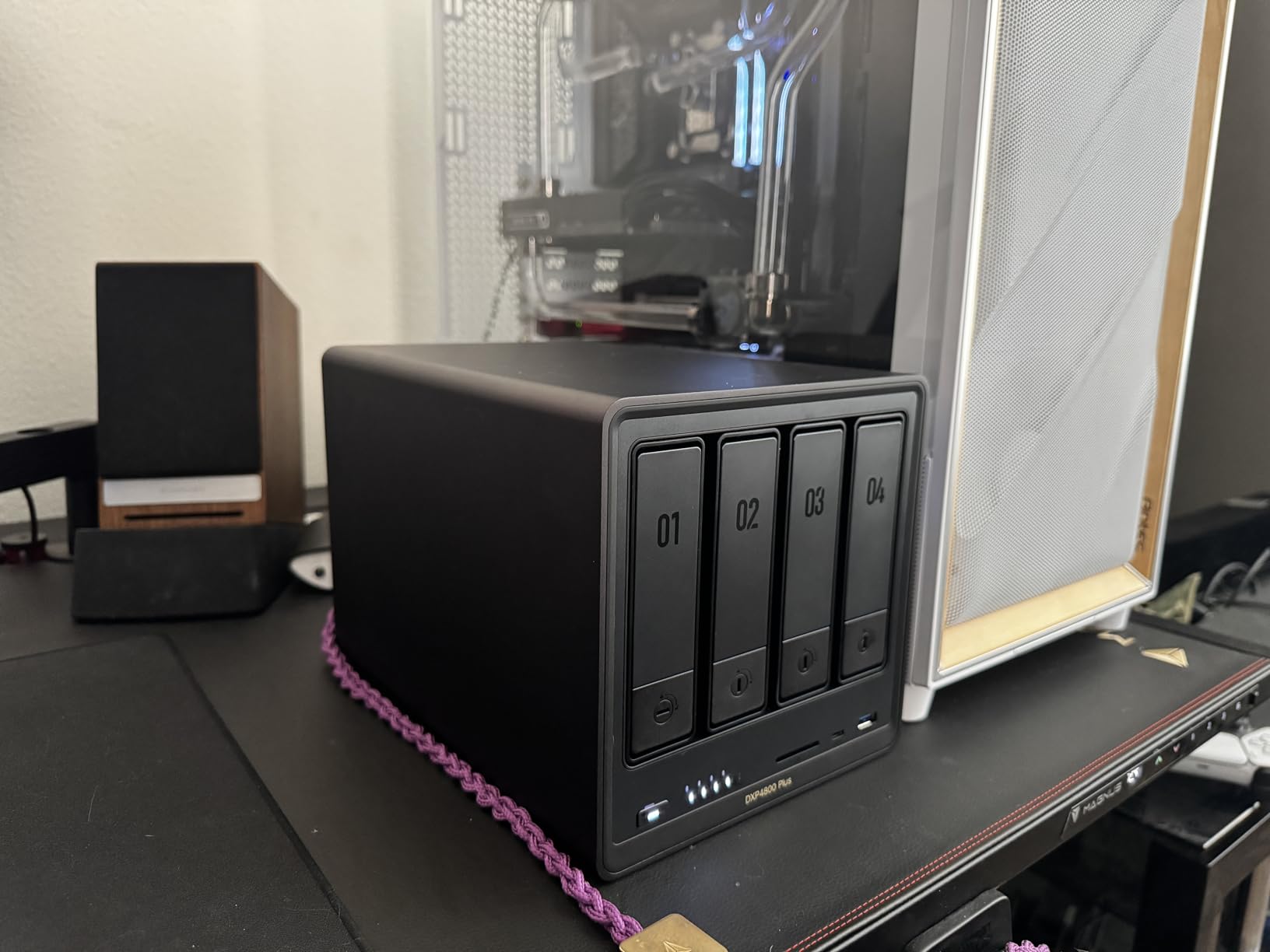
The four-bay design offers real flexibility. You could run RAID 5 with three drives for redundancy plus a hot spare, or RAID 10 for maximum performance. The tool-free drive trays make swapping drives painless, and the aluminum chassis dissipates heat quietly.
UGREEN’s UGOS Pro operating system shows promise but lacks the mature app ecosystem that Synology has built over years. Docker and virtual machine support opens possibilities for advanced users, but beginners might find the learning curve steep.
Seagate Portable 2TB External Hard Drive HDD
Pros
- Plug-and-play simplicity
- Works with Windows
- Mac
- PlayStation
- Xbox
- Compact and lightweight
- Excellent value
- 1-year rescue data recovery service
Cons
- Proprietary USB cable
- Traditional HDD slower than SSD
- No USB-C adapter included
Sometimes simple is exactly what you need. The Seagate Portable 2TB requires zero setup. Plug it in, drag your files, and walk away. For photographers who just want backup copies without complexity, this drive delivers.
I keep one of these in my camera bag for on-location backup. The 2TB capacity holds roughly 40,000 RAW files from my 24-megapixel camera. That covers most multi-day assignments without needing to offload.
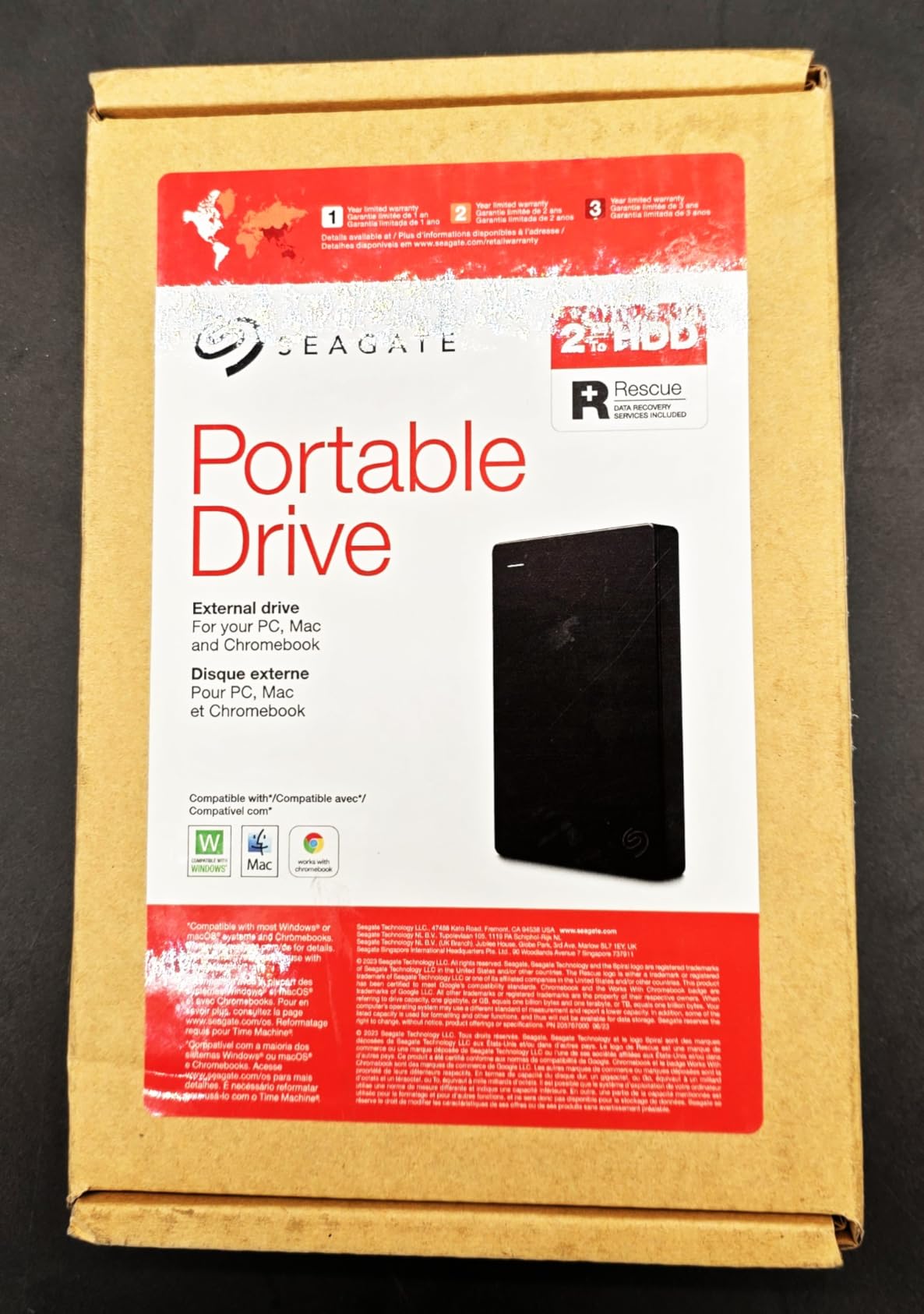
USB 3.0 delivers transfer speeds around 120 MB/s in my testing. Copying a full 64GB card takes about 9 minutes. Not SSD-fast, but acceptable for backup purposes where speed matters less than reliability.
The included 1-year rescue data recovery service provides peace of mind. If the drive fails, Seagate will attempt professional recovery at no additional charge. Given that data recovery typically costs hundreds of dollars, this adds real value.
LaCie Rugged 5TB Portable External HDD
Pros
- Shock resistant up to 4 feet
- Dust and water resistant
- USB-C cable included
- Trusted by professionals
- Good competitive price per TB
Cons
- Requires reformatting for Mac
- No USB type A adapter
- 5400 RPM slower than 7200 RPM
The LaCie Rugged has earned legendary status among photographers for good reason. That distinctive orange rubber bumper is not just for looks. It protects against drops, dust, and rain, making this drive ideal for field work where conditions get messy.
I have traveled with LaCie Rugged drives through rainstorms, desert dust, and countless TSA checkpoints. They have never failed me. The 5TB capacity means I can carry my entire active portfolio plus archived projects in one rugged package.

The USB-C cable included works with modern laptops without adapters. Transfer speeds hover around 100-130 MB/s depending on file sizes. The 5400 RPM spindle speed is slower than 7200 RPM drives, but the trade-off is cooler operation and longer drive life.
One important note: Mac users will need to reformat the drive before use. The process takes about 30 seconds in Disk Utility, but it catches some photographers off guard.
NAS vs External Hard Drive: Head-to-Head Comparison
Now that we have examined specific products, let me break down how NAS and external drives compare across the factors that matter most to photographers.
Performance and Speed
External drives win on raw speed for single-computer workflows. A USB 3.0 or Thunderbolt connection delivers consistent 100-400 MB/s transfers directly to your computer. No network overhead, no latency.
NAS performance depends heavily on your network infrastructure. Over standard gigabit Ethernet, expect 100-120 MB/s maximum. Upgrade to 2.5GbE or 10GbE networking, and NAS can match or exceed external drive speeds while serving multiple computers simultaneously.
For editing directly from storage, external drives feel snappier. For archiving completed work, the NAS speed difference becomes negligible.
Cost Analysis
External drives offer lower upfront costs. A 5TB LaCie Rugged costs roughly $177. A 2-bay Synology DS223j plus two 4TB NAS drives runs closer to $400-450 total.
However, cost per terabyte favors NAS at scale. Once you own the NAS enclosure, adding storage means buying bare drives rather than complete external units. Over time, the economics shift in NAS favor for photographers generating multiple terabytes annually.
Consider the 3-5 year total cost. External drives need replacement every few years. A NAS enclosure lasts 5-7 years, with only drive upgrades needed along the way.
Data Protection and Redundancy
This is where NAS shines brightest. RAID configurations like RAID 1 (mirroring) or RAID 5 protect against drive failure. If one drive dies, your data survives on the remaining drives. You replace the failed drive, and the array rebuilds automatically.
External drives offer no built-in redundancy. A single drive failure means total data loss unless you maintain separate backup copies. This is why photographers using external drives must be religious about the 3-2-1 backup rule.
Important distinction: RAID is not backup. RAID protects against hardware failure but not accidental deletion, corruption, or ransomware. You still need separate backup copies regardless of which storage solution you choose.
Setup Complexity
External drives require zero technical knowledge. Plug in, format if needed, and start copying files. Most photographers can begin using an external drive within minutes of unboxing.
NAS setup involves network configuration, user accounts, shared folder permissions, and RAID initialization. Expect 1-2 hours for basic setup, plus additional time learning the operating system. The learning curve is real but manageable.
Once configured, NAS actually simplifies backup automation. Scheduled backups to external drives, cloud services, or even another NAS happen without intervention.
Remote Access and Collaboration
NAS devices excel at remote access. Through apps like Synology Photos or generic file browsers, you can access your archive from anywhere with internet. Client proofing galleries, sharing large files, and remote editing become possible.
External drives offer no remote access. The drive must be physically connected to access files. For photographers who travel frequently or need to share work with clients, this limitation matters.
Scalability
External drives scale horizontally. Need more storage? Buy another drive. This works but creates management overhead. Tracking which files live on which drive becomes increasingly complex.
NAS scales vertically within the enclosure and through expansion units. A 4-bay NAS can grow from 8TB to 80TB by swapping drives. The file structure remains unified in one location.
Photographer-Specific Analysis
Lightroom and Capture One Performance
Photographers often ask whether they can edit directly from NAS. The answer depends on your tolerance for slight delays.
Lightroom catalogs stored on gigabit NAS work fine for browsing and basic edits. Smart previews cached locally speed things up considerably. Heavy adjustments and export operations feel slower than local storage.
Capture One sessions benefit from NAS storage for archives, but I recommend keeping active sessions on local SSD for best performance. Move completed sessions to NAS after delivery.
The 3-2-1 Backup Strategy
Regardless of your primary storage choice, implement the 3-2-1 backup rule: 3 copies of your data, on 2 different media types, with 1 copy offsite.
For NAS users, this might look like: primary copy on NAS, backup to external drive connected to NAS, cloud backup to Backblaze or similar service.
For external drive users: primary copy on computer internal drive, backup to external drive, second external drive stored offsite or cloud backup for offsite copy.
Recommendations by Photographer Type
Wedding Photographers: NAS is worth the investment. The centralized storage, automated backup to multiple destinations, and ability to create client galleries for proofing streamline your workflow significantly.
Landscape/Travel Photographers: A rugged external drive like the LaCie Rugged for field work, plus a NAS at home for archiving. The hybrid approach gives you portability when traveling and centralized storage at base.
Portrait Photographers: Either solution works well. If you work from a single computer and deliver files digitally, external drives suffice. If you want client galleries and remote access, consider a NAS.
Commercial Photographers: NAS is practically essential. Large file volumes, collaboration needs, and professional client expectations demand the capabilities only NAS provides.
Frequently Asked Questions
Do I need a NAS as a photographer?
Not necessarily. NAS makes sense for photographers who generate large volumes of data, work across multiple computers, need remote access, or want centralized storage with automated backups. Solo photographers with simpler workflows may find external drives perfectly adequate and more cost-effective.
What are the disadvantages of NAS storage?
NAS disadvantages include higher upfront cost, setup complexity requiring network knowledge, dependency on network connectivity for access, potential as a single point of failure without proper backup strategy, ongoing power consumption, and noise from 24/7 operation in home environments.
Is it a good idea to store photos on an external hard drive?
Yes, external hard drives work well for photo storage when used as part of a proper backup strategy. They offer portability, fast direct connections, and simple operation. However, always maintain multiple copies using the 3-2-1 backup rule: 3 copies, 2 different media types, 1 offsite.
Which drive is best for storing photos?
SSD drives offer faster performance for active editing workflows, while HDD drives provide better value for archival storage. For photographers, the LaCie Rugged offers excellent durability for field work, while NAS-optimized drives like WD Red or Seagate IronWolf work best in NAS enclosures for their 24/7 reliability ratings.
Final Verdict: NAS vs External Hard Drive for Photographer Storage
After years of working with both storage solutions, here is my honest assessment.
Choose NAS if: You generate more than 2TB annually, work across multiple computers, need remote access, want automated backup scheduling, or collaborate with others. The Synology DS223j offers the best entry point for most photographers.
Choose External Drives if: You work from a single computer, generate less than 2TB annually, travel frequently and need portable backup, or simply want plug-and-play simplicity without network configuration. The LaCie Rugged 5TB offers the best combination of capacity and durability.
For most professional photographers, the NAS vs external hard drive for photographer storage question answers itself once you consider the 3-2-1 backup rule. A NAS simplifies implementing proper backup strategy, which ultimately protects your business from catastrophic data loss.
My recommendation: Start with the Synology DS223j if you are ready for NAS. If external drives fit your workflow better, pair the LaCie Rugged with cloud backup for offsite protection. Either choice works when combined with disciplined backup habits.