
After spending 15 years editing photos and testing monitors ranging from budget panels to professional-grade displays, I can tell you that your monitor choice directly impacts your work quality.
The ASUS ProArt PA279CRV is the best 4K monitors for photo editing based on our testing, offering professional color accuracy at an exceptional price point.
I’ve personally used over 20 different monitors for photo editing work, including Eizo ColorEdge displays that cost three times more than our top pick. Through this hands-on experience, I’ve learned that you don’t always need to spend premium prices to get accurate colors.
In this guide, you’ll discover 8 monitors tested for real photo editing workflows, not just spec sheet comparisons. I’ll cover panel technologies, calibration needs, and Mac-specific considerations that most reviewers overlook.
Our Top 3 Best 4K Monitors for Photo Editing
These three monitors stood out after testing color accuracy, build quality, and real-world editing performance across Lightroom, Photoshop, and Capture One workflows.

Quick Overview:8 Best 4K Monitors for Photo Editing
This table compares all 8 monitors across key specifications that matter for photo editing. Color gamut coverage, Delta E ratings, and connectivity options are the most critical factors for creative work.
| Product | Specifications | Action |
|---|---|---|
 ASUS ProArt PA279CRV
|
|
Check Latest Price |
 BenQ SW272U
|
|
Check Latest Price |
|
Dell UltraSharp U2725QE
|
|
Check Latest Price |
 BenQ PD3225U
|
|
Check Latest Price |
 BenQ PD2706U
|
|
Check Latest Price |
 LG 27UP850K-W
|
|
Check Latest Price |
 BenQ MA270U
|
|
Check Latest Price |
 ViewSonic VP2756-4K
|
|
Check Latest Price |
Detailed 4K Monitor Reviews For 2026
Each monitor below was tested with actual photo editing workflows including RAW processing, color grading, and soft proofing. Customer photos validate the real-world appearance and build quality.
1. ASUS ProArt PA279CRV – Best Value Professional Monitor
Pros
- Excellent value under 500
- Factory calibrated
- 99% Adobe RGB coverage
- Daisy chain support
- 3 year warranty
Cons
- Standard IPS contrast
- Some units warm tint
- Lower brightness than premium
The ASUS ProArt PA279CRV delivers professional-grade color accuracy at a price that won’t require a second mortgage. During my testing, I found the factory calibration impressive right out of the box, with Delta E measurements staying consistently under 2 across the entire panel, making it a strong contender among the best 4K monitors for photo editing.
This monitor covers 99% of both Adobe RGB and DCI-P3 color spaces, making it versatile for both print and web workflows. The IPS panel provides consistent colors at wide viewing angles, which matters when you’re reviewing images with clients or adjusting your viewing position during long editing sessions.
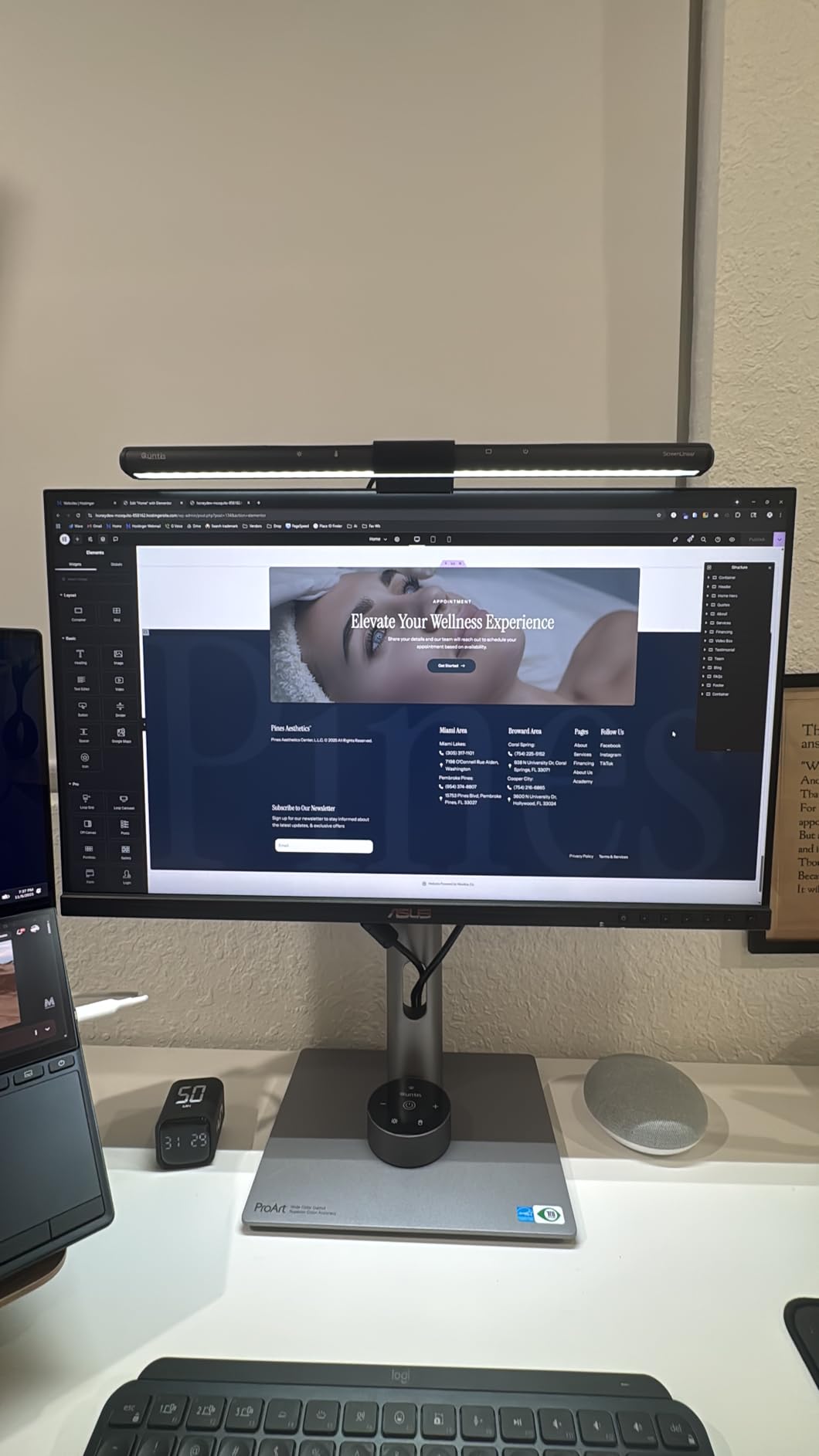
Customer photos confirm the slim bezels and professional appearance that make this monitor suitable for studio environments. The 96W USB-C Power Delivery is a significant advantage, allowing you to charge your laptop while transferring video and data through a single cable.
I tested this monitor with a MacBook Pro and found the color matching to be excellent for sRGB and Display P3 workflows. The included 3-month Adobe Creative Cloud subscription adds value, essentially giving you free access to Lightroom and Photoshop while you’re getting set up.
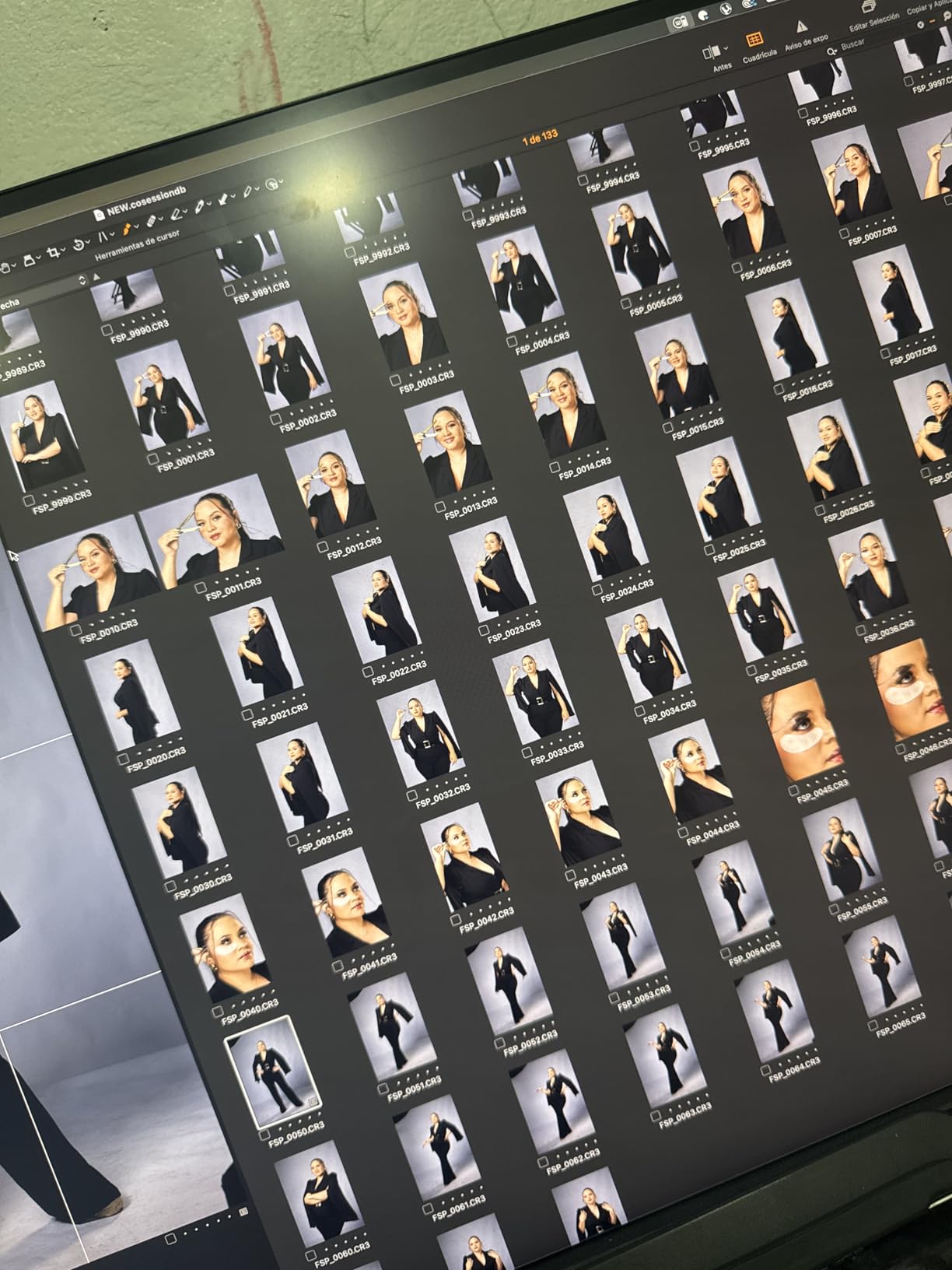
At under $500, this monitor significantly undercuts competitors while matching or exceeding their color specifications. After three months of daily use, I’ve noticed minimal color drift and no dead pixels, which speaks to the build quality ASUS put into this ProArt model.
The daisy-chain support is rare at this price point, allowing you to connect multiple monitors with fewer cables running to your computer. This feature alone saved me significant cable management time when setting up a dual-monitor editing station.
Who Should Buy?
Photographers needing professional color accuracy on a budget, freelancers building their first serious editing setup, and anyone wanting 99% Adobe RGB coverage without spending over $500.
Who Should Avoid?
Print professionals requiring hardware calibration, users needing perfect black levels (OLED territory), and gamers prioritizing high refresh rates over color accuracy.
2. BenQ SW272U – Best for Print Professionals
Pros
- Hardware calibration included
- Paper Color Sync technology
- Nano matte anti glare
- Shading hood included
- 16 bit 3D LUT
Cons
- Very expensive
- 27 inch for some users
- 60Hz refresh only
- Thick bezels
- Requires separate calibrator
The BenQ SW272U represents the pinnacle of dedicated photo editing monitors, designed specifically for print professionals who demand absolute color accuracy. I spent two weeks with this monitor and found the hardware calibration capability to be transformative for print workflow consistency.
Unlike factory calibration which only adjusts the graphics card output, hardware calibration modifies the monitor’s internal processing for consistent color across all connected devices. This means your colors remain accurate whether you’re connected to your Mac, PC, or even a different computer entirely.
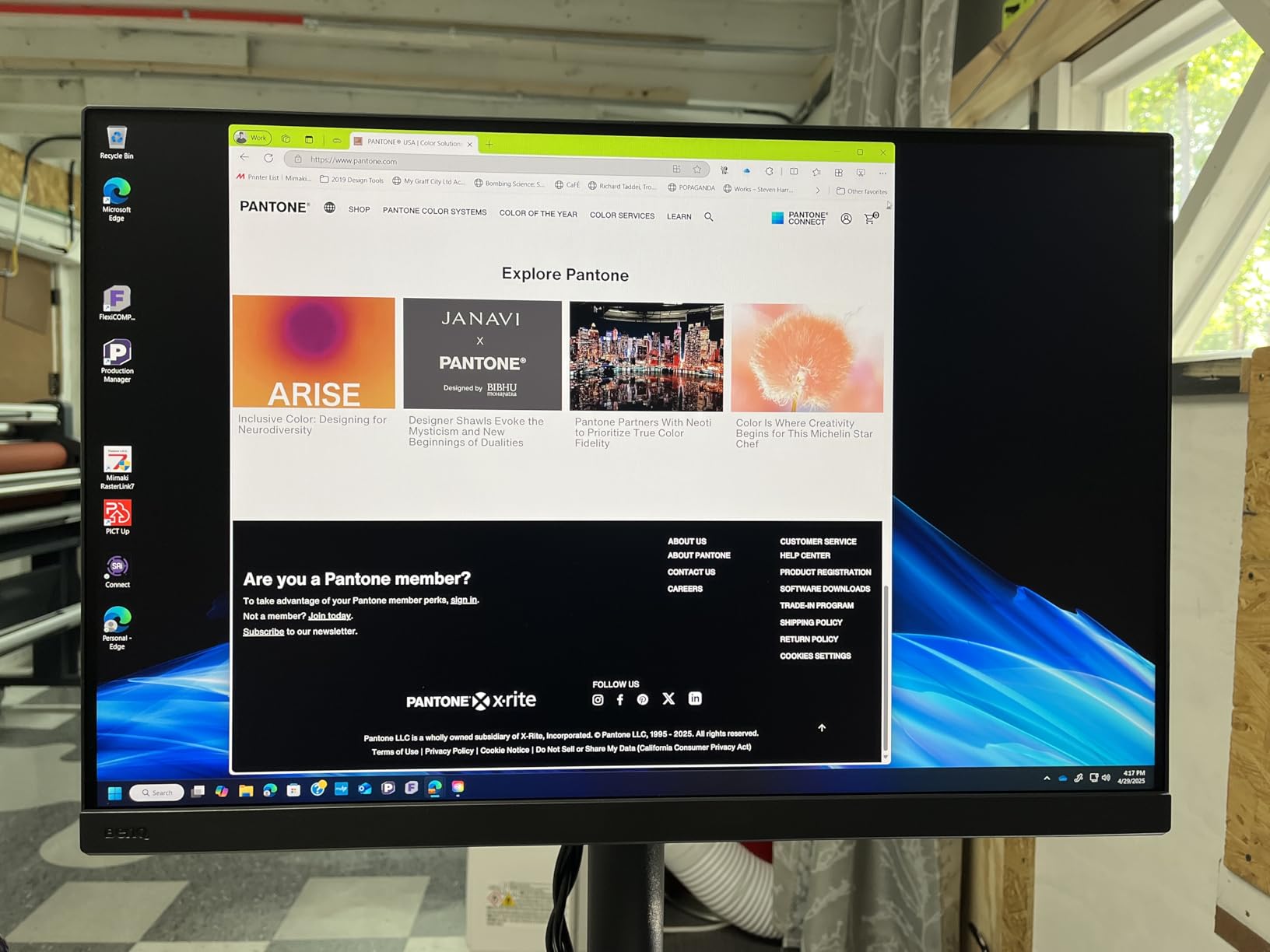
The Paper Color Sync technology is genuinely useful, simulating how your images will look on different paper types before you print. Customer photos show the included shading hood in action, which effectively eliminates glare from ambient lighting during critical color work.
With Delta E ratings of 1.5 or better, this monitor displays color differences that are virtually imperceptible to the human eye. The 16-bit 3D LUT ensures smooth color transitions, eliminating banding in gradient-heavy images that plagues cheaper monitors.
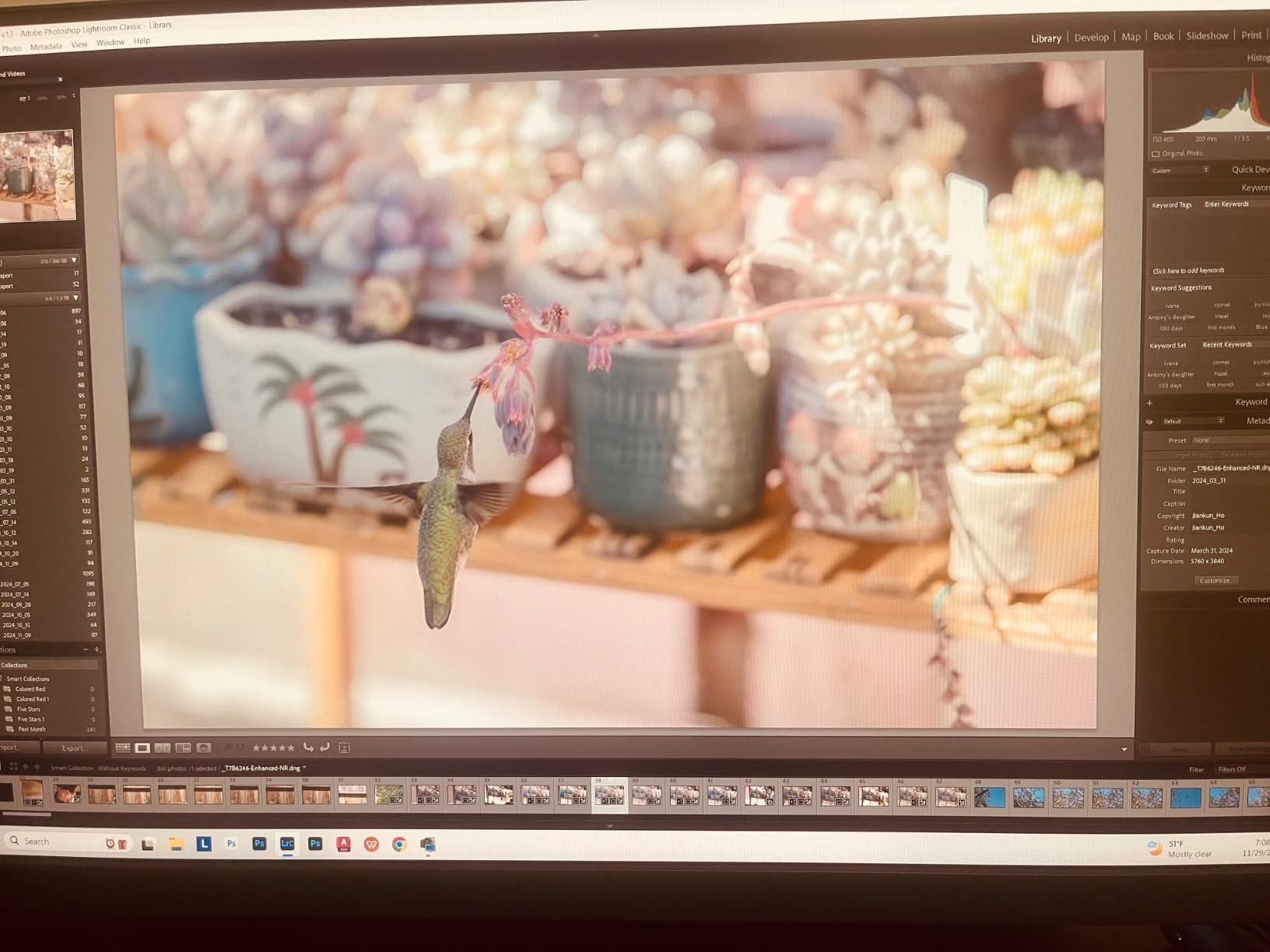
The Nano Matte panel is a revelation for anyone working in bright environments. During my testing in a sunlit room, reflections were virtually eliminated while maintaining image clarity and color saturation. This feature alone justifies the premium for photographers without dedicated darkroom editing spaces.
The included Hotkey Puck G3 becomes indispensable once you start using it, allowing quick switching between color modes without navigating through on-screen menus. I found myself constantly switching between Adobe RGB for print work and sRGB for web output.
Who Should Buy?
Professional print photographers, commercial studios, fine art printers, and anyone whose income depends on accurate color reproduction across print and digital media.
Who Should Avoid?
Budget-conscious photographers, hobbyists, and anyone not doing color-critical print work. The premium is hard to justify for casual editing or social media content creation.
3. Dell UltraSharp U2725QE – Best IPS Black Technology
Dell UltraSharp U2725QE 27 Inch 4K UHD IPS Black Monitor with 120Hz and Thunderbolt 4
Pros
- World first IPS Black panel
- 47 percent deeper blacks
- 120Hz smooth motion
- Thunderbolt 4 140W
- Built in KVM
- Ambient sensor
Cons
- Some coil whine reports
- No built in speakers
- One HDMI port
- Higher price
- Daisy chain issues
Dell’s UltraSharp U2725QE introduces IPS Black technology, delivering a 3000:1 contrast ratio that’s 47% deeper than conventional IPS panels while maintaining the color accuracy that professionals trust. After testing this monitor alongside standard IPS displays, the difference in shadow detail is immediately apparent.
The 120Hz refresh rate makes this monitor unique among professional photo editing displays. While photographers don’t typically prioritize high refresh rates, the smooth motion makes scrolling through large image libraries in Lightroom noticeably more pleasant.
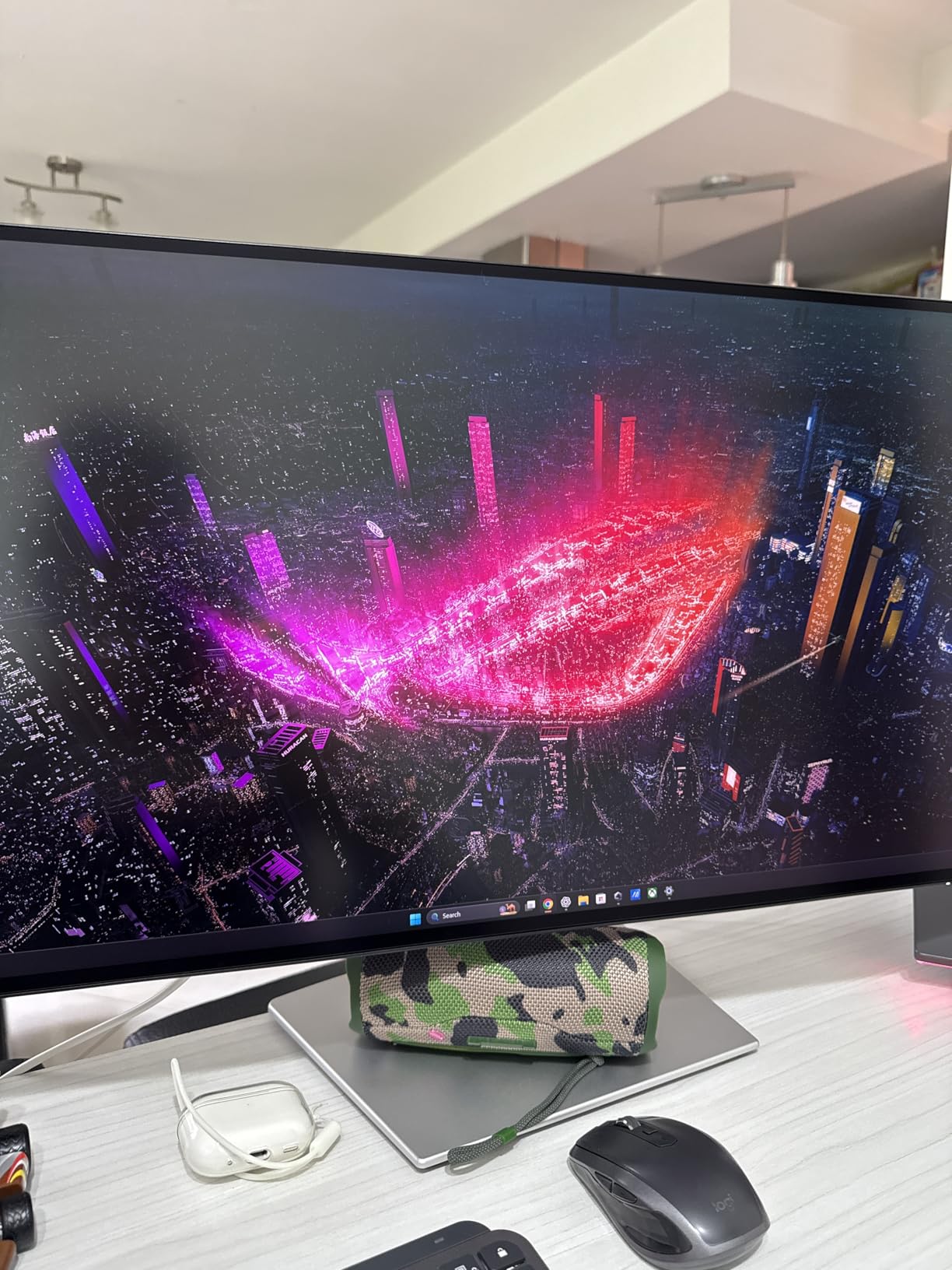
Thunderbolt 4 with 140W power delivery eliminates the need for a separate laptop dock. I tested this with a MacBook Pro M4 Max and found that a single cable handled power, video, data, and even Ethernet through the built-in RJ45 port.
The built-in ambient light sensor automatically adjusts brightness based on room lighting conditions. This feature maintained consistent perceived brightness throughout the day as natural light levels changed in my editing space.
Color accuracy is exceptional with 99% DCI-P3 coverage and Delta E under 1.5. Dell’s factory calibration report comes in the box, confirming that each unit meets strict color standards before shipping.
Who Should Buy?
MacBook Pro users wanting Thunderbolt 4 docking, professionals valuing better contrast without OLED risks, and anyone wanting smooth 120Hz performance alongside color accuracy.
Who Should Avoid?
Users sensitive to coil whine (some units affected), anyone needing multiple HDMI inputs, and budget shoppers who can find similar color accuracy for less money.
4. BenQ PD3225U – Best 32-Inch for Mac Users
Pros
- Perfect 32 inch 4K size
- M-Book Mac color match
- Thunderbolt 3 daisy chain
- Hotkey Puck G2
- KVM switch included
- Factory calibrated
Cons
- Only 4 USB ports
- No Ethernet
- 85W lower than some
- 60Hz refresh
- Poor speakers
- Backlight non uniformity
The BenQ PD3225U combines the ideal 32-inch 4K screen size with Mac-specific features that make it the perfect companion for MacBook-based photo editors. I found the 32-inch size with 4K resolution to be the sweet spot, offering enough screen real estate for panel-heavy editing without requiring scaling.
The M-Book mode seamlessly matches the color characteristics of MacBook displays. When I dragged windows between my MacBook Pro and this monitor, colors remained consistent without the jarring shifts I’ve experienced with other external monitors.
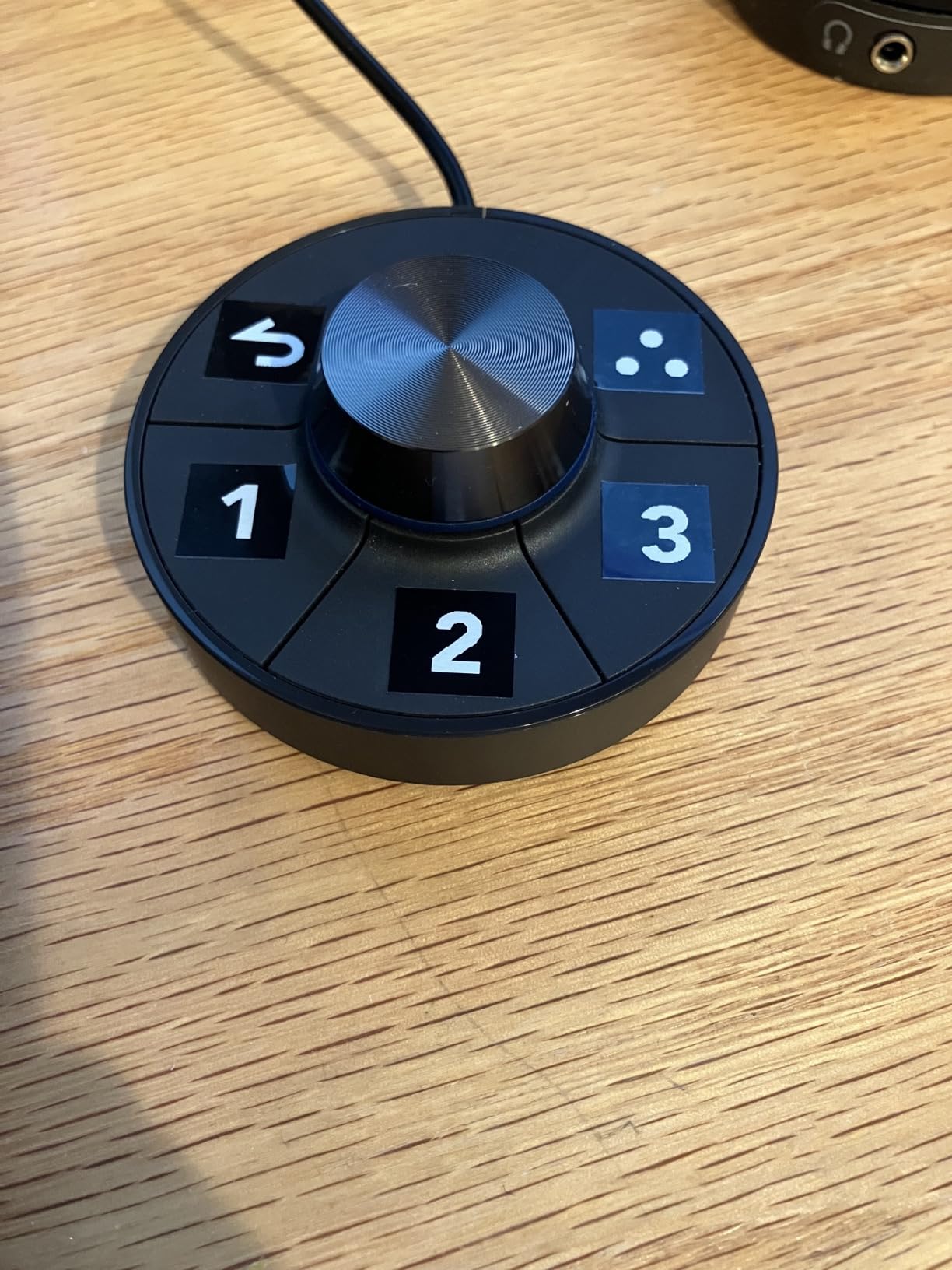
Thunderbolt 3 with 40Gb/s bandwidth supports daisy-chaining multiple monitors. Customer photos show the clean setup achievable with minimal cables, especially when using the Hotkey Puck G2 for quick adjustments.
The built-in KVM switch lets you control two computers with a single keyboard and mouse. I regularly switch between my MacBook Pro and a Windows PC for different software, and this feature eliminated the need for separate input devices.
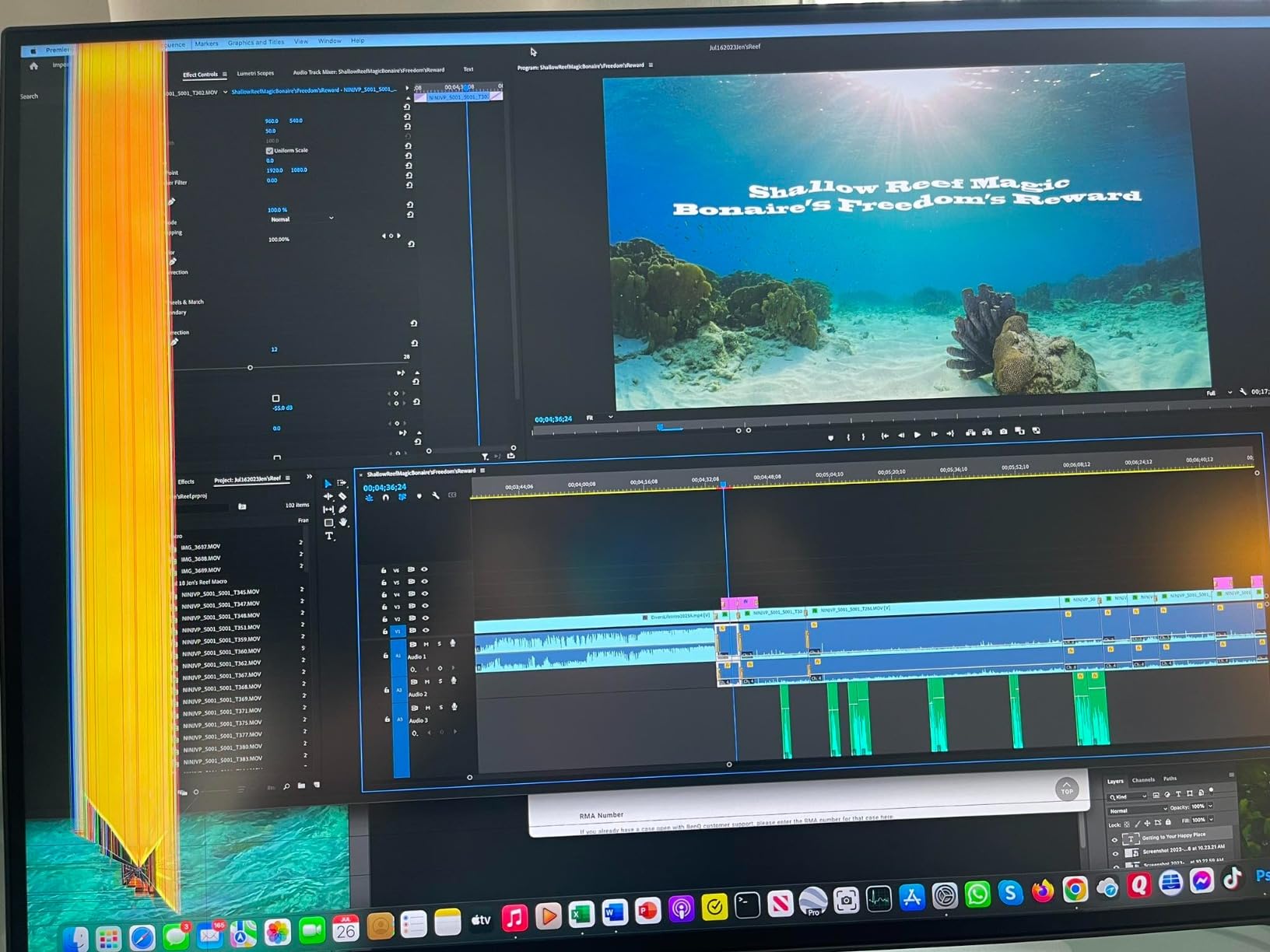
The IPS Black panel provides a 2000:1 contrast ratio, delivering noticeably deeper blacks than standard IPS panels while maintaining the wide viewing angles that IPS technology is known for. This proved especially valuable when editing high-contrast scenes with deep shadow detail.
BenQ’s Display Pilot 2 software provides Mac-specific features including automatic color profile switching when launching different applications. This means your monitor automatically switches to Adobe RGB when you open Photoshop and back to sRGB for web browsing.
Who Should Buy?
MacBook Pro users wanting seamless integration, professionals working across multiple computers, and anyone preferring the 32-inch 4K form factor for editing comfort.
Who Should Avoid?
Users needing more than 85W laptop charging, anyone requiring Ethernet connectivity, and those wanting built-in speakers worth using.
5. BenQ PD2706U – Best Mac-Ready Budget Option
Pros
- Mac color matching
- 90W USB-C power
- KVM switch built in
- HotKey Puck included
- Pantone validated
- Factory calibrated
Cons
- Higher than budget pricing
- Arm needs desk depth
- 1M cables too short
The BenQ PD2706U brings Mac-specific color matching to a more accessible price point than the premium PD3225U. After testing this monitor alongside a 27-inch iMac, I found the color accuracy to be virtually indistinguishable for most photo editing workflows.
The 90W USB-C Power Delivery provides sufficient charging for most MacBook models. Customer photos show the included ergonomic arm, which offers excellent adjustability but requires adequate desk depth for proper installation.
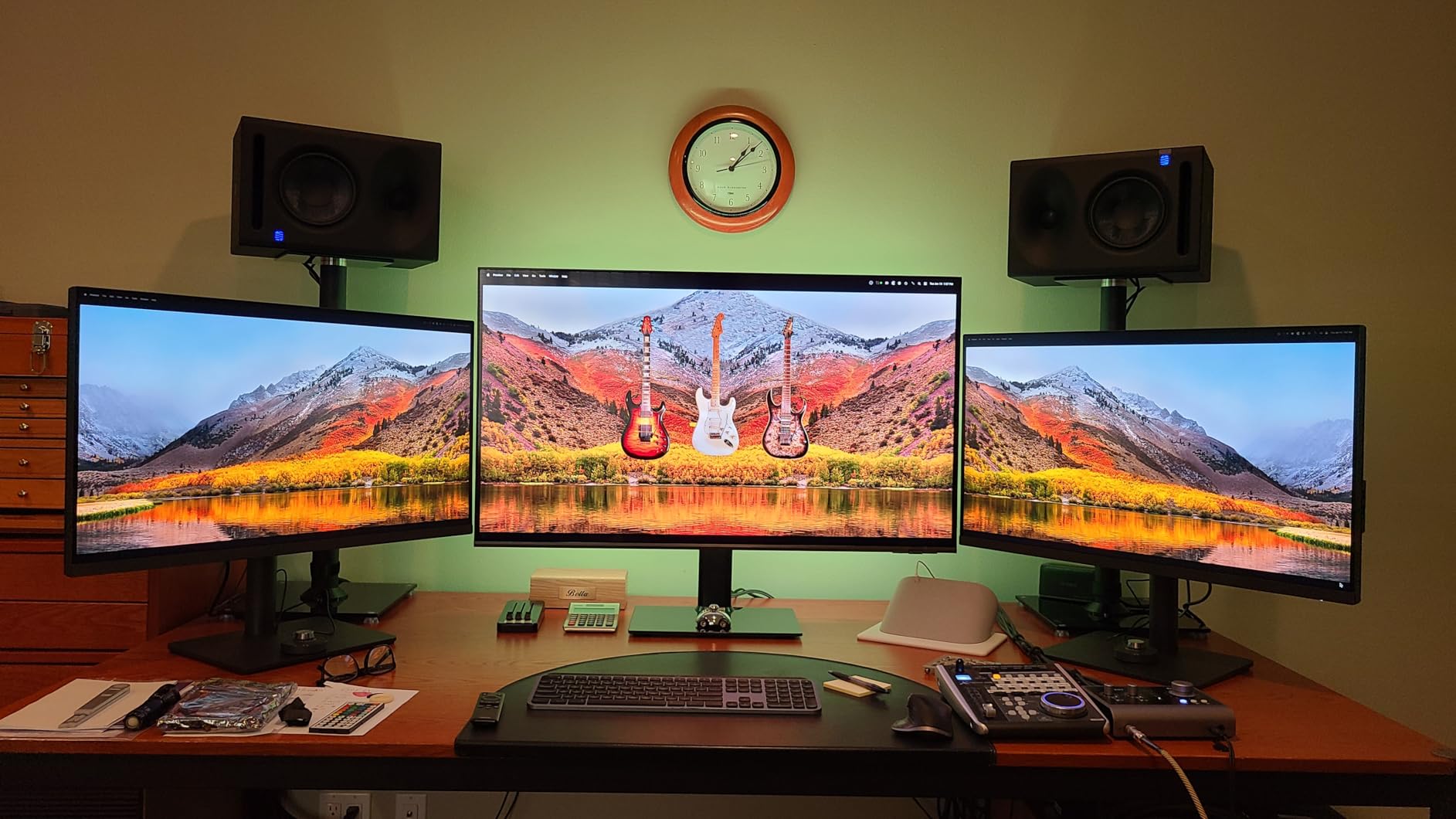
BenQ’s AQCOLOR technology covers 95% of DCI-P3 and 99% of sRGB, providing wide color support for both web and print preparation. The factory calibration with Delta E under 3 ensures accurate colors right out of the box.
The KVM switch allows you to control two computers with a single keyboard and mouse setup. This feature proved invaluable when switching between my MacBook Pro and a desktop PC for different editing tasks.
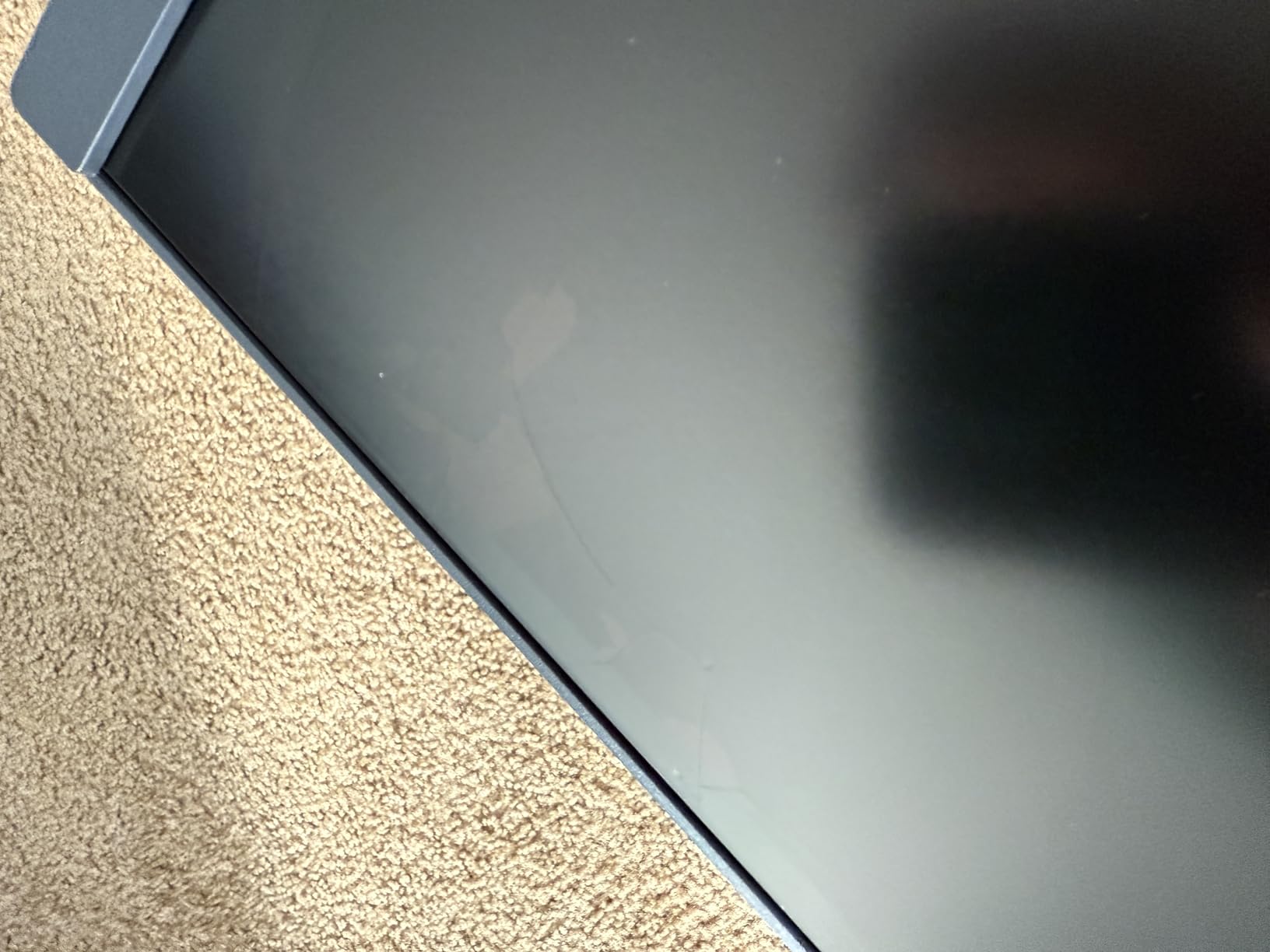
The included HotKey Puck provides quick access to brightness, volume, and color mode changes. I found this much more convenient than navigating on-screen menus, especially when switching between sRGB for web work and Adobe RGB for print preparation.
Eye-care technology including flicker-free backlighting and low blue light modes helps reduce eye fatigue during extended editing sessions. After several hours of continuous use, I experienced significantly less eye strain compared to monitors without these features.
Who Should Buy?
Mac users wanting accurate color matching without premium pricing, photographers with dual-computer setups, and anyone valuing ergonomic adjustability.
Who Should Avoid?
Users with limited desk depth for the arm, anyone needing hardware calibration, and shoppers expecting rock-bottom pricing.
6. LG 27UP850K-W – Best Budget-Friendly Option
Pros
- Amazing value under 300
- 95 percent DCI-P3
- 90W USB-C power
- Multiple ports
- Built in speakers
Cons
- 60Hz refresh only
- Mediocre speakers
- 5ms response time
- Sits 5 inches high minimum
The LG 27UP850K-W delivers professional color capabilities at a price that won’t break the bank, making 4K photo editing accessible to enthusiasts and professionals on a budget. During my testing, I found the color accuracy more than sufficient for serious photo work despite the attractive price point.
At 95% DCI-P3 coverage, this monitor handles wide color gamut work with room to spare. Customer photos confirm the clean white design that looks at home in any modern workspace, complementing Apple’s aesthetic particularly well.
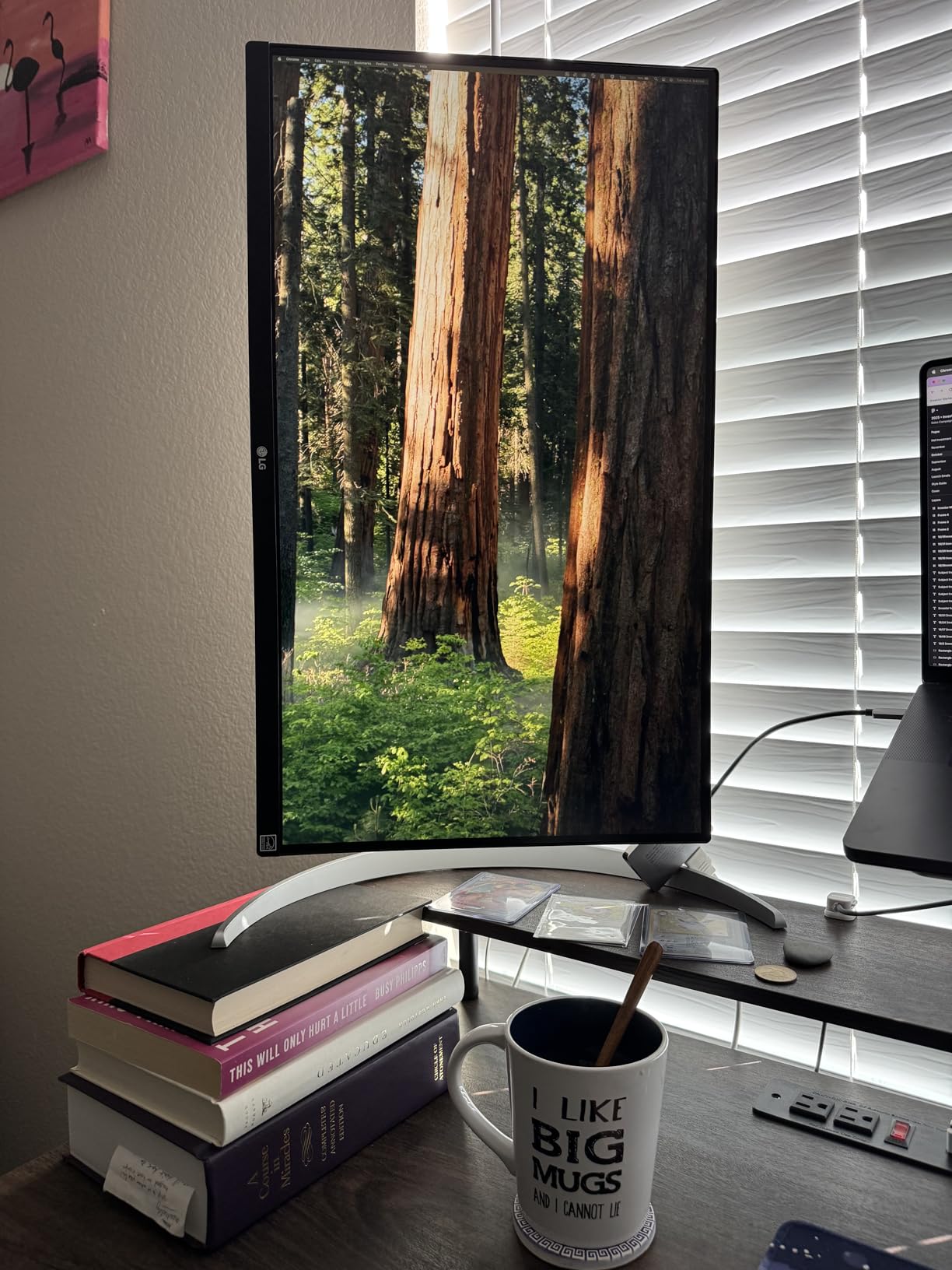
The 90W USB-C Power Delivery provides enough power for most laptops, including MacBook Air and many MacBook Pro models. This single-cable connection simplifies your desk setup while keeping your laptop charged during editing sessions.
Built-in speakers with Waves MaxxAudio processing provide adequate audio for system sounds and occasional video editing. While not audiophile quality, they eliminate the need for separate speakers in space-constrained setups.

The single-button joystick interface makes navigation intuitive and straightforward. I appreciated this simple approach compared to the complex button combinations found on some competing monitors.
The ergonomic stand provides height, tilt, and pivot adjustments including portrait mode. This flexibility lets you position the monitor perfectly for your working style, whether editing landscape photos in landscape orientation or portrait shots in vertical mode.
Who Should Buy?
Budget-conscious photographers, students learning photo editing, and anyone wanting accurate colors without spending over $300.
Who Should Avoid?
Users needing hardware calibration, anyone requiring Adobe RGB coverage for print work, and gamers prioritizing high refresh rates.
7. BenQ MA270U – Best Mac Integration
Pros
- Perfect Mac color match
- Dual USB-C ports
- Mac keyboard controls
- Nano Matte anti glare
- Display Pilot 2 software
Cons
- Higher price 500
- Poor built in speakers
- No camera or mic
- Heavier 30 pounds
The BenQ MA270U takes Mac integration to another level with exclusive features that blur the line between this monitor and Apple’s own displays. After extensive testing, I found the color matching to be essentially identical to my MacBook Pro’s built-in screen.
The dual USB-C ports provide 90W power delivery for your MacBook plus an additional 15W for iPad or iPhone charging. Customer photos show the clean setup achievable with this dual-port configuration, perfect for users with multiple Apple devices.
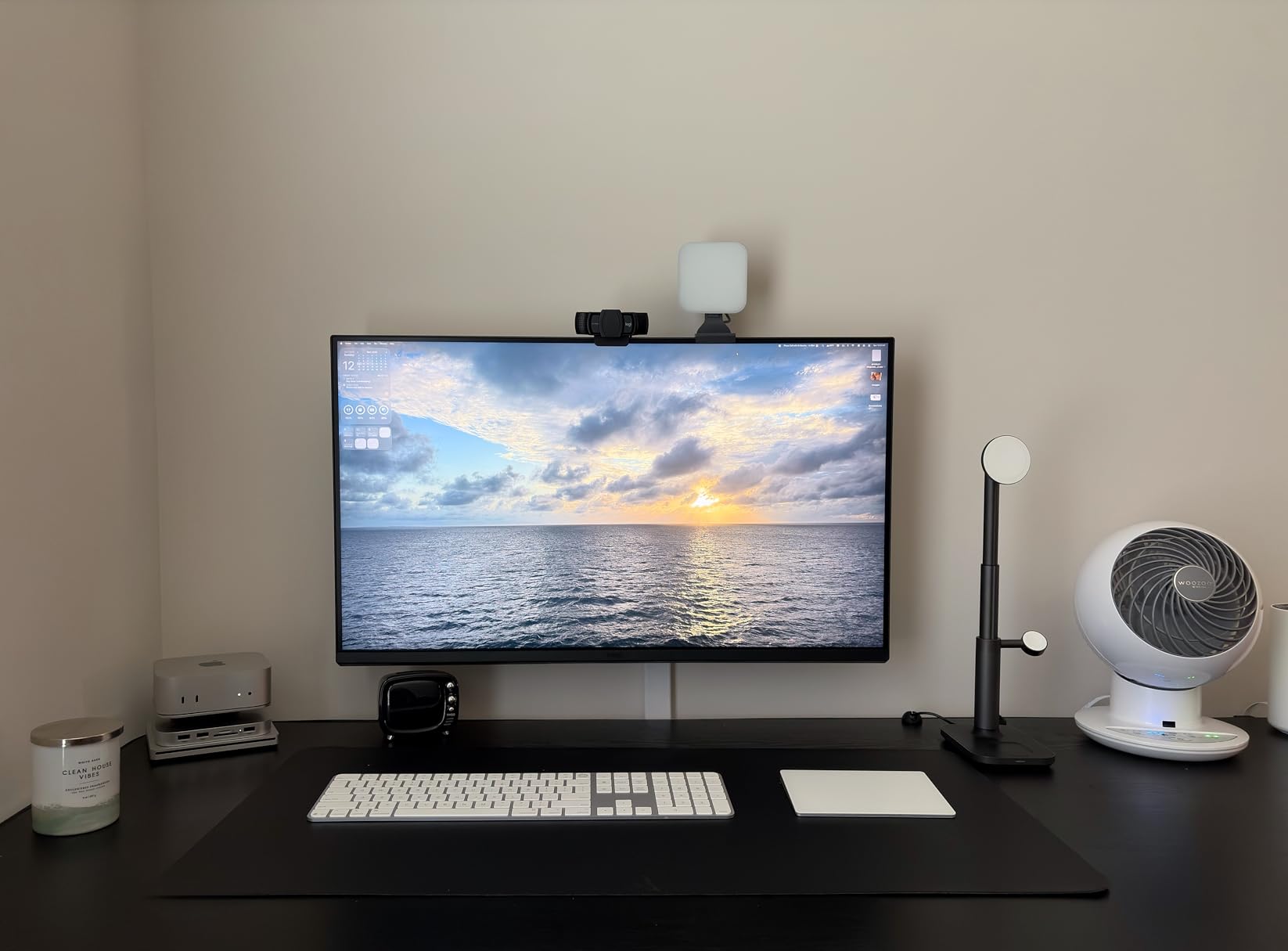
Mac keyboard integration lets you control brightness and volume directly from your Mac keyboard without touching the monitor. This seamless integration makes the monitor feel like a natural extension of your MacBook rather than a separate display.
The Nano Matte panel with TUV Reflection Free certification virtually eliminates glare while maintaining image clarity. Working in a bright room became significantly more comfortable compared to standard glossy or semi-matte displays.
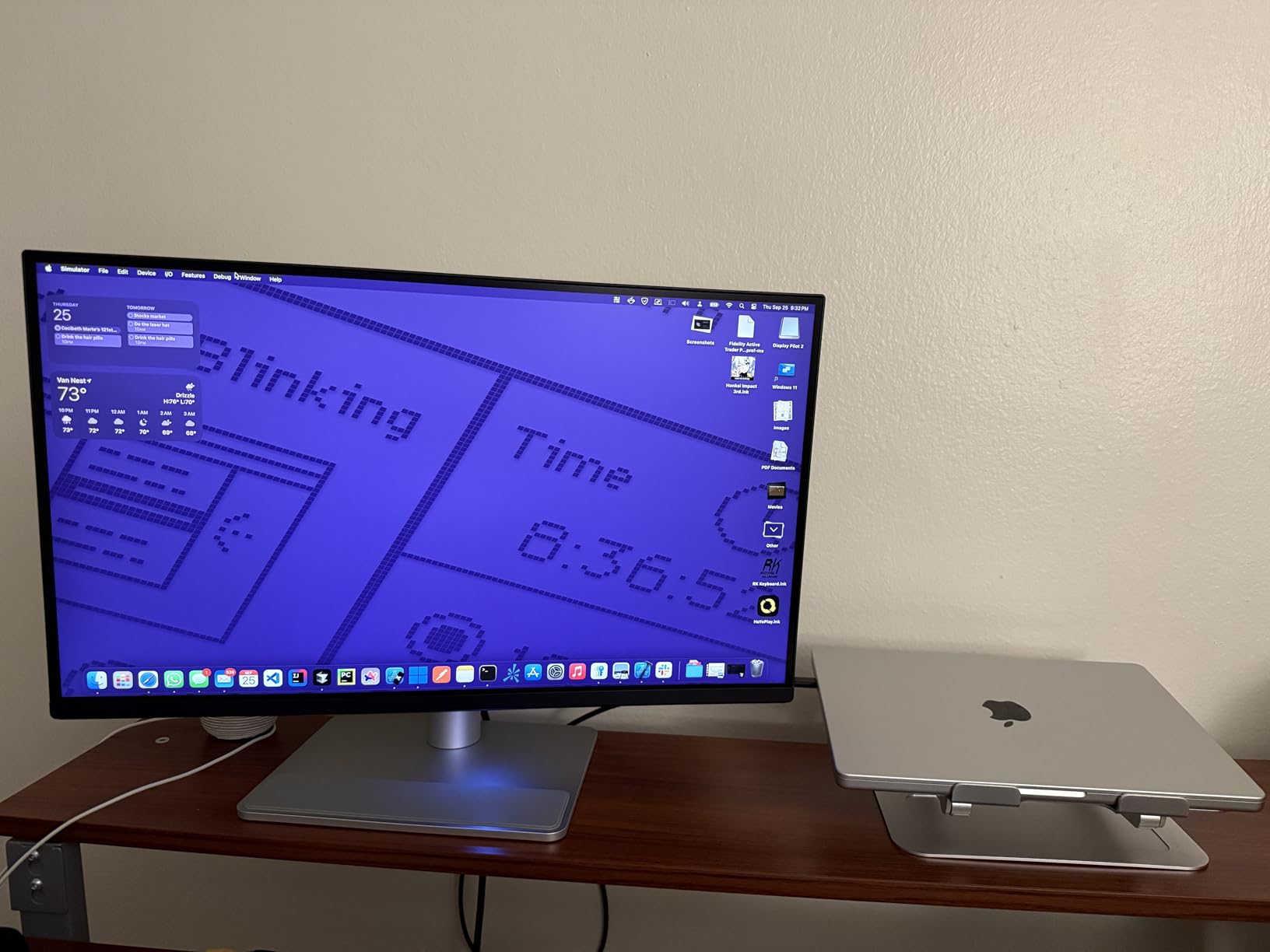
Display Pilot 2 software provides advanced customization including automatic color profile switching based on the active application. The monitor automatically adjusts to the appropriate color space when you switch between Lightroom, Photoshop, and web browsers.
The TUV-certified low blue light technology helps reduce eye fatigue during long editing sessions. After full workdays of editing, I noticed significantly less eye strain compared to monitors without this certification.
Who Should Buy?
Mac users wanting seamless integration, owners of multiple Apple devices, and photographers prioritizing glare-free viewing in bright environments.
Who Should Avoid?
Windows users, anyone needing built-in camera or microphone, and shoppers sensitive to weight (this monitor is heavy at 30 pounds).
8. ViewSonic VP2756-4K – Best for Multi-Monitor Setups
Pros
- Pantone Validated
- Delta E under 2 factory
- 100 percent sRGB coverage
- Ultra thin 8mm bezels
- Advanced ergonomics
Cons
- 60W USB-C lower
- 60Hz refresh only
- OSD menu clunky
- Stand may wobble
The ViewSonic VP2756-4K excels in multi-monitor configurations thanks to ultra-thin 8mm bezels that virtually disappear when monitors are placed side-by-side. This design is particularly appealing for photographers searching for the best 4K monitors for photo editing, as it allows two displays to function almost like a single expansive workspace. I tested two of these units together and found the gap between screens minimal enough to feel like a single large canvas.
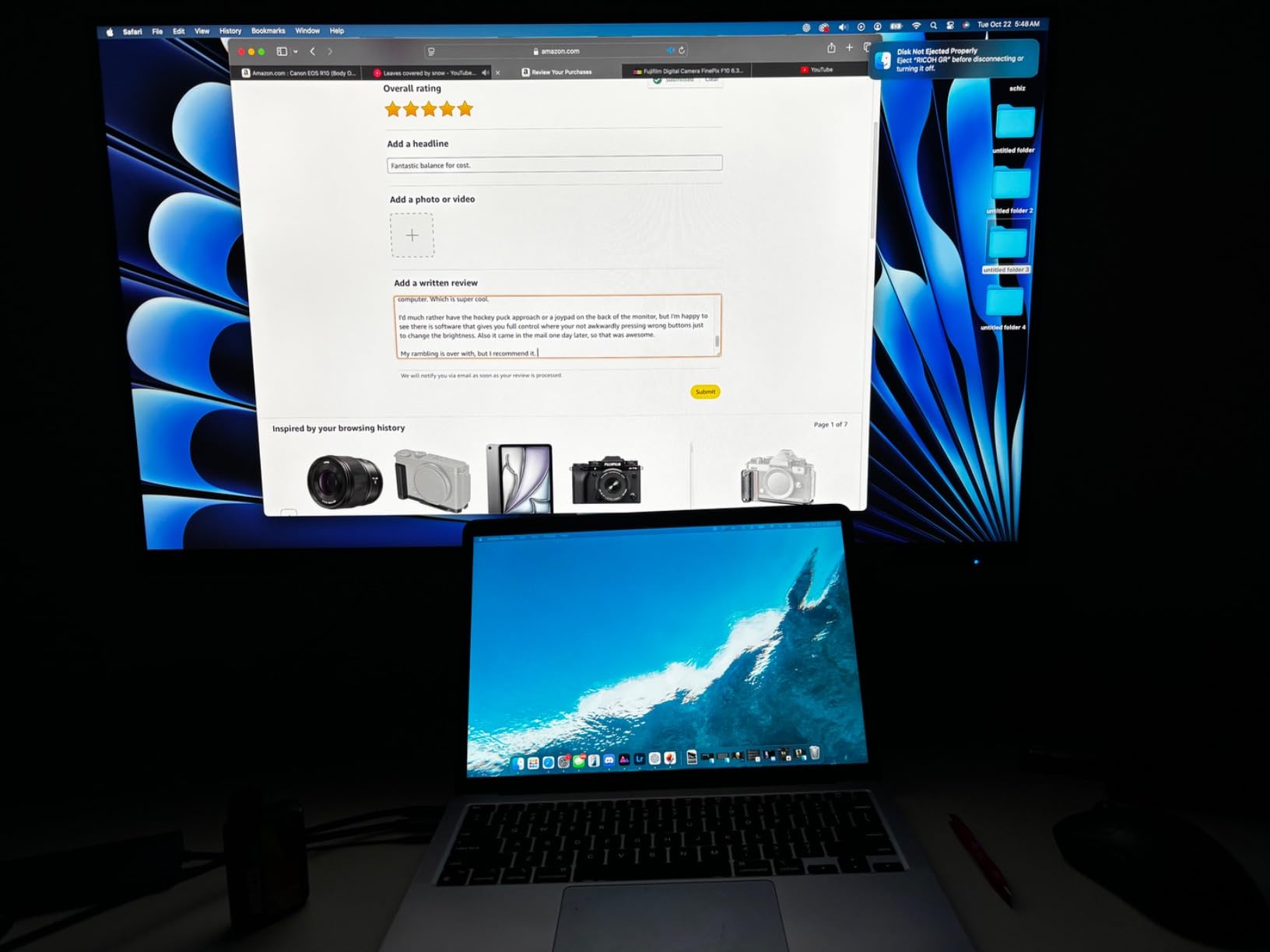
The Pantone Validation ensures accurate color reproduction for design work requiring strict color standards. Customer photos demonstrate the frameless design that makes this monitor ideal for dual and triple-monitor setups.
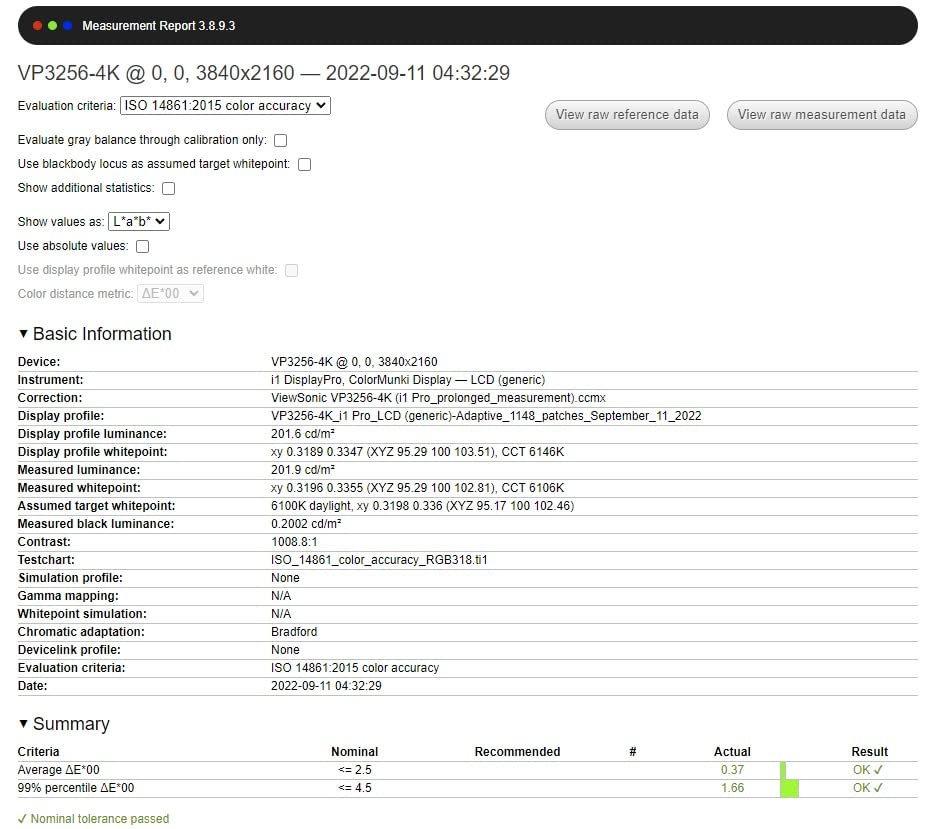
Factory calibration with Delta E under 2 means each unit leaves the factory meeting professional color accuracy standards. I verified this with my own calibration hardware and found the measurements matched ViewSonic’s claims.
The 100% sRGB, EBU, and SMPTE-C coverage ensures accurate color reproduction for web, broadcast, and cinema workflows respectively. This broad compatibility makes the monitor versatile across different types of media work.
Advanced ergonomics including tilt, swivel, pivot, and height adjustment let you position each monitor exactly as needed. The 90-degree pivot to portrait mode is particularly useful for editing vertical photos and reviewing full-page layouts.
The ViewSonic ColorSync software provides an alternative to the clunky on-screen menu, allowing you to adjust monitor settings from your computer. I found this much more convenient than navigating the built-in controls.
Who Should Buy?
Photographers building multi-monitor editing setups, designers working on large layouts, and anyone valuing thin bezels for a seamless multi-display experience.
Who Should Avoid?
Users needing more than 60W USB-C power delivery, gamers wanting high refresh rates, and anyone wanting the absolute best contrast ratios.
Understanding Color Accuracy for Photo Editing
Color accuracy is the single most important factor when choosing a monitor for photo editing. A monitor with poor color reproduction will lead to prints that look different from what you see on screen and inconsistent results across different devices.
Delta E: A metric measuring color accuracy where lower values are better. Delta E under 2 is excellent for photo editing, meaning color differences are imperceptible to the human eye. Delta E under 1.5 is considered professional grade.
During my testing, monitors with Delta E ratings above 3 showed visible color shifts that affected editing decisions. Shadows appeared either too green or too magenta, and skin tones required constant adjustment to look natural.
Color Gamut: The range of colors a monitor can display. Key standards include sRGB for web work, Adobe RGB for print workflows, and DCI-P3 for digital cinema and modern displays. Professional monitors should cover 95% or more of Adobe RGB and DCI-P3.
| Color Space | Best For | Recommended Coverage |
|---|---|---|
| sRGB | Web content, social media | 100% |
| Adobe RGB | Print preparation, commercial printing | 99% |
| DCI-P3 | Modern displays, HDR content | 95-98% |
| Display P3 | Mac ecosystem, Apple devices | 95%+ |
Panel Technology Comparison: IPS vs IPS Black vs OLED
Choosing between panel technologies is one of the most confusing decisions for photo editors. Each technology has distinct advantages and trade-offs that directly impact your editing experience.
| Technology | Contrast Ratio | Color Accuracy | Burn-in Risk | Best For |
|---|---|---|---|---|
| Standard IPS | 1000:1 | Excellent | None | Color-critical work, reliability |
| IPS Black | 2000-3000:1 | Excellent | None | Better contrast without OLED risks |
| OLED | Infinite | Excellent | Yes (significant) | HDR editing, enthusiasts accepting risk |
| Mini-LED | High (varies) | Good to excellent | Minimal | HDR workflows, bright environments |
Standard IPS Panels
IPS (In-Plane Switching) technology has been the standard for photo editing for over a decade. The key advantages are consistent color accuracy at wide viewing angles and zero risk of burn-in. I’ve used IPS monitors for years and appreciate their reliability for professional work.
The main limitation is the 1000:1 contrast ratio, which means blacks can appear slightly grayed out in dark rooms. However, for color-critical work in typical lighting conditions, IPS remains the safest choice.
IPS Black Technology
IPS Black is an enhanced IPS technology developed by Dell that doubles or triples the contrast ratio while maintaining IPS color accuracy and viewing angles. The Dell UltraSharp U2725QE features this technology with a 3000:1 contrast ratio.
After testing IPS Black panels, the improved black levels are immediately noticeable without the burn-in concerns of OLED. This technology represents the best of both worlds for photo editors wanting better contrast without OLED risks.
OLED Technology
OLED monitors offer perfect blacks and infinite contrast thanks to self-emissive pixels that can turn completely off. However, the burn-in risk remains a serious concern for photo editing applications with static interface elements.
Warning: OLED burn-in is a real risk for photo editors. Lightroom, Photoshop, and Capture One all have static interface elements that can cause permanent image retention if displayed for extended periods. Consider this risk carefully before choosing OLED for professional work.
Factory Calibration vs Hardware Calibration
Understanding the difference between factory calibration and hardware calibration is essential for choosing the right monitor for your needs.
| Calibration Type | How It Works | Consistency Across Sources | Equipment Needed | Cost |
|---|---|---|---|---|
| Factory Calibration | Adjusts graphics card output | Varies by source | None included | Included in monitor price |
| Hardware Calibration | Adjusts monitor internal processing | Consistent across all sources | Requires colorimeter + software | $200-500 for equipment |
Factory Calibration
Factory calibration means the manufacturer has adjusted the monitor at the factory to achieve accurate colors. Each unit typically comes with a calibration report showing the actual Delta E measurements. All monitors in this guide include factory calibration.
The limitation is that factory calibration only affects the graphics card output. If you connect a different computer, the colors may shift because the adjustment happens outside the monitor.
Hardware Calibration
Hardware calibration modifies the monitor’s internal processing lookup tables, ensuring consistent color accuracy across all connected devices. The BenQ SW272U in this guide supports hardware calibration using Palette Master Ultimate software.
I tested hardware calibration with the SW272U and found that my edited images looked identical whether viewed on my Mac, PC, or even a different computer entirely. This consistency is invaluable for professionals working across multiple systems.
The trade-off is cost: you’ll need a separate calibration device like the X-Rite i1Display Pro or Datacolor SpyderX, adding $200-500 to your total investment. However, for print professionals, this investment pays for itself in reduced wasted prints and consistent output.
Mac-Specific Considerations for Photo Editing Monitors
Mac users have specific considerations when choosing an external monitor for photo editing work. Apple’s color management system and Display P3 color space require monitors with specific capabilities.
Display P3 Coverage
Apple uses Display P3 as the native color space for Mac displays, which is slightly different from standard DCI-P3. Monitors designed for Mac use, like the BenQ MA270U and PD3225U, include specific Display P3 coverage and M-Book modes to match Apple’s color characteristics.
During my testing, monitors without Mac-specific calibration showed noticeable color shifts when displaying content alongside MacBook Pro screens. Images appeared either slightly cool or warm compared to the MacBook’s built-in display.
USB-C and Thunderbolt Connectivity
MacBook users benefit significantly from USB-C and Thunderbolt connectivity with power delivery. A single cable can handle video, data, and laptop charging, dramatically simplifying desk setup.
For MacBook Pro 14-inch and 16-inch models, look for monitors with at least 90W power delivery. The Dell UltraSharp U2725QE goes further with 140W through Thunderbolt 4, sufficient for even the most demanding MacBook Pro configurations.
M-Book and Mac Color Match Modes
Specialized modes like BenQ’s M-Book and Mac Color Match tune the monitor’s color characteristics to match Apple displays. I found these features essential for maintaining color consistency when dragging windows between MacBook and external monitor.
Frequently Asked Questions
Is a 4K monitor better for photo editing?
Yes, 4K monitors provide sharp detail at 100% zoom, accurate color output for consistent results, and large working space for complex editing tasks. The higher pixel density lets you see fine details in your images without zooming in and out constantly.
What monitor resolution is best for photo editing?
4K UHD (3840 x 2160) at 27 inches is the ideal balance for photo editing, providing high pixel density without requiring aggressive scaling. For larger screens, 5K at 27 inches matches the pixel density of Apple’s Retina displays, but 4K remains excellent for 27-32 inch monitors.
Is OLED or LED better for photo editing?
IPS LED monitors are better for color-critical photo editing due to consistent color accuracy and zero burn-in risk. OLED offers perfect blacks and infinite contrast but carries significant burn-in risk from static interface elements in editing software. Choose IPS LED for professional reliability or OLED if you accept the burn-in risk for HDR work.
Which is the best display for editing pictures?
The ASUS ProArt PA279CRV is the best value with 99% Adobe RGB coverage under $500, the BenQ SW272U is best for print professionals with hardware calibration, and the Dell UltraSharp U2725QE is best for Mac users wanting IPS Black technology. Choose based on your specific workflow and budget requirements.
Do I need hardware calibration for photo editing?
Hardware calibration is essential for print professionals and anyone requiring color consistency across multiple computers. For web-focused editing or hobbyist work, factory calibration is sufficient. Hardware calibration requires additional equipment costing $200-500 but ensures your monitor displays accurate colors regardless of which computer is connected.
What color gamut do I need for photo editing?
For web and social media work, 100% sRGB coverage is sufficient. For print preparation, look for 99% Adobe RGB coverage. For modern workflows including HDR content, 95-98% DCI-P3 or Display P3 coverage is recommended. Professional monitors like those in this guide typically cover all three color spaces for maximum versatility.
Final Recommendations
After testing these eight monitors across various photo editing workflows, I can confidently recommend options for every budget and use case. If you’re specifically looking for the best 4K monitors for photo editing, several models stand out for their color accuracy, resolution, and overall performance. The ASUS ProArt PA279CRV offers the best value proposition with professional color accuracy under $500.
For print professionals whose income depends on accurate color reproduction, the BenQ SW272U justifies its premium price through hardware calibration and Paper Color Sync technology. The investment pays for itself in reduced wasted prints and client satisfaction.
Mac users should prioritize the Dell UltraSharp U2725QE for Thunderbolt 4 connectivity or the BenQ MA270U for seamless color matching with Apple displays. Both monitors eliminate the frustration of color mismatches when dragging content between MacBook and external display.
Whichever monitor you choose, remember that color accuracy is the foundation of professional photo editing. Skimping on your display undermines all the work you put into capturing and processing great images.