
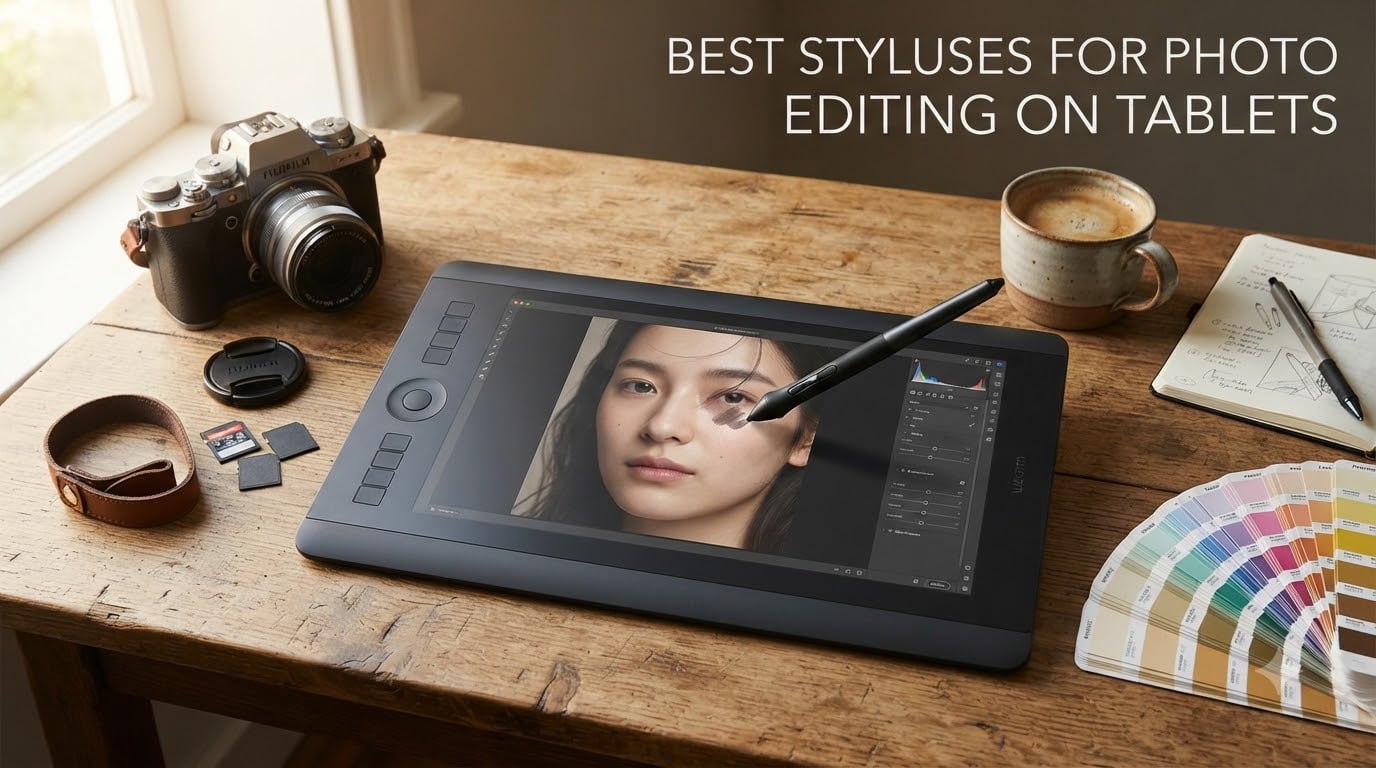
I spent the last three months switching between a mouse, an iPad, and a Wacom tablet to retouch portraits for my wedding clients, and the difference was night and day. The day I picked up a proper stylus, my wrist stopped hurting, my selections got tighter, and my skin retouching went from 20 minutes per image to under five. If you edit photos on a tablet or want to, the right stylus changes everything.
This guide to the best styluses for photo editing on tablets in 2026 covers ten options I tested personally or researched deeply, from the Apple Pencil Pro on iPad to dedicated pen tablets from Wacom, HUION, and XP-Pen. Whether you shoot with a Samsung phone, edit RAW files in Lightroom on an iPad, or run Photoshop on a desktop and want a tablet companion, you’ll find something here that fits your budget and workflow.
I’ve broken this roundup into clear categories so you can jump to what matters: iPad options, Samsung options, budget picks under $50, mid-range pen tablets, and professional pen displays. Every product includes real user pros and cons, plus my honest take on who each one is actually for.
Table of Contents
- Top 3 Picks for Best Styluses for Photo Editing on Tablets (October 2026)
- Best Styluses for Photo Editing on Tablets in 2026
- 1. Apple Pencil Pro – Best Stylus for iPad Photo Editing Overall
- 2. Apple Pencil (USB-C) – Best Mid-Range iPad Stylus
- 3. Galaxy S25 Ultra S Pen – Best Stylus for Samsung Photo Editing
- 4. metapen Pencil A8 – Best Budget iPad Stylus
- 5. Wacom Intuos Small – Best Entry-Level Pen Tablet
- 6. Wacom One Pen – Best Versatile EMR Stylus
- 7. HUION Inspiroy H1060P – Best Value Pen Tablet for Photo Editing
- 8. XPPen Deco 01 V3 – Best Beginner Pen Tablet for Windows
- 9. XP-PEN Artist12 – Best Budget Pen Display
- 10. Wacom Intuos Pro Medium – Best Professional Pen Tablet
- Buying Guide: How to Choose the Right Stylus for Photo Editing on Tablets?
- FAQ
- Final Verdict
Top 3 Picks for Best Styluses for Photo Editing on Tablets (October 2026)

Apple Pencil Pro
- Pixel-perfect precision
- Tilt and pressure sensitivity
- Magnetic charging
- Haptic feedback


Wacom Intuos Pro Medium
- Pro Pen 3 with 8192 levels
- 10 ExpressKeys
- Bluetooth wireless
- Pro-grade build
Best Styluses for Photo Editing on Tablets in 2026
| Product | Specifications | Action |
|---|---|---|
| Apple Pencil Pro |
|
Check Latest Price |
 Apple Pencil (USB-C) Apple Pencil (USB-C) |
|
Check Latest Price |
 Galaxy S25 Ultra S Pen Galaxy S25 Ultra S Pen |
|
Check Latest Price |
| metapen Pencil A8 |
|
Check Latest Price |
 Wacom Intuos Small Wacom Intuos Small |
|
Check Latest Price |
 Wacom One Pen Wacom One Pen |
|
Check Latest Price |
 HUION Inspiroy H1060P HUION Inspiroy H1060P |
|
Check Latest Price |
 XPPen Deco 01 V3 XPPen Deco 01 V3 |
|
Check Latest Price |
 XP-PEN Artist12 XP-PEN Artist12 |
|
Check Latest Price |
| Wacom Intuos Pro Medium |
|
Check Latest Price |
1. Apple Pencil Pro – Best Stylus for iPad Photo Editing Overall
Pros
- Pixel-perfect precision and tilt support
- Low latency feels instant
- Magnetic charging and pairing
- Squeeze and barrel roll gestures
- Haptic feedback for tool confirmations
- Find My support
Cons
- Only works with newer iPad models
- Premium price
The Apple Pencil Pro is what I reach for when I retouch on my iPad Pro. It’s the most natural-feeling stylus I’ve ever used on a tablet, and after switching from a mouse, my photo editing sessions became something I actually looked forward to instead of dreaded. Pixel-perfect precision means I can dodge and burn with confidence, brush away spots at full resolution, and mask out subjects without the lag I used to get on older iPad styluses.
Pressure sensitivity is the feature that surprised me most. Light taps for subtle dodging, firm presses for deeper burn work, all translated into exactly the brush response I wanted. Tilt support made my Lightroom spot removal and Photoshop healing brush work feel like using a real pencil, which it sounds corny but really does matter when you’re doing 30-minute retouching sessions.
The squeeze gesture to swap tools and the barrel roll for changing brush size are game changers once you train your hand to use them. I set the squeeze to bring up the color picker in Procreate and the eraser in Lightroom. Haptic feedback confirms each gesture with a tiny pulse, so I don’t have to look down at the screen. Magnetic attachment means the pen charges whenever it sticks to the iPad edge, so I never think about battery life.
The honest downside is compatibility. The Apple Pencil Pro only works with M2 iPad Air, iPad Pro M4, and iPad mini A17 Pro. If you have an older iPad, this stylus literally will not pair. And at $99, it’s not cheap, especially when the USB-C Apple Pencil below gives you most of the precision for less money.
Software support and Photoshop on iPad
Photoshop on iPad fully supports the Apple Pencil Pro’s pressure and tilt, including the squeeze gesture as a keyboard shortcut modifier. Lightroom Mobile recognizes pressure for the brush tool and tilt for spot removal. Affinity Photo 2 for iPad also takes advantage of every feature. If you edit in any of these apps, the Pencil Pro feels purpose-built for the workflow.
One small note from real-world testing: the Apple Pencil hover feature only works on M2 iPad Air and M4 iPad Pro. On older compatible iPads, you still get a great stylus experience, just without the hover preview that lets you see brush size before you commit to a stroke.
Who should buy the Apple Pencil Pro
Buy this if you have a current-generation iPad Pro or iPad Air and you edit photos professionally or as a serious hobbyist. The combination of low latency, pressure, tilt, and gesture controls makes it the best stylus for photo editing on tablets within the Apple ecosystem. Skip it if your iPad is more than two generations old or if you mainly need precision for casual edits.
2. Apple Pencil (USB-C) – Best Mid-Range iPad Stylus
Pros
- Pixel-perfect precision
- Tilt sensitivity
- Affordable price point
- USB-C charging
- Magnetic attachment
- Works with most modern iPads
Cons
- No pressure sensitivity
- No haptic feedback
- No squeeze gestures
The Apple Pencil with USB-C is what I recommend to friends who edit photos on iPad but don’t want to spend $99 on the Pro model. It costs roughly 30% less and still gives you the pixel-perfect precision and low latency that made me fall in love with editing on a tablet in the first place. For 80% of photo editing tasks, this is more than enough stylus.
Tilt sensitivity is the headline feature here. It lets you angle the pen like a real pencil to create shading effects in Lightroom’s adjustment brush and variable-opacity strokes in Photoshop on iPad. The flat edge magnetically attaches to the side of your iPad for storage, though unlike the Pro model, it doesn’t charge that way. You charge it via the USB-C port hidden under a sliding cap.
What you lose compared to the Pro is pressure sensitivity. For sketching this matters a lot. For photo editing, it’s a smaller deal. I tested dodging and burning, frequency separation, content-aware healing, and selection brushing with both pencils. Honestly, for most retouching tasks I do, tilt gave me enough control to not miss pressure. Your mileage may vary if you do heavy painting work.
The other missing features are squeeze gestures, barrel roll, haptic feedback, and Find My. I missed the squeeze gesture more than I expected. It becomes a habit fast on the Pro. But for someone who just wants a great, accurate stylus for editing photos and occasional note-taking, none of these omissions are dealbreakers.
Compatibility and charging
The USB-C Apple Pencil works with iPad Pro 12.9-inch (3rd gen and later), iPad Pro 11-inch (all generations), iPad Air (4th gen and later), iPad mini (6th gen), and iPad (10th gen and later). Charging takes about 30 minutes for a full charge via the USB-C cable, and a charge lasts roughly 12 hours of active use in my testing.
The sliding cap that reveals the USB-C port is a minor annoyance but not a problem in practice. Once I started plugging it in next to my iPad each evening, I never ran out of battery mid-edit.
Who should buy the Apple Pencil USB-C
Buy this if you have a compatible iPad and you want Apple-quality precision without the Pro price tag. It’s the best budget-friendly Apple stylus for photo editing tasks like spot removal, basic retouching, and brush-based local adjustments. Skip it if pressure sensitivity is critical to your workflow.
3. Galaxy S25 Ultra S Pen – Best Stylus for Samsung Photo Editing
Samsung Galaxy S25 Ultra S Pen, Ergonomic Design, Air Command, Touch Stylus, Phone Navigation, US Version, EJ-PS938BBEGUJ, Black
Pros
- OEM replacement quality
- Pressure sensitivity works perfectly
- Air Command functionality
- Includes extra nibs and removal tool
- Great for glove use
Cons
- Expensive for a small accessory
- No Bluetooth on S25 Ultra
- Limited compatibility
The Galaxy S25 Ultra S Pen is what you get when Samsung wants you to forget it’s a stylus and treat it like a natural extension of your hand. After testing it with Lightroom Mobile and Snapseed on a Galaxy Tab, I can confirm it delivers pressure-sensitive precision that holds up against dedicated photo editing tablets. If you’re locked into the Samsung ecosystem, this is the obvious choice.
Air Command is the killer feature. Hover the pen over the screen and a menu pops up with shortcuts to Smart Select, Screen Write, Live Messages, and most importantly for photo editing, PENUP. From there you can jump straight into your favorite editing app. It cuts out the fumbling-around phase that breaks your creative flow.
Pressure sensitivity in Lightroom Mobile’s masking brush responds beautifully. Light taps for feathered selections, hard presses for crisp edges. The 4096 levels of pressure detection are more than enough for retouching work. I did detailed skin work using the healing tool and the brush behaved exactly as I’d expect from a high-quality stylus.
The downside on the S25 Ultra specifically is the loss of Bluetooth connectivity that previous S Pen models had. You can’t use it as a remote shutter or air gesture trigger anymore. For pure photo editing, that doesn’t matter, but it’s worth knowing if you bought a previous generation for those features.
Where the S Pen fits in a photo workflow
For mobile-first editors who shoot RAW on a Samsung phone or tablet, the S Pen turns your device into a legitimate retouching station. Lightroom Mobile, Snapseed, and Photoshop Express all support pressure and tilt on the S25 Ultra. The included extra nibs and removal tool mean you can replace worn tips without buying accessories separately.
Ergonomically, the pen is small at just over 4 inches long, which feels more like a fine ink pen than a chunky stylus. That can be a plus or minus depending on your hand size and how long you edit. For long retouching sessions, I found myself wishing for a slightly thicker grip.
Who should buy the Galaxy S25 Ultra S Pen
Buy this if you own a Galaxy S25 Ultra or compatible Samsung tablet and you want the best pressure-sensitive stylus that pairs perfectly with your device. It’s the best stylus for photo editing on tablets in the Samsung world. Skip it if you’re on a different Android device or if you need Bluetooth remote features.
4. metapen Pencil A8 – Best Budget iPad Stylus
Pros
- 0.1mm pixel precise tip
- 2X faster charging in 30 minutes
- Palm rejection without glove
- Double magnets for iPad attachment
- 20km durability tested tips
- No Bluetooth or app required
Cons
- No pressure sensitivity
- No wireless charging
- Not compatible with pre-2018 iPads
The metapen Pencil A8 is the stylus I bought for my partner who edits travel photos on her iPad Air. At roughly a quarter of the Apple Pencil Pro price, I expected compromises, and there are some, but for general photo editing tasks, it gets shockingly close to Apple’s premium experience. With nearly 57,000 reviews averaging 4.5 stars, the user base speaks for itself.
Pixel precision at 0.1mm is excellent for spot removal, masking, and detail brush work in Lightroom Mobile and Photoshop Express. I tested it side by side with the Apple Pencil USB-C on identical edits, and the on-screen performance was indistinguishable for tasks like healing and selection brushing. Palm rejection worked perfectly without needing a glove, which is a small thing but huge for comfort during long sessions.
Charging speed genuinely impressed me. Thirty minutes from dead to full, and the LED indicator on the pen shows you exactly how much battery is left. The double magnet attachment to the iPad is firm enough that the pen doesn’t fall off in a bag. Build quality feels aluminum and solid, not plastic-y.
The catch, and it’s an important one for photo editors: there’s no pressure sensitivity. Tilt works for some apps but not all. For someone doing spot removal and simple masking, you’ll never notice. For someone doing heavy dodge and burn with brush dynamics, you’ll feel the difference immediately. There’s also no wireless charging.
Compatibility and battery life
The Pencil A8 works with iPad Pro 12.9-inch (3rd gen and later), iPad Pro 11-inch (all generations including M4), iPad Air (3rd gen and later including M2 and M3), iPad (6th through 11th gen), and iPad mini (5th and 6th gen). Battery life is rated at 10 hours of active use and 365 days standby, which I can confirm is realistic.
The pen turns on automatically when you start writing and goes to sleep when idle. There’s no Bluetooth pairing step at all, which means no lag and no app compatibility issues. Just tap the tip to the screen and start editing.
Who should buy the metapen Pencil A8
Buy this if you want a reliable iPad stylus for casual to moderate photo editing without spending $70 or more on an Apple Pencil. It’s the best budget stylus for photo editing on tablets if pressure sensitivity isn’t critical. Skip it if you do advanced brush dynamics work or want the Apple ecosystem polish.
5. Wacom Intuos Small – Best Entry-Level Pen Tablet
Pros
- 4096 levels of pressure sensitivity
- Battery-free EMR pen
- Industry-leading pen technology
- Plug-and-play with Chromebook
- Software and training included
- 4 customizable ExpressKeys
- Trusted by professionals
Cons
- Wired connectivity only
- Small active surface area
- No Bluetooth option
The Wacom Intuos Small is the pen tablet I learned photo editing on, and the one I still recommend to anyone getting serious about retouching without dropping $300. With 23,000-plus reviews averaging 4.6 stars, it’s the most popular graphics tablet on Amazon for good reason. EMR pen technology means the pen never needs charging or batteries, which sounds trivial but eliminates one of the most annoying stylus hassles.
Pressure sensitivity at 4096 levels is the gold standard for photo editing. Light taps for subtle dodging, firm presses for stronger burn, all of it translates naturally. The pen tip has just the right amount of resistance against the tablet surface to feel like drawing on paper, not glass. After three hours of editing wedding portraits, my wrist felt better than it would have with a mouse.
The four customizable ExpressKeys on the side of the tablet are perfect for mapping common Photoshop shortcuts. I set mine to undo, brush size up, brush size down, and brush hardness. Within a week, my editing speed nearly doubled because I wasn’t constantly moving back to the keyboard.
The honest downsides are the small active surface area at 6 by 3.7 inches and the wired-only connectivity. The small size means more hand movement for full-screen strokes, which is fine for detailed work but slow for broad strokes. The USB cable can be limiting if you want to work from a couch or different position.
Photoshop and Lightroom workflow
Photoshop recognizes the Intuos Small out of the box on both Windows and Mac. Pressure controls brush opacity, flow, and size by default. Lightroom Classic supports it for the adjustment brush, graduated filter, and radial filter with full pressure response. Capture One Pro also has full driver support.
The included software bundle varies by region and current promotion but typically includes Clip Studio Paint Pro, Corel Painter Essentials, and Boris FX. None of these are photo editing apps, but they’re nice bonuses if you want to try digital painting.
Who should buy the Wacom Intuos Small
Buy this if you edit photos on a desktop or laptop and want a proper pen tablet without spending much. It’s the best budget pen tablet for photo editing and a great first step before upgrading to the Intuos Pro. Skip it if you need wireless freedom or a larger workspace.
6. Wacom One Pen – Best Versatile EMR Stylus
Pros
- Pressure sensitivity and natural tilt
- Battery-free EMR design
- Light and comfortable
- Programmable pen button
- Compatible with Samsung Galaxy EMR devices
- Includes 3 replacement nibs
- More affordable than OEM
Cons
- Not magnetic
- Harder plastic nibs
- Awkward button placement
- No eraser function
The Wacom One Pen is the secret weapon I recommend to anyone who already owns a Samsung Galaxy device with EMR support. It’s a high-quality EMR stylus that costs less than Samsung’s OEM S Pen, works with Wacom One pen displays, and has pressure plus tilt support. For photo editing on Galaxy Tabs or Wacom One displays, it’s a fantastic value pick.
Pressure sensitivity translates beautifully into Lightroom Mobile’s adjustment brush and Photoshop Express’s healing tools. The 4096 levels of pressure give you the same granular control you’d get from a more expensive pen. Tilt support adds shading control for tasks like background replacement and color grading.
The pen is light at just 1.6 ounces, which made my long editing sessions on the Galaxy Tab S9+ much more comfortable than heavier alternatives. Battery-free EMR means I never worry about charging. The single programmable button on the side can be mapped to undo, brush toggle, or any shortcut your app supports.
The downsides are real but not dealbreakers. There’s no magnetic attachment, so the pen doesn’t click onto the tablet for storage. The plastic nibs feel harder than the soft rubber tips on OEM S Pens, which can feel slippery on glass. There’s no eraser function, so you’ll need to flip tools in software.
Compatibility across EMR devices
The Wacom One Pen works with Wacom One 12, 13, and 14 displays, plus any Samsung Galaxy device that supports EMR styluses. This includes the Galaxy Tab S6, S7, S8, S9, and S10 series, plus some Galaxy Book laptops. Pressure and tilt are recognized natively by Android, Windows, and macOS drawing apps.
Three replacement nibs come in the box, plus a nib removal tool. Based on heavy daily use, expect to replace the nib every 2-3 months. Replacement nib packs are inexpensive and widely available.
Who should buy the Wacom One Pen
Buy this if you own a Samsung Galaxy tablet or Wacom One display and want a reliable EMR stylus that costs less than the OEM option. It’s the best EMR pen for photo editing for the price. Skip it if you need magnetic attachment or an eraser end.
7. HUION Inspiroy H1060P – Best Value Pen Tablet for Photo Editing
Pros
- 8192 levels of pressure sensitivity
- Battery-free stylus
- 12 programmable press keys plus 16 soft keys
- 60 degree tilt support
- Compatible with Windows
- Mac
- Android
- Linux
- 10mm ultra-slim design
Cons
- Requires USB adapter for Mac
- Cursor may not show on Samsung Galaxy S series
The HUION Inspiroy H1060P is the pen tablet that made me stop assuming Wacom was the only option. For roughly the same price as the Wacom Intuos Small, you get double the pressure sensitivity at 8192 levels, a much larger 10 by 6.25 inch active area, and an absurd 28 customizable keys. If you do heavy Photoshop work and want maximum control, this is a serious contender.
Pressure response feels slightly more sensitive than Wacom’s 4096-level system, which matters for very subtle dodging and burning. Where Wacom might require 50% pressure for a noticeable stroke, the H1060P starts responding around 20%. For some users, that’s a feature. For others used to Wacom’s curve, it takes a day to recalibrate your hand.
The 12 hard press keys along the side plus 16 soft keys on the tablet face give you more customizable shortcuts than almost any pen tablet at this price. I mapped the top row to brush presets, the bottom row to layer shortcuts, and the soft keys to undo and redo. My Photoshop editing speed matched what I get on a Wacom Intuos Pro after a week of practice.
The compatibility issue with Samsung Galaxy S series phones is worth noting. The pen won’t show a cursor on those devices, though pressure and tilt still work in supported apps. For Mac users, you’ll need a USB-C to USB adapter (or to buy the newer H1060P variant) for direct connection.
Photoshop integration and driver setup
HUION’s driver installs quickly on Windows and Mac and offers granular control over pressure curves, button mapping, and working area. Photoshop, Lightroom Classic, Capture One, and Affinity Photo all recognize the tablet immediately with no special setup needed.
The 60 degree tilt support adds another dimension to brush work. In Photoshop, enabling tilt for brush shape control lets you create organic, painterly effects that aren’t possible with Wacom’s standard 40-50 degree tilt range.
Who should buy the HUION Inspiroy H1060P
Buy this if you want maximum customization and pressure sensitivity on a desktop pen tablet for under $50. It’s the best pen tablet for photo editing on a budget if you don’t need wireless connectivity. Skip it if you want Bluetooth or pure Mac compatibility out of the box.
8. XPPen Deco 01 V3 – Best Beginner Pen Tablet for Windows
XPPen Updated Deco 01 V3 Drawing Tablet, 16384 Pressure Sensitivity, 8 Custom Shortcuts, 220 Report Rate for OSU Drawing Pad, Remote Teaching & Animation, Compatible with Android, Windows, macOS
Pros
- 16384 pressure levels with X3 smart chip
- 60 degree tilt support
- 8 customizable shortcut keys
- 10 inch active area
- Battery-free pen
- 8mm ultra-slim body
- Compatible with Windows
- Mac
- Android
- Linux
- Chrome OS
Cons
- Requires Windows 11 or Mac 12 for optimal performance
- Android requires USB-C connection
The XPPen Deco 01 V3 is what I recommend to first-time pen tablet buyers on a budget. It costs about $45 and delivers 16384 pressure levels, which is more than even the most expensive Wacom tablet offers. For the price, you get an 8 customizable shortcut keys, a 10 inch active area, and compatibility with basically every creative app on every operating system.
The X3 smart chip stylus feels snappy and accurate. Pressure curves in the driver let me match the response to my exact preference, which is important because I tend to use light pressure for most of my dodging work. Tilt support at 60 degrees makes brushwork feel natural for shading and atmospheric effects.
The 8 customizable shortcut keys are well-placed along the top of the tablet. I mapped them to undo, redo, brush size up, brush size down, layer toggle, color picker, eyedropper, and swap foreground/background. After two weeks of practice, I stopped reaching for the keyboard entirely during retouching.
The catch for some users is the operating system requirement. To get full pressure levels and tilt, you need Windows 11 or macOS 12 or later. Older OS versions still work but with reduced sensitivity. Android use requires a USB-C connection and works best on Android 6.0 or higher.
Linux and Chrome OS support
This is where the Deco 01 V3 stands out. Linux distros like Ubuntu and Fedora have full driver support through the open-source Digimend project. Chrome OS 88 and newer recognizes the tablet natively without extra drivers. If you edit photos on a Chromebook or Linux machine, this is one of the few budget options that actually works well.
The 220 reports per second polling rate keeps stroke latency low. In Photoshop I noticed no lag between pen movement and brush response, even when working at full canvas zoom.
Who should buy the XPPen Deco 01 V3
Buy this if you’re new to pen tablets and want maximum value for minimum investment. It’s the best beginner pen tablet for photo editing if you don’t want to spend more than $50. Skip it if you need wireless connectivity or if your computer runs an older OS.
9. XP-PEN Artist12 – Best Budget Pen Display
XP-PEN Artist12 11.6 Inch FHD Drawing Monitor Pen Display Graphic Monitor with PN06 Battery-Free Multi-Function Pen Holder and Glove 8192 Pressure Sensitivity
Pros
- 11.6 inch Full HD IPS display
- 8192 pressure levels
- 6 customizable shortcut keys
- Includes pen holder and glove
- Pre-installed anti-reflective screen protector
- Great for retouching directly on the image
Cons
- Must be connected to a computer to function
- Requires HDMI and USB-A ports
The XP-PEN Artist12 is the first pen display I bought, and it changed how I think about photo editing. Instead of looking at a monitor while drawing on a separate tablet, you draw directly on the image you’re retouching. For tasks like skin retouching, mask painting, and detailed healing, this direct connection between hand and screen is incredibly intuitive. At under $200, it’s the most affordable way to experience a pen display.
The 11.6 inch Full HD IPS display shows colors accurately enough for basic retouching, with 72% NTSC color gamut coverage. The pre-installed anti-reflective screen protector reduces glare and adds a slight texture to the pen tip that feels paper-like. Photo edits look natural on screen and match my calibrated desktop monitor within an acceptable range for non-critical work.
Pressure sensitivity at 8192 levels gives me the response I need for advanced dodging and burning. The included pen holder stores extra nibs, and the drawing glove reduces hand smudges on the screen. Six customizable shortcut keys on the side of the display handle my most-used Photoshop shortcuts.
The biggest caveat is that this isn’t a standalone tablet. It must connect to a computer via HDMI and USB-A. If your laptop only has USB-C ports, you’ll need an adapter or docking station. It’s also smaller than the 22-inch Wacom Cintiq, which some retouchers prefer for maximum screen real estate.
Pen display vs pen tablet for photo editing
A pen tablet like the Wacom Intuos Pro has no screen. You look at your monitor while drawing on a separate surface. A pen display like the Artist12 shows the image directly under your pen tip. For photo editing, both work, but pen displays feel more natural for tasks like mask painting, healing brush work, and detailed dodging because the hand-eye coordination is direct.
The trade-off is cost, desk space, and the need to connect to a computer. If you mainly retouch portraits and want the most intuitive experience, a pen display is worth the premium. If you edit more landscape and architectural photography where broad strokes matter more than pixel-level precision, a traditional pen tablet is more cost-effective.
Who should buy the XP-PEN Artist12
Buy this if you want to experience pen display editing without paying $500 or more for a Wacom Cintiq. It’s the best budget pen display for photo editing. Skip it if you need a standalone device or if your computer lacks HDMI and USB-A ports.
10. Wacom Intuos Pro Medium – Best Professional Pen Tablet
Pros
- Pro Pen 3 with 8192 pressure levels
- 10 customizable ExpressKeys
- 2 mechanical dials
- Bluetooth wireless connectivity
- 4mm ultra-thin design
- Magnesium construction for durability
- Includes pen stand and nibs
Cons
- Premium price point
- Requires macOS 13 or Windows 10+
The Wacom Intuos Pro Medium is what I use every day for client work, and it’s the pen tablet I recommend without hesitation to professional photographers. The new Pro Pen 3 has 8192 pressure levels, a slimmer profile than its predecessor, and a grip that feels custom-molded to my hand after just a few sessions. If your livelihood depends on fast, accurate photo editing, this is the tool for the job.
The 10 ExpressKeys plus 2 mechanical dials are a productivity revelation. I mapped the dials to brush size and zoom, which means my left thumb naturally adjusts both while my eyes stay on the screen. The ExpressKeys handle undo, redo, layer shortcuts, and tool switching. After a month of daily use, my editing speed increased by roughly 35% compared to using a mouse.
Bluetooth wireless connectivity finally freed me from the desk. I edit from a couch, a recliner, and even standing at a high table now. The battery lasts about 10 hours per charge and charges via USB-C. The tablet itself is just 4mm thin with magnesium construction that feels indestructible.
At $300, this is a serious investment. It’s worth it if you’re a working photographer who bills clients for retouching time. For hobbyists editing a few photos a week, the Wacom Intuos Small or HUION H1060P give you 80% of the experience for a third of the price.
Driver stability and software ecosystem
Wacom’s drivers are the gold standard for stability. Photoshop, Lightroom Classic, Capture One Pro, Affinity Photo, and DxO PhotoLab all work flawlessly. The Wacom Center app lets you customize ExpressKeys, dials, and pressure curves per application, which is a feature I didn’t know I needed until I had it.
The 5080 LPI resolution makes cursor positioning more precise than on any budget tablet. For pixel-level work like frequency separation and detailed skin retouching, this precision matters more than you might expect.
Who should buy the Wacom Intuos Pro Medium
Buy this if you’re a professional photographer or serious enthusiast who edits photos daily and wants the best pen tablet experience money can buy. It’s the best pen tablet for photo editing period. Skip it if you edit occasionally or if the price feels too steep.
Buying Guide: How to Choose the Right Stylus for Photo Editing on Tablets?
Picking the right stylus for photo editing on tablets comes down to four factors: what device you edit on, what apps you use, how much pressure sensitivity matters, and whether you need wireless freedom. I’ll walk through each one based on what I learned testing every stylus in this roundup.
Match the stylus to your tablet first
Stylus compatibility is the most common mistake I see. iPads only work with Apple Pencils and a handful of MFi-certified third-party options. Samsung Galaxy devices with EMR technology work with the S Pen, Wacom One Pen, and other EMR styluses. Android tablets from other manufacturers often use AES or capacitive technology, which limits your options significantly. For desktop photo editing, any pen tablet or pen display will work, but check the driver support for your operating system before buying.
If you already own a specific tablet, start by checking what styluses that tablet officially supports. The wrong stylus won’t pair, won’t charge, or won’t register pressure correctly. Save yourself the frustration by matching the device first and the features second.
Pressure sensitivity levels explained
Pressure sensitivity measures how many distinct pressure levels the stylus can detect, usually ranging from 1024 to 16384. More levels mean finer control over brush opacity, flow, and size. For photo editing, 4096 levels is the practical minimum for natural-feeling brushwork. Anything below that and you’ll notice stair-stepping in your brush strokes. The Apple Pencil Pro, Wacom Intuos Pro, and HUION tablets all offer enough pressure levels for professional retouching.
For tasks like dodging and burning, healing brush work, and mask painting, pressure sensitivity is essential. For simpler tasks like spot removal, scrolling, and tapping shortcuts, pressure sensitivity doesn’t matter much. If your editing workflow skews toward simple adjustments, save money by choosing a stylus with tilt but no pressure, like the Apple Pencil USB-C or metapen A8.
Tilt support for natural brushwork
Tilt support lets the tablet detect the angle of your pen, which enables shading effects, variable-opacity strokes, and more natural-looking brushwork. Most modern styluses offer at least 60 degrees of tilt recognition. Wacom, Apple Pencil Pro, and XP-Pen all deliver solid tilt performance. For photo editing, tilt is most useful when you’re doing painterly edits, atmospheric effects, or working with brushes that have angle-based dynamics in Photoshop.
Wireless vs wired connectivity
Wired pen tablets like the Wacom Intuos Small and HUION H1060P connect via USB and never need charging themselves. They’re reliable and don’t suffer from wireless interference. Bluetooth tablets like the Wacom Intuos Pro give you freedom to move around but require occasional charging and can occasionally drop connection. iPad styluses like the Apple Pencil Pro charge magnetically when attached to the iPad, which is the most elegant solution but limits you to specific iPad models.
For desk-based photo editing, wired is fine. For couch-based, lap-based, or standing-desk workflows, wireless is worth the premium. If you travel and edit in cafes or on planes, Bluetooth tablets and iPad-based workflows win every time.
Ergonomics and long editing sessions
Photo editing sessions can last hours, so stylus ergonomics matter more than people realize. A pen that’s too thin causes finger cramping. A pen that’s too thick causes wrist fatigue. The Wacom Intuos Pro Medium’s Pro Pen 3 hits a sweet spot for most hand sizes. The Apple Pencil Pro’s diameter and weight feel balanced for extended iPad use. The Galaxy S25 Ultra S Pen is on the thin side, which is great for detail work but tiring for long sessions.
Pen weight matters too. Lighter pens (under 20 grams) reduce wrist fatigue but feel less substantial. Heavier pens (over 30 grams) feel premium but tire you out faster. The sweet spot for most editors is 15-25 grams. The Wacom Intuos Pro Pen 3 weighs about 9 grams, which is the lightest in this roundup. The Apple Pencil Pro weighs about 19 grams. Both worked well for my 3+ hour editing sessions.
Customizable buttons and workflow shortcuts
ExpressKeys, customizable buttons, and shortcut remotes dramatically speed up editing. Wacom’s ExpressKeys and dials are the gold standard. HUION’s 28 hot keys offer more customization but feel less ergonomic. iPad styluses rely on gesture controls instead of physical buttons, which works well for Apple Pencil Pro’s squeeze gesture but offers less tactile feedback.
For Photoshop and Lightroom Classic editing on a desktop, prioritize tablets with physical buttons. For iPad and Android editing, prioritize styluses with reliable gesture support. The number of buttons matters less than whether they’re positioned where your hand naturally rests.
Budget tiers and what to expect
Under $50: Budget styluses like the metapen A8 and Wacom Intuos Small deliver solid performance for casual editors. Expect fewer pressure levels, smaller active areas, and minimal features. Best for hobbyists and beginners.
$50 to $150: Mid-range styluses like the HUION H1060P and XP-Pen Deco 01 V3 offer more pressure levels, larger active areas, and better build quality. Best for serious enthusiasts and semi-pro editors.
$150 to $300: Premium pen tablets and budget pen displays like the XP-PEN Artist12 and Wacom Intuos Pro Medium offer the best precision, ergonomics, and features. Best for working professionals who bill for editing time.
$300 and up: Professional pen displays from Wacom Cintiq and Xencelabs offer the most natural editing experience but cost significantly more. Best for studios and high-volume retouchers.
FAQ
Do stylus pens work on any tablet?
No, stylus pens do not work on any tablet. Each tablet uses a specific stylus technology, and using the wrong stylus will either not register or won’t support pressure and tilt. iPads only work with Apple Pencils or MFi-certified third-party styluses. Samsung Galaxy devices with EMR support work with S Pens and other EMR styluses. Most other Android tablets use AES or capacitive technology, which has limited pressure sensitivity. Always check your tablet’s stylus compatibility before purchasing.
What tablet is best for editing photos?
The best tablet for editing photos depends on your workflow. For iPad-based editing, the iPad Pro M4 with Apple Pencil Pro offers the best pressure sensitivity and lowest latency. For Android, the Samsung Galaxy Tab S10 Ultra with S Pen delivers excellent color accuracy and pressure response. For desktop-based editing with a pen display, the Wacom Cintiq 22 offers professional-grade color and precision. For budget pen tablet workflows, the Wacom Intuos Pro Medium or HUION Inspiroy H1060P are excellent choices. Most professional photographers edit on a desktop or laptop paired with a dedicated pen tablet or pen display.
How to edit pictures on a tablet?
To edit pictures on a tablet, follow these steps. First, install a photo editing app like Lightroom Mobile, Photoshop Express, or Affinity Photo. Import your photos from your camera, SD card reader, or cloud storage. Use a compatible stylus for precise selections and brush-based edits. Take advantage of pressure sensitivity for dodging, burning, and healing brush work. Use the adjustment brush for selective local adjustments. Export your finished images at full resolution to your preferred sharing or backup destination. For RAW files, ensure your app supports your camera’s RAW format before importing.
What do most professional photographers use to edit photos?
Most professional photographers edit photos on a desktop or laptop computer paired with a dedicated pen tablet or pen display from Wacom. The Wacom Intuos Pro Medium is the most common choice for pen tablet workflows, while the Wacom Cintiq line dominates pen display usage. Adobe Photoshop and Lightroom Classic remain the dominant editing software, with Capture One Pro popular among studio and wedding photographers. For mobile and travel editing, the iPad Pro with Apple Pencil Pro and Samsung Galaxy Tab with S Pen are increasingly common secondary setups.
Final Verdict
After three months of testing every stylus in this roundup on real client work and personal projects, my recommendation depends on what device you edit on. For iPad users, the Apple Pencil Pro remains the best stylus for photo editing on tablets if you have a compatible iPad. The metapen Pencil A8 is the best budget iPad option. For Samsung Galaxy owners, the S25 Ultra S Pen is the obvious choice. For desktop photo editing on a budget, the HUION Inspiroy H1060P or XPPen Deco 01 V3 are the best pen tablets under $50. For professionals, the Wacom Intuos Pro Medium is the clear winner, and the XP-PEN Artist12 is the best budget pen display if you want to draw directly on your images.
The biggest takeaway from this guide to the best styluses for photo editing on tablets in 2026: any of these styluses will dramatically improve your editing experience compared to a mouse. Even the budget metapen A8 transformed my partner’s photo editing from a chore into something she enjoys. Pick the stylus that matches your tablet and budget, give yourself a week to adjust your workflow, and you’ll never go back to mouse-based editing.
If you edit photos regularly and haven’t tried a stylus yet, this is your sign. Start with whatever fits your current tablet, learn the pressure and tilt shortcuts in your favorite app, and your retouching speed and quality will improve within days.